


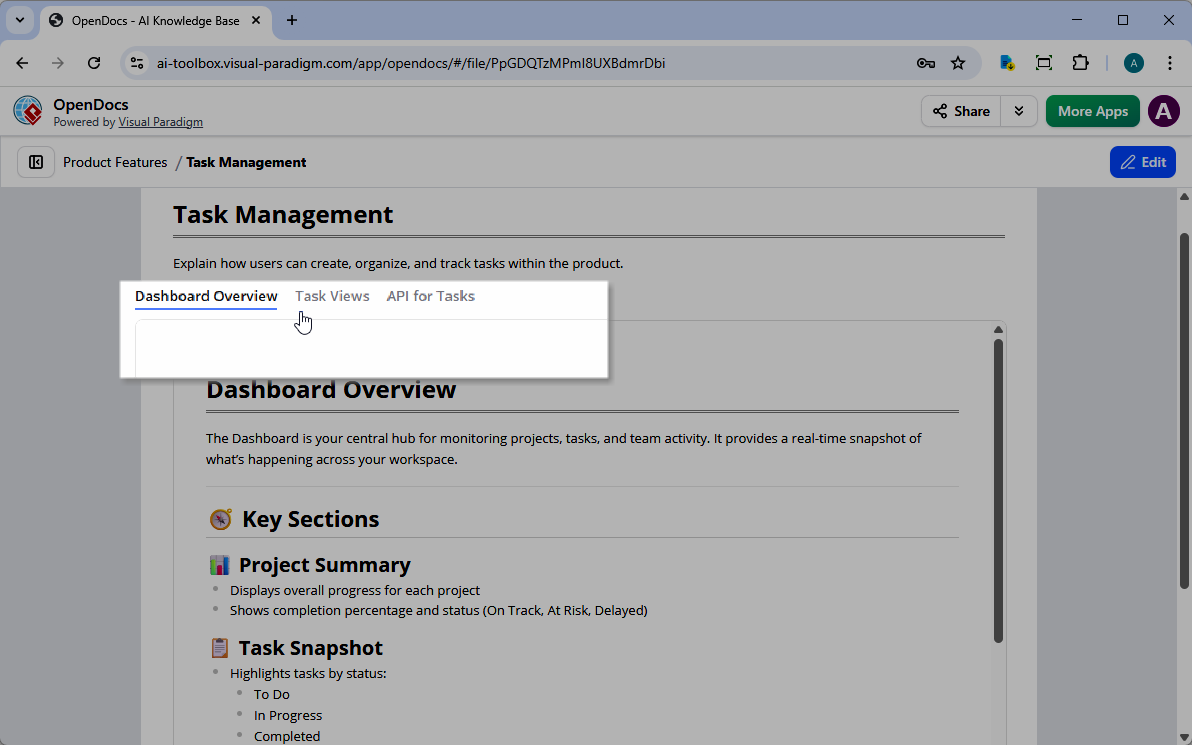
Ready to try it out?
Experience the power of organized documentation firsthand.
What is the Tabbed Group Component?
The Tabbed Group feature is a powerful layout element designed for advanced content categorization. Instead of forcing users to scroll through endless text, you can now categorize data into horizontal tabs. It is the perfect solution for technical manuals, project wikis, and any comprehensive knowledge management tool setup.
How to Use Tabbed Groups in OpenDocs
Setting up your first tabbed group is intuitive and takes only a few clicks. Follow these simple steps to get started:
1. Insert the Component
While editing your page in OpenDocs, place your cursor where you want the tabs to appear. Click the “Insert Tab” button on the top toolbar. A tabbed group container will be added to your document immediately.
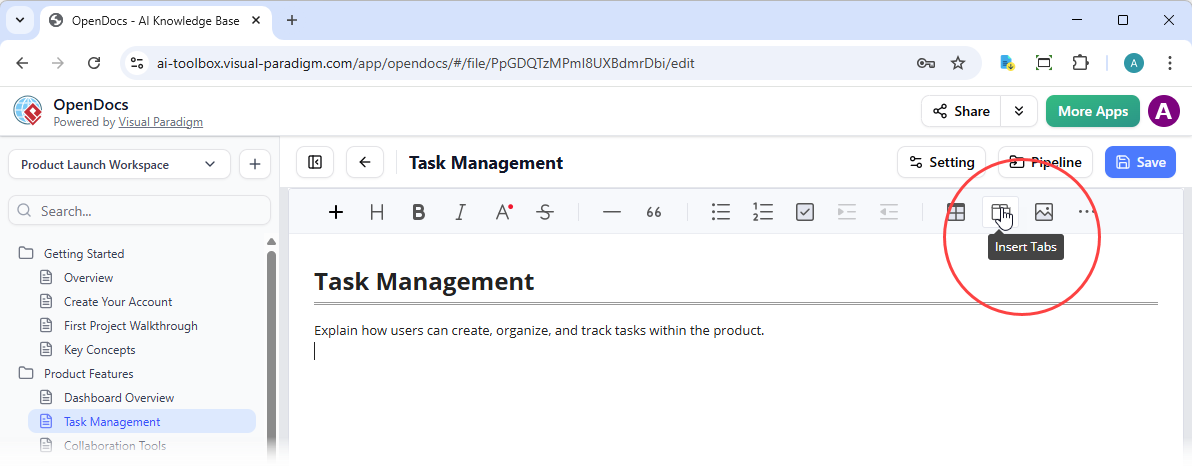
2. Configure Your Content
Click on the “Configure Tabs” button to open the settings window.
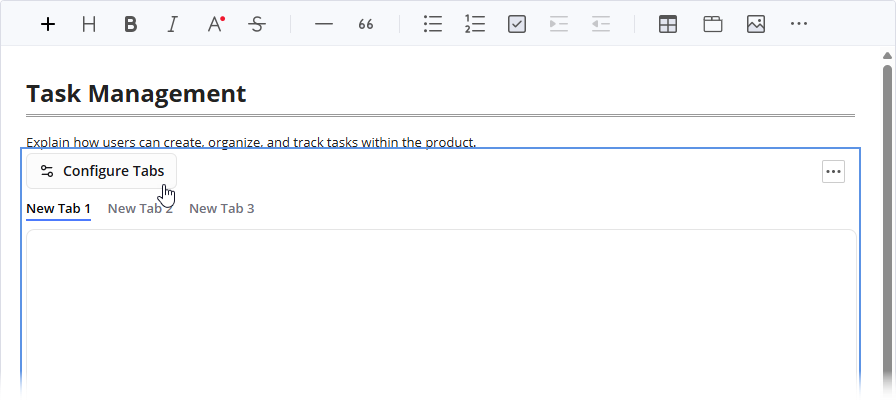
Here, you have total control over the layout:
- Adjust Dimensions: Select “Custom” to enter a specific height in pixels (px) to ensure your content fits perfectly.
- Add New Tabs: Click the “Add Tab” button at the bottom left to expand your group.
- Custom Captions: Edit the tab labels directly under the Caption column.
3. Choose Your Tab Body Type
OpenDocs offers four versatile content types for your tab bodies:
- New Document Page: Create and embed a fresh page directly within the tab.
- New Component Page: Embed specific components, such as diagrams or charts, as a dedicated tab page.
- Existing Pages: Select multiple existing pages to create a Table of Contents (TOC) tree. This shows a navigation tree on the left and the page content on the right—ideal for related sub-topics.
- Existing Link: Load external websites or web tools directly into the tab body via an iframe.
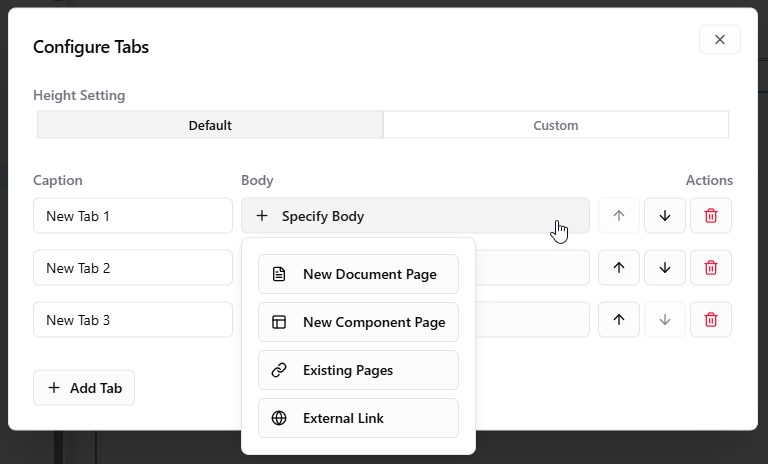
4. Save and Preview
Once you have finished configuring your tabs, simply click the “X” to return to the editor. Your content is now neatly tucked into an interactive, professional tabbed interface.
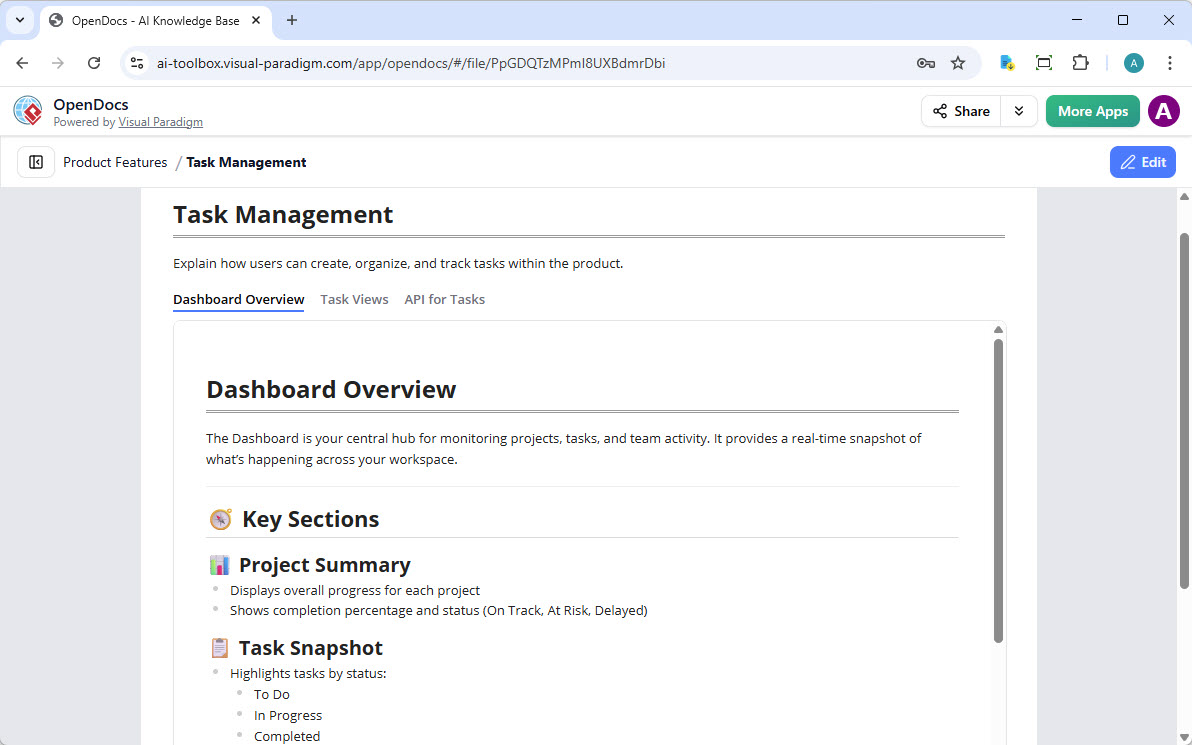 Screenshot of OpenDocs Tabbed Group – Tab body linked to a new page
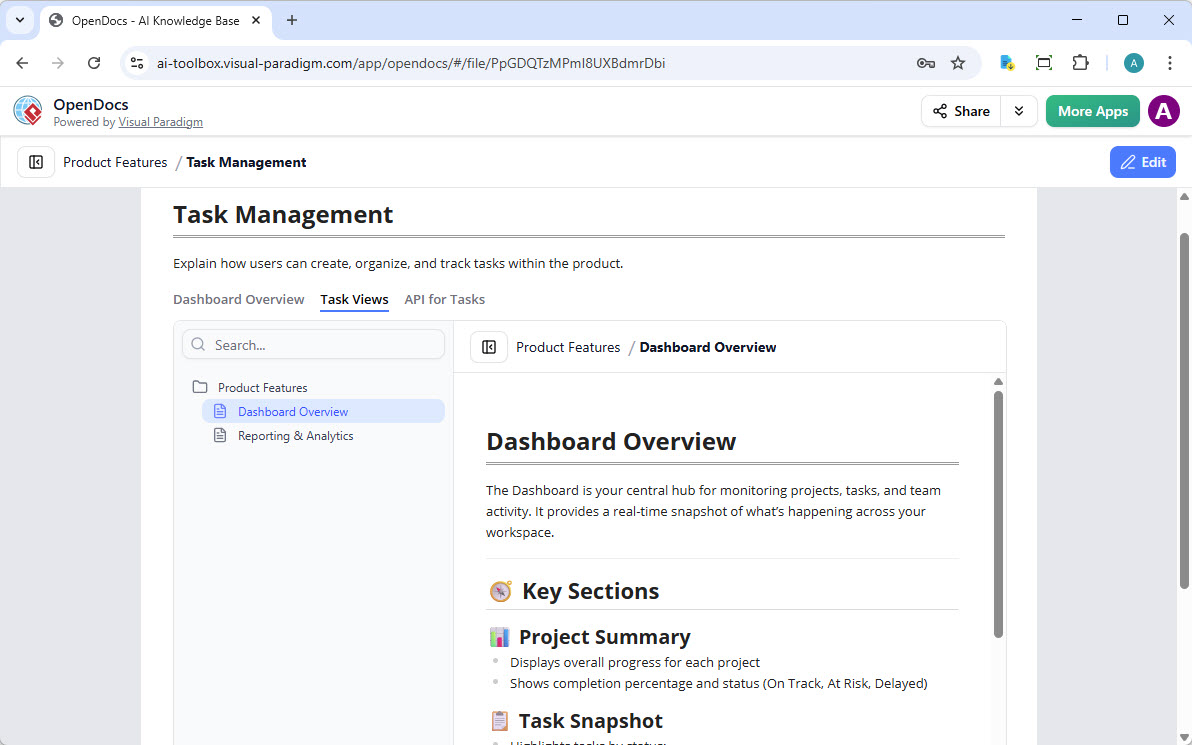
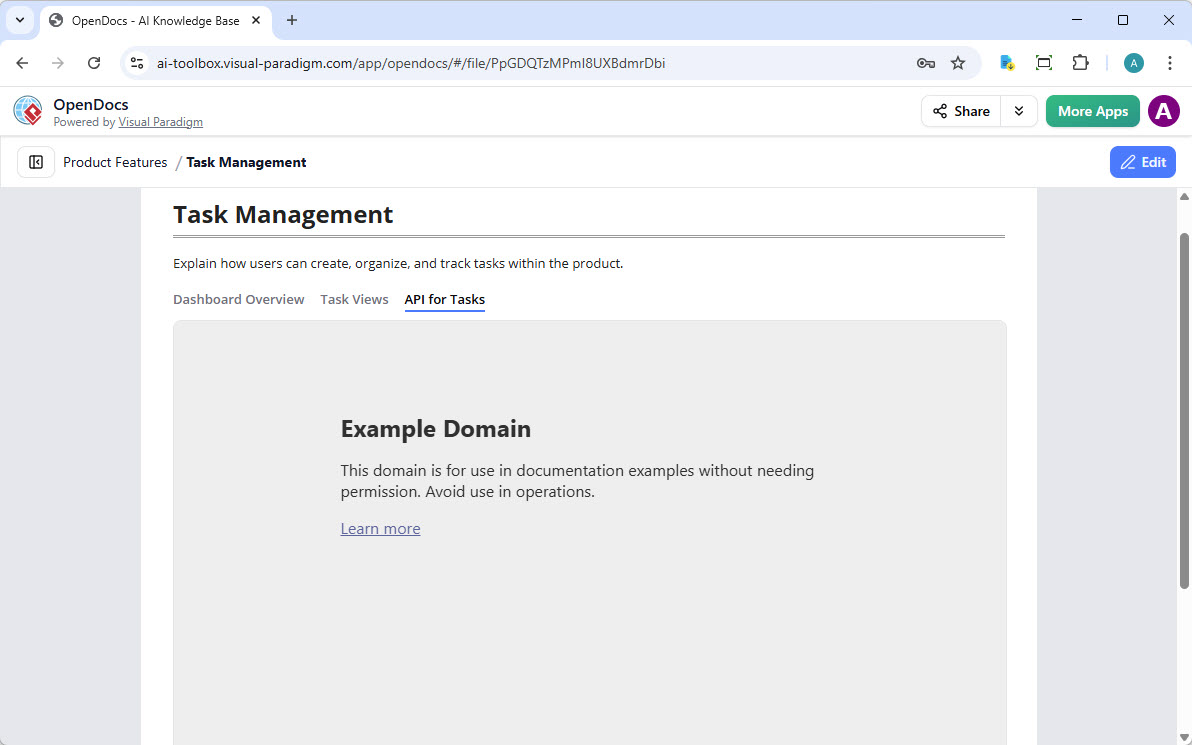
Summary
Whether you are building a corporate wiki or a technical guide, the Tabbed Group component makes OpenDocs an even more robust knowledge management platform. By grouping related content, you reduce cognitive load for your users and make your documentation look professional and modern.
Visit our home page to learn more about our features, or jump straight into the OpenDocs app to start building today!
Related posts:
 New in OpenDocs: Visualize Heritage with Professional Family Trees
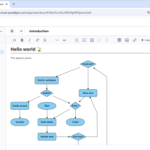 Exciting Update: AI Flowchart Generator Now Live in OpenDocs – Create Professional Flowcharts from Text Instantly
 Browse Share History: Stay Organized with OpenDocs
 From Notes to AI Insights: Visual Paradigm NotesKeep & Conversational AI in Action