
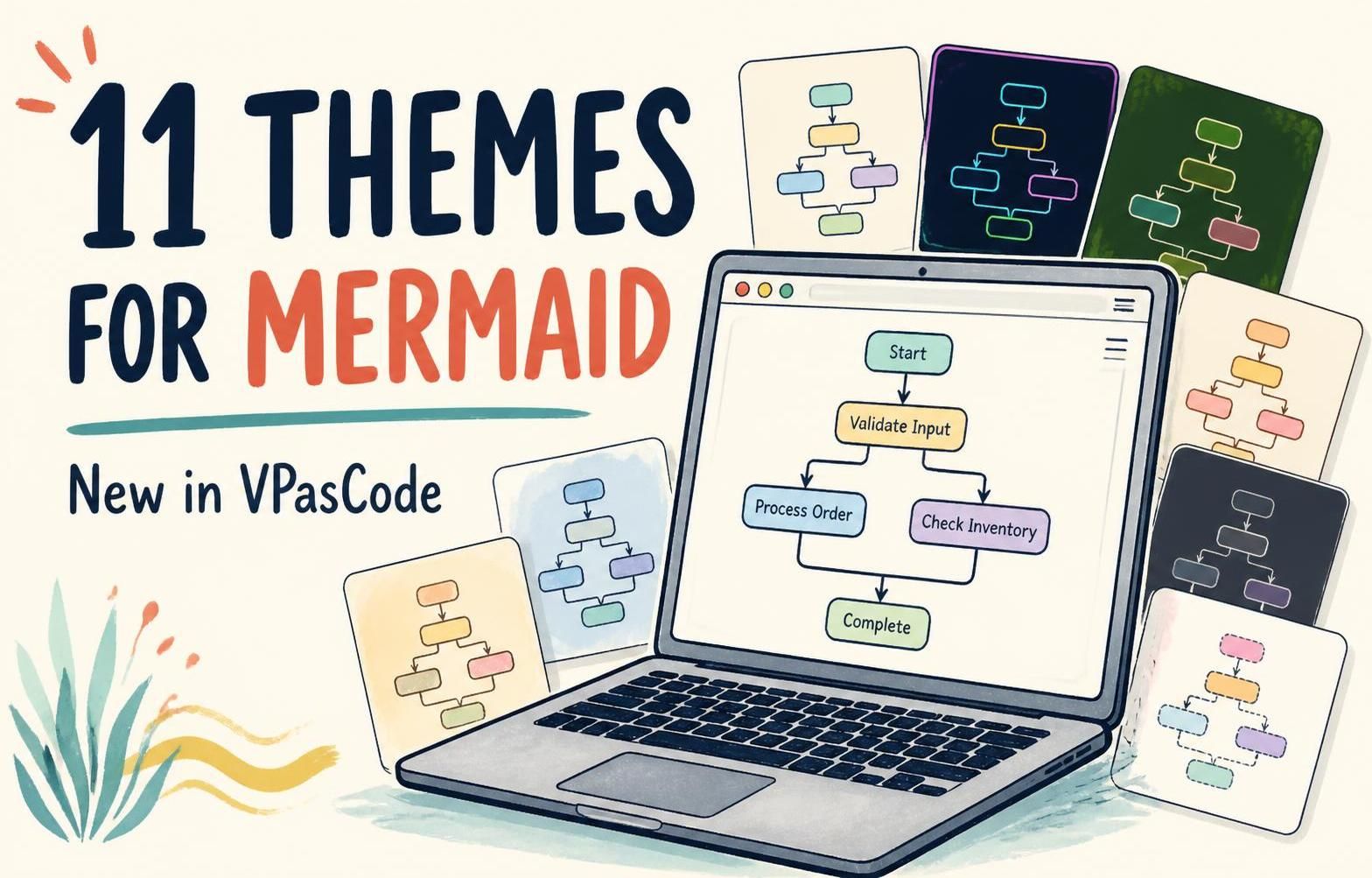
Good news for Mermaid users: Visual Paradigm VPasCode now supports 11 themes for Mermaid diagrams. Choose from styles including default, dark, forest, neutral, and the newer neo and redux variations—all from the theme menu in the diagram viewer.
VPasCode is an online diagram-as-code editor where you can write Mermaid code and view the rendered diagram. With this update, it’s easier to tailor a diagram’s appearance to your preference, the context where it will be used, or the visual conventions of your project—without needing to redesign the diagram’s content.
Learn more about Visual Paradigm VPasCode, or open the VPasCode app and try a theme with your Mermaid code.
Why Mermaid themes matter
A diagram’s visual style can affect how easily people read and understand it. A theme influences the colors and overall presentation of a Mermaid diagram, helping you choose an appearance that fits its audience and destination. For example, you might prefer a darker look for a dark-background workspace, a more subdued style for formal documentation, or a distinctive palette that helps diagrams stand out in a presentation.
The new theme choices make it more convenient to explore different visual treatments while keeping the underlying Mermaid diagram code and its meaning in focus. Instead of treating styling as an afterthought, you can quickly compare options in the viewer and select the one that best supports your work.
11 Mermaid themes to choose from
VPasCode now supports the following Mermaid themes:
defaultneutraldarkforestbaseredux-colorredux-dark-colorreduxredux-darkneoneo-dark
Each theme offers another option for presenting a Mermaid diagram. Use the examples below to compare the available looks and see how a theme can change the visual character of a diagram.
Default
The default theme is a straightforward starting point for a Mermaid diagram. Choose it when you want a familiar general-purpose style.
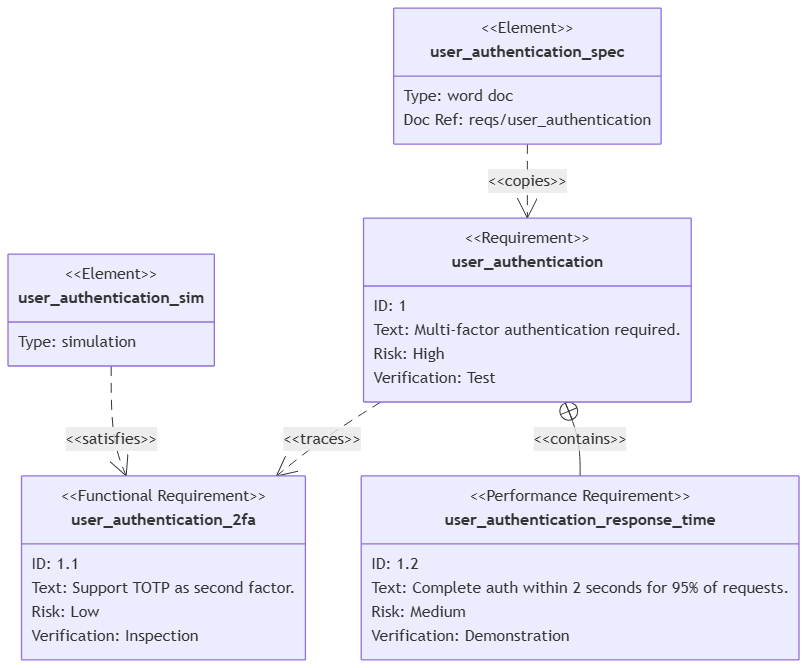
Edit this Mermaid diagram in VPasCode
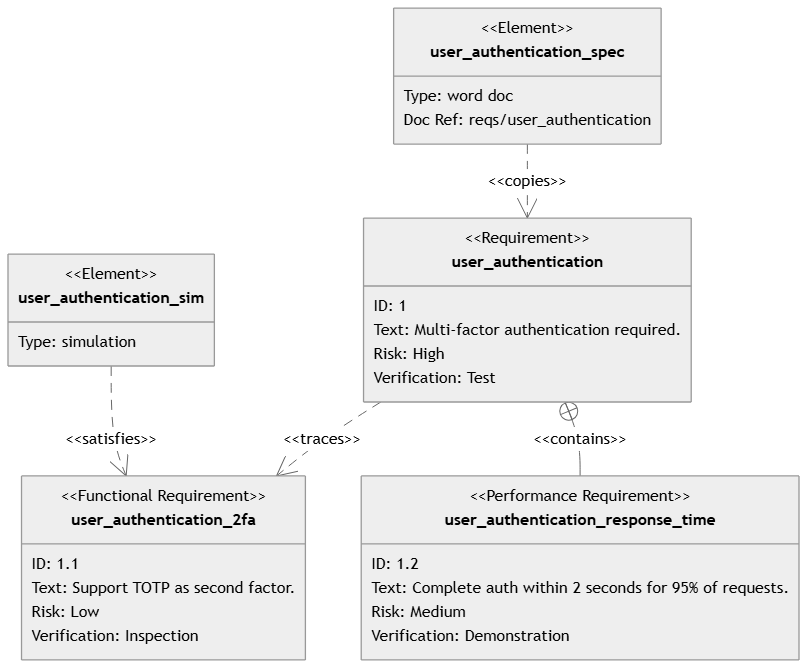
Neutral
The neutral theme gives you another option when you want a restrained, balanced visual presentation for documentation or diagrams shared across a team.
Dark
The dark theme provides a dark appearance for diagrams that suit a darker visual environment or a presentation style with a dark background.
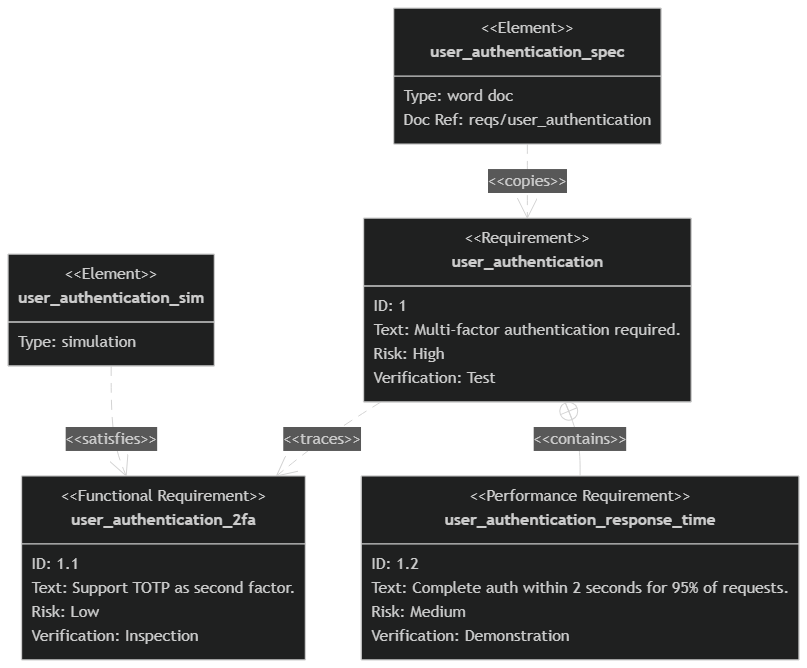
Edit this Mermaid diagram in VPasCode
Forest
The forest theme offers a distinct alternative to the default look. Consider it when you want your Mermaid diagram to have a more characterful palette.
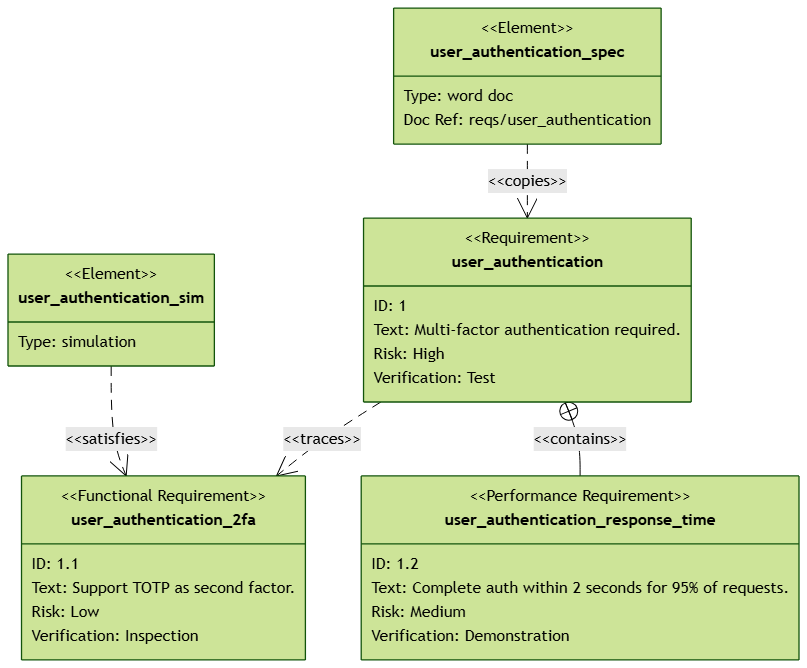
Edit this Mermaid diagram in VPasCode
Base
The base theme is another available styling option to explore. Try it with your diagram and compare the result with the other themes in the VPasCode viewer.
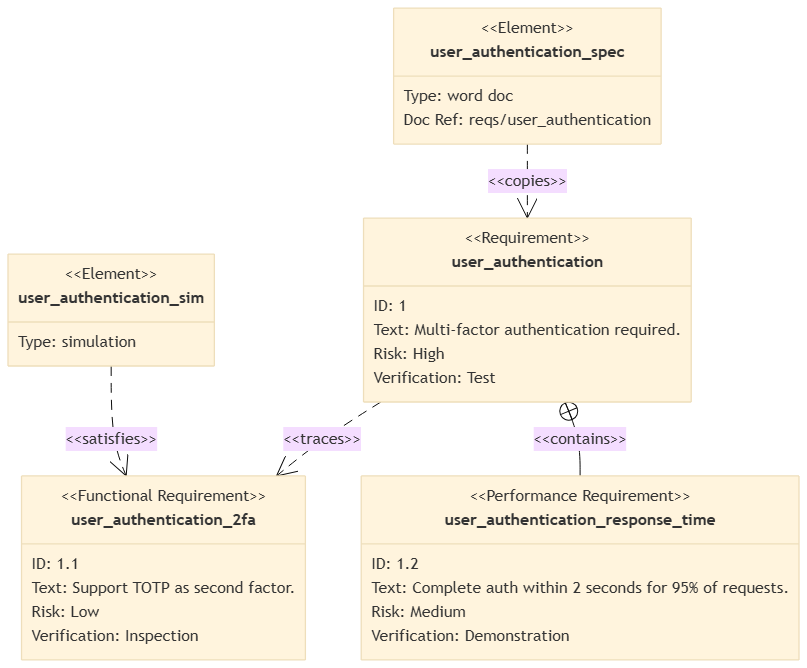
Edit this Mermaid diagram in VPasCode
Redux Color
The redux-color theme adds a color-focused choice to the theme list. Preview it to see whether its visual treatment works well for your diagram and intended use.
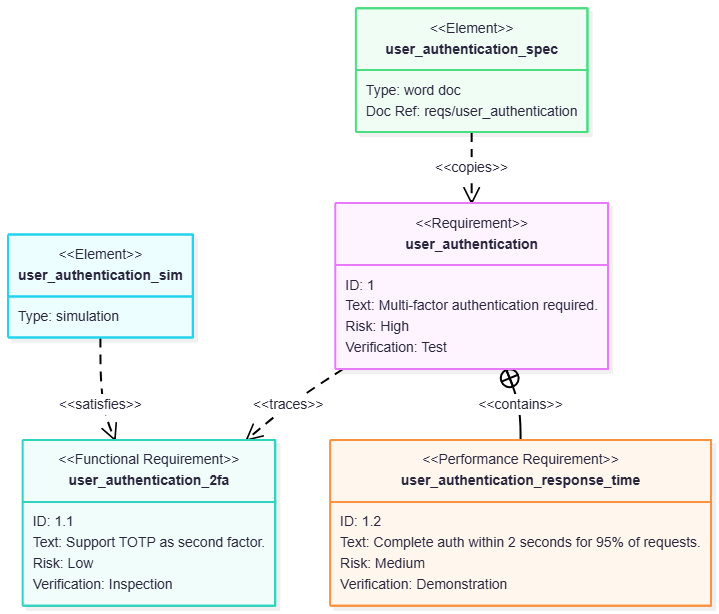
Edit this Mermaid diagram in VPasCode
Redux Dark Color
The redux-dark-color theme combines the named Redux dark and color variations. It gives you another option to compare when selecting a Mermaid diagram theme.
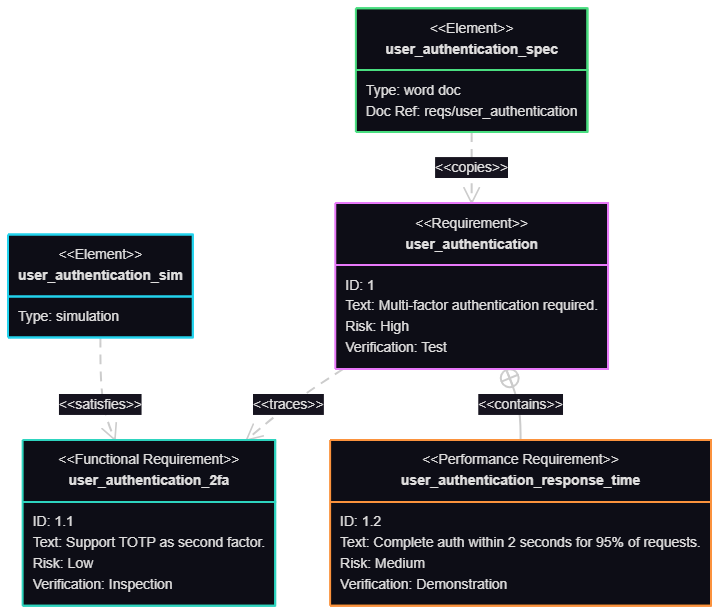
Edit this Mermaid diagram in VPasCode
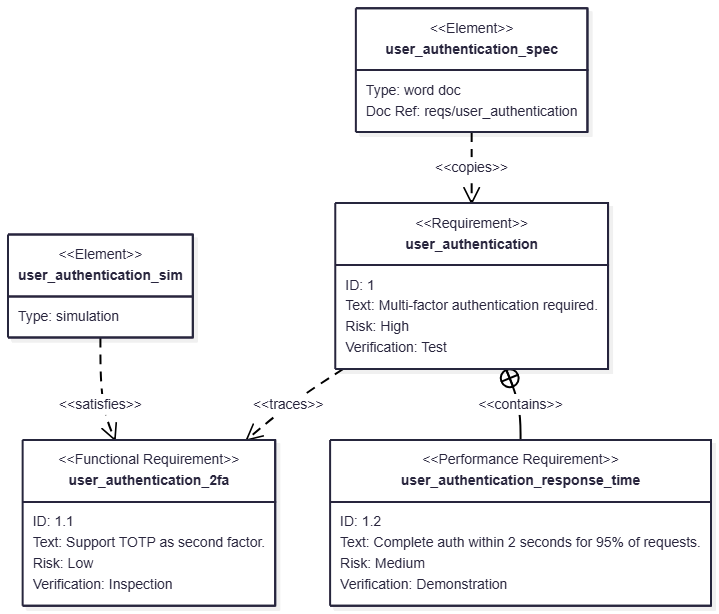
Redux
The redux theme provides a separate Redux style in the theme menu. Preview it alongside the color and dark variants to find the option that suits your diagram.
Edit this Mermaid diagram in VPasCode
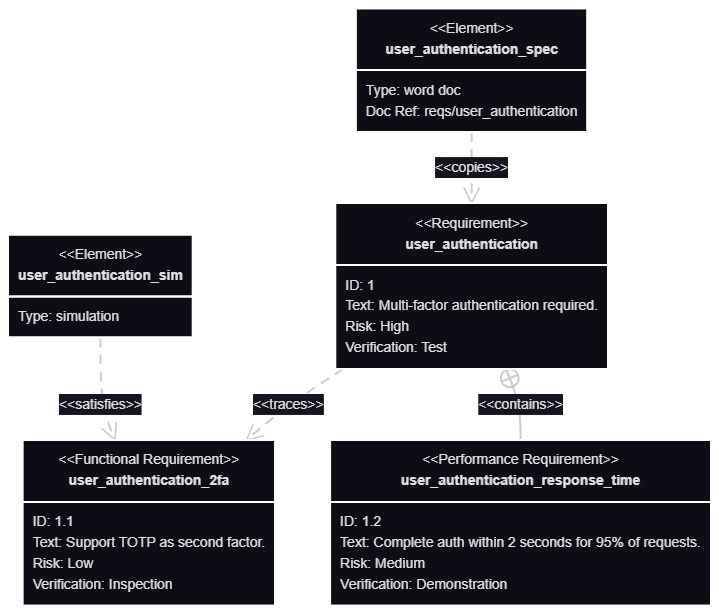
Redux Dark
The redux-dark theme offers a darker Redux option. Compare its appearance with redux and redux-dark-color in the viewer.
Edit this Mermaid diagram in VPasCode
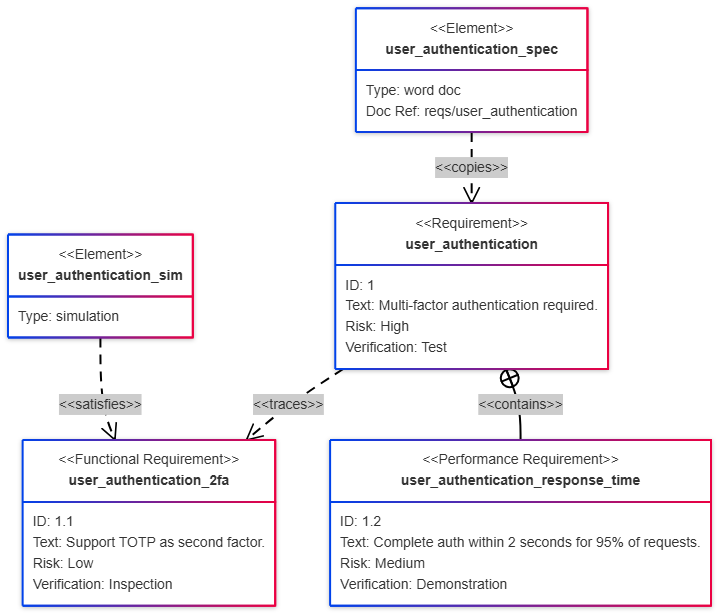
Neo
The neo theme is a further alternative for Mermaid users looking for a different visual presentation. Try it with the same diagram to make an easy side-by-side comparison.
Edit this Mermaid diagram in VPasCode
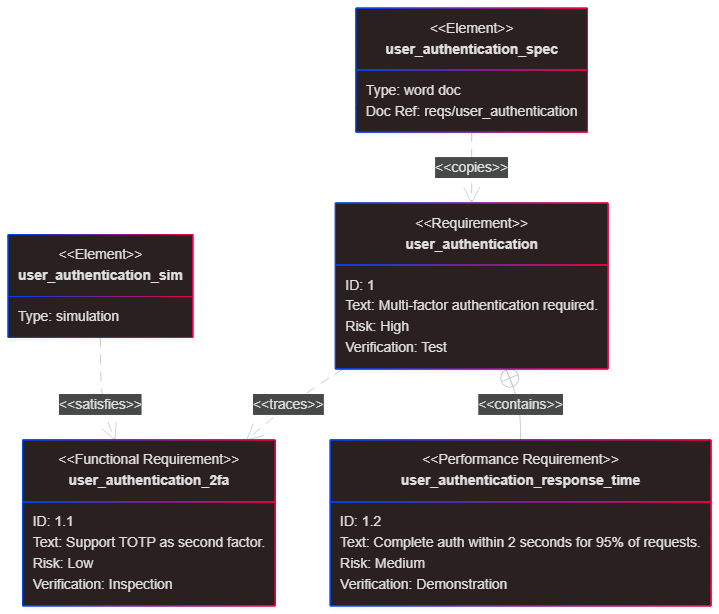
Neo Dark
The neo-dark theme provides a dark variant in the Neo theme family, giving you another choice when considering a darker diagram style.
Edit this Mermaid diagram in VPasCode
How to select a Mermaid theme in VPasCode
- Open VPasCode and make sure you are editing Mermaid code.
- Look at the top-left area of the diagram viewer.
- Click the Theme drop-down menu.
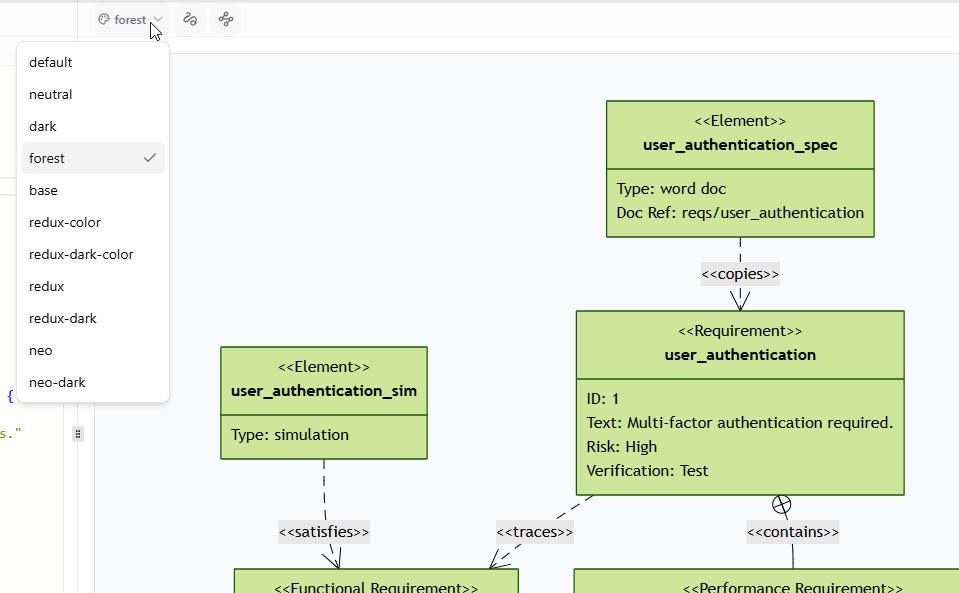
- Select one of the 11 available themes.
- Review the rendered diagram and choose the style that works best for your use.
There’s no need to change the diagram’s structure just to compare its appearance: select a different theme from the menu and review the result. You can test several options before settling on a style for your workflow.
More flexibility for everyday diagramming
Theme selection is useful across many Mermaid diagramming tasks, from explaining a process in a flowchart to documenting a system or sharing a diagram with colleagues. A suitable visual style can help a diagram feel at home in a report, project document, presentation, or personal workspace. The expanded theme list gives you more choice when adapting Mermaid diagrams to those different settings.
This enhancement also makes it easier to explore styling without interrupting a code-based workflow. Write and edit Mermaid code in VPasCode, then use the theme menu to preview different appearances. You can focus on communicating the structure and relationships in your diagram while choosing a presentation that feels right for its audience.
Try the new Mermaid themes
Open your Mermaid code in VPasCode, select a theme from the viewer’s drop-down menu, and see which style works best for your diagram. With 11 Mermaid themes available—including default, dark, forest, redux, and neo options—there are more ways to make your diagrams fit the way you work.
Open VPasCode and try the Mermaid themes, or visit the VPasCode home page to learn more about the online diagram-as-code editor.