
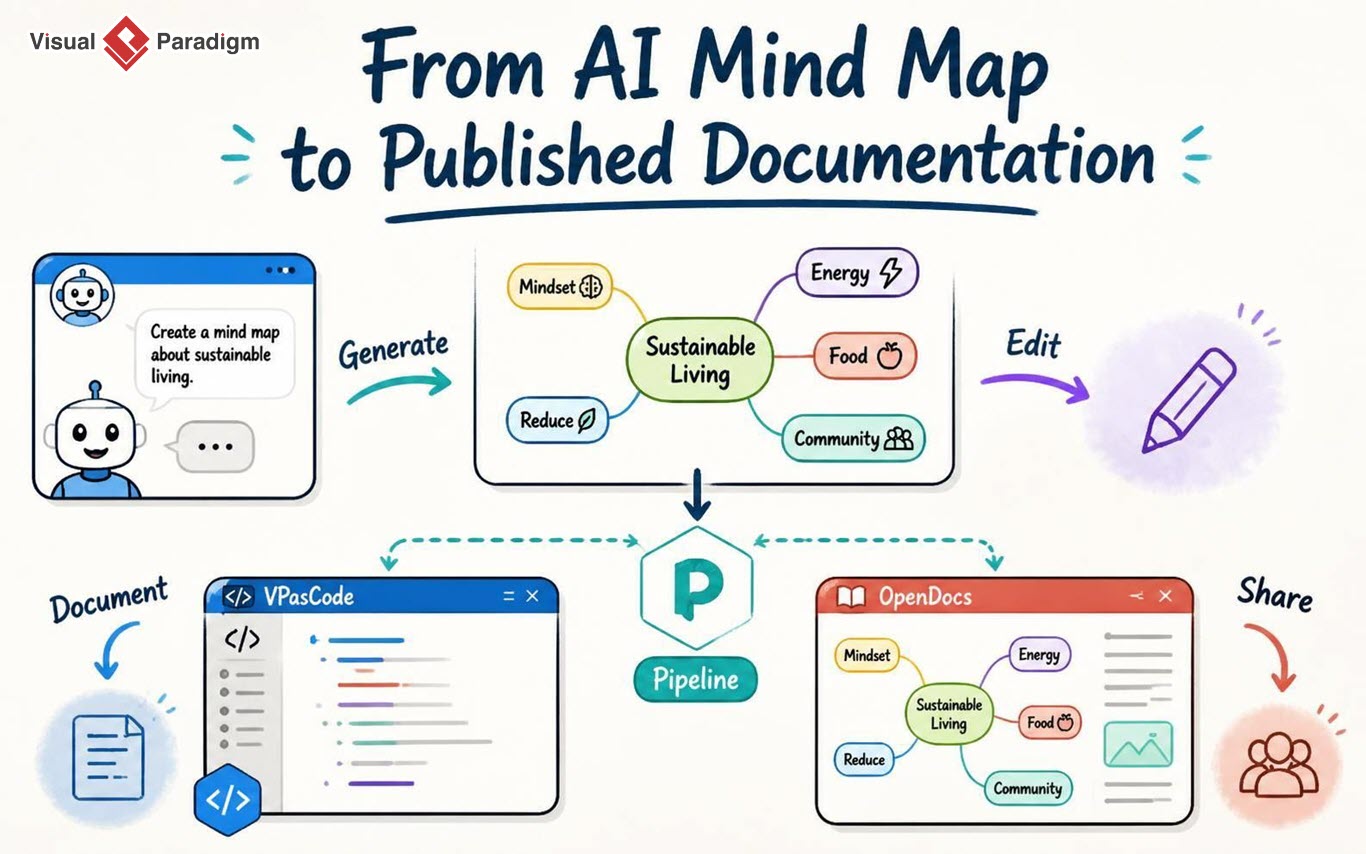
Visual Paradigm has enhanced its AI Diagramming Chatbot with Pipeline support for generated MarkMap diagrams. Users can now move an AI-generated mind map from the chatbot into the Visual Paradigm product ecosystem for further editing, documentation, publishing, and collaboration.
What Is New?
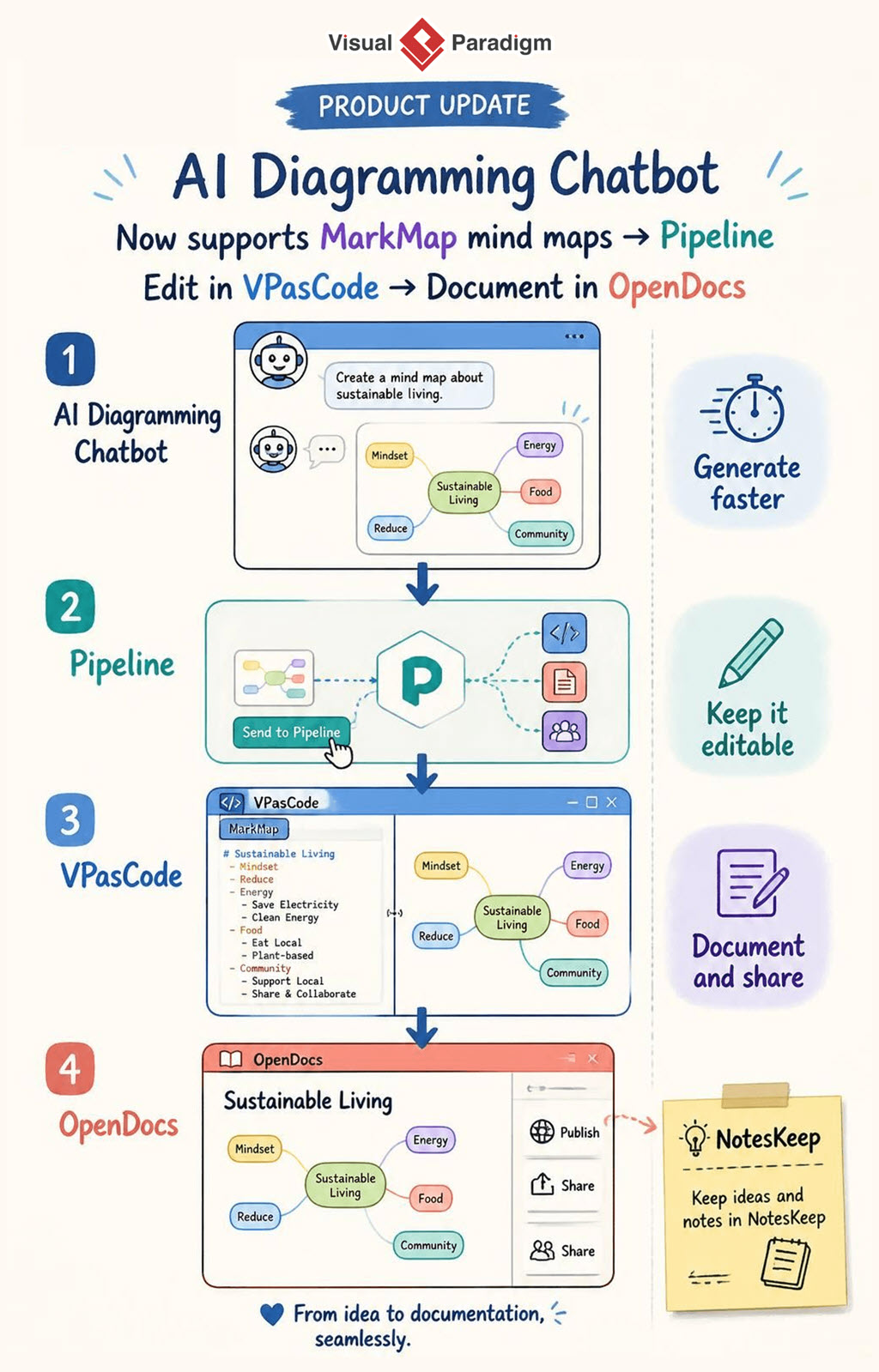
The AI Diagramming Chatbot can generate mind maps using MarkMap syntax. With the new Pipeline integration, users can send a generated MarkMap directly from the diagram viewer to Visual Paradigm Pipeline.
Once the MarkMap has been sent to Pipeline, it becomes available to connected applications, including:
- VPasCode, for editing and refining the MarkMap source.
- OpenDocs, for inserting the mind map into a documentation page, publishing it, and sharing it with others.
The result is a practical AI mind map workflow that connects ideation, diagram-as-code editing, documentation, and collaboration.
Why This Enhancement Matters
AI can help users transform a short description into a structured mind map in seconds. However, generating the first version of a diagram is only the beginning of the work. In many real-world situations, the mind map needs to be reviewed, reorganized, expanded, explained, and shared with other people.
Previously, users might have needed to export an image, copy diagram code manually, or recreate the structure in another application. These extra steps can interrupt the creative process and make it harder to maintain a consistent version of the content.
Pipeline reduces this friction by providing a bridge between Visual Paradigm applications. A MarkMap generated by the AI mind map generator can continue through the workflow without being treated as a disposable image. Users can preserve the editable structure, refine the content, and reuse the mind map in formal documentation.
This is especially useful for teams that use mind maps to organize requirements, explore ideas, plan projects, explain systems, structure research, or communicate complex topics.
From Natural-Language Prompt to Published Mind Map
The enhanced workflow can be summarized as:
- Describe the topic in the AI Diagramming Chatbot.
- Generate a mind map in MarkMap syntax.
- Send the generated MarkMap to Pipeline.
- Edit or refine the MarkMap in VPasCode if necessary.
- Insert the mind map into OpenDocs.
- Document, publish, and share the completed content.
This workflow combines the speed of an AI mind map tool with the control of text-based diagram editing and the communication capabilities of a documentation platform.
How to Generate an AI Mind Map
To create a mind map, open the AI Diagramming Chatbot and describe the subject you want to explore. You can explicitly ask for a MarkMap or simply ask the chatbot to generate a mind map.
For example, enter the following prompt:
Generate a structured mind map breaking down personal financial planning into budgeting, debt management, emergency savings, long-term investments, and estate planning.
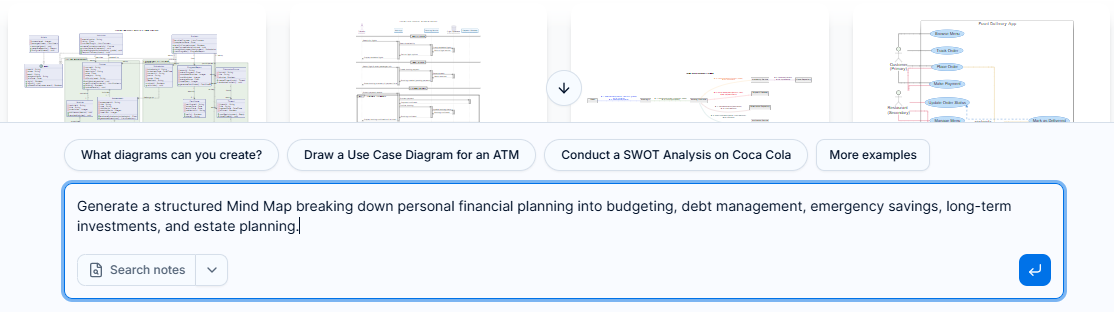
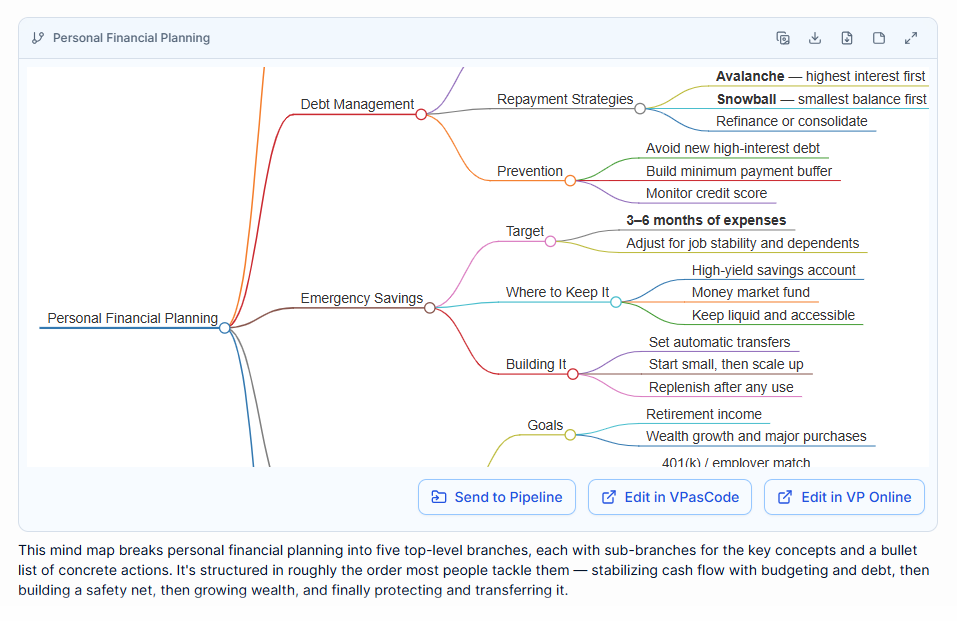
The AI Diagramming Chatbot generates a structured mind map using MarkMap syntax. You can then review the generated result in the diagram viewer and continue refining it through conversation if needed.
For example, you can ask the AI to:
- Add new branches or subtopics.
- Reorganize the hierarchy.
- Expand a specific topic.
- Make the structure more suitable for beginners or specialists.
- Convert a list of ideas into a more logical sequence.
- Summarize a large topic into a concise mind map.
- Use the mind map as the outline for a document, presentation, or project plan.
This makes the chatbot useful not only as an AI mind map generator, but also as a conversational workspace for developing and improving ideas.
How to Send a MarkMap to Pipeline
After the AI Diagramming Chatbot has generated a MarkMap:
- Locate the generated diagram in the diagram viewer.
- Click Send to Pipeline at the bottom of the diagram viewer.
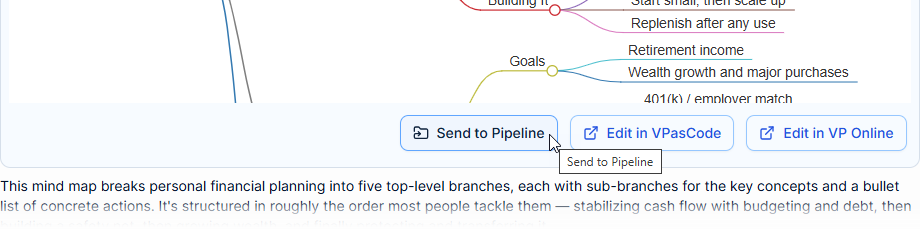
- Enter a name for the diagram, such as Personal Financial Planning.
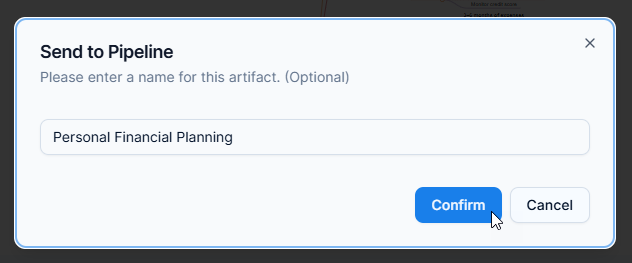
- Click Confirm.
The MarkMap is then available in Pipeline for use in connected Visual Paradigm applications. Naming the diagram clearly makes it easier to identify and reuse later, particularly when you are working with multiple diagrams or several AI-generated mind maps.
Edit the AI-Generated Mind Map in VPasCode
AI-generated content is an excellent starting point, but users often need precise control over the structure, wording, hierarchy, and level of detail. VPasCode provides a code-based editing environment for refining the MarkMap source directly.
To edit a MarkMap in VPasCode:
- Open the VPasCode editor.
- Click Pipeline at the top of the page.

- Locate the MarkMap sent from the AI Diagramming Chatbot.
- Click Import.
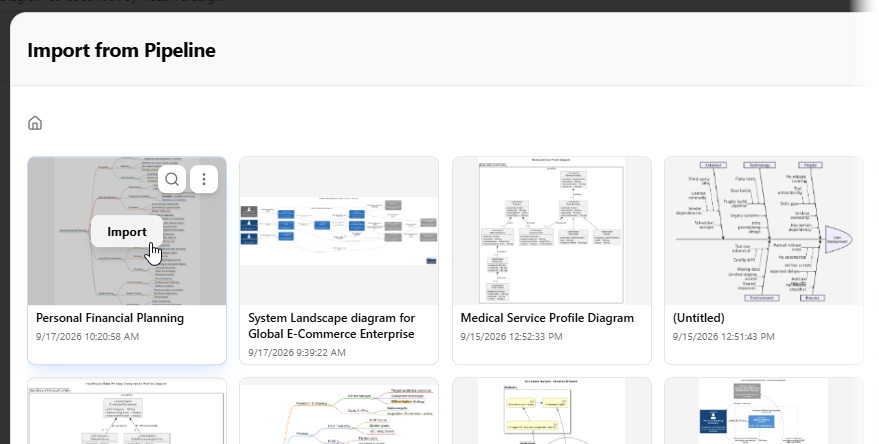
- Review the loaded MarkMap content in the editor.
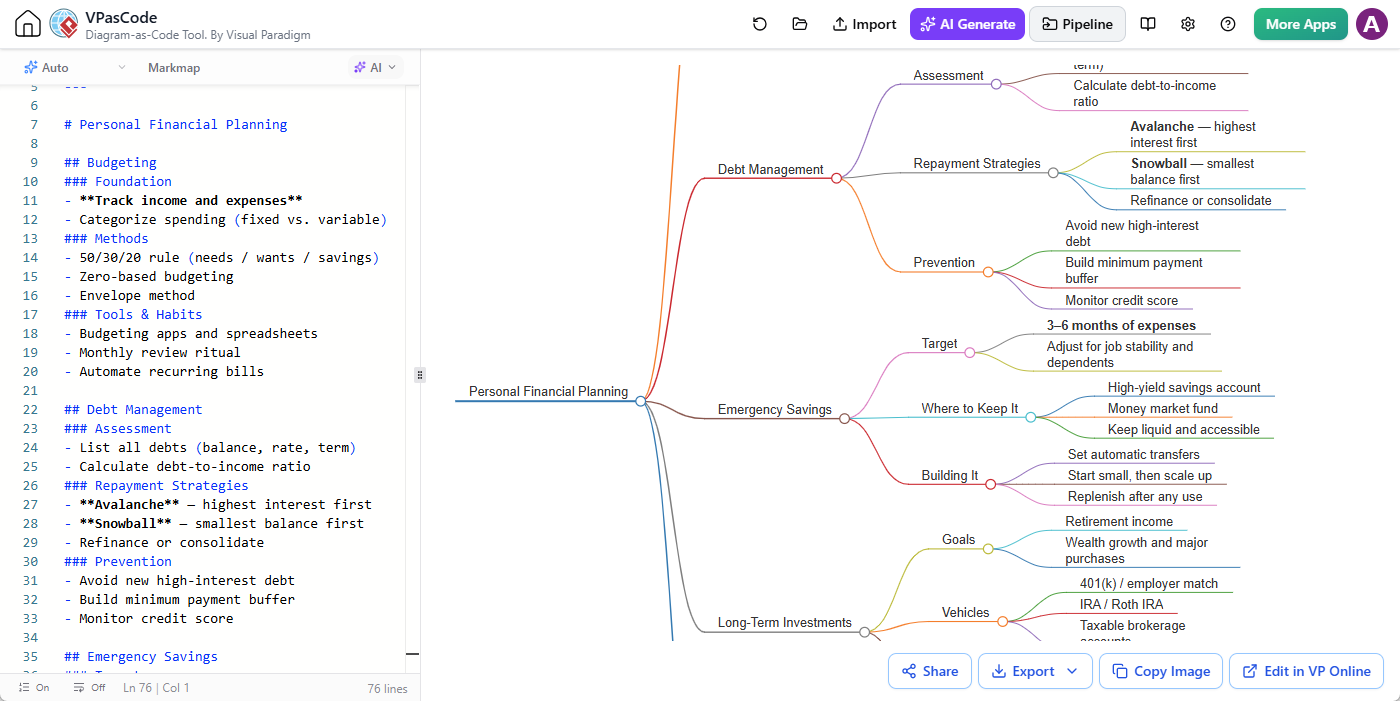
- Edit the text, hierarchy, branches, and structure as needed.
Because the MarkMap remains text-based, it can be adjusted quickly. You can rename nodes, move information to a different branch, add supporting topics, remove unnecessary content, or restructure the mind map to better match your audience and purpose.
This is particularly valuable for technical users, analysts, architects, educators, and content creators who want the efficiency of an AI mind map generator without giving up control over the final result.
Use OpenDocs to Document and Publish the Mind Map
A mind map becomes more useful when it is presented with context. OpenDocs enables you to place the MarkMap alongside explanations, notes, requirements, decisions, procedures, and other supporting information.
To insert the MarkMap into an OpenDocs page:
- Open Visual Paradigm OpenDocs.
- Create a new page or open an existing page.
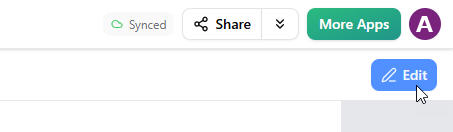
- Click Edit at the top right of the page.
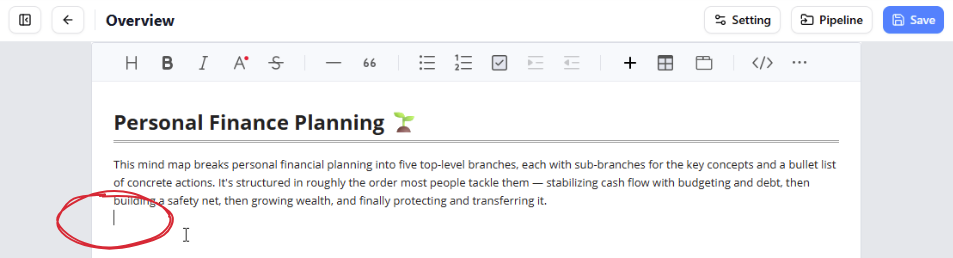
- Place the text cursor where you want to insert the mind map.
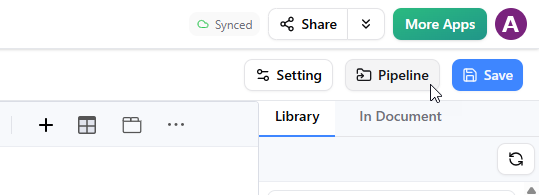
- Click the Pipeline button at the top right to open the Pipeline pane.
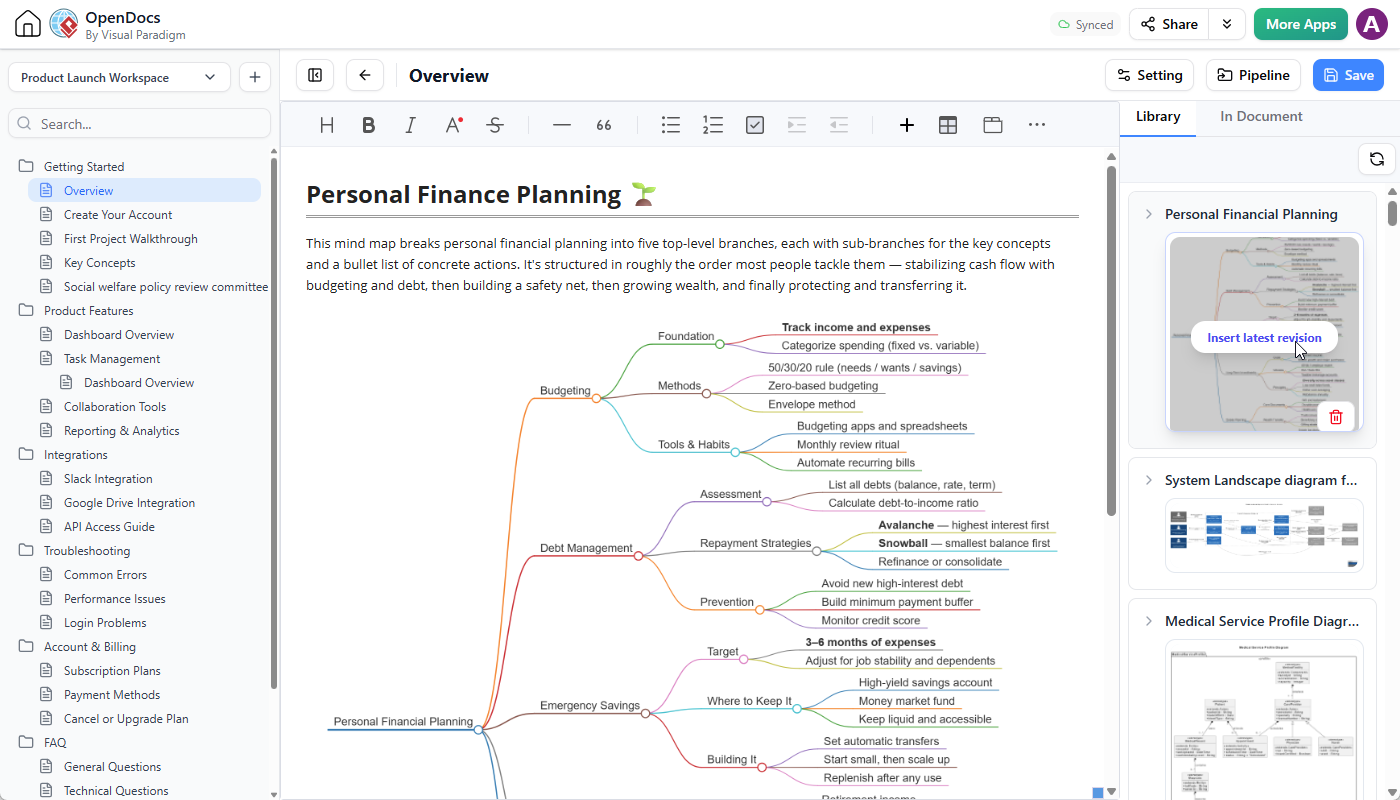
- Find the MarkMap sent from the AI Diagramming Chatbot.
- Click the MarkMap to insert it into the page.
- Continue writing and formatting the documentation.
You can use the mind map as a visual overview at the beginning of a page, as an outline for a longer explanation, or as a navigation aid for a complex topic. After adding the necessary context, you can publish the page and share it with colleagues, customers, stakeholders, or other members of your organization.
Key Benefits of the AI Mind Map and Pipeline Workflow
Move from ideas to structured content faster
The AI Diagramming Chatbot helps transform natural-language instructions into a structured mind map quickly. Instead of starting with a blank canvas, you can begin with an organized first draft and improve it through conversation or code-based editing.
Keep the content editable
Sending a MarkMap to Pipeline preserves the text-based diagram content. This is more flexible than working only with a static image. The mind map can be refined in VPasCode and adapted as your ideas, requirements, or project plans change.
Reduce application switching and manual rework
Pipeline helps connect the AI Diagramming Chatbot, VPasCode, and OpenDocs. Users do not need to manually download, copy, recreate, and re-upload the same content across multiple tools.
Combine visual thinking with documentation
Mind maps are effective for exploring relationships and organizing information. OpenDocs adds the written context needed to explain those relationships. Together, they support both visual understanding and detailed knowledge sharing.
Improve collaboration
A generated mind map can be refined for a specific audience and then included in a shareable documentation page. This makes it easier for teams to review ideas, align on scope, communicate decisions, and maintain a common understanding.
Support reusable knowledge
Once a MarkMap has been sent to Pipeline, it can become part of a broader workflow. The same content can be edited, documented, published, and reused in different contexts instead of being limited to the original chatbot conversation.
Practical Use Cases
Project planning
Use an AI mind map generator to break a project into goals, deliverables, milestones, risks, resources, and responsibilities. Refine the structure in VPasCode, then document the project plan in OpenDocs.
Requirements analysis
Generate a mind map that organizes business needs, user groups, functional requirements, non-functional requirements, constraints, and open questions. The result can serve as an early requirements overview before more detailed analysis begins.
Software architecture and system analysis
Use the AI mind map tool to organize systems, services, integrations, data sources, security concerns, and operational responsibilities. After refinement, insert the mind map into architecture documentation to provide readers with a high-level overview.
Research and knowledge organization
Turn a broad research subject into categories, themes, sources, questions, and conclusions. The mind map can act as a visual index for a longer research document.
Training and education
Teachers, trainers, and instructional designers can generate a mind map for a course, lesson, concept, or study guide. The result can be edited for clarity and published with explanatory content in OpenDocs.
Business strategy
Map business objectives, market factors, customer segments, competitive considerations, initiatives, and expected outcomes. A structured mind map can help teams prepare for workshops and strategy discussions.
Content planning
Use an AI mind map generator to create an outline for an article, website, knowledge base, presentation, or product guide. The structure can then be refined and used as the foundation for polished documentation.
Example Workflow: Personal Financial Planning
Suppose you want to create an overview of personal financial planning. Start with the following prompt in the AI Diagramming Chatbot:
Generate a structured mind map breaking down personal financial planning into budgeting, debt management, emergency savings, long-term investments, and estate planning.
The AI mind map generator can produce a structure with branches such as:
- Budgeting
- Debt management
- Emergency savings
- Long-term investments
- Estate planning
You can then ask the AI to expand each branch. For example, the budgeting branch could include income tracking, fixed expenses, variable expenses, savings targets, and monthly reviews. The debt management branch could include high-interest debt, repayment strategies, refinancing, and credit utilization.
After sending the MarkMap to Pipeline, you can open it in VPasCode and adjust the hierarchy. You might rename nodes, combine overlapping topics, or add a branch for financial goals. Finally, insert the completed mind map into an OpenDocs page and add explanations, recommendations, definitions, and links to supporting resources.
The final result is more than an AI-generated diagram. It is a structured, editable, and documented knowledge asset.
Did You Know? – Save Related Content with NotesKeep
In addition to Pipeline, the AI Diagramming Chatbot supports saving useful content to Visual Paradigm NotesKeep. This is useful when you want to preserve the generated diagram, the chatbot conversation, or a selected part of the response for future reference.
To save content to NotesKeep:
- Click the Save to NotesKeep button at the top right of the diagram viewer to save the generated diagram.
- Use the save option below the conversation to keep the complete conversation as a note.
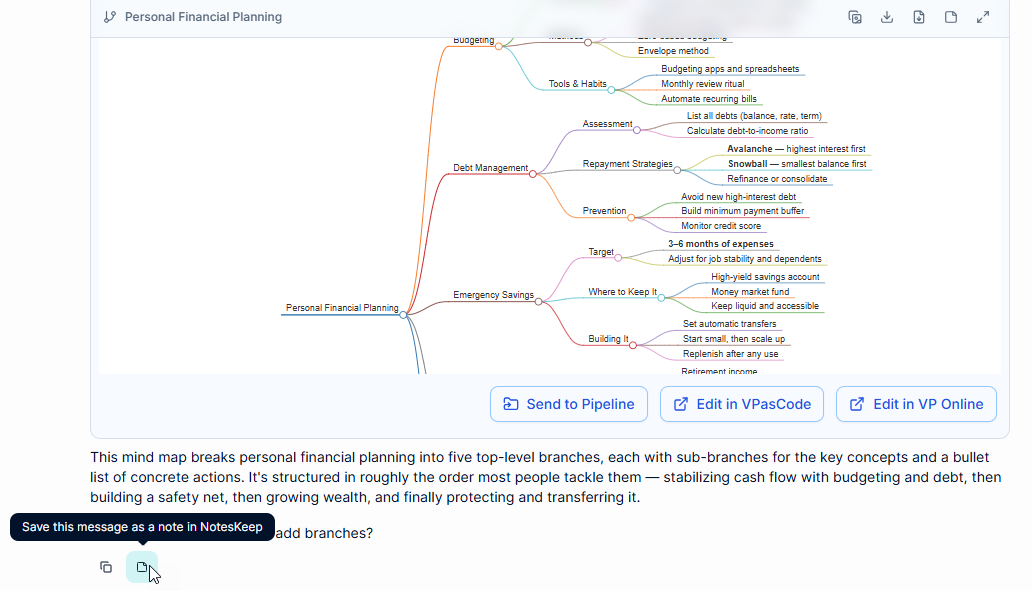
- Select a section of text and click the floating Send to NotesKeep button to save a specific excerpt.
NotesKeep is separate from the Pipeline workflow, but it provides another way to preserve useful outputs from AI-assisted diagramming. Together, Pipeline and NotesKeep help users turn chatbot interactions into reusable work products and organized knowledge.
AI Mind Map Generator for a Connected Product Ecosystem
The new MarkMap-to-Pipeline capability demonstrates the value of connecting specialized applications within one product ecosystem.
The AI Diagramming Chatbot is optimized for conversational ideation and AI-assisted diagram generation. VPasCode provides a focused environment for editing diagram-as-code content. OpenDocs provides a space for documentation, publication, and sharing. Pipeline connects these stages so users can move from one type of work to another with less friction.
This connected approach supports a more efficient way to work:
- Explore: Describe an idea and generate a first draft with AI.
- Refine: Review the structure and make precise changes in VPasCode.
- Explain: Add written context and supporting information in OpenDocs.
- Share: Publish the page and make the result available to others.
- Reuse: Keep the diagram and related content available for future work.
For users looking for an AI mind map tool that supports more than one-time generation, this workflow provides a path from brainstorming to a finished, shareable deliverable.
Get Started with AI-Powered Mind Mapping
Whether you are planning a project, organizing research, analyzing requirements, preparing documentation, or explaining a complex subject, the Visual Paradigm AI Diagramming Chatbot can help you create a structured starting point quickly.
With Pipeline support, your MarkMap does not have to remain inside the chatbot. Send it to VPasCode for editing, move it into OpenDocs for documentation, and publish the finished result for your team or audience.
Try the AI Diagramming Chatbot now and discover a faster way to generate, refine, document, and share AI-powered mind maps.
Frequently Asked Questions
What is the new Pipeline enhancement?
The enhancement allows users to send a MarkMap generated by the Visual Paradigm AI Diagramming Chatbot to Pipeline. The MarkMap can then be imported into VPasCode for editing or inserted into OpenDocs for documentation and publishing.
Can the AI Diagramming Chatbot generate mind maps?
Yes. You can ask the chatbot to generate a mind map, or specifically request a MarkMap. The generated result uses MarkMap syntax and can be sent to Pipeline.
What is MarkMap?
MarkMap is a text-based format for representing hierarchical information as an interactive mind map. Because the content is text-based, it can be edited and reorganized more easily than a static image.
Where can I edit a MarkMap generated by the AI mind map generator?
You can send the MarkMap to Pipeline and import it into the VPasCode editor. There, you can edit the MarkMap content and refine its structure.
Can I add an AI-generated mind map to documentation?
Yes. In OpenDocs, open a page in editing mode, open the Pipeline pane, and select the MarkMap you want to insert. You can then add explanatory text and publish or share the page.
What is the difference between the AI mind map tool and VPasCode?
The AI Diagramming Chatbot helps generate and refine a mind map through natural-language conversation. VPasCode provides a code editor for users who want precise control over the MarkMap source and structure.
Can I save the chatbot conversation or diagram for later?
Yes. You can save the generated diagram, the complete conversation, or selected text to NotesKeep for future reference.
Related posts:
 Meet the All-New AI Diagram Chatbot V2: The Next Generation of Intelligent Visual Modeling
 Seamless Diagram Lifecycle Management: Enhance and Edit AI-Generated Diagrams in Visual Paradigm OpenDocs via VPasCode
 Enhance Your Workflow: Generate and Visualize Structured JSON with Visual Paradigm AI Chatbot
 Streamline Project Planning with the New AI Work Breakdown Structure Generator by Visual Paradigm