


In modern project management, teams are constantly drowning in a sea of scattered documentation. From messy handwritten meeting notes and whiteboard sketches to complex regulatory PDFs and financial spreadsheets, critical knowledge often gets lost in silos. Traditional note-taking tools let you capture information, but they fail to make it actionable. That is why we built Visual Paradigm NotesKeep—an advanced knowledge tool and note-taking tool designed to bridge the gap between static information capture and dynamic analysis.
Video Tutorial: The 4-Day Project Journey – From Chaos to Clarity
To demonstrate how this ecosystem functions in a real-world environment, we invite you to watch our comprehensive case study video below, which walks through a 4-day project simulation building a SmartATM system using our intelligent platform alongside our built-in AI chatbot.
Building a complex system requires disciplined documentation. Over a four-day sprint, the project team utilized our knowledge tool to capture, organize, and revise vital specifications:
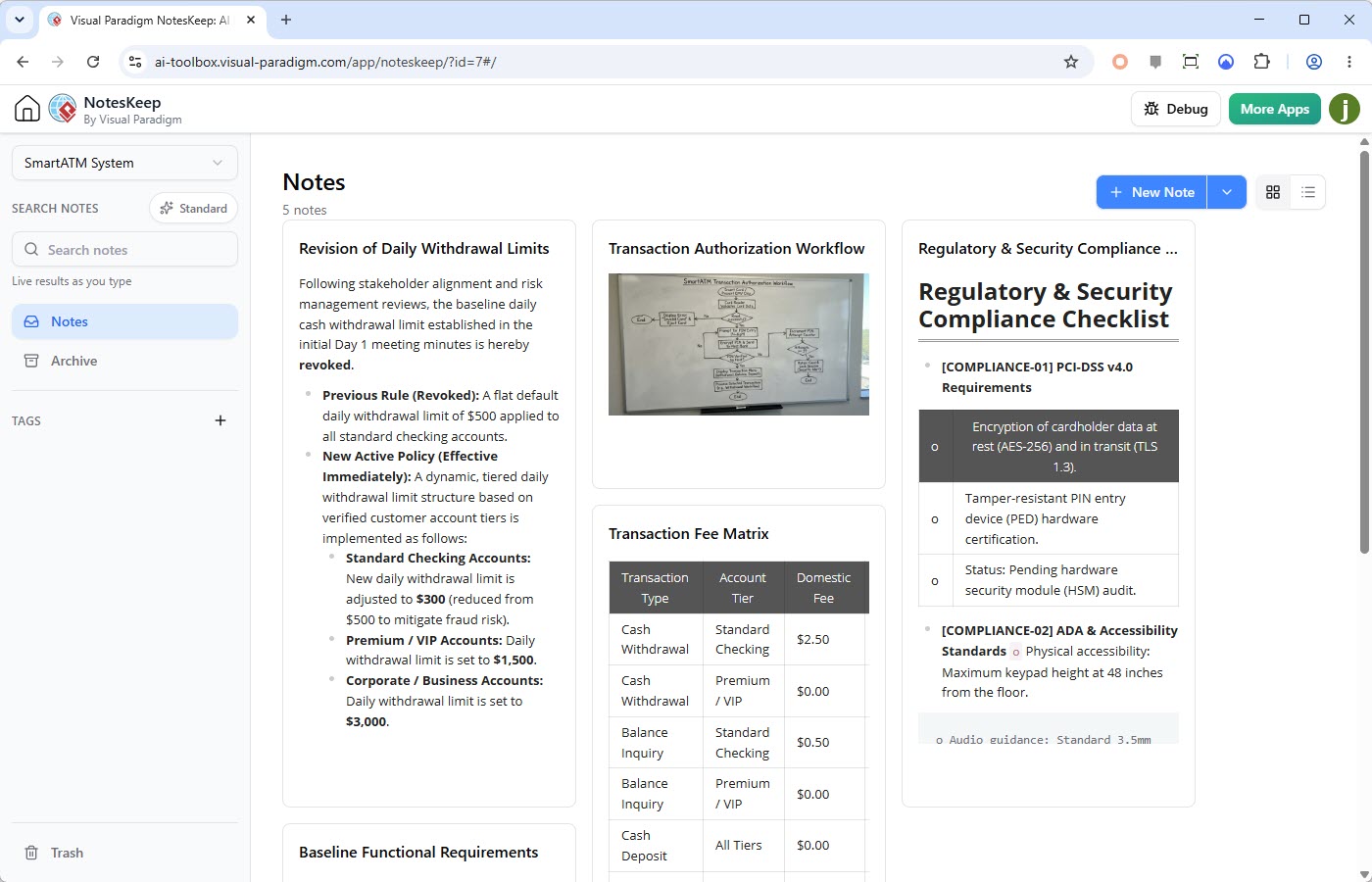
- Day 1 – Requirements & Capture: The team kicked off the SmartATM project by establishing core system requirements, capturing stakeholder meetings, and structuring initial workspace notes inside the ultimate note-taking tool.
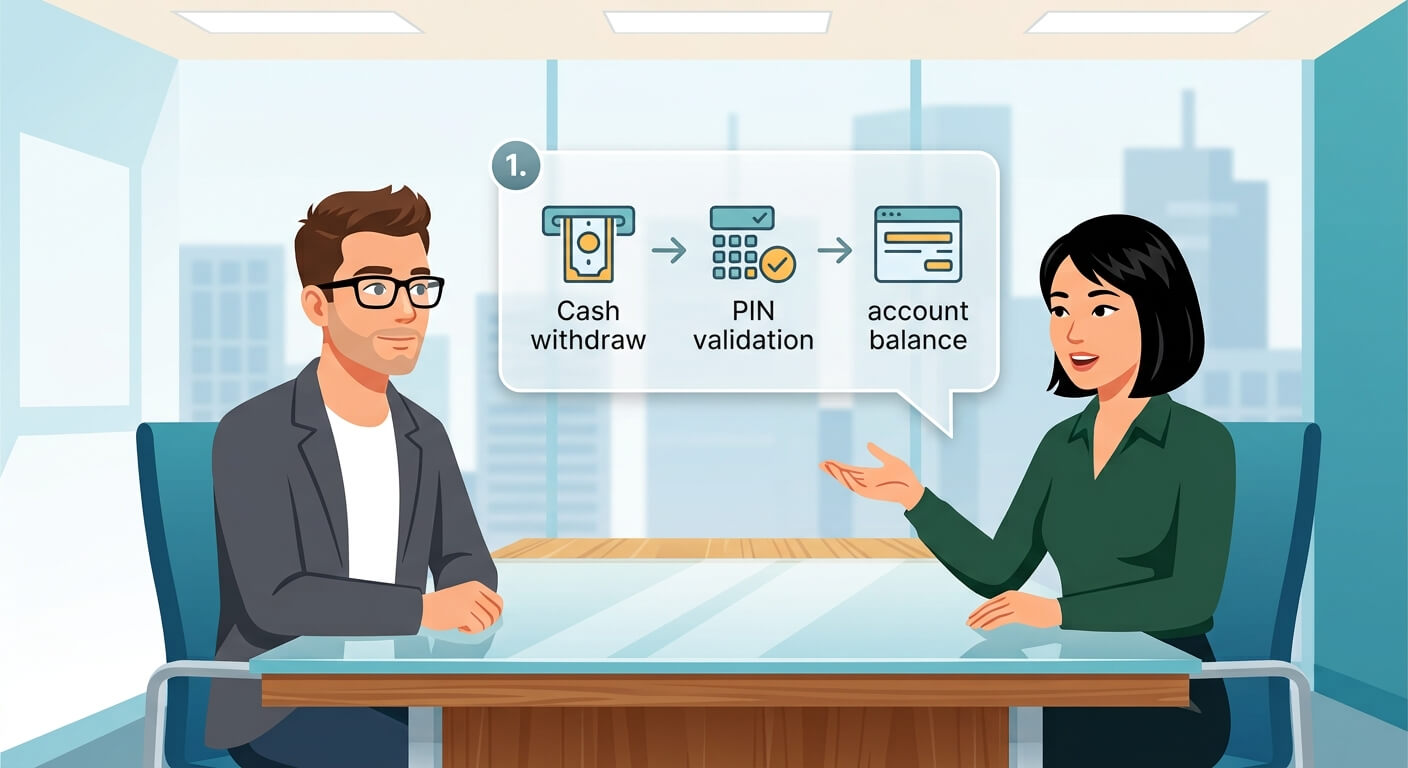
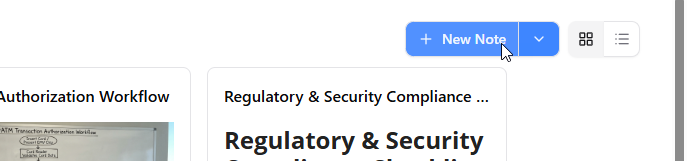
The screenshot below shows a new note being created in Visual Paradigm NotesKeep.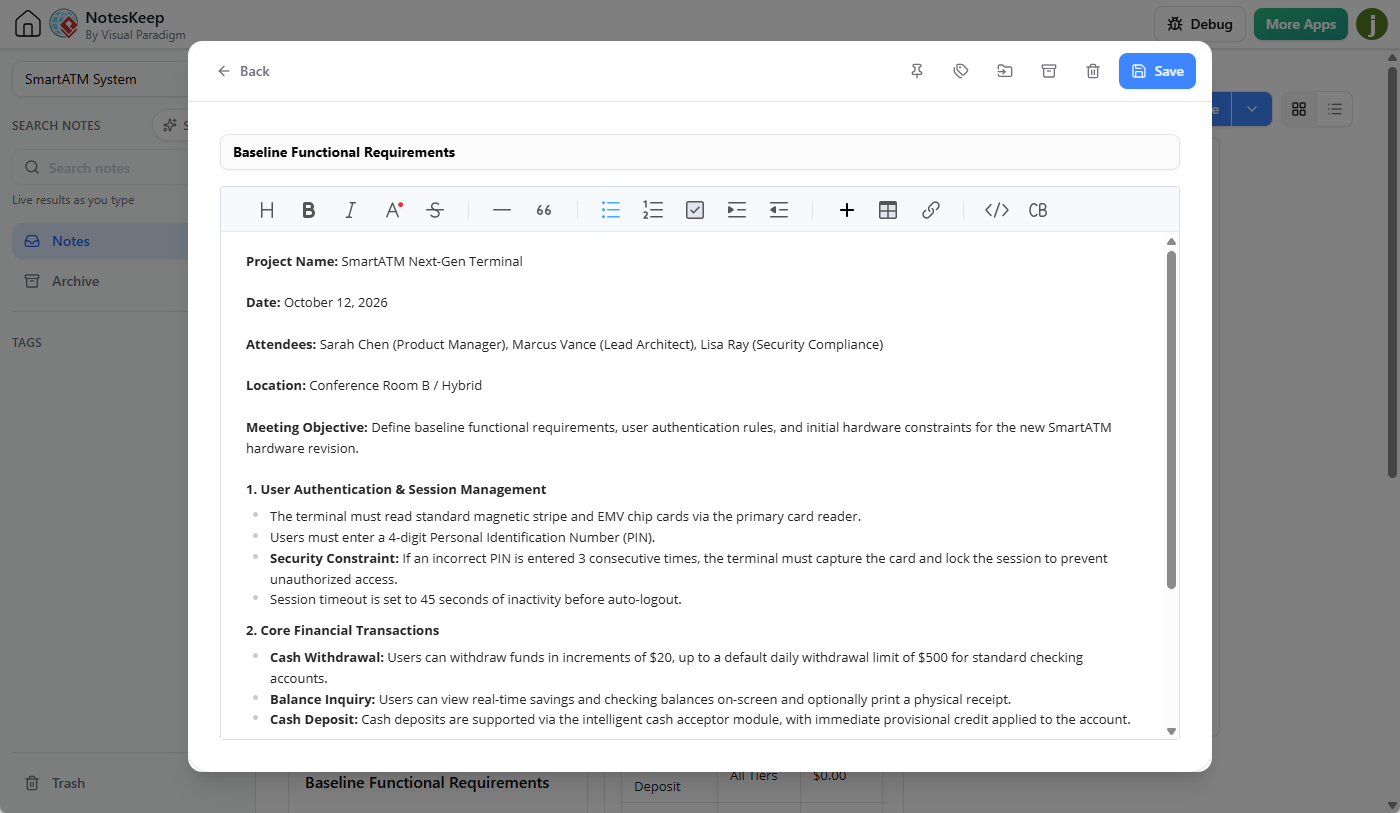
- Day 2 – Multi-Format Integration: Remote team members contributed external vendor documentation, importing complex security compliance matrices (.xlsx) and regulatory checklists (.pdf) directly into the workspace for centralized tracking.

- Day 3 – OCR & Text Extraction: Physical whiteboard diagrams and scanned reference sheets were processed using built-in OCR capabilities, instantly converting static images into searchable text assets within the knowledge tool.
- Day 4 – Policy Revision & AI Analysis: Facing a sudden regulatory policy shift—moving from a flat $500 cash withdrawal limit to a tiered account structure—the team updated their documentation to reflect the new Standard ($300), Premium ($1,500), and Corporate ($3,000) limits.

- Unlocking the power of conversational AI: Ask AI Chatbot questions and see how it utilize the knowledge collected as notes in answering.
How to Create Notes in Visual Paradigm NotesKeep?
Getting started with Visual Paradigm NotesKeep is seamless, offering flexible creation options tailored to how your team works:
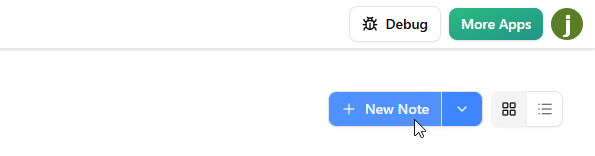
- Native Editor Creation: Build rich notes entirely from scratch using a comprehensive WYSIWYG editor featuring bolding, italics, ordered and unordered lists, structured tables, interactive hyperlinks, and syntax-highlighted code blocks. You can create note by clicking New Note at the top right of NotesKeep.
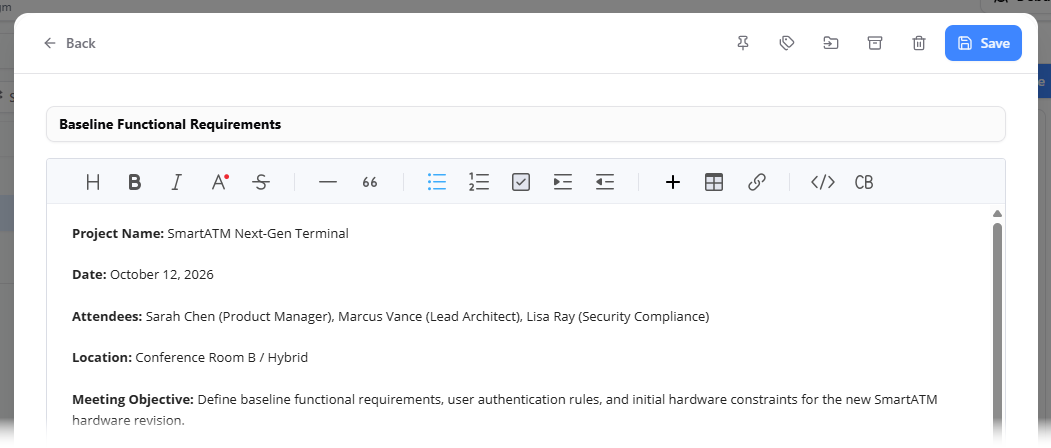
Enter the note content in the editor and click Save to save the changes.
 You can also category notes by using tags.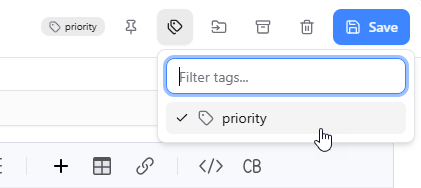
- Universal Multi-Format Import: Instantly centralize fragmented institutional knowledge by converting external files into fully editable, structured notes. Supported formats include Microsoft Word (.docx, .doc), PDFs (up to 10 pages), Excel spreadsheets (.xlsx, .xls), PowerPoint presentations (.pptx), rich text, Markdown (.md), and OpenDocument files. To import files into NotesKeep, drag the file to NotesKeep directly, or click on down arrow next to the New Note button and select Import Document from the drop-down menu.
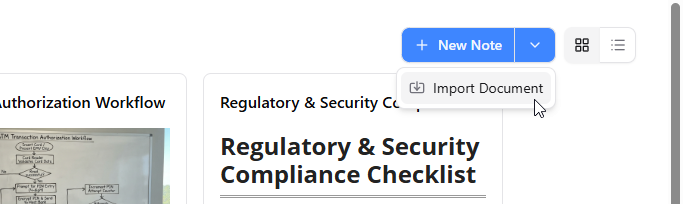
Then, upload your file through the upload widget.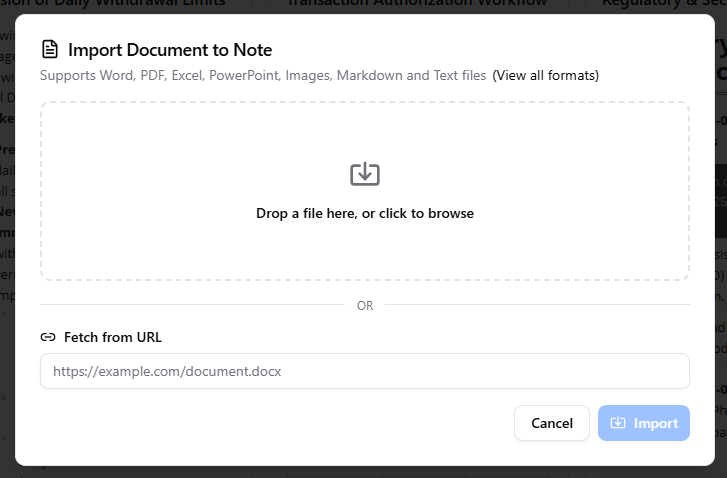
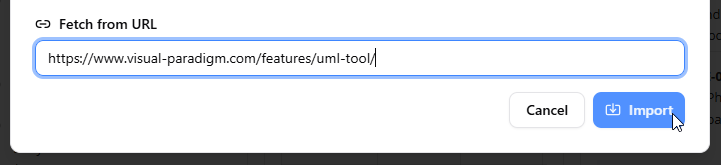
- URL Fetching: Ingest direct web content by fetching and converting external web pages into editable notes via simple URL input.
- Ecosystem Visual Integration: Embed technical drawings, flowcharts, mind maps, UML diagrams, and architectural models directly into your notes without leaving the workspace.
Tutorial: Conversational Knowledge Extraction -The Visual Paradigm NotesKeep & AI Workflow
- Log in to your Visual Paradigm Online account.
- Open the NotesKeep. If you are using Visual Paradigm Online, visit: https://ai-toolbox.visual-paradigm.com/app/noteskeep/. If you are using Visual Paradigm Desktop, open NotesKeep from the Unified Platform by first selecting Team / Unified Platform > Unified Platform from the main menu, and then open the NotesKeep from the Apps list.
- Let’s set up a new project for this tutorial. At the top left of the NotesKeep, click on your active project name and select New Project from the drop-down menu.
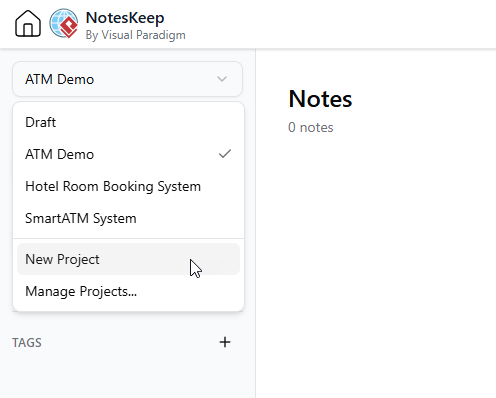
- In the New Project window, give the project a name. For example, “ATM Demo”, and then click Create Project to confirm. This creates a new project.
- Let’s create a note. at the top right corner, click on New Note.
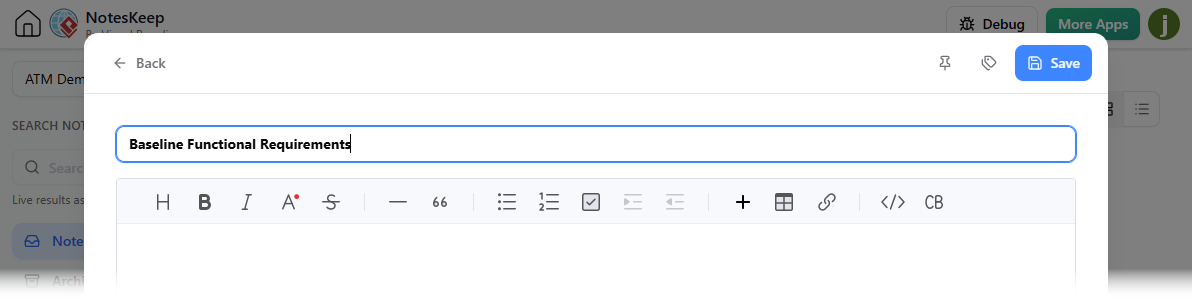
- This opens the note editor. Let’s say we have just finished a meeting with our stakeholders and have identified some project requirements. Let’s jot them down. Give the note a meaningful title first. Name it Baseline Functional Requirements.
- Copy the following text and paste to the note as note body.
Project Name: SmartATM Next-Gen Terminal
Date: October 12, 2026
Attendees: Sarah Chen (Product Manager), Marcus Vance (Lead Architect), Lisa Ray (Security Compliance)
Location: Conference Room B / Hybrid
Meeting Objective: Define baseline functional requirements, user authentication rules, and initial hardware constraints for the new SmartATM hardware revision.
1. User Authentication & Session Management
- The terminal must read standard magnetic stripe and EMV chip cards via the primary card reader.
- Users must enter a 4-digit Personal Identification Number (PIN).
- Security Constraint: If an incorrect PIN is entered 3 consecutive times, the terminal must capture the card and lock the session to prevent unauthorized access.
- Session timeout is set to 45 seconds of inactivity before auto-logout.
2. Core Financial Transactions
- Cash Withdrawal: Users can withdraw funds in increments of $20, up to a default daily withdrawal limit of $500 for standard checking accounts.
- Balance Inquiry: Users can view real-time savings and checking balances on-screen and optionally print a physical receipt.
- Cash Deposit: Cash deposits are supported via the intelligent cash acceptor module, with immediate provisional credit applied to the account.
3. Hardware & Peripheral Requirements
- Receipt printer must support thermal paper rolls with low-paper warning sensors.
- Cash dispenser cassette capacity must hold a minimum of 2,000 bills across mixed denominations ($20 and $50 bills).
4. Action Items
- Marcus Vance: Draft the initial system architecture flowchart and database entity relationship concepts for session logging by tomorrow.
- Lisa Ray: Compile the regulatory compliance checklist and vendor fee matrices into a structured spreadsheet for import.
- Sarah Chen: Finalize user interface wireframes and upload them to the project workspace.
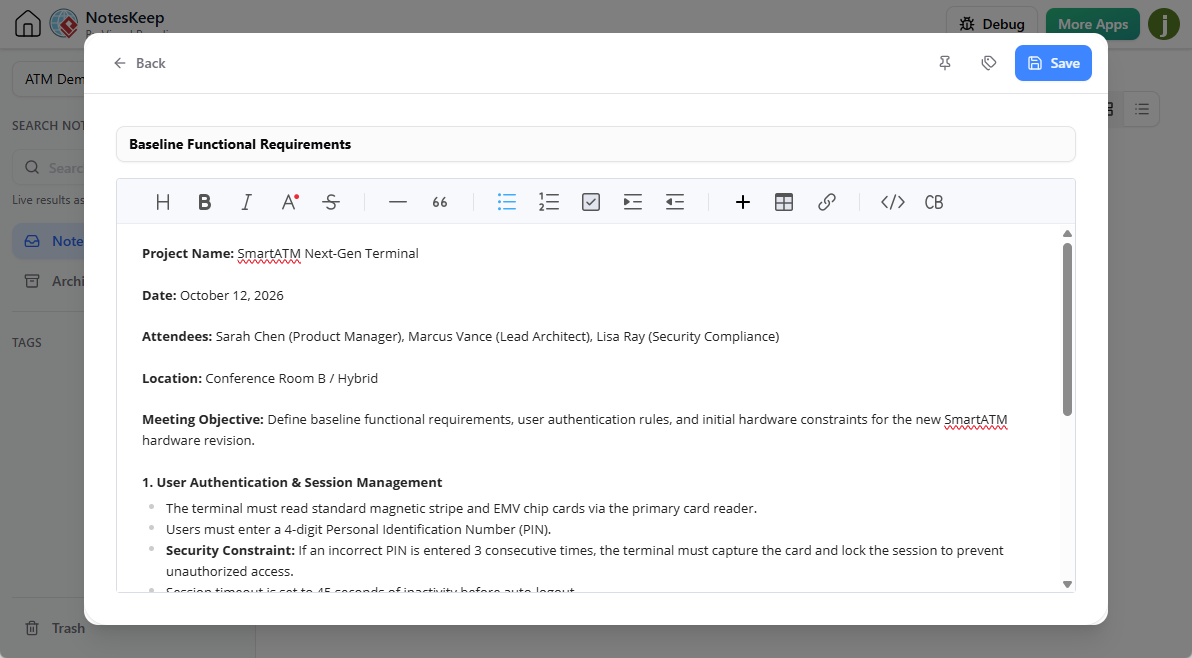
- Up to now, your note should look like this:
- Click Save at the top right.
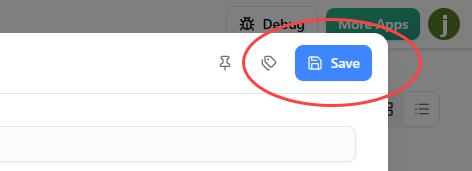
- This saves and closes the note editor and returns to the NotesKeep screen.
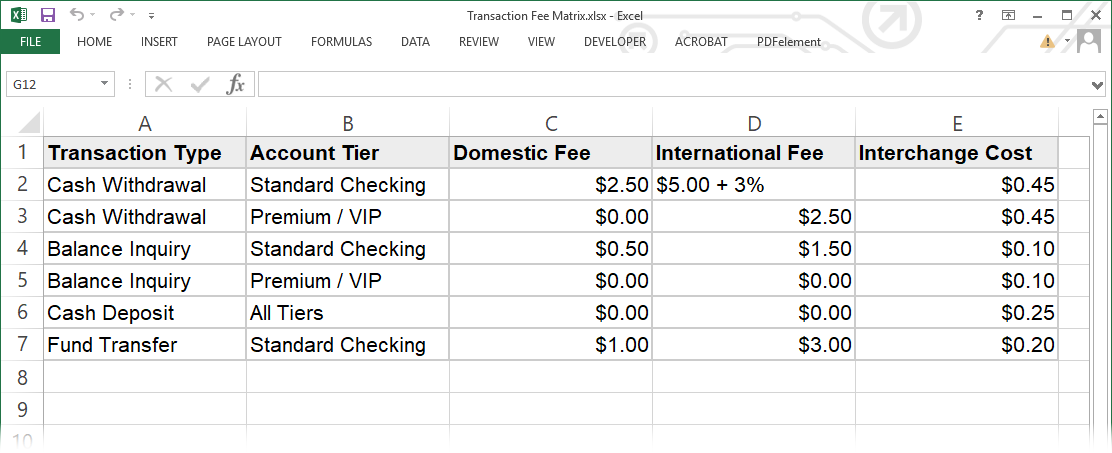
- Now, let’s say you have collected a transaction free matrix in Excel, and a regulatory & security compliance checklist from your colleague. Let’s import them into NotesKeep as notes. Before we continue, please download the following files first:
Download Transaction Fee Matrix.xlsx
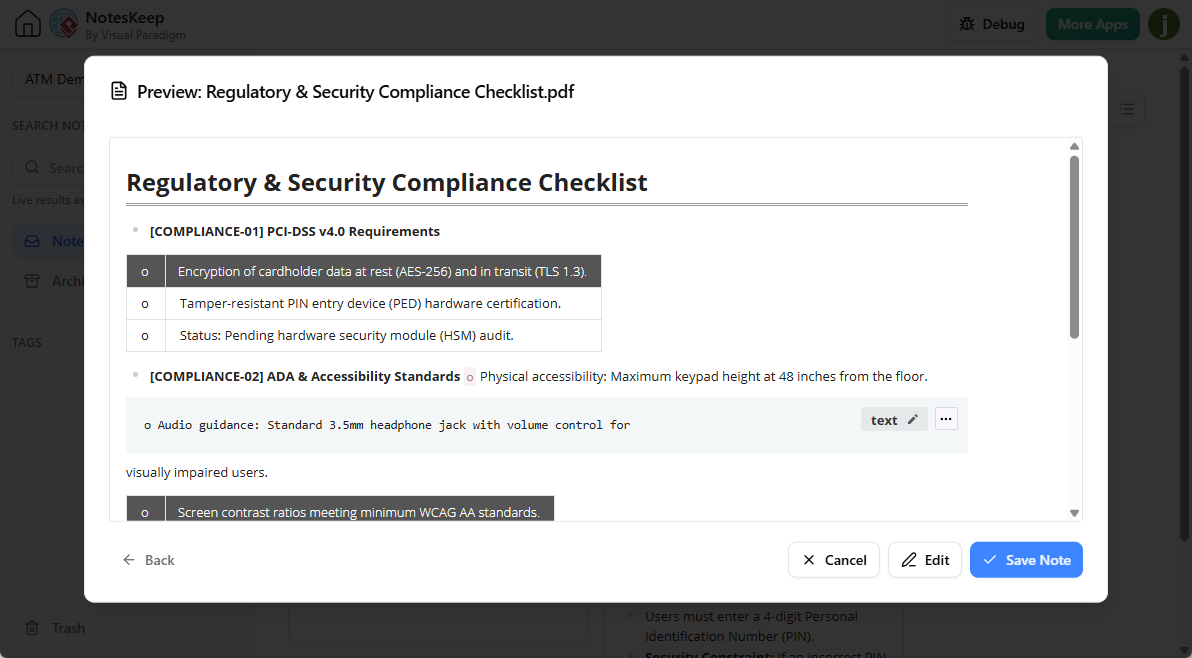
Download Regulatory & Security Compliance Checklist.pdf - Before we continue, open the file and take a look first. Let’s start with the Transaction Fee Matrix.xlsx.
- There are multiple ways to import files into NotesKeep. Let’s try the first method – Drag and drop the file from your file explorer into NotesKeep.
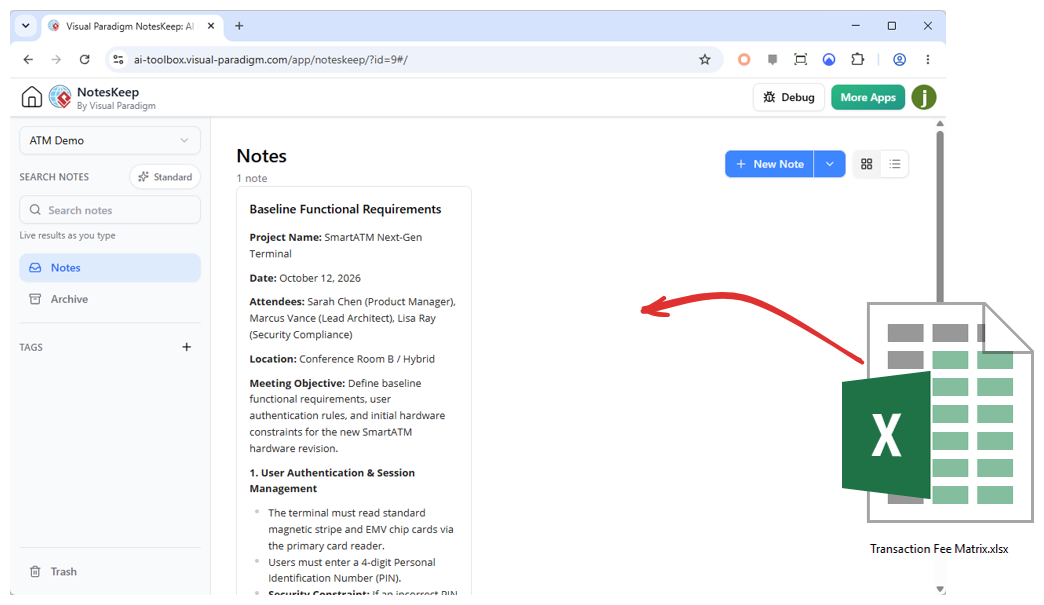
- When you release your mouse pointer, a note would be created from the Excel’s content.
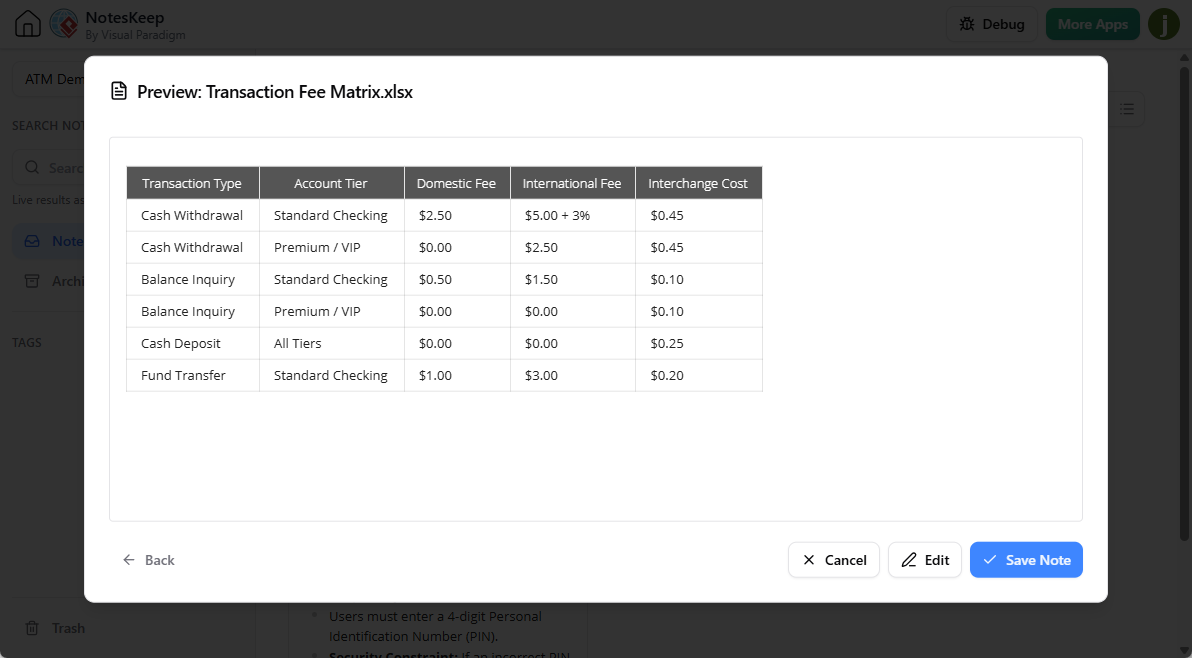
- You may edit it by clicking Edit. Let’s say we are happy with the content. Click Save Note at the bottom right.
- Let’s import Regulatory & Security Compliance Checklist.pdf into NotesKeep. This time, we try another method. Click on the down button next to the New Note button, and select Import Document.
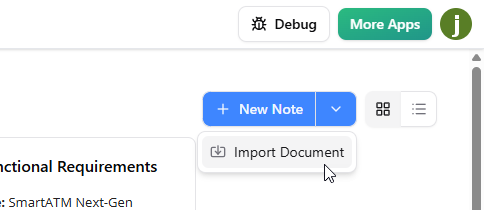
- This shows the import UI. You can drop the PDF into the upload zone, or click on it to browse the PDF file to import.
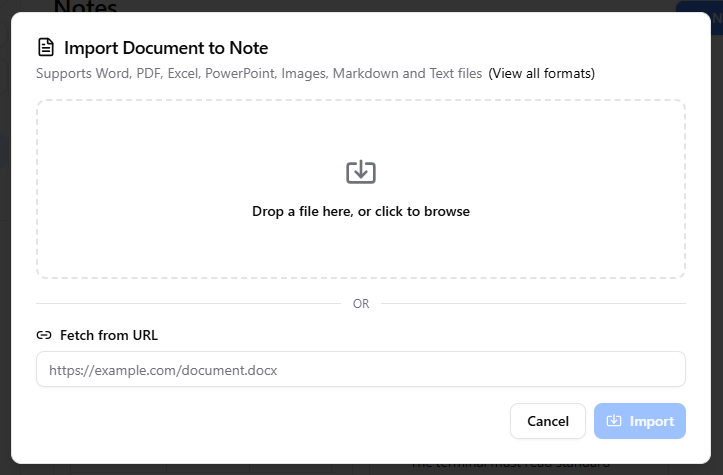
By the way, NotesKeep also allows you to create note by fetching content from a web page by providing its URL at the bottom. This time we continue the tutorial by uploading the PDF.
- Similar to importing the Excel, you are presented the preview of the PDF. You may edit it, or click Save Note right away if you are happy with the importing. Now, click Save Note.
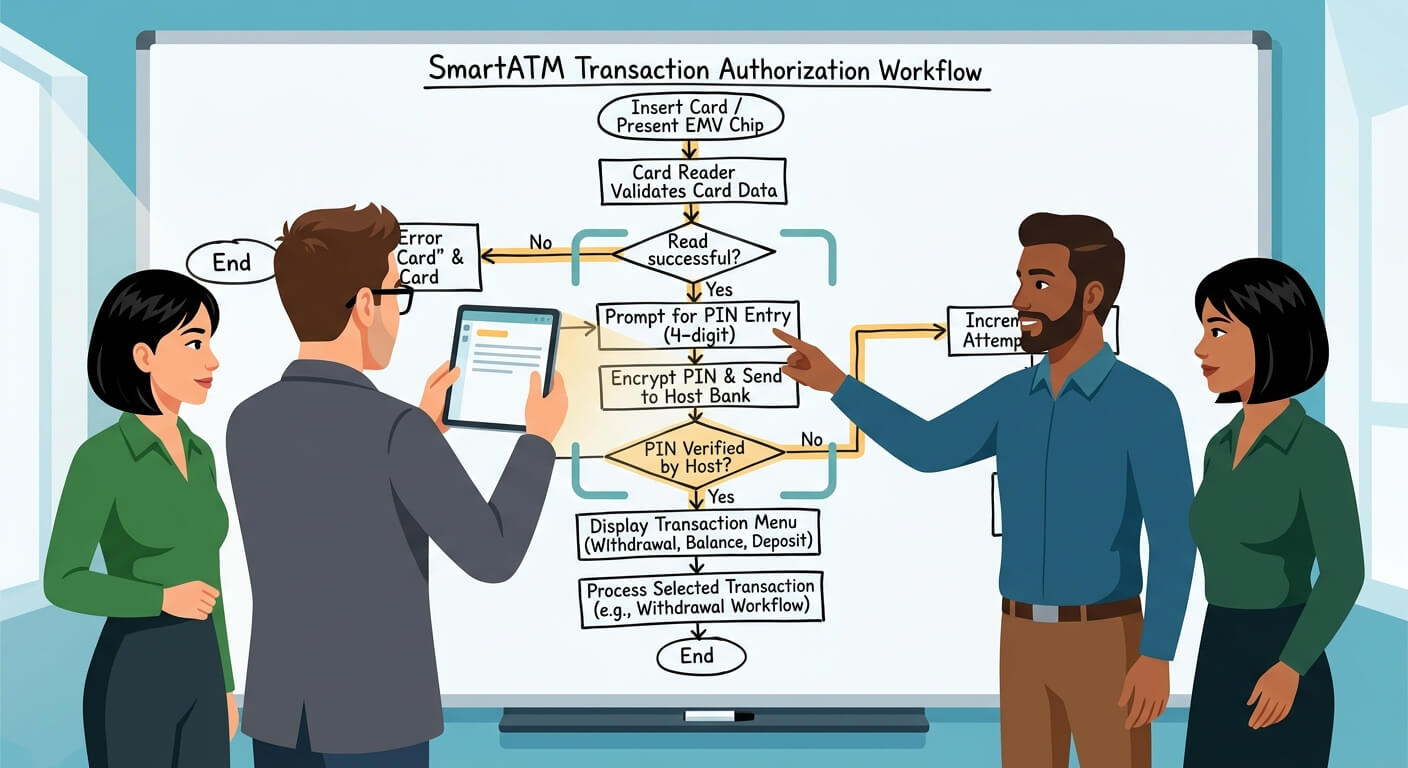
- Alright, on the next day, let’s say we have conducted a team meeting and the product manager has drawn a digital whiteboard flowchart outlining the card-reading and transaction-authorization workflow, like this:
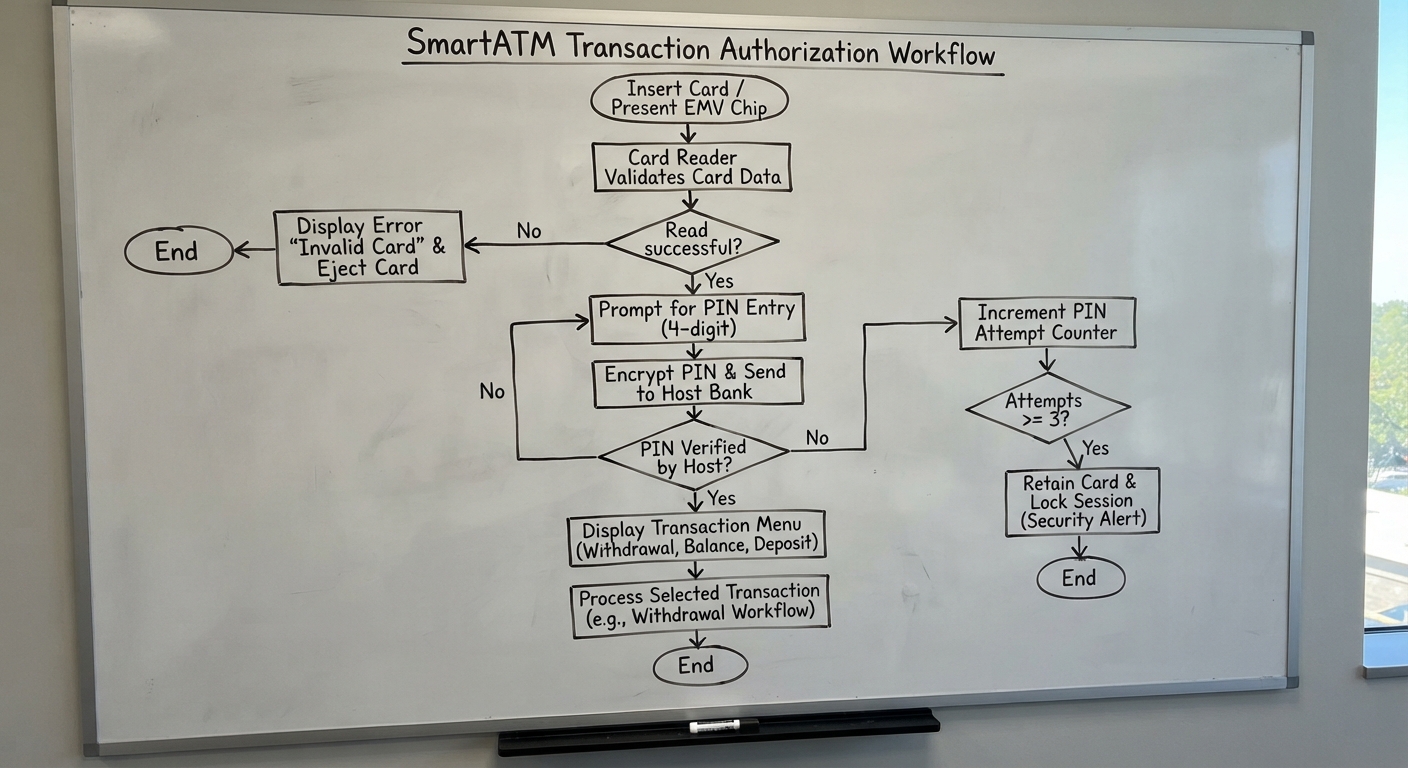
You have taken a photo (the one above). Let’s import it into NotesKeep as well. NotesKeep utilize AI OCR technology. The OCR and computer vision engine can ingest the image text and diagram structure accurately. To do this, drag and drop the image into the NotesKeep, just like what we did earlier on the Excel file.
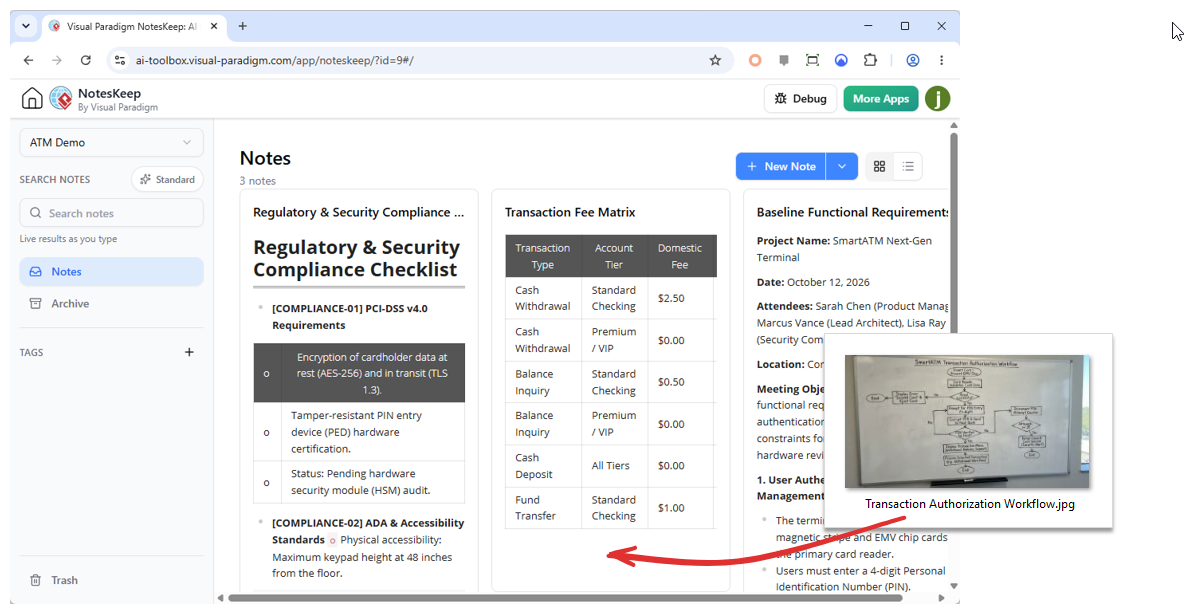
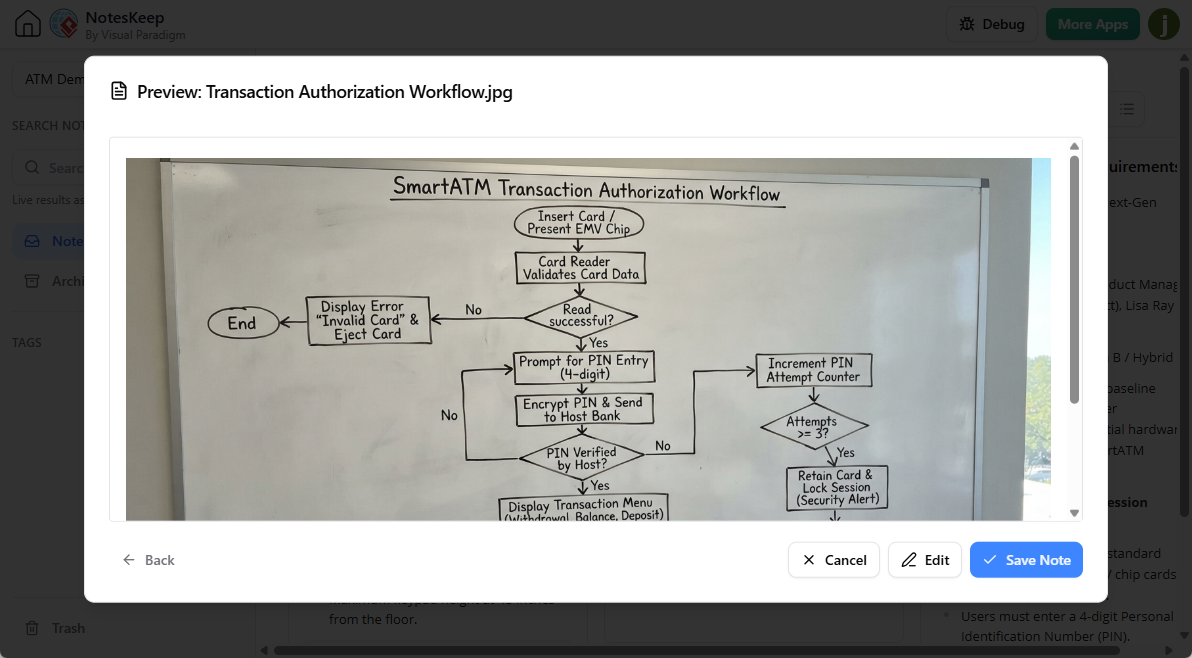
This creates a note from the image. As said, NotesKeep can understand the image content so you don’t have to write any description about it. But if you want to add some supplementary text, you are free to click on the Edit button to edit the note content. Now, click Save Note at the bottom right to continue.
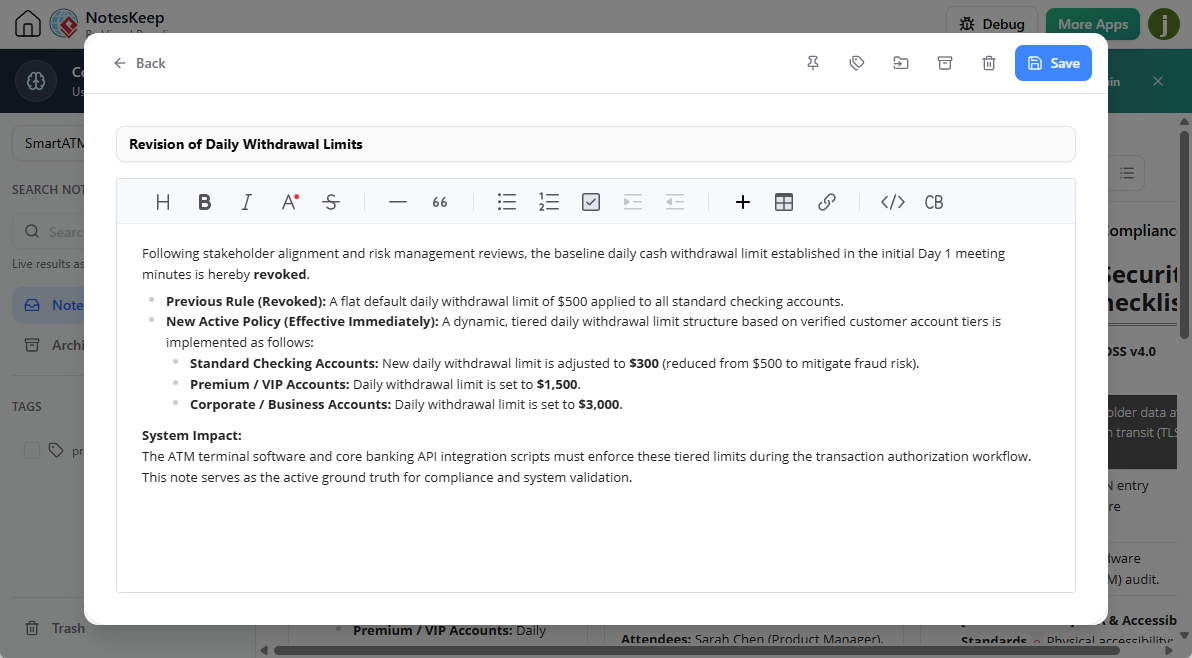
- On the next day, the product manager has revised the requirement by revoking a decision made on day one, related to the daily withdrawal limits of the ATM. Let’s note down the change. Click on New Note at the top right, create a note titled Revision of Daily Withdrawal Limits. Copy the note content below and paste to NotesKeep.
Following stakeholder alignment and risk management reviews, the baseline daily cash withdrawal limit established in the initial Day 1 meeting minutes is hereby revoked.
- Previous Rule (Revoked): A flat default daily withdrawal limit of $500 applied to all standard checking accounts.
- New Active Policy (Effective Immediately): A dynamic, tiered daily withdrawal limit structure based on verified customer account tiers is implemented as follows:
- Standard Checking Accounts: New daily withdrawal limit is adjusted to $300 (reduced from $500 to mitigate fraud risk).
- Premium / VIP Accounts: Daily withdrawal limit is set to $1,500.
- Corporate / Business Accounts: Daily withdrawal limit is set to $3,000.
System Impact:
The ATM terminal software and core banking API integration scripts must enforce these tiered limits during the transaction authorization workflow. This note serves as the active ground truth for compliance and system validation.
- The note should look like this:
- Click Save at the top right.
- Okay we have collected 5 notes so far. Let’s see how Visual Paradigm AI Chatbot can utilize the knowledge in providing accurate and helpful answers to various questions. Visit the AI Chatbot: https://ai-toolbox.visual-paradigm.com/app/chatbot-v2/
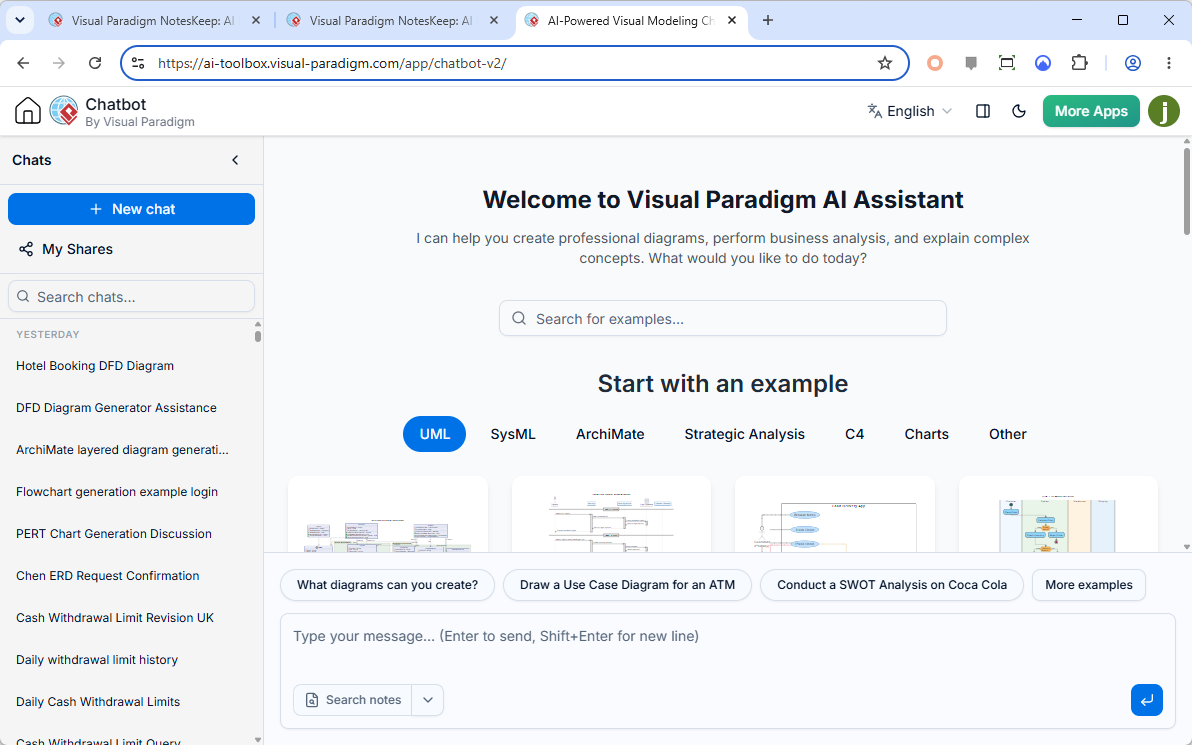
- If you are not opening a new chat session, click on New chat at the top left.
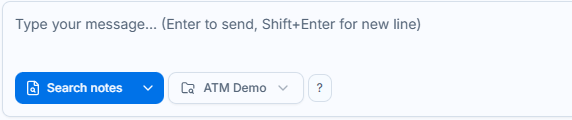
- You have to enable Search notes in order for AI Chatbot to answer your question based on the collected notes. At the bottom of the chat window, click on Search notes. On the right, select the project that contains the notes. In this tutorial, select the ATM Demo project.
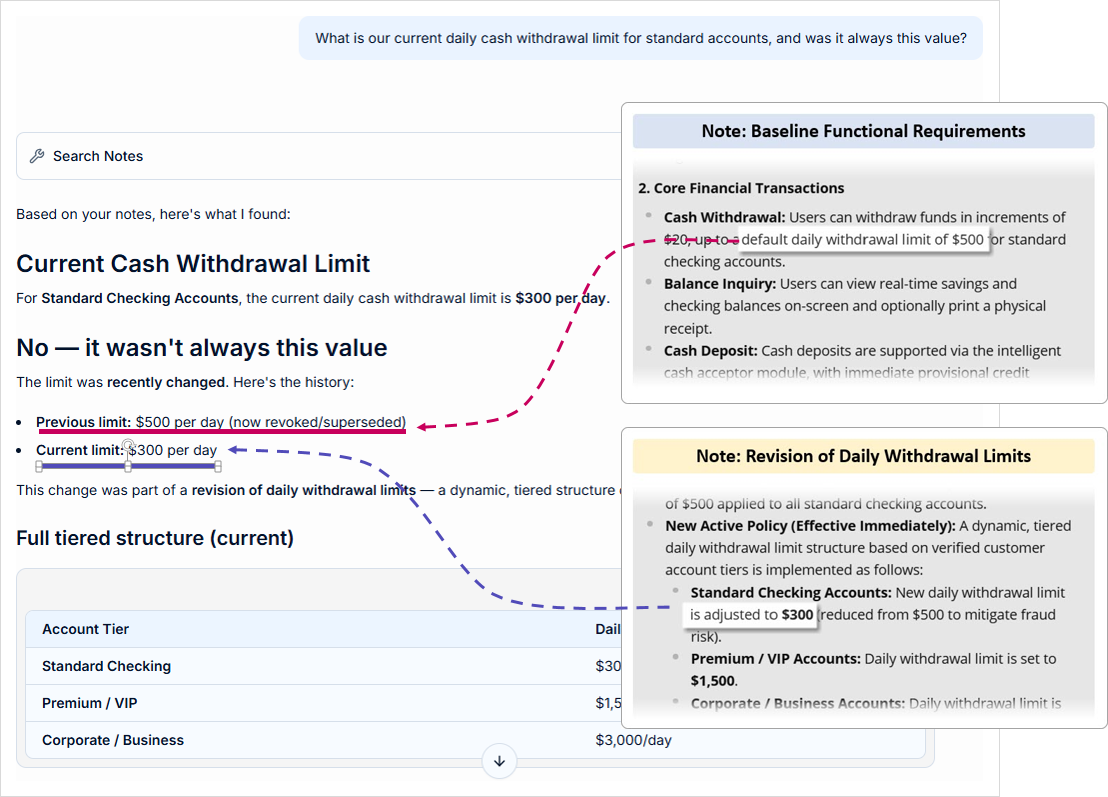
- Let’s ask our first question – What is our current daily cash withdrawal limit for standard accounts, and was it always this value?
Enter the question and click the send icon to send it.
- Based on the notes, the AI Chatbot replied that the previous limit was $500 per day, and the current limit is $300 per day. The answer aligns to the notes we collected.
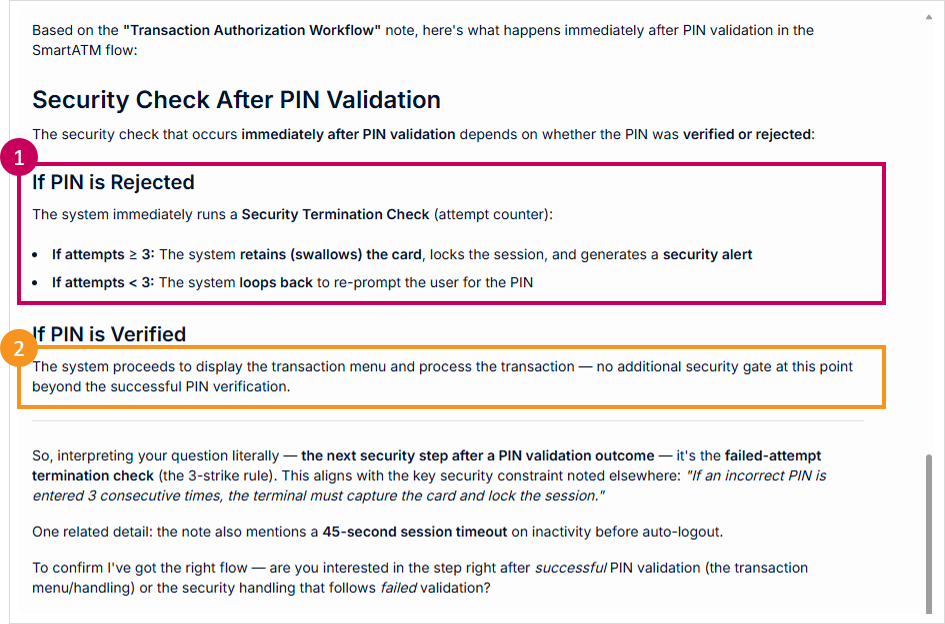
- Let’s ask the next question: According to the architectural workflow diagram in our notes, what security check happens immediately after PIN validation?

- Based on the note of flowchart, the AI Chatbot tells us what will happen if the PIN is accepted or verified.
Below is the flowchart and the reference paths.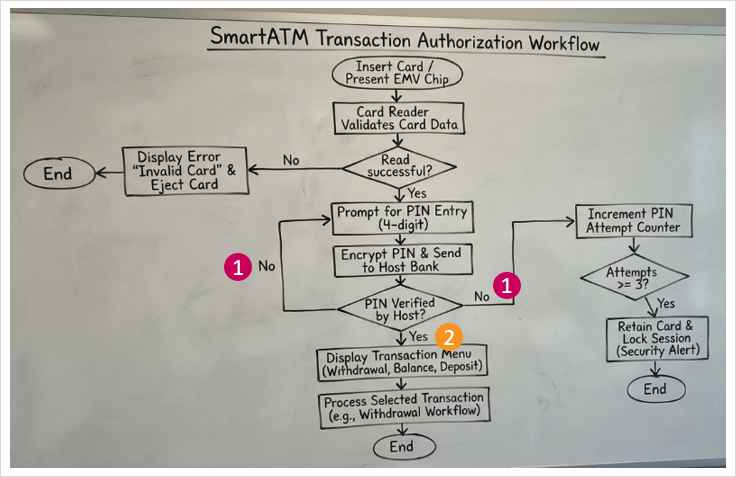
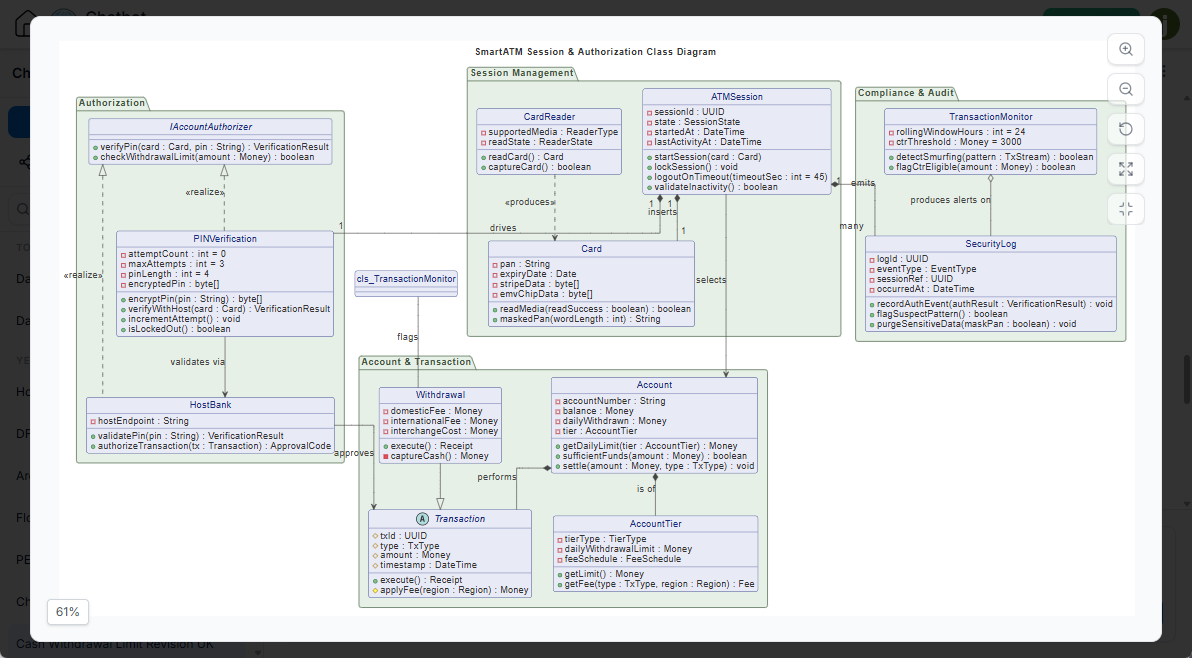
- Ask the next question: Based on our collected requirements, generate a complete UML Class Diagram for the ATM session and authorization logic.
This is to demonstrate AI Chatbot’s capability not just to extract and consolidate knowledge, but to derive new knowledge from the existing knowledge.
- Below is a UML class diagram suggested by AI, based on the notes collected.
Key Features of Visual Paradigm NotesKeep
As an enterprise-grade knowledge tool, NotesKeep goes far beyond standard note-taking platforms through a powerful suite of collaborative and technical features:
- Team-First Knowledge Architecture: Organize notes into shared project spaces, multi-dimensional tag views, and custom hierarchies with drag-and-drop controls, pinning, and instant full-text search.
- Temporal Continuity (“Notes Have Time”): Track the chronological evolution of project decisions so integrated AI systems can reconcile past updates and identify current active ground truths.
- Advanced OCR & Multimodal Analysis: Embedded images, whiteboard snapshots, and scanned documents are automatically processed via optical character recognition, allowing systems to read both written text and visual diagrams.
- Visual Paradigm AI Chatbot Integration: Query your repositories using scoped natural language searches, perform temporal reconciliations, check regulatory compliance, and automatically transform text notes into structural software engineering diagrams.
Unlocking the Power of Conversational AI
Capturing data is only half the battle; retrieving and analyzing it quickly is where projects succeed or fail. Once the 4-day knowledge base was established, the team transitioned from static documentation to active problem-solving using the AI chatbot.
Instead of manually digging through folders or spreadsheets to verify recent policy updates, team members could simply query the workspace. When asked about current cash withdrawal limits, the AI chatbot instantly synthesized the documentation, retrieved the exact update from Day 4, and highlighted the revised $300 standard limit alongside the full tiered account breakdown. Visual cue badges explicitly demonstrated that the answer was directly pulled from the Day 4 notes, ensuring total transparency and temporal accuracy.
Why Choose Visual Paradigm NotesKeep?
Organizations need more than a basic notepad; they need an intelligent ecosystem that connects data points across teams and formats. Visual Paradigm NotesKeep stands out as a premier note-taking tool and enterprise knowledge tool because it integrates seamlessly with diagramming workflows and conversational intelligence. Whether you are managing software engineering lifecycles, compliance checklists, or strategic business roadmaps, our platform keeps your team aligned.
Experience the future of workspace collaboration firsthand. Get started today by visiting NotesKeep and supercharge your projects with our intelligent assistant.