
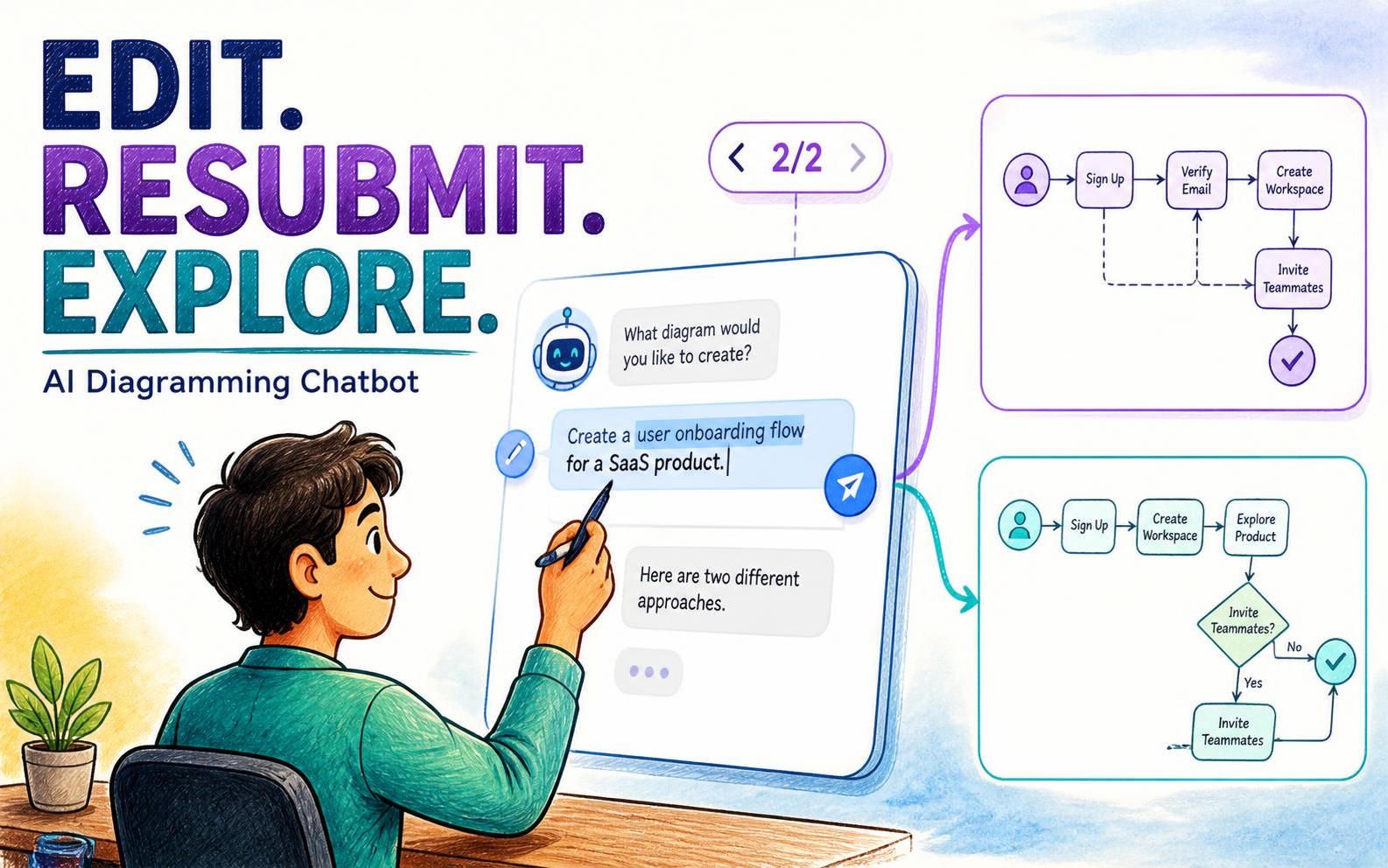
Great diagrams often begin with a good idea—and improve through iteration. We’ve added a convenient way to revisit a prompt after the AI Diagramming Chatbot has responded: edit the original message and resubmit it to explore a different direction.
This small but useful enhancement makes it easier to correct a prompt, clarify what you meant, or try an alternative without having to start a new conversation. Your earlier conversation path remains available, so you can move between versions and compare how different instructions shape the result.
Learn more about the Visual Paradigm AI Chatbot, or open the AI Chatbot and try it now.
Note: This feature is available for paid users.
What’s new: edit and resubmit a previous prompt
Previously, after submitting a message and receiving a response, you could not go back and edit that prompt to submit it again. If you noticed a typo, left out an important requirement, or wanted to phrase the request differently, you had to write another message—or begin again—to pursue the revised idea.
Now you can edit a previously submitted prompt and resubmit it. The chatbot creates a new conversation branch from that point. You can move between the available versions using the branch switcher shown beneath the prompt, such as < 2/2 >.
Each version represents a different path from the edited message. Use the left and right controls to switch between branches and review the corresponding conversation history. Your earlier path stays accessible while you explore the new one.
Prompt resubmission: An example
- In the AI Diagramming Chatbot, you submitted a question “Create a Sequence Diagram to show the interaction behind the cash withdrawal process of an ATM.”.
- The chatbot replies you with a professional sequence diagram, like the one below.
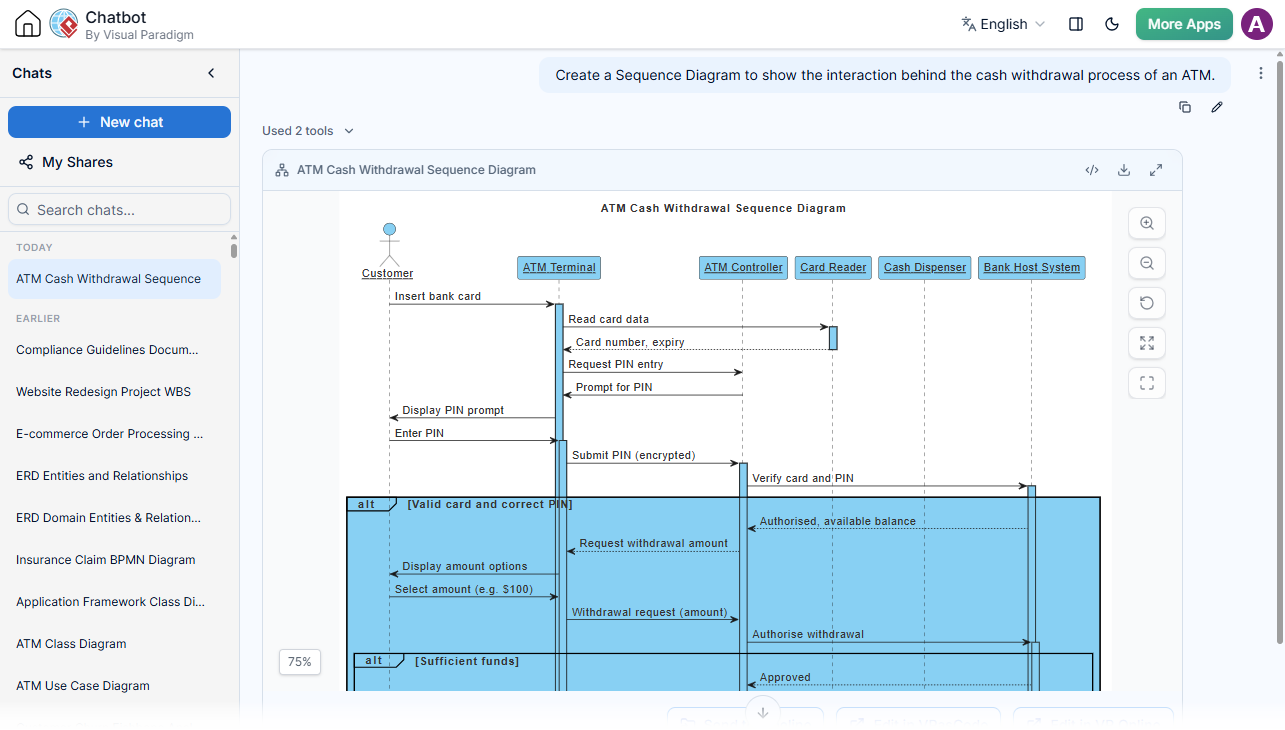
- But you realized that you actually want a high level sequence diagram that shows the interaction between the actor and the system. Of course, you may ask AI to provide another sequence diagram, as a new prompt. Alternately, you can correct your previous prompt. Click on the Edit Prompt button.

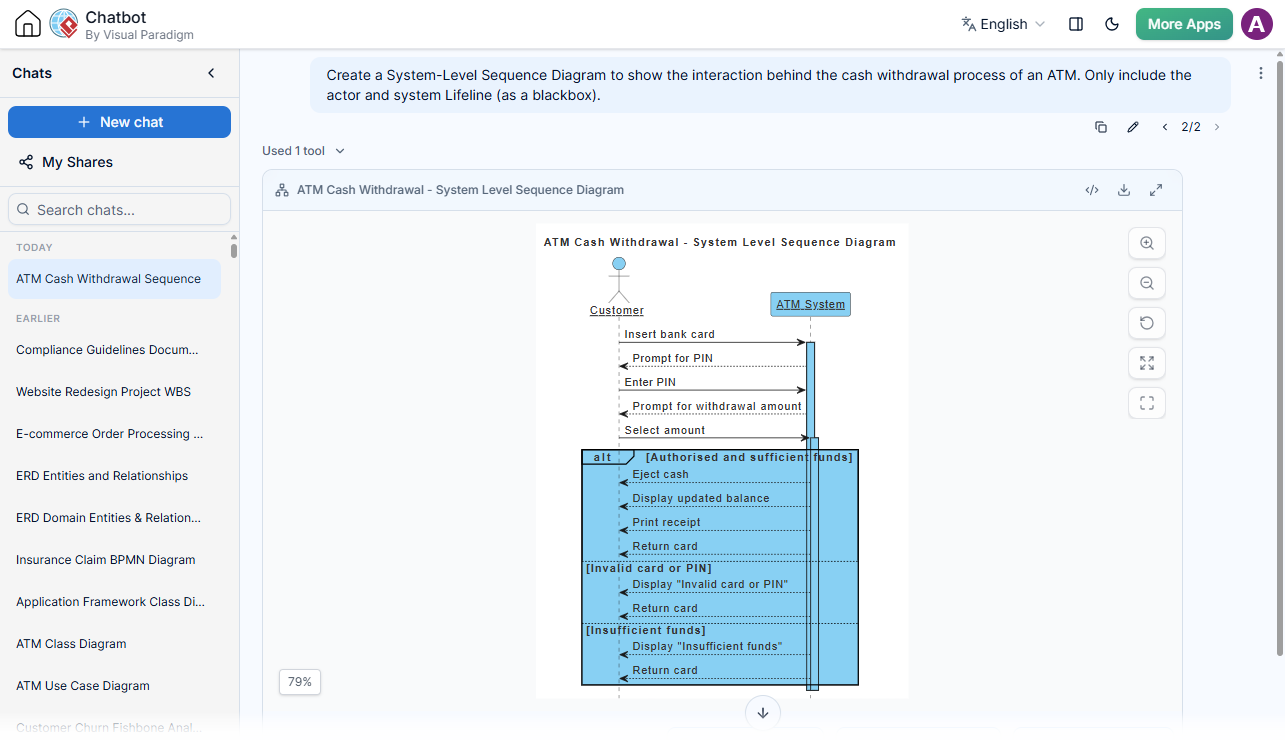
- Revise the prompt as “Create a System-Level Sequence Diagram to show the interaction behind the cash withdrawal process of an ATM. Only include the actor and system Lifeline (as a blackbox).”.

- Click Save and send.
- The original reply is replaced with a new reply with the right sequence diagram generated.
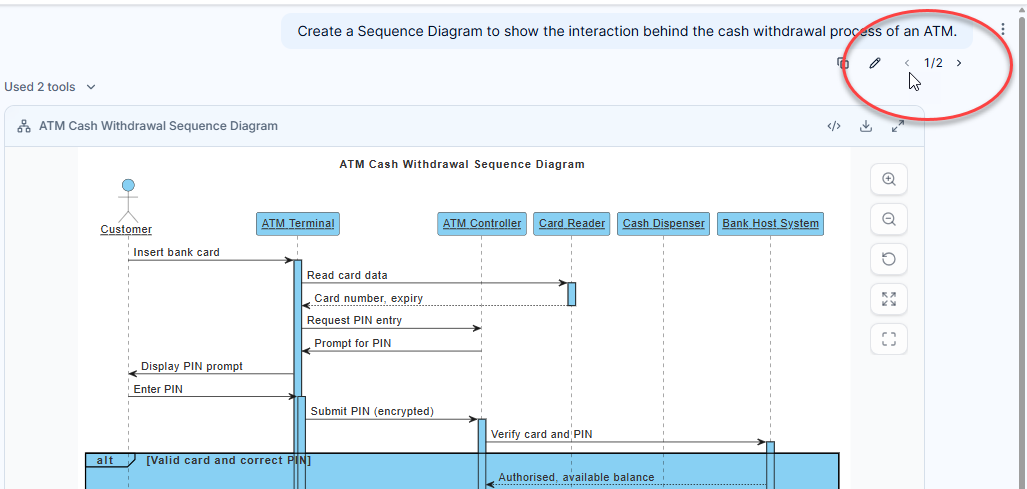
- You can switch between the two prompts through the switch button below the prompt.
Why prompt editing matters in AI diagramming
Creating a diagram with an AI chatbot is a conversation. You describe a system, workflow, or business idea; the AI generates a diagram or response; and you refine the result until it better fits your needs. In that process, a prompt may need adjustment after you see what the first answer produces.
Perhaps the first request was too broad. Perhaps you meant to specify a user role, include an additional system, or ask for a different diagram type. With prompt editing and resubmission, you can return to the message that shaped the response and revise it directly. That makes prompt iteration more natural and keeps experimentation connected to the conversation that inspired it.
Explore alternatives without losing the earlier path
One of the most useful parts of this enhancement is that resubmitting an edited prompt creates a branch rather than simply replacing your earlier conversation path. You can try a revised instruction, review the result, and switch back to the previous version whenever you want to compare the two.
For example, imagine you ask the chatbot to create a UML class diagram for an online bookstore. After seeing the result, you realize you should have included inventory management. Edit the original prompt to add that requirement and resubmit it. The revised request follows a new branch, while the original version remains available through the branch switcher.
This is helpful when you are brainstorming, comparing design choices, or testing how a change in wording affects an AI-generated diagram. Instead of losing a useful earlier result, you can keep it in context and explore another possibility.
When to edit and resubmit a prompt
- Correct a mistake: Fix a typo or an inaccurate detail in your original request.
- Add missing requirements: Include actors, steps, system components, constraints, or other details you forgot to mention.
- Clarify your intent: Make a vague request more specific after seeing how the chatbot interpreted it.
- Explore another direction: Try a different scope or framing while keeping the original conversation path available.
- Compare outcomes: Switch between branches to review how different prompts lead to different responses or diagram ideas.
How to use prompt branching
- Submit a prompt in the AI Diagramming Chatbot and review its response.
- Return to the prompt you want to revise and edit its text.
- Resubmit the edited prompt to create a new conversation branch.
- Use the
<and>controls beneath the prompt to switch between the available versions. - Review the conversation history for each branch and continue with the path that best matches your goal.
The branch indicator shows which version you are viewing—for example, < 2/2 > indicates the second of two versions. As you experiment with edits, use the controls to revisit the different paths.
A more flexible way to refine AI-generated diagrams
The new edit-and-resubmit capability complements the conversational approach to AI diagramming. You can use natural-language prompts to generate diagrams, then refine your requests as your understanding develops. When a prompt needs a second attempt, you no longer have to treat the first version as a dead end.
Whether you are working on a UML diagram, a process flow, a system design, or another visual model, prompt branching gives you a practical way to explore alternatives while preserving the context of your earlier work. It supports a more forgiving, exploratory workflow: try an idea, learn from the result, revise the request, and compare the outcomes.
Try the updated AI Diagramming Chatbot
Ready to refine a prompt or explore a new direction? Open the Visual Paradigm AI Diagramming Chatbot and try editing and resubmitting a message. To learn more about AI-powered diagramming and the chatbot’s capabilities, visit the AI Chatbot feature page.