


Diagrams often need to travel beyond the tool where they were created. A model may begin in Visual Paradigm Desktop, then need to be shared with another app, included in documentation, or refined by someone who prefers working with text-based diagram syntax.
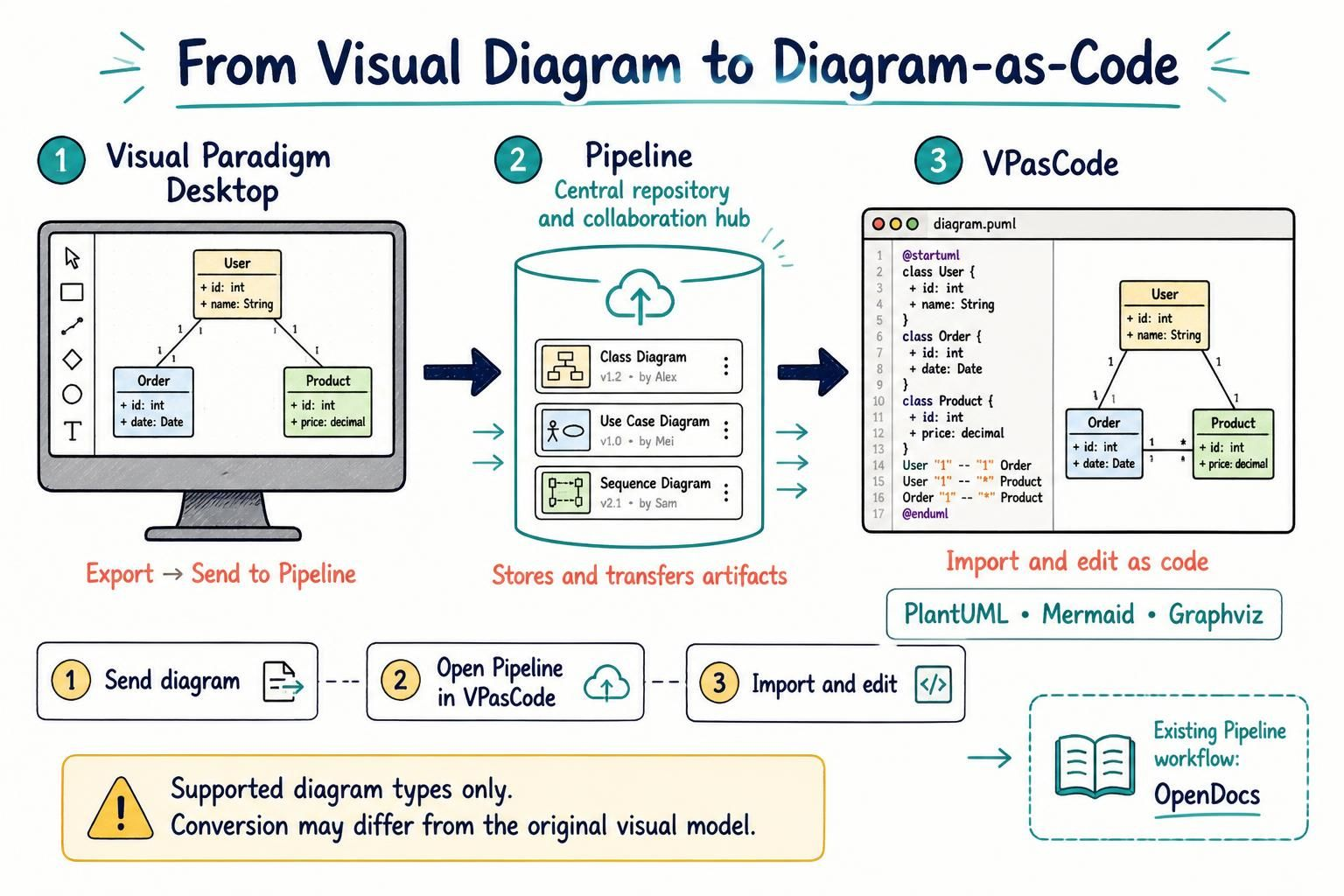
With this enhancement, sending a supported diagram from Visual Paradigm Desktop to the Pipeline also converts it into a diagram-as-code format when one is available. You can then retrieve the code in VPasCode and continue editing it as PlantUML, Mermaid, or Graphviz. It gives your diagram another route through the Visual Paradigm ecosystem: from desktop modeling to an artifact in the Pipeline, and from there to code-based editing.
What is the Pipeline?
The Pipeline is a shared repository for artifacts moving between Visual Paradigm apps and tools. Each app supports different parts of a workflow, and work created in one may be useful in another. The Pipeline provides a place to store those artifacts so they can be retrieved where they are needed.
For example, a diagram created in Visual Paradigm Desktop can be sent to the Pipeline and used in another connected app. Previously, users could retrieve diagrams from the Pipeline for use in Visual Paradigm OpenDocs, supporting documentation workflows. Now, for diagrams that support conversion, the Pipeline can also provide a diagram-as-code version for editing in VPasCode.
Why send a desktop diagram to VPasCode?
Visual Paradigm Desktop is suited to working with diagrams visually. VPasCode supports a text-based approach: instead of making changes only through a visual editor, you can work with the diagram’s underlying syntax. The new conversion helps connect those two ways of working.
- Continue work in another tool: Move a supported diagram from Visual Paradigm Desktop to the Pipeline, then retrieve it in VPasCode.
- Edit using diagram-as-code: Work with the generated PlantUML, Mermaid, or Graphviz code where that format is supported.
- Make artifacts more reusable: The Pipeline acts as a bridge for moving work between Visual Paradigm apps, rather than treating each app as an isolated destination.
- Choose the workflow that fits the task: Create or refine a diagram visually in Desktop, then continue with text-based editing in VPasCode.
This is especially useful when different people or stages of a project call for different ways of working. A modeler may prefer a visual modeling environment, while a developer may want to inspect or edit the diagram as code. The Pipeline helps carry the artifact between those steps.
How to send a diagram from Visual Paradigm Desktop to the Pipeline
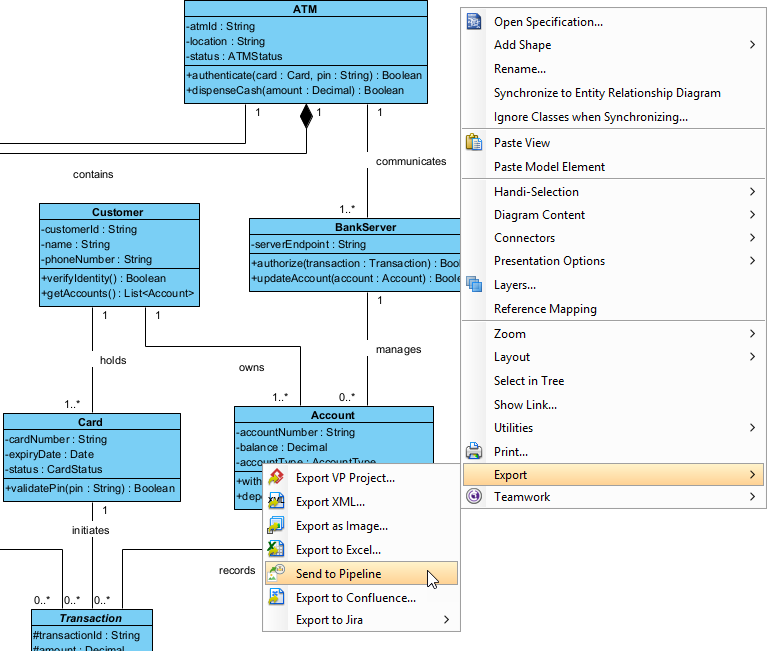
- In Visual Paradigm Desktop, right-click the background of the diagram you want to send.
- Select Export > Send to Pipeline.
- In the Send to Pipeline dialog, enter the artifact name. The diagram’s name is filled in by default; keep it or change it as needed.
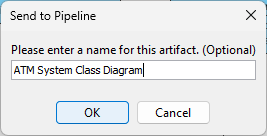
- Click OK to start sending the diagram.
- Wait for the progress dialog to complete, then click Close.
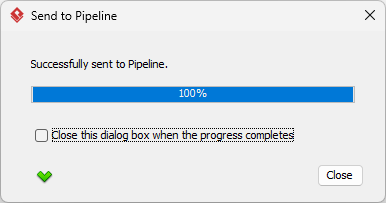
The artifact is now available in the Pipeline. For diagrams that support diagram-as-code conversion, you can retrieve the generated code in VPasCode.
How to retrieve and edit the diagram in VPasCode
- Open VPasCode.
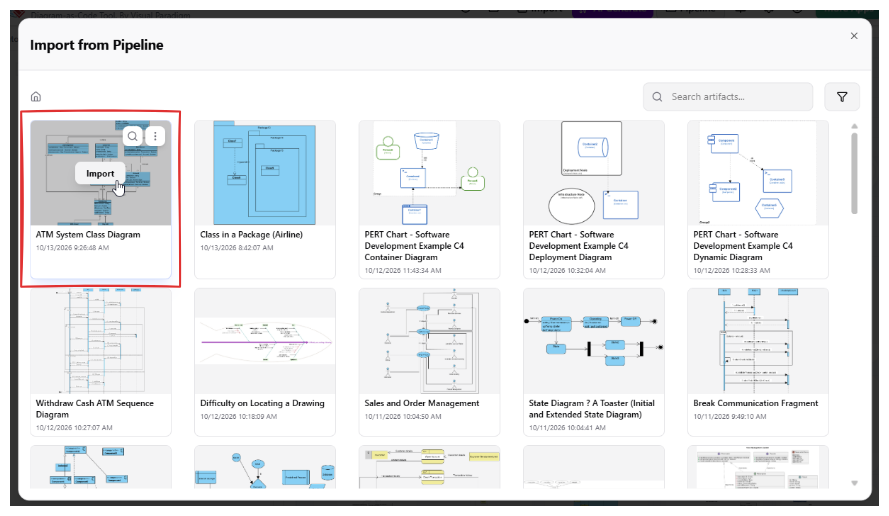
- Click the Pipeline button at the top of the page to open the Pipeline window.
- Find the diagram you sent from Visual Paradigm Desktop.
- Move your mouse over the artifact and click Import.
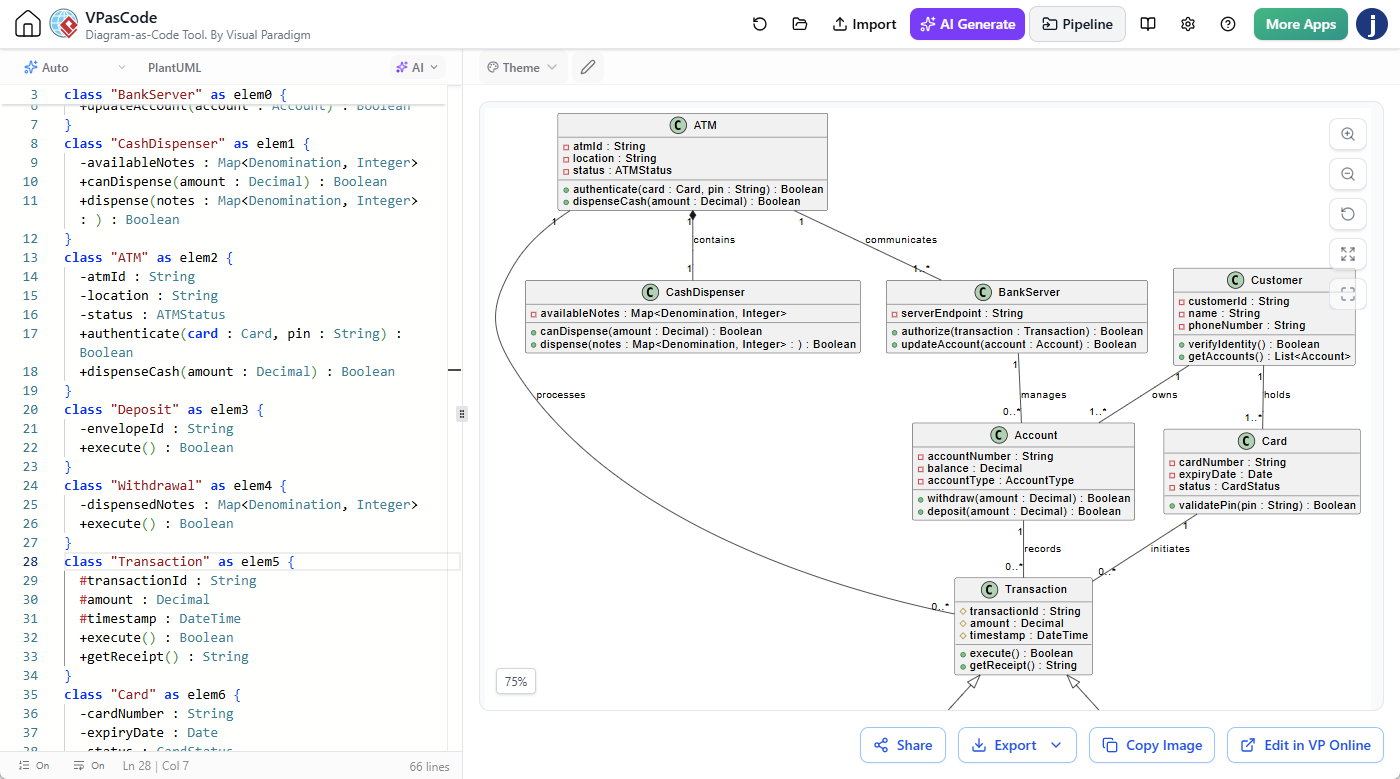
- The diagram code loads into the editor. Depending on the diagram type and supported conversion, it may be PlantUML, Mermaid, or Graphviz.
- Edit the code in VPasCode to continue working on the diagram.
Try VPasCode to retrieve a Pipeline artifact and explore diagram-as-code editing.
How the workflow fits together
The workflow is straightforward: create or refine a diagram in Visual Paradigm Desktop, send it to the Pipeline, and retrieve it in VPasCode for code-based editing. The Pipeline is the handoff point between the applications.
- Create: Work on your diagram in Visual Paradigm Desktop.
- Send: Export the diagram to the Pipeline.
- Retrieve: Locate and import the Pipeline artifact in VPasCode.
- Edit: Continue in the generated diagram-as-code format when available.
This makes it easier to extend the usefulness of a desktop diagram beyond its original modeling environment. It also supports teams that combine visual modeling with code-centric diagram editing.
How this relates to OpenDocs
The Pipeline already supports workflows involving OpenDocs. You can retrieve a diagram from the Pipeline and use it in OpenDocs to support documentation needs. This announcement focuses on the new diagram-as-code conversion and the VPasCode editing workflow; using Pipeline artifacts in OpenDocs is an existing capability and is not the enhancement described here.
What to know about diagram conversion
- Not every diagram type can be sent to the Pipeline. Support is being improved over time.
- Not every diagram supports diagram-as-code conversion. The availability and syntax depend on the diagram type.
- Diagram-as-code and visual models are different representations. They are not fully compatible, so the converted code and the original diagram may not match in every detail.
Visual Paradigm aims to retain as much of the diagram’s content as possible during conversion. However, because a visual model and text-based diagram code have different capabilities and structures, some differences may occur. Review the imported code and its rendered diagram before relying on it as an exact reproduction of the original model.
Start moving diagrams between apps
The new conversion extends the role of the Pipeline as a connection point across Visual Paradigm tools. Send a supported diagram from Visual Paradigm Desktop, retrieve it in VPasCode, and continue editing it in PlantUML, Mermaid, or Graphviz when available. If your workflow also includes documentation, the Pipeline can support the existing path to OpenDocs.
Explore the Visual Paradigm Desktop Pipeline feature and open VPasCode to try diagram-as-code editing.