
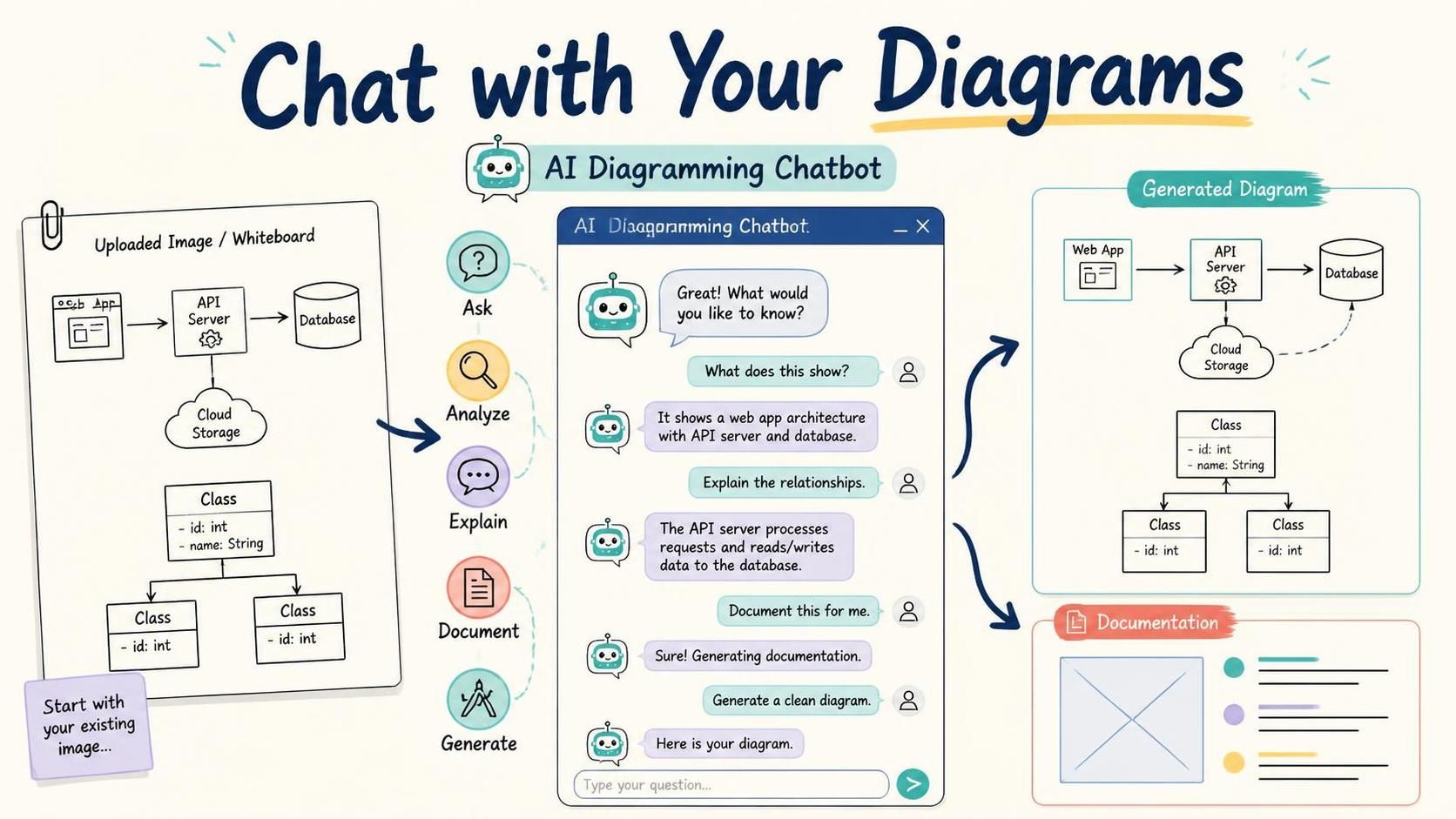
Visual Paradigm has enhanced its AI Diagramming Chatbot with image upload support. You can now drag an image into the chatbot, paste an image from your clipboard, or select an image from your computer before submitting your message.
This enhancement changes more than the way diagrams are generated. Previously, your conversation with the AI Diagramming Chatbot started with text: you described a problem, asked a question, or requested a diagram. Now, you can start the conversation with an existing visual reference.
Upload a diagram from another tool, a photo of a whiteboard, a screenshot from a presentation, a sketch from a project meeting, or an image found in a book or online. You can then ask the chatbot questions about the image, request an explanation, extract information from it, ask for improvements, or generate a diagram based on what it sees.
In other words, image upload makes the AI Diagramming Chatbot a more visual and context-aware chat experience. Generating a diagram from an image is one useful possibility, but it is not the only purpose of this feature. The main benefit is that you can now have a conversation about an image.
Try the AI Diagramming Chatbot and start a conversation using your own diagram image.
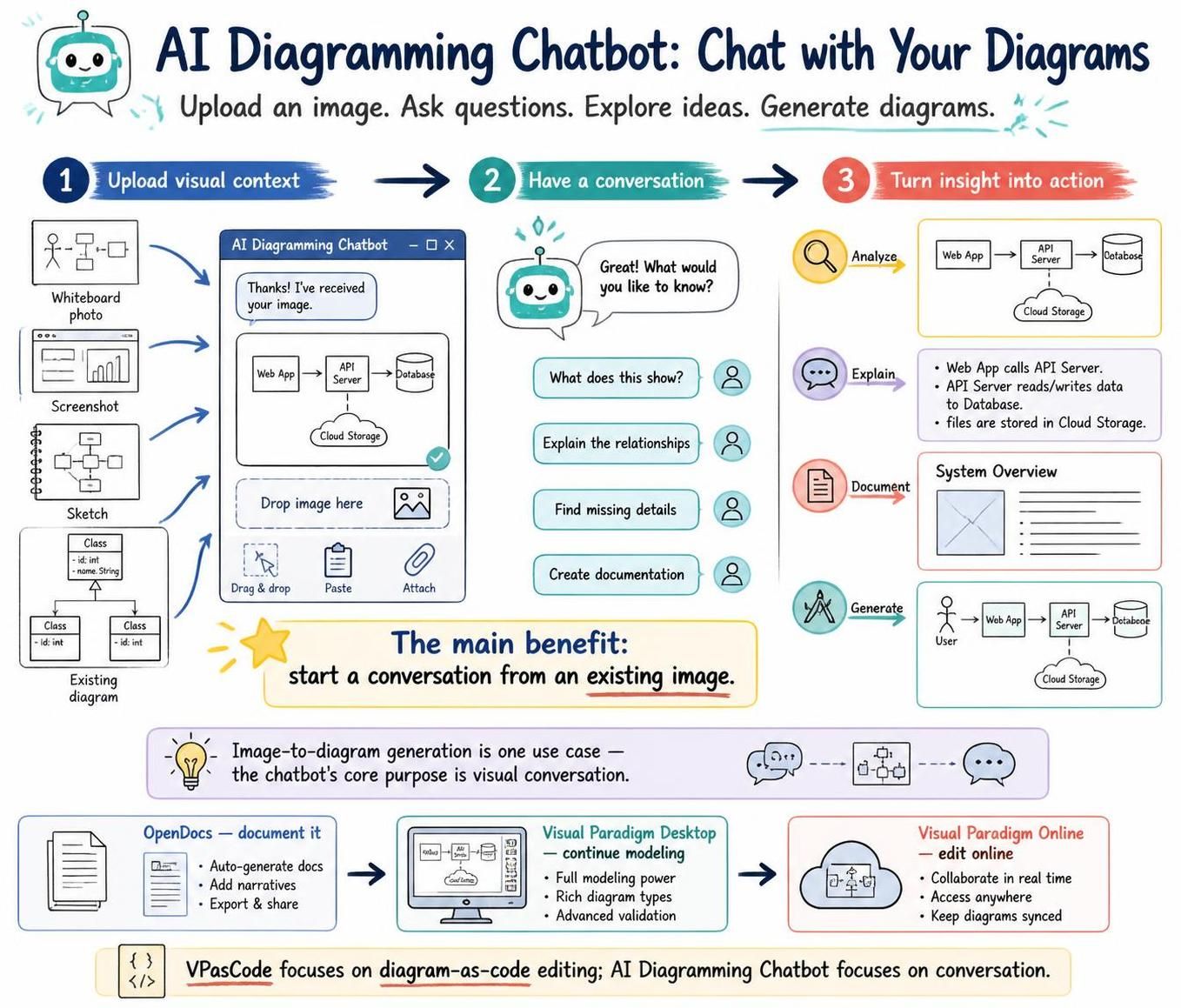
Start a Conversation with an Image
The AI Diagramming Chatbot is designed for conversational diagramming. You can describe an idea, ask for a diagram, request changes, generate documentation, or explore the meaning of a model through natural-language instructions.
With image upload support, an existing image can now become part of that conversation. Instead of explaining everything manually, you can provide the image as context and ask the AI to work with it.
For example, you can upload a system architecture diagram and ask:
- “What are the main components shown in this diagram?”
- “Explain how data flows through this system.”
- “Which components are external to the system?”
- “What potential bottlenecks or dependencies can you identify?”
- “Create technical documentation based on this diagram.”
- “Generate a C4 Container Diagram based on this image.”
You can also upload a photo of a whiteboard discussion and ask the chatbot to summarize the ideas, identify process steps, clarify relationships, or turn the discussion into a formal model.
This makes the AI Diagramming Chatbot useful not only for creating new diagrams, but also for understanding, discussing, reviewing, and documenting diagrams that already exist.
What Can You Do with an Uploaded Image?
An uploaded image gives the chatbot a visual starting point. Your instruction determines how the AI should use that visual context.
Ask Questions About a Diagram
You can ask the AI to explain the content of an image in plain language. This is useful when you are reviewing a diagram created by someone else or trying to understand a model that lacks sufficient documentation.
For example:
“Explain this architecture diagram to a new member of the development team. Start with the users and describe how requests move through the system.”
The chatbot can help you understand the diagram’s components, relationships, dependencies, sequence, and overall purpose.
Analyze an Existing Diagram
You can ask questions that focus on structure, completeness, or design quality. For example, you might ask the AI to identify missing relationships, unclear labels, duplicated elements, or areas that require further clarification.
Example prompts include:
- “Identify the main entities and relationships in this diagram.”
- “Which parts of this process are unclear or ambiguous?”
- “Find possible missing steps in this workflow.”
- “Review this class diagram and point out relationships that may need clarification.”
- “Summarize the architecture shown in this image in five bullet points.”
Generate Documentation from an Image
Diagrams often contain important knowledge that is not written elsewhere. The chatbot can use an uploaded diagram as the basis for documentation, explanations, design notes, or project reports.
For example:
“Generate a technical description of this system architecture. Explain the responsibility of each component and the communication between components.”
You can continue the conversation by asking the AI to rewrite the documentation for a different audience, such as developers, project managers, customers, or new team members.
Summarize a Whiteboard Discussion
Whiteboard diagrams are often created quickly during meetings and workshops. They may contain a mixture of text, arrows, boxes, notes, and rough sketches. After taking a photo, you can upload it and ask the AI to summarize the discussion represented by the image.
For example:
“Analyze this whiteboard photo and summarize the main decisions, open questions, system components, and next steps represented in the drawing.”
This helps convert informal visual thinking into information that can be shared with the wider team.
Ask the AI to Improve or Reorganize an Idea
You can use the uploaded image as a starting point and ask the chatbot to suggest improvements. The AI can help reorganize information, group related elements, identify missing details, or propose a more suitable diagram type.
For example:
“Review this process sketch and suggest how it could be reorganized into a clearer BPMN Business Process Diagram.”
Generate a Diagram from the Image
Generating a diagram from an image remains an important use case. You can ask the chatbot to interpret an uploaded image and produce a UML Class Diagram, BPMN diagram, flowchart, ERD, architecture diagram, or another supported diagram type.
However, the image does not have to be used only as a source for diagram recreation. You can first discuss the image with the chatbot, clarify its meaning, and then ask the AI to generate a diagram after the visual content has been analyzed.
How to Upload an Image and Start Chatting? An ERD Example
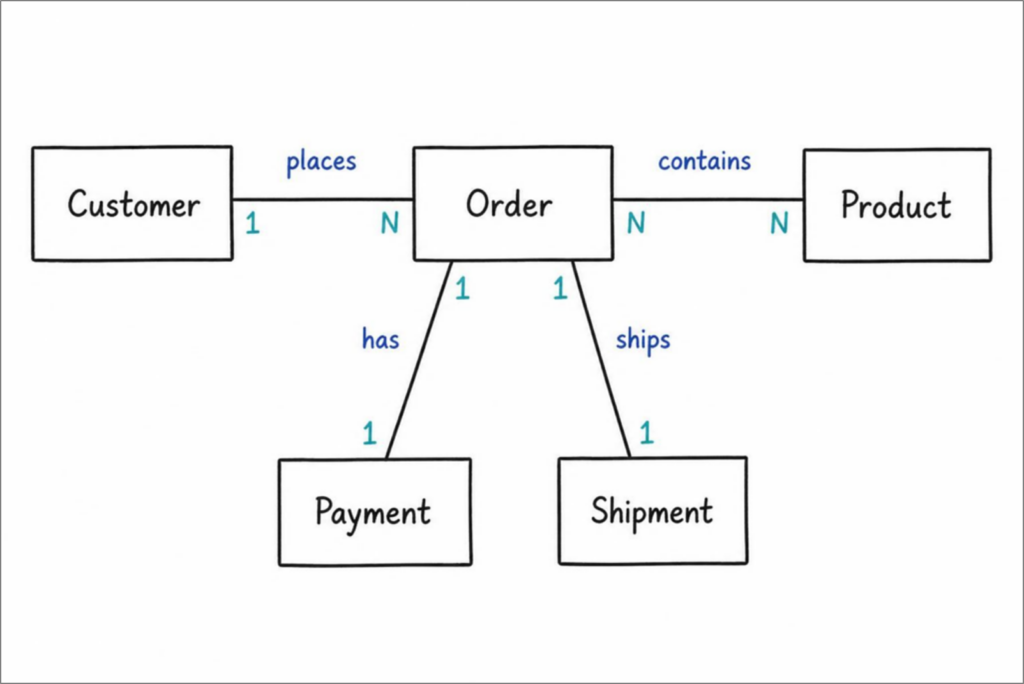
You can download this draft ERD here: Download Draft ERD
- Upload your image.At the bottom of the AI Diagramming Chatbot, drag your image into the message box. You can also click the attachment icon to select an image file, or press
Ctrl-Vto paste an image copied to your clipboard.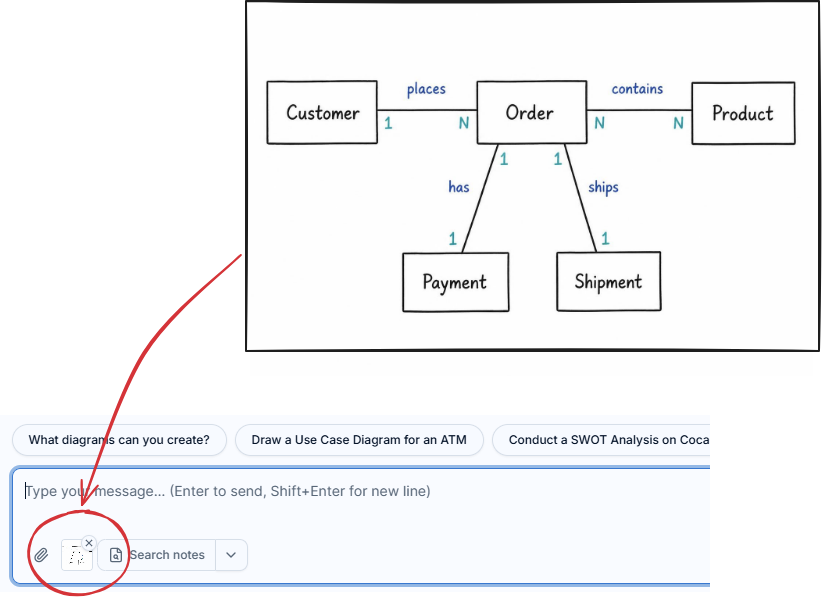
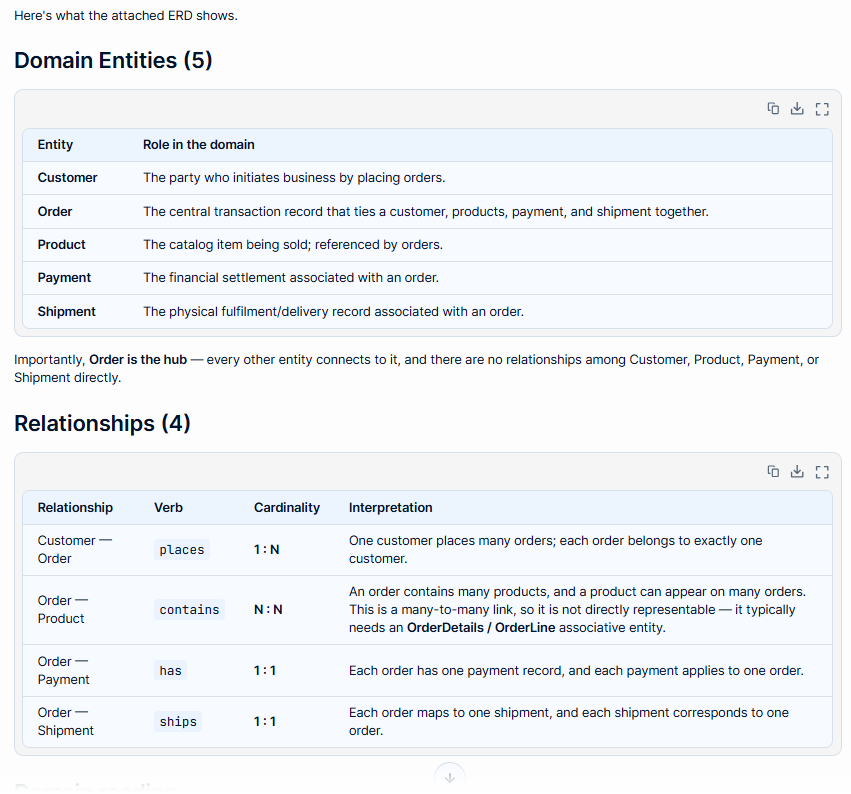
- Ask the chatbot to identify and describe the model.Submit a message that asks the AI to inspect the uploaded image and explain what it contains. For example:
“Analyze the attached ERD. Identify all domain entities and describe the relationships between them. Do not add fields yet.”
This first step allows you to check whether the chatbot has correctly understood the visual model. It can identify the entities, relationships, and overall business context represented in the image.

- Review the chatbot’s interpretation.Read the response and check whether the identified entities and relationships match the original image. If necessary, correct or clarify the model through a follow-up message.
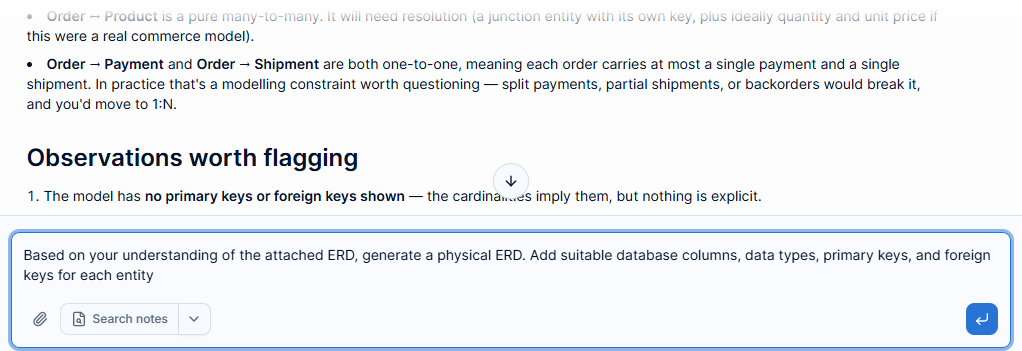
- Ask the chatbot to develop the model further.Once the chatbot has correctly understood the image, ask it to add the level of detail you need. For example, you can ask it to transform the conceptual model into a physical ERD by adding database columns, data types, primary keys, and foreign keys:
“Based on your understanding of the attached ERD, generate a physical ERD. Add suitable database columns, data types, primary keys, foreign keys, and constraints for each entity.”
- Review Chatbot’s answer.
Your question would be processed and answered. In this case, a physical ERD is formed. As per the request, AI produces a relational database design. It not only added the database columns to all domain entities, but also added an additional entity OrderLine to resolve the many-to-many (N:M) relationship between Order and Product.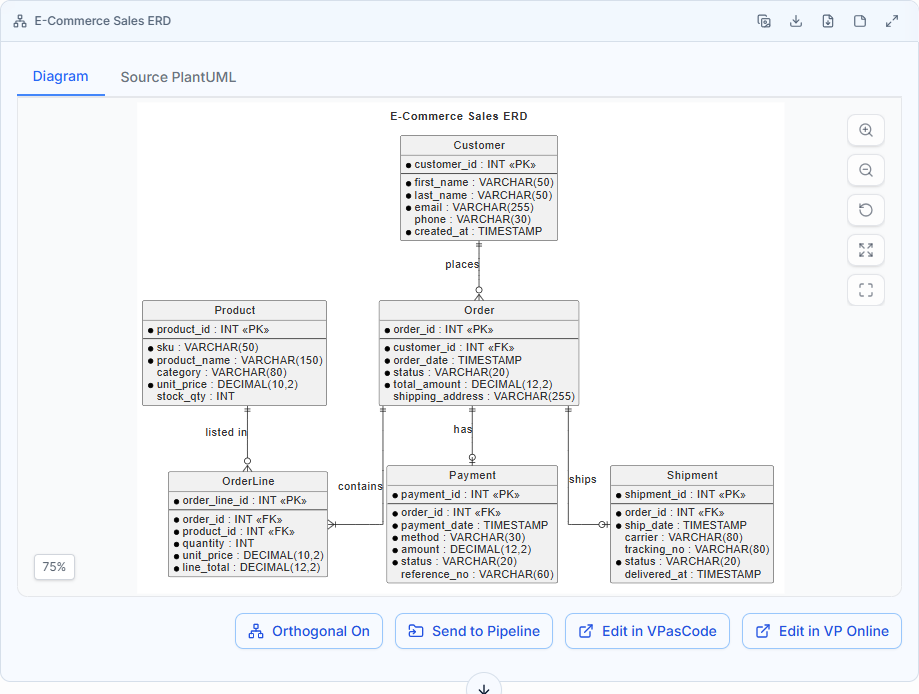
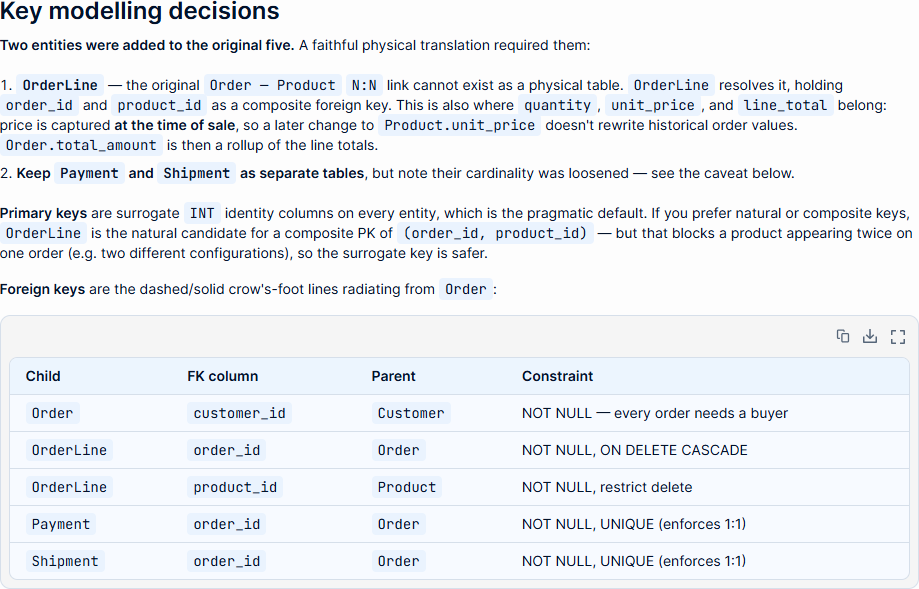
The Chatbot also provides a justification of its answer:
- Continue refining the result through conversation.You can keep asking questions and requesting changes. For example, ask the chatbot to generate the SQL CREATE TABLE DDL for the schema, explain the diagram in detail, generate a data spec, etc. Furthermore, you can touch up the diagram in two ways:
i. Edit the diagram code in Visual Paradigm VPasCode, our diagram-as-code editor. To do this, click on Edit in VPasCode at the bottom right of the diagram viewer.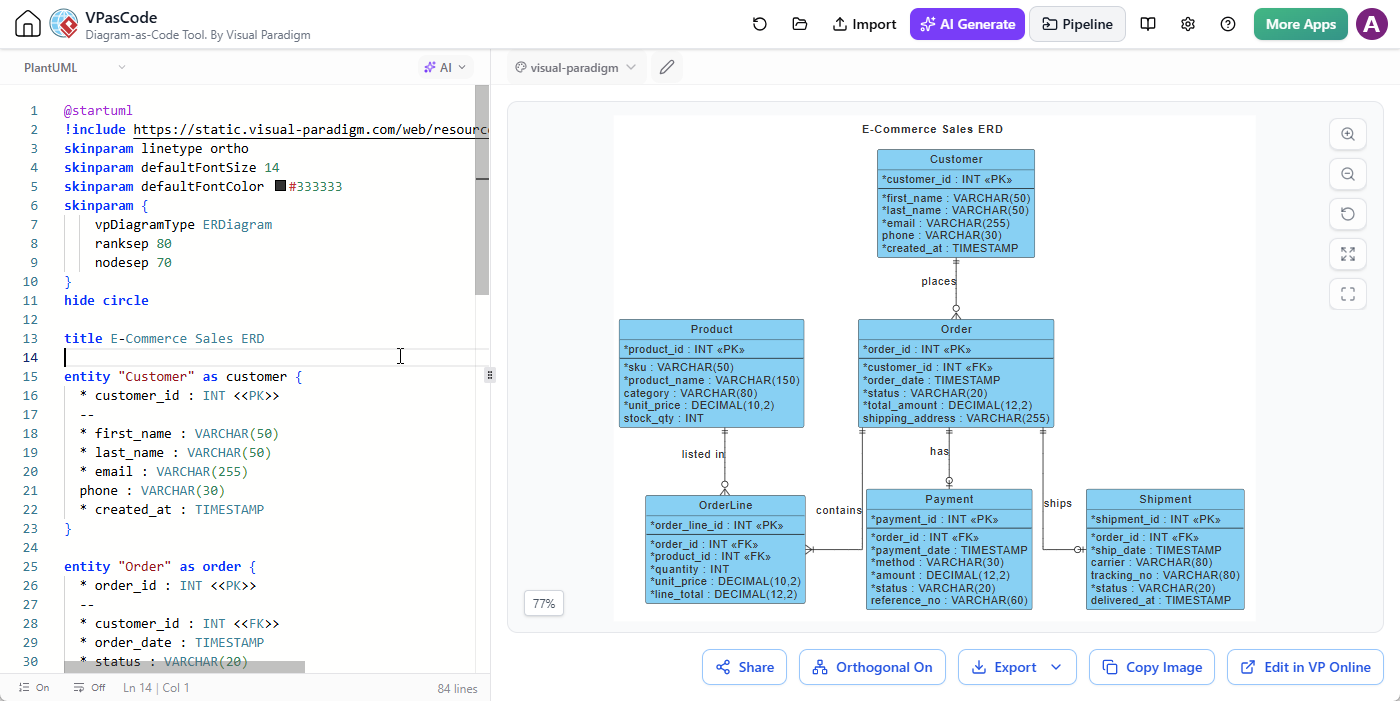
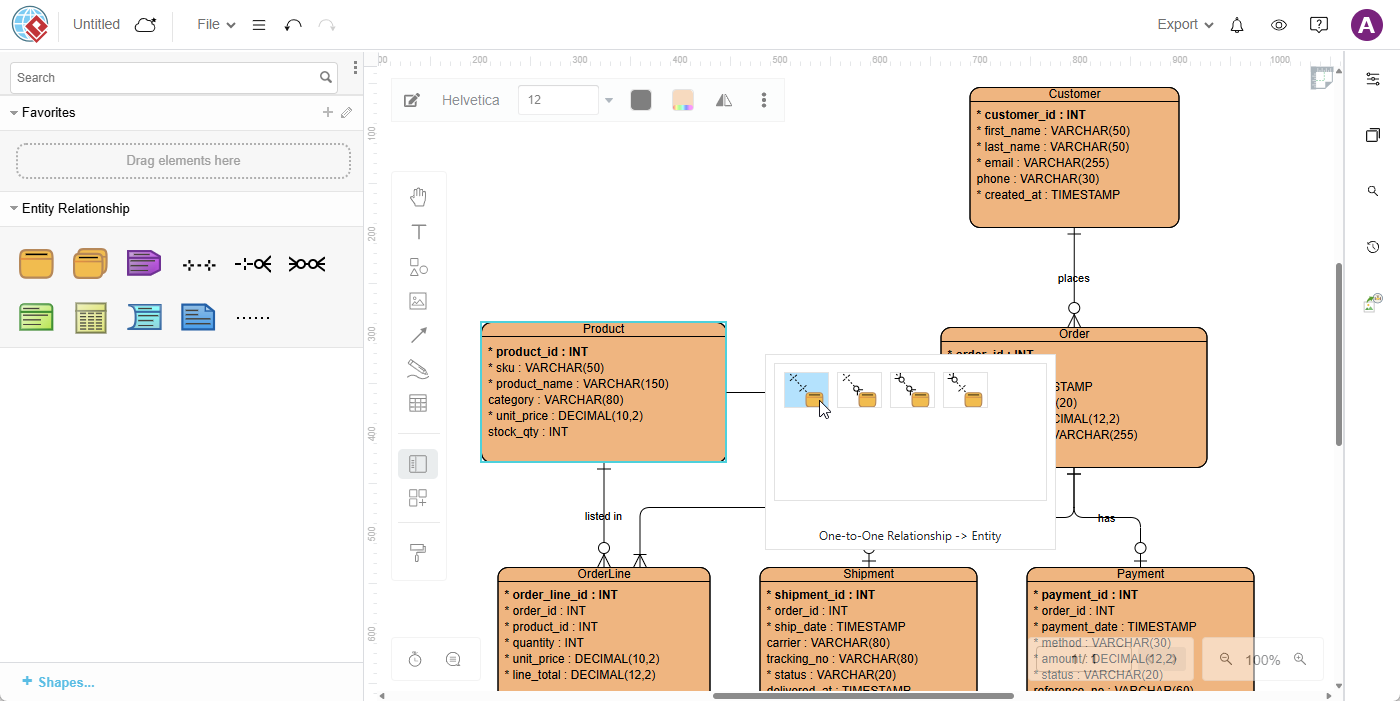
ii. Edit the diagram in Visual Paradigm Online’s Web Diagram Studio, a drag-and-drop diagram editor. To do this, click on the Edit in VP Online button at the bottom right of the diagram viewer.
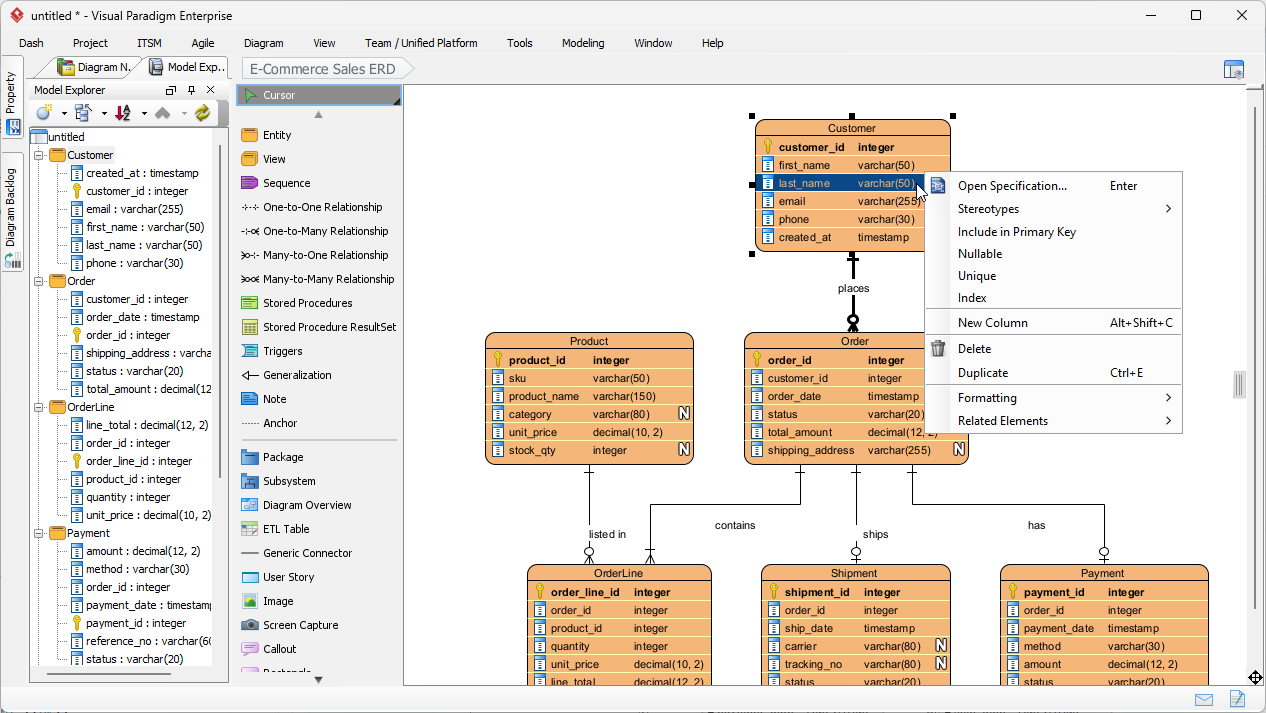
iii. Refine the diagram in Visual Paradigm Desktop, our desktop based visual modeling software, To do this, click on Send to Pipeline at the bottom of the diagram viewer. Then, in Visual Paradigm Desktop, import the diagram from the pipeline. For details, please read: Bridging AI Ideation to Enterprise Modeling: Export AI Diagramming Chatbot Diagrams into Visual Paradigm Desktop.
iv. You can also document your diagrams in Visual Paradigm OpenDocs. To do this, click on Send to Pipeline at the bottom of the diagram viewer. In OpenDocs, open the Pipeline and drag the diagram from pipeline onto your document page.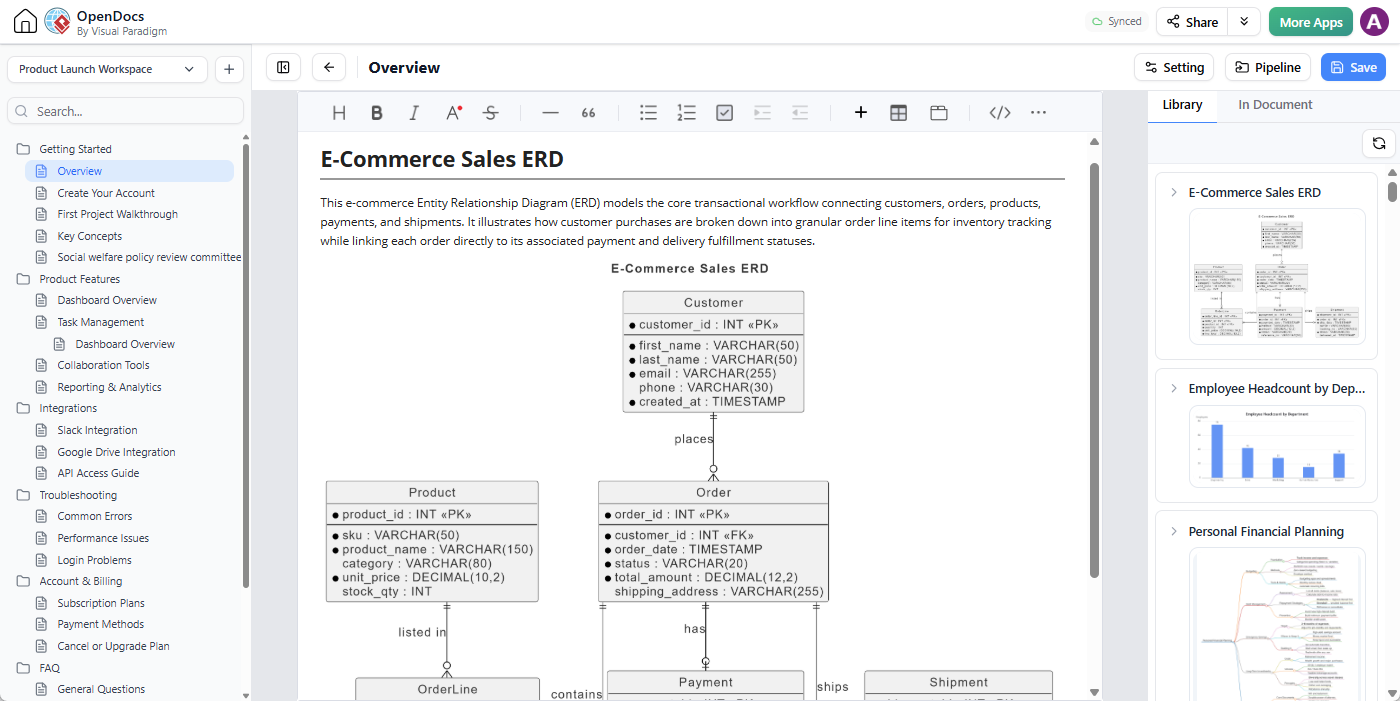
You can read the conversation of this case study by visiting the chat session at:
https://ai-toolbox.visual-paradigm.com/app/chatbot-v2/share/4706dafd-5b1a-4a70-a319-3722553ae9df
Example Conversations with an Uploaded Image
The following examples demonstrate how image upload supports different types of conversations.
Understanding a System Architecture Diagram
User: “What is the purpose of the components shown in this architecture diagram?”
Follow-up: “Which components communicate with the database?”
Follow-up: “Write a short architecture overview that I can include in a project document.”
Reviewing a Whiteboard Process
User: “Analyze this whiteboard photo and list the process steps in the correct order.”
Follow-up: “Identify any decisions or exception paths in this process.”
Follow-up: “Generate a BPMN Business Process Diagram based on the analysis.”
Interpreting a Class Diagram
User: “Explain the relationships between the classes in this image.”
Follow-up: “Which classes appear to represent core business entities?”
Follow-up: “Generate a clean UML Class Diagram based on this image.”
Analyzing a Diagram from a Document
User: “Summarize the main idea presented in this diagram.”
Follow-up: “What assumptions does this diagram appear to make?”
Follow-up: “Suggest a more suitable diagram type for explaining this concept to non-technical stakeholders.”
Why Image Upload Is Valuable in a Chatbot
It Removes the Need to Describe Everything Manually
When working with an existing diagram, explaining every shape, label, and relationship through text can take considerable time. Uploading the image allows the chatbot to use the visual material as part of the conversation.
You can focus your message on the question you want to ask instead of reproducing the entire diagram in words.
It Supports Visual Questions and Answers
Some questions are naturally connected to visual information. Asking “What does this diagram show?” or “Which components are connected to this service?” is more useful when the chatbot can see the diagram directly.
Image upload extends conversational AI diagramming from text-to-diagram generation to visual question answering, visual analysis, and diagram-based discussion.
It Connects Informal Ideas with Structured Knowledge
Photos and sketches often capture ideas before they become formal project artifacts. By uploading these images, you can ask the AI to extract the important information and help turn it into a structured explanation, diagram, or document.
This is especially useful after workshops, brainstorming sessions, requirements meetings, and architecture discussions.
It Makes Existing Diagrams More Useful
A diagram may already exist, but that does not mean it is fully understood or documented. You can upload it and ask the AI to explain the model, identify important elements, create documentation, or suggest improvements.
This gives existing visual assets a new conversational interface.
It Makes Diagramming More Accessible
Not every user knows the correct diagram notation or has access to the original project file. With an image and a natural-language instruction, users can begin working with visual information immediately.
The AI can help bridge the gap between an informal image and a more structured diagramming or documentation workflow.
AI Diagramming Chatbot and VPasCode: Different Purposes
Visual Paradigm also provides VPasCode, a diagram-as-code editor that supports generating diagrams from uploaded images. While both products can work with image-based diagram generation, their primary purposes are different.
VPasCode is focused on diagram-as-code creation and editing. It is designed for users who want to work directly with diagram code, control the generated output at the code level, and fine-tune diagrams through a text-based editing experience.
The AI Diagramming Chatbot is focused on conversation. Its main purpose is to let you discuss a diagram or visual idea with AI. You can ask questions, request explanations, generate documentation, explore alternatives, refine requirements, and then ask the chatbot to create or modify a diagram as part of that conversation.
In the AI Diagramming Chatbot, uploading an image is therefore not limited to diagram generation. It provides visual context for an ongoing dialogue.
This distinction makes the two products complementary:
- AI Diagramming Chatbot: Chat with AI about an image, analyze visual content, ask questions, generate documentation, and create diagrams through conversation.
- VPasCode: Generate and edit diagrams using diagram-as-code workflows with greater emphasis on code-level control.
Tips for Better Image-Based Conversations
Ask a Specific Question
Instead of uploading an image without an instruction, explain what you want to learn or accomplish. For example, ask the chatbot to identify components, summarize the process, explain relationships, or generate documentation.
Tell the AI Who the Answer Is For
You can specify the intended audience. For example, ask for an explanation for a software developer, business stakeholder, student, customer, or project manager. The chatbot can then adapt the level of detail and terminology.
Break Complex Tasks into Multiple Messages
You do not have to request analysis, documentation, and diagram generation in one prompt. Start by asking the chatbot to interpret the image. Then ask follow-up questions and request additional outputs based on the discussion.
Ask for Clarification When the Image Is Ambiguous
If the image contains unclear labels or overlapping elements, ask the AI to identify the ambiguous areas. You can then provide additional information in a follow-up message.
Use the Image as a Reference, Not Just a Source File
Think of the uploaded image as context for the conversation. You can use it to ask questions, compare alternatives, explore improvements, generate explanations, and create new diagrams based on selected parts of the image.
Try Image-Based Chat with AI Diagramming Chatbot
Image upload gives the AI Diagramming Chatbot a new way to understand your work. You can begin with a diagram that already exists, a rough sketch from a meeting, or a photo of a whiteboard and then have a conversation about it.
Ask questions about the image. Request an explanation. Generate documentation. Identify relationships and missing details. Ask for a different diagram type. Continue refining the result through natural-language instructions.
Generating a diagram from an uploaded image is an important part of this capability, but the broader benefit is visual conversation. The AI Diagramming Chatbot lets you use images as context for exploring ideas and turning visual information into useful project knowledge.
Try the Visual Paradigm AI Diagramming Chatbot and start chatting with your diagrams and visual ideas.
Free trials are available for testing and evaluation. Full access is included with VP Online Deluxe Edition and VP Desktop Professional Edition subscriptions.