


Why Flexible Page Width Matters
As a leading knowledge management tool, OpenDocs is designed to house a variety of data formats. By allowing users to adjust the page width, you can:
- Maximize Screen Real Estate: Use the “Full” width setting to display large diagrams or complex spreadsheets without horizontal scrolling.
- Improve Readability: Use “Default” or “Custom” widths to maintain optimal line lengths for long-form text, reducing eye strain for your readers.
- Professional Presentation: Tailor the layout to match your brand’s specific style or the specific needs of your project.
How to Adjust Your Page Width
Setting up your ideal layout is simple and can be done on a page-by-page basis. Follow these three steps to customize your view:
- Edit your page: Open the specific document or page you wish to adjust within the editor.
- Access Settings: Click on the Setting icon located at the top navigation bar.
- Choose Your Width: Under the Width Setting section, select from one of three powerful options:
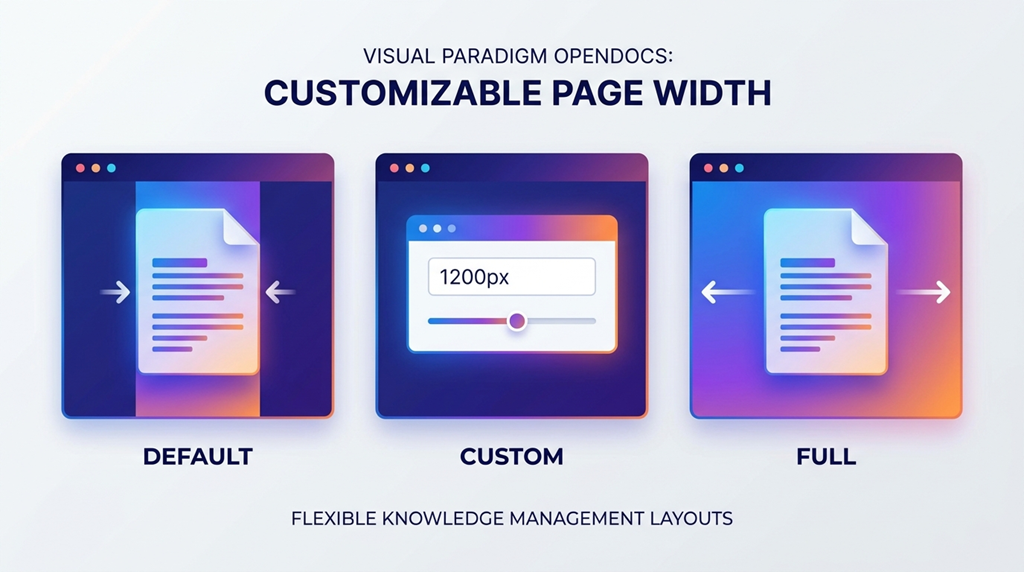
- Default: The standard, centered layout optimized for general reading.
- Full: Expands the content to fit the full available width of the browser window.
- Custom: Enter a specific pixel value to achieve a precise, tailored page width.
Ready to optimize your documentation?
Experience the flexibility of our enhanced knowledge management platform today.
Summary
This enhancement is part of our ongoing commitment to making Visual Paradigm OpenDocs the most user-centric knowledge management tool on the market. Whether you are building an internal wiki, a public help center, or a personal knowledge base, these new layout options ensure your content always looks its best.
Stay tuned for more updates as we continue to evolve our AI-powered toolset!