


Timing is everything in project management. To help you communicate deadlines, historical events, and product roadmaps more effectively, Visual Paradigm has expanded OpenDocs to support a dedicated Timeline editor. This enhancement allows you to transform a series of dates and milestones into a sleek, professional visual narrative.
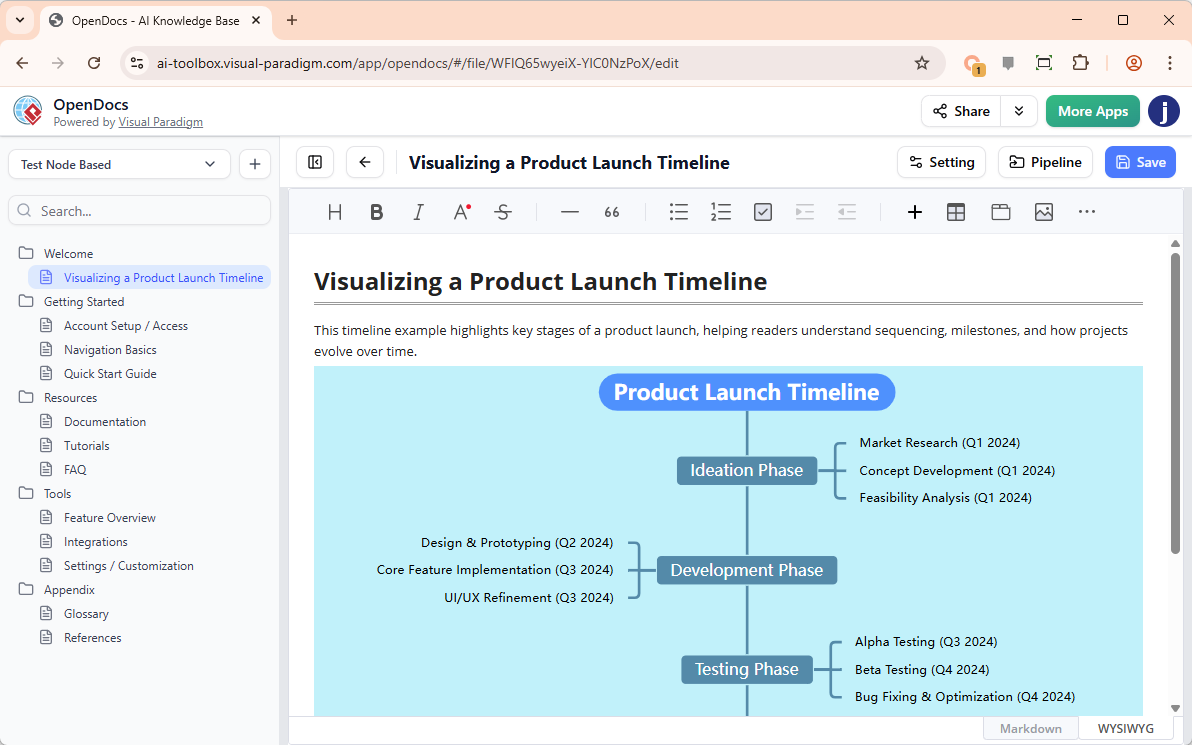
Whether you are documenting a high-level product vision or a granular project schedule, our integrated AI timeline tool ensures your team stays aligned on every critical milestone.
The Clarity of Chronological Planning
A timeline tool is essential for anyone who needs to explain “what happens when.” By moving away from static lists and into dynamic visual timelines, you can:
- Provide stakeholders with an immediate overview of project phases.
- Highlight dependencies and key deadlines with visual emphasis.
- Document historical progress or future goals in an easy-to-digest format.
From Concept to Roadmap in Seconds with AI
Building a timeline manually often involves frustrating alignment and spacing issues. Our AI timeline tool eliminates this friction. By utilizing the “Create with AI” feature, you can simply input your project details—for example, “A 6-month software development lifecycle including planning, design, three sprints, and a final launch in December”—and the AI will generate a perfectly scaled timeline for you.
Once generated, you can easily modify dates, add descriptions, and customize the aesthetic to match your document’s branding.
How to Generate a Timeline in OpenDocs
Adding a professional timeline to your page is straightforward and follows our streamlined editor workflow:
- Open the Menu: In your OpenDocs document editor, click the + (Plus) icon located on the top bar.
- Select Timelines: Choose Timelines from the category list on the left, then select the Timeline option on the right.
- Generate with AI: Click Create with AI at the top right. Describe your sequence of events or project phases and hit Generate.
- Edit and Refine: Use the intuitive editor to drag milestones, change colors, or add extra detail to specific points in time.
- Embed Your Work: Click Save. The timeline will be instantly embedded into your page, ready for your team to view.
Who Can Use It?
The AI-powered timeline feature is available to our professional and online power users, specifically those with:
- Visual Paradigm Desktop Professional Edition
- Visual Paradigm Online Combo Edition
Start Mapping Your Future Today
Stop struggling with manual drawing and start focusing on your strategy. With our AI timeline tool, professional roadmaps and schedules are just a few clicks away. Experience how visual scheduling can bring clarity to your most complex projects.
Create Your Project Timeline with AI in OpenDocs
Related posts:
 Revolutionize Your Documentation with the New AI Mind Map Tool in OpenDocs
 Announcing the All-New Visual Paradigm Unified Platform
 Introducing Visual Paradigm 18.1: A New Era of Unified Ecosystems and AI-Driven Innovation
 Seamless Diagram Lifecycle Management: Enhance and Edit AI-Generated Diagrams in Visual Paradigm OpenDocs via VPasCode