


Visual Paradigm OpenDocs — the powerful AI-powered knowledge management platform — now makes it even easier to share your rich documentation with the world. With the brand-new WordPress integration, you can export selected pages from your OpenDocs knowledge base directly as a fully functional WordPress Page in just a few clicks.
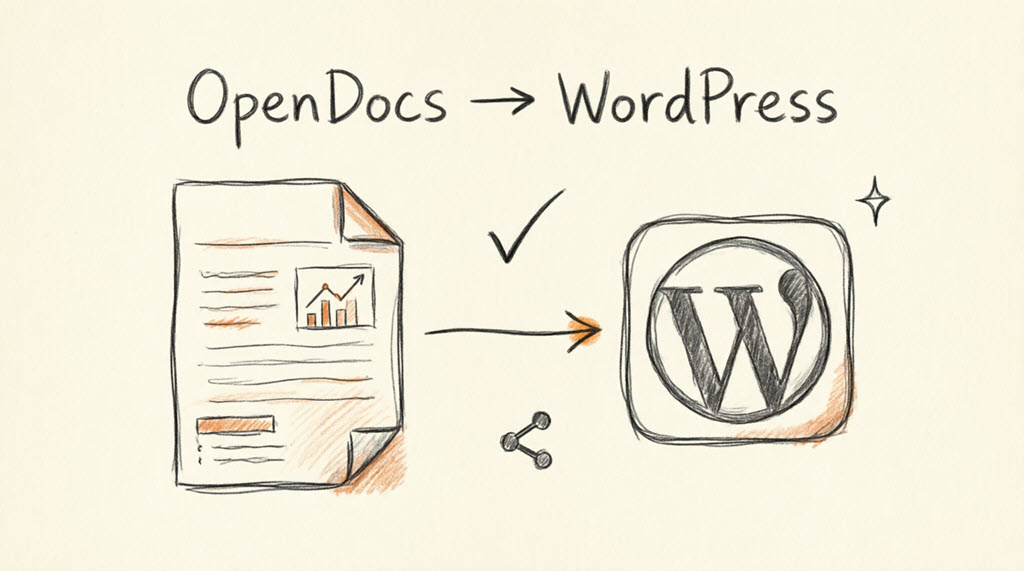
Whether you’re managing enterprise architecture blueprints, business process models, technical documentation, or any other structured knowledge, this feature allows you to publish professional, diagram-rich content to your existing WordPress website effortlessly.
Why this matters: Build a centralized knowledge space in OpenDocs and selectively share subsets of it with stakeholders, clients, or the public — without giving access to everything. Perfect for security-conscious teams or focused content delivery.
What is Visual Paradigm OpenDocs?
OpenDocs is an intelligent knowledge management tool and knowledge management platform that goes far beyond traditional documentation. It combines a powerful rich text editor with built-in professional diagramming capabilities, allowing you to create pages that seamlessly mix rich text, technical diagrams, graphic designs, and AI-generated visuals.
Thanks to the Visual Paradigm Pipeline, you can bring diagrams and artifacts from Visual Paradigm Desktop, Visual Paradigm Online, chatbots, and more directly into your OpenDocs workspace. The result? Living, visual-rich knowledge bases that are easy to build, organize, and now — publish.
Introducing WordPress Page Export: Share Knowledge with Precision
Many teams build comprehensive knowledge hubs in OpenDocs — for example:
- A root page “Business Domain” with child pages covering various business process models
- A root page “Technology Domain” with child pages detailing physical architecture and infrastructure models
With the new integration, you can now create multiple targeted WordPress pages, each containing only the specific subset of pages you want to share. This gives you full control over what your visitors see — ideal for stakeholder presentations, client portals, or public documentation sites.
How to Export OpenDocs Content to a WordPress Page (Step-by-Step)
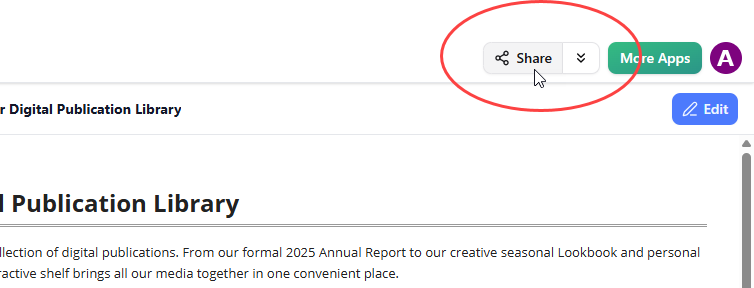
- Open your knowledge base in OpenDocs and click the Share button at the top right corner.
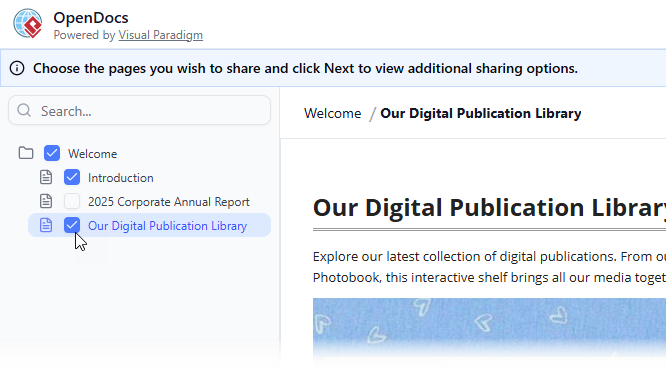
- Enter page selection mode. On the left panel, tick the checkboxes for the exact pages (and sub-pages) you want to include in this share. Leave out any sensitive or irrelevant content.
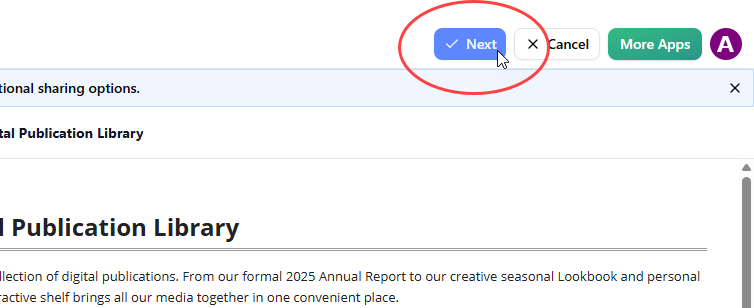
- Click Next.
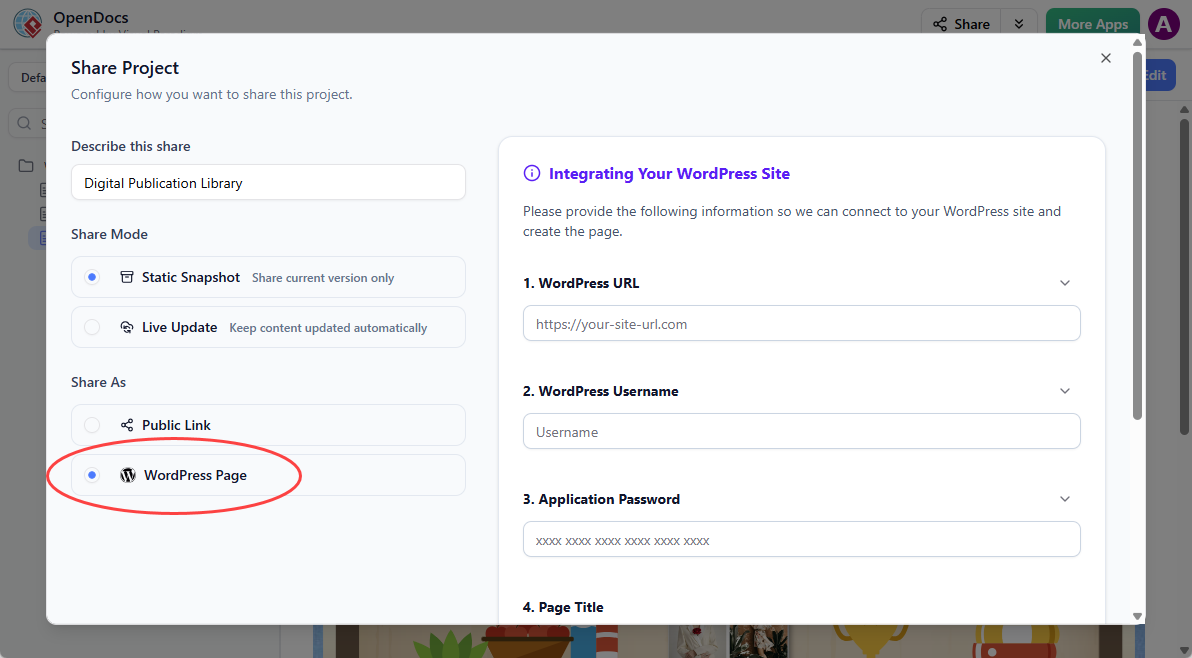
- Describe your share — provide a short, clear description of the content (this helps you and your team later).
- Choose your Sharing Mode:
- Static Snapshot — creates an archived version that does not update when you edit the original pages. Great for milestones or formal releases.
- Live Update — the published content stays synchronized with any future changes you make in OpenDocs.
- Under Share As, select WordPress Page.
- Prepare your WordPress site (one-time setup):
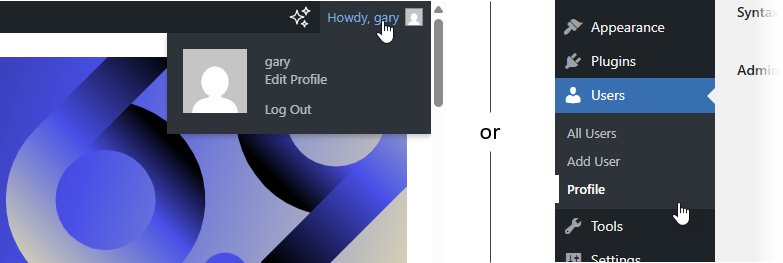
- Log into your WordPress dashboard.
- Go to your Profile (click your name at the top right or Users → Profile).
- Scroll to Application Passwords.
- Enter a name like “Visual Paradigm OpenDocs” and click Add Application Password.
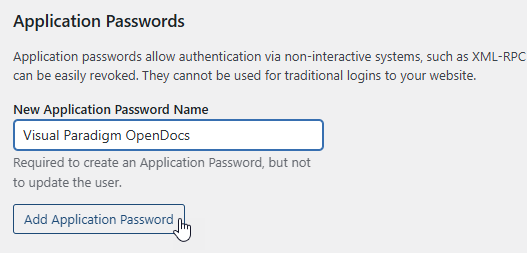
- Copy the generated password immediately (you won’t see it again).

- Back in OpenDocs, fill in the connection details:
- WordPress URL: Your site base URL (e.g., https://www.your-website.com)
- WordPress username: Your login username
- Application Password: The one you just created (Visual Paradigm does not store it)
- Page title: The title that will appear on your WordPress site
- Page slug: The URL-friendly ending (e.g., “ea-blueprints-2026”). Make sure it is unique.
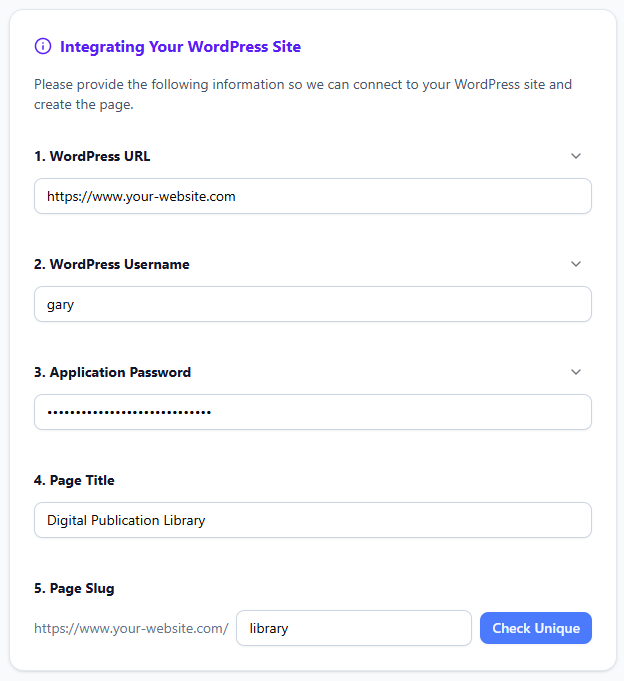
- Click Check Unique, then Publish to WordPress.

The process usually completes in seconds. Once published, visit your new WordPress page to view the embedded OpenDocs content.
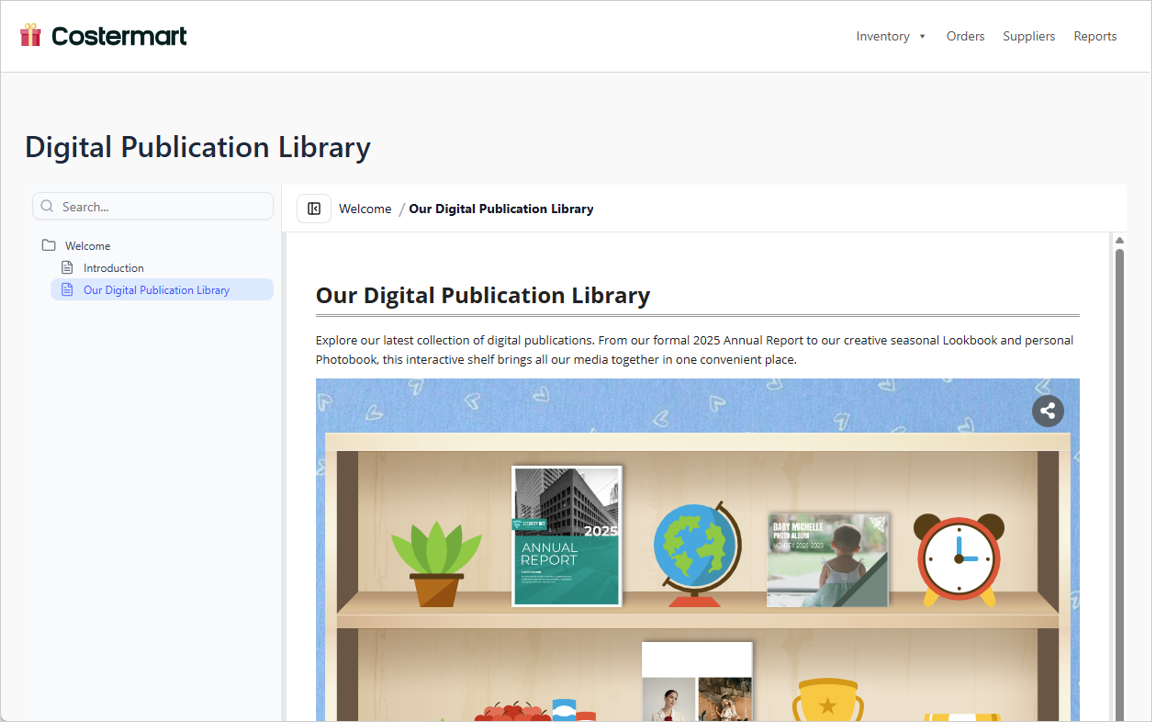
You can also find and further customize the page under Pages in your WordPress admin.
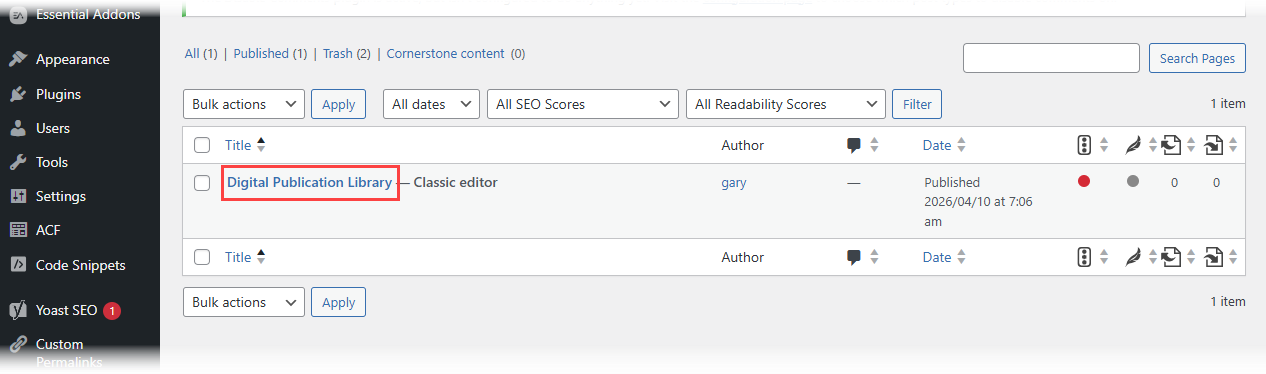
Note: Visual Paradigm never stores your Application Password. For future shares, you can reuse the saved password or generate a new one in WordPress.
WordPress Page Export vs. Embed Code: Which Should You Use?
We also offer a flexible HTML embed code option that works with any website, not just WordPress. Here’s a quick comparison:
- Share as WordPress Page: Fastest way to create a brand-new, clean page automatically. No manual page creation required. Ideal when you want a dedicated documentation page.
- Embed Code: Gives you more control. Paste the code into an existing WordPress page or any other website to embed the knowledge base exactly where you want it. Best for integrating content within larger pages or non-WordPress sites.
Both options support the same powerful page selection and Static/Live modes.
Benefits for Knowledge Management Teams
This new feature transforms OpenDocs into an even more versatile knowledge management platform. You can now:
- Keep your master knowledge base secure and centralized in OpenDocs
- Publish tailored views to your company website or client portals
- Choose between living documents or frozen snapshots for compliance and archiving
- Deliver rich, visual documentation that includes diagrams, without manual copying or screenshotting
- Improve collaboration by sharing focused content with different stakeholder groups
Start Building & Sharing Your Knowledge Base Today
Learn More and Get Started
Discover the full power of OpenDocs and the new WordPress integration on our dedicated feature page:
OpenDocs – AI-Powered Knowledge Management Platform
We hope this enhancement makes it significantly easier for you to distribute your valuable knowledge. As always, we welcome your feedback to continue improving OpenDocs.
Happy documenting!
The Visual Paradigm Team