

Working with diagrams as code offers tremendous flexibility. You can write diagram scripts, see the results instantly, and refine your visual models without manually drawing every shape. But what happens when you finish one diagram and want to start another? How do you keep your previous work organized and make sure you can return to it later?
With the latest enhancement to Visual Paradigm VPasCode, you no longer have to worry about that. VPasCode now supports cloud file saving, allowing you to save your diagram code directly to your Visual Paradigm cloud workspace, organize your files into projects, and reopen them whenever you need them.
This enhancement makes VPasCode more than just an online diagram-as-code editor. It gives you a persistent workspace where your diagram scripts can be created, saved, organized, and continuously refined.
Open VPasCode and start working with your diagrams
What’s New: Save Your Diagram Code to the Cloud
VPasCode has always been designed to make text-based diagramming convenient. It brings multiple diagramming and visualization technologies together in one browser-based environment, allowing you to write code and see the corresponding visual output in real time.
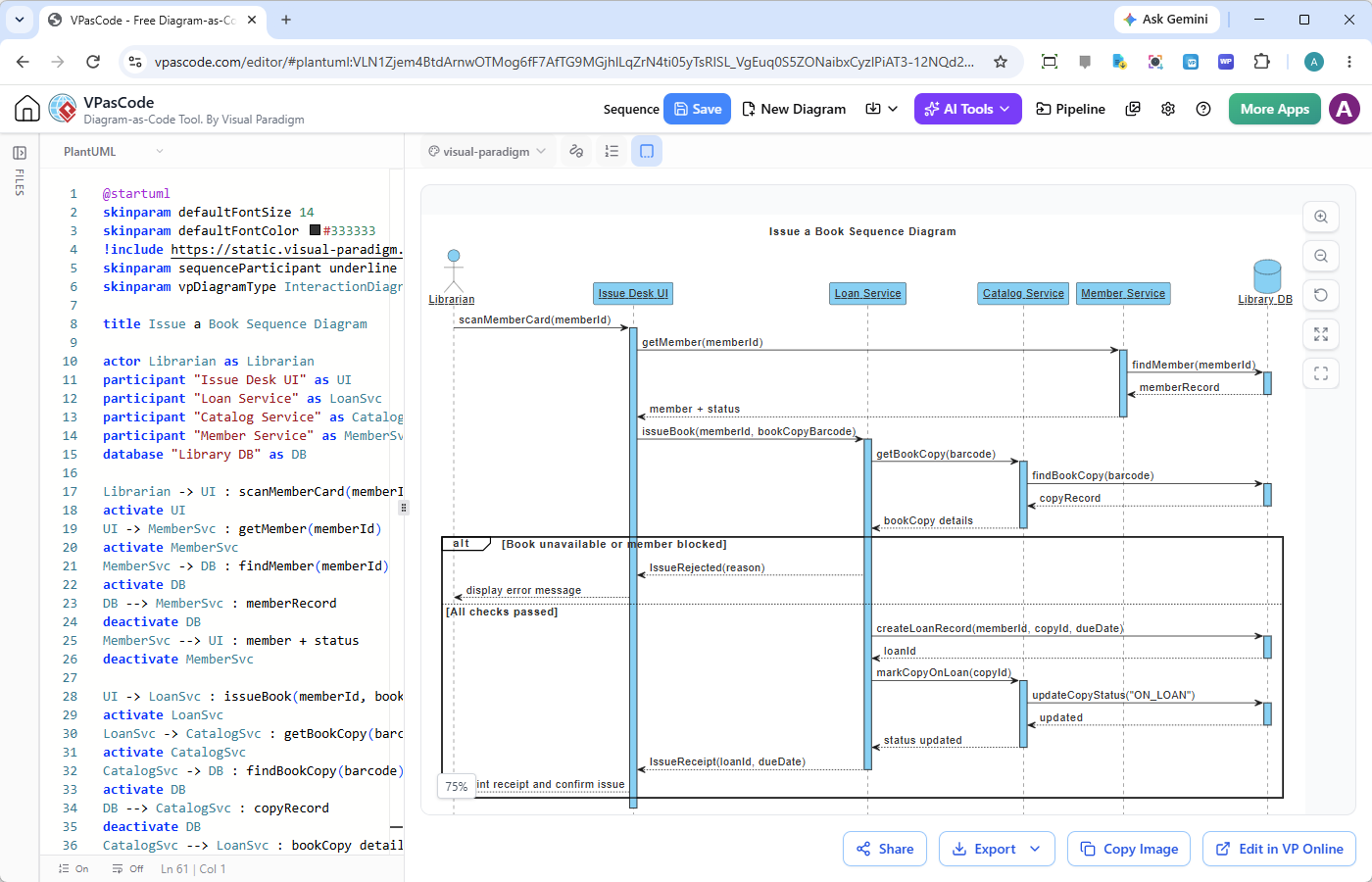
Now, we’re taking that experience one step further.
With the new cloud file-saving capability, you can save your diagram code to your Visual Paradigm cloud workspace instead of relying on temporary editor content or manually keeping copies of your scripts.
Here’s what you can do:
- ✅ Create diagram files: Start a new diagram file directly from the Project Files pane or the New Diagram command.
- ✅ Save your work to the cloud: Store your diagram code in your Visual Paradigm cloud workspace.
- ✅ Reopen saved diagrams: Access your existing diagram files from the Project Files pane whenever you return to VPasCode.
- ✅ Organize files by project: Keep different diagrams in separate Visual Paradigm projects.
- ✅ Move files between projects: Reorganize your diagram files as your work evolves.
- ✅ Sort your diagram files: Find the files you need using different sorting options, including modification order, name, and type.
In short, you can now treat your VPasCode diagrams as ongoing project assets rather than temporary pieces of code in an editor.
Why Cloud File Saving Matters for Diagram-as-Code Users
There are many diagram-as-code tools available online. They make it easy to write diagram scripts and render visual results using popular languages such as PlantUML, Mermaid, Graphviz, and D2.
However, one common inconvenience in this type of workflow is managing the source code after creating a diagram.
The Problem with Temporary Diagram Editors
Imagine that you’re working on a PlantUML sequence diagram for a software project. You finish the first version, and now you want to create a class diagram to describe the system’s structure.
In a basic online diagram-as-code editor, you may have to copy your existing PlantUML code somewhere else before replacing it with the new script. Otherwise, your previous work may be lost when you start working on another diagram.
Of course, you could open multiple browser tabs and dedicate one tab to each diagram. But this introduces another inconvenience:
- It becomes difficult to keep track of which tab contains which diagram.
- You may accidentally close a tab and lose your working session.
- There is no central place to organize all your diagram scripts.
- Returning to a previous diagram may require finding an old browser tab or locating a manually saved code file.
- Managing diagrams across different projects can become increasingly cumbersome.
These problems may seem minor when you are working on just one or two diagrams. But they become much more noticeable when diagramming is part of your daily development, architecture, documentation, or analysis workflow.
A More Complete Diagram-as-Code Workspace
VPasCode addresses this problem by introducing persistent cloud-based file management.
Instead of treating the editor as a temporary place to write and preview code, VPasCode now provides a place to keep your diagram files and return to them later.
For example, you might be working on several diagrams for the same software development project:
- A PlantUML use case diagram describing system functionality.
- A PlantUML sequence diagram illustrating interactions between system components.
- A Mermaid flowchart documenting a business process.
- A D2 architecture diagram showing the overall system structure.
- A Markmap mind map organizing project requirements.
You can save these diagrams in your Visual Paradigm cloud workspace and organize them under the relevant project. When you need to revisit one, simply select it from the Project Files pane.
This gives you a much more manageable workflow, particularly when working on multiple diagrams or maintaining a growing collection of technical documentation.
How to Save Diagram Code to Your Visual Paradigm Cloud Workspace
Saving a diagram in VPasCode is straightforward. Once you have signed in to your Visual Paradigm account, you can create, edit, and save your diagram files directly from the application.
Step 1: Sign in to Your Visual Paradigm Account
Open VPasCode and make sure you are logged in to your Visual Paradigm account.
The cloud file-management functionality uses your Visual Paradigm workspace, so you need to be authenticated before accessing your saved project files.
Step 2: Open the Project Files Pane
On the left side of the VPasCode interface, you will find a narrow sidebar labeled Files.
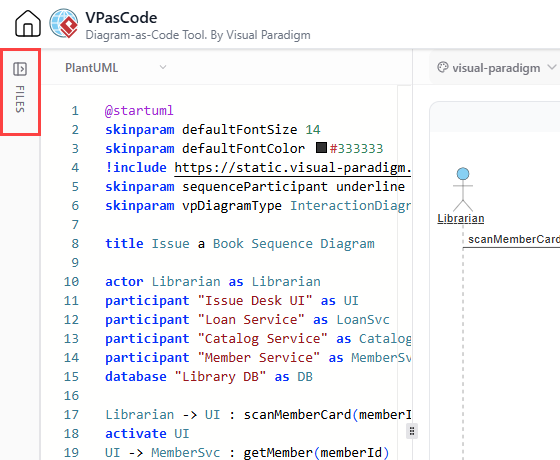
Click it to slide out the Project Files pane. This is where your saved diagram files are listed.
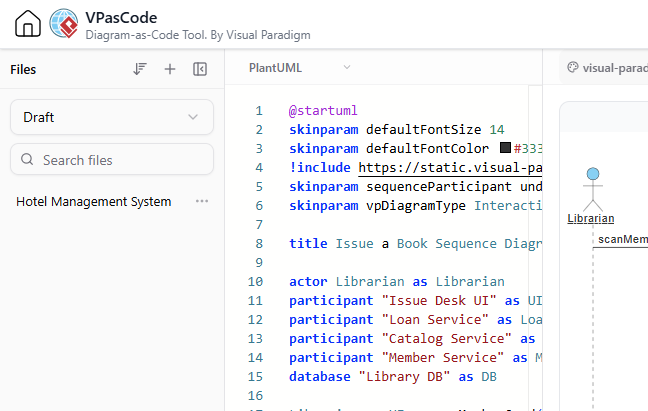
The pane provides access to your diagram files and allows you to switch between projects.
Step 3: Create a New Diagram File
There are two ways to create a new diagram:
- From the Project Files pane: Click the + button at the top of the pane to create a new file.
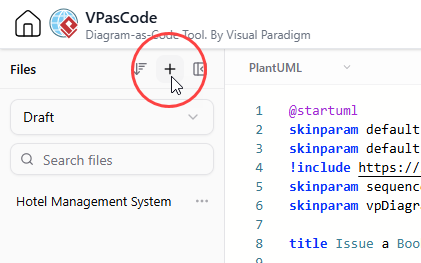
- From the app bar: Click New Diagram to start creating a new diagram.

Either option gives you a new working space in which to write your diagram code.
Step 4: Write Your Diagram Code
Now you can start coding your diagram using your preferred supported format.
For example, you can use PlantUML to create UML diagrams, Mermaid to build flowcharts and sequence diagrams, Graphviz to visualize relationships, or D2 to describe software architecture.
VPasCode provides a real-time diagram preview, allowing you to see the visual result as you work on the source code.
Step 5: Save Your Diagram
When you are ready to save your work, click the Save button in the app bar.

If this is the first time you are saving the diagram, VPasCode will ask you to select a Visual Paradigm project as the destination.
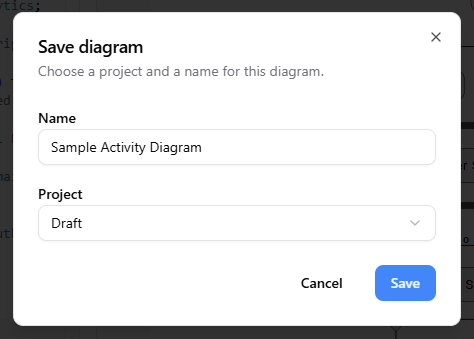
Step 6: Select a Project and Confirm
Choose the project where you want to store your diagram and confirm your selection.
Your diagram code will then be saved to your Visual Paradigm cloud workspace under the selected project.
That’s it! Your diagram is now stored as a project file, ready to be reopened and edited whenever you need it.
How to Reopen Your Saved Diagrams
One of the biggest benefits of cloud file saving is that you can return to your previous work without having to locate old browser tabs or manually retrieve source code.
To reopen a saved diagram:
- Open the Files sidebar on the left of VPasCode.
- Locate the diagram you want to work on in the Project Files pane.
- Click the diagram file to open it in the editor.
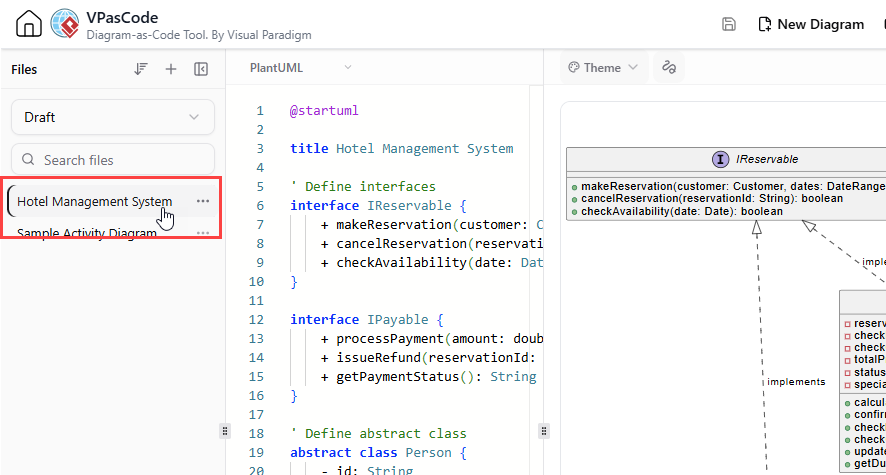
Your selected diagram will be loaded into the workspace, allowing you to continue editing its code and previewing the result.
Switch Between Projects
VPasCode organizes diagram files under Visual Paradigm projects. This makes it easier to separate diagrams belonging to different systems, applications, teams, or work initiatives.
If you want to access diagrams stored in another project, simply click the project drop-down menu at the top of the Project Files pane and select the desired project.
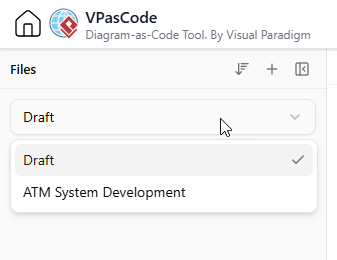
The file list will then display the diagrams belonging to that project.
For example, you could maintain one project for your company’s software architecture diagrams, another for business process documentation, and another for personal learning or experimentation.
More Ways to Manage Your Diagram Files
Besides saving and reopening diagrams, the new Project Files pane also provides additional file-management functionality to help you keep your workspace organized.
Move a Diagram to Another Project
Project organization is not always fixed. As your work evolves, you may decide that a diagram belongs in a different project.
VPasCode makes it easy to move an existing diagram between projects.
- Locate the diagram in the Project Files pane.
- Click the three-dot (…) menu on the right of the diagram name.
- Move your cursor to Move to project.
- Select the destination project from the available project list.
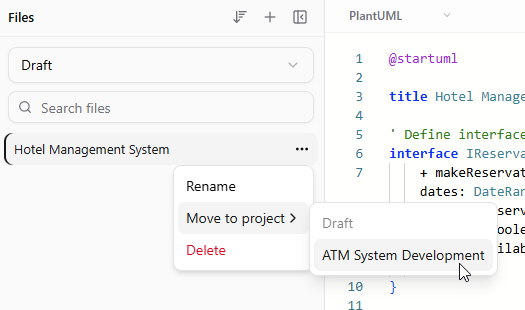
The diagram can then be organized under the new project without requiring you to manually copy and recreate its code.
This is particularly useful when managing multiple projects or reorganizing your diagram collection as a project develops.
Sort Your Diagram Files
When you have many diagram files, finding a particular one can become time-consuming. To make file navigation easier, VPasCode provides several sorting options.
At the top of the Project Files pane, click the sort button to choose how your diagram files should be displayed.
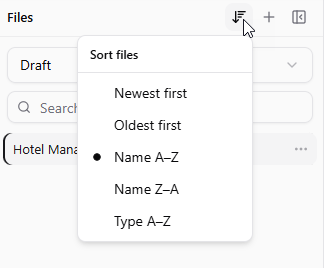
The available options include:
- Newer first: Display the newest files first.
- Oldest first: Display the oldest files first.
- Name A-Z: Sort diagram files alphabetically in ascending order.
- Name Z-A: Sort diagram files alphabetically in descending order.
- Type A-Z: Group the listing in alphabetical order by file type.
These options give you more control over how your files are presented, whether you prefer to locate recently created diagrams or browse your collection alphabetically.
More Than a PlantUML Tool: One Workspace for Multiple Diagram-as-Code Formats
While cloud file saving is the focus of this update, it is worth highlighting another important aspect of VPasCode: it is not tied to a single diagramming language or DSL.
Many online diagram editors focus on one particular syntax or rendering engine. VPasCode takes a broader approach by bringing multiple popular diagram-as-code and visualization technologies into one browser-based environment.
Depending on the type of diagram or visualization you want to create, you can work with different formats, including:
- PlantUML: Create UML diagrams, sequence diagrams, class diagrams, use case diagrams, activity diagrams, component diagrams, deployment diagrams, architecture diagrams, and more.
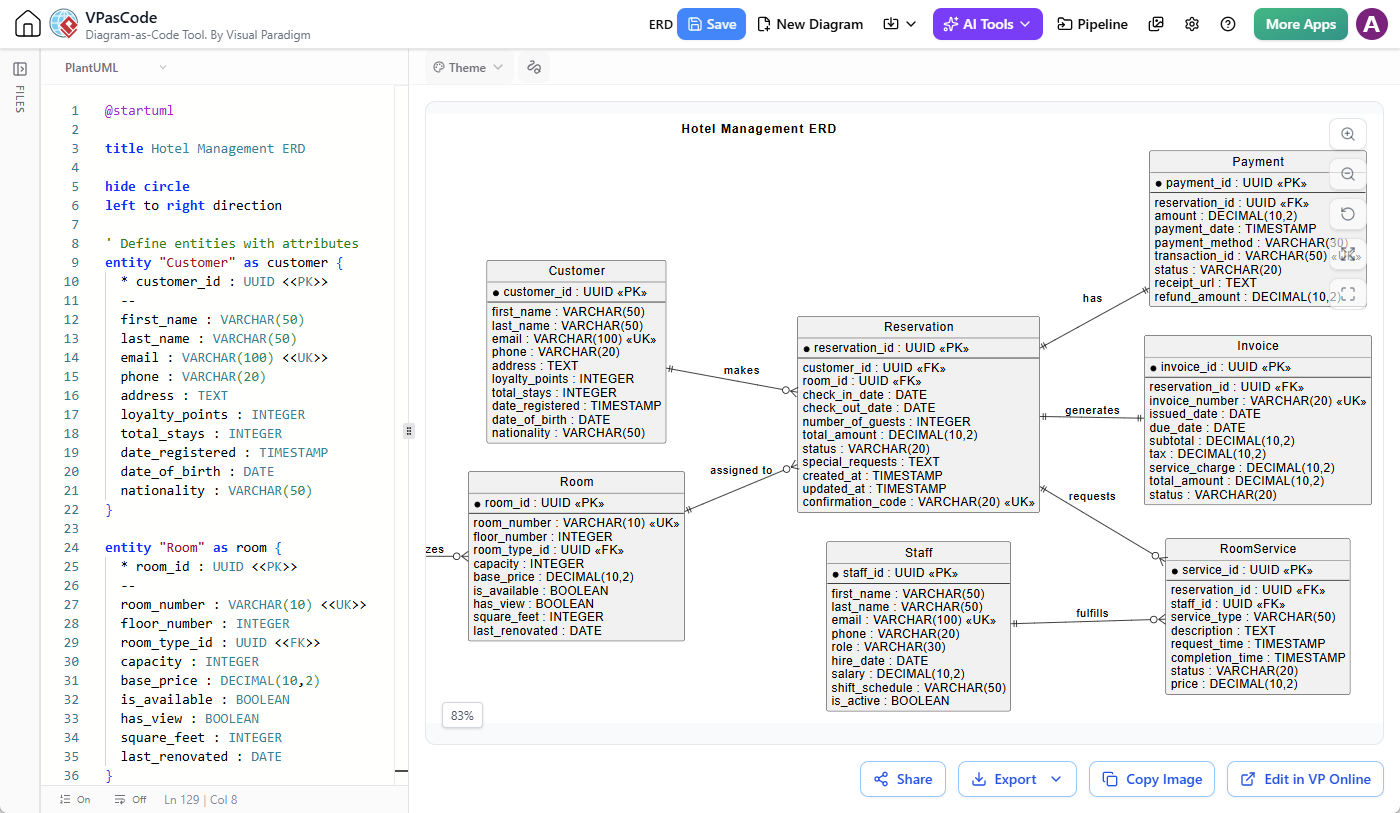 PlantUML Edit PlantUML in VPasCode
@startuml title Hotel Management ERD hide circle left to right direction ' Define entities with attributes entity "Customer" as customer { * customer_id : UUID <<PK>> -- first_name : VARCHAR(50) last_name : VARCHAR(50) email : VARCHAR(100) <<UK>> phone : VARCHAR(20) address : TEXT loyalty_points : INTEGER total_stays : INTEGER date_registered : TIMESTAMP date_of_birth : DATE nationality : VARCHAR(50) } entity "Room" as room { * room_id : UUID <<PK>> -- room_number : VARCHAR(10) <<UK>> floor_number : INTEGER room_type_id : UUID <<FK>> capacity : INTEGER base_price : DECIMAL(10,2) is_available : BOOLEAN has_view : BOOLEAN square_feet : INTEGER last_renovated : DATE } entity "RoomType" as roomtype { * room_type_id : UUID <<PK>> -- type_name : VARCHAR(50) <<UK>> description : TEXT standard_capacity : INTEGER base_price : DECIMAL(10,2) extra_bed_charge : DECIMAL(10,2) has_kitchenette : BOOLEAN has_balcony : BOOLEAN } entity "Reservation" as reservation { * reservation_id : UUID <<PK>> -- customer_id : UUID <<FK>> room_id : UUID <<FK>> check_in_date : DATE check_out_date : DATE number_of_guests : INTEGER total_amount : DECIMAL(10,2) status : VARCHAR(20) special_requests : TEXT created_at : TIMESTAMP updated_at : TIMESTAMP confirmation_code : VARCHAR(20) <<UK>> } entity "Payment" as payment { * payment_id : UUID <<PK>> -- reservation_id : UUID <<FK>> amount : DECIMAL(10,2) payment_date : TIMESTAMP payment_method : VARCHAR(30) transaction_id : VARCHAR(50) <<UK>> status : VARCHAR(20) receipt_url : TEXT refund_amount : DECIMAL(10,2) } entity "Invoice" as invoice { * invoice_id : UUID <<PK>> -- reservation_id : UUID <<FK>> invoice_number : VARCHAR(20) <<UK>> issued_date : DATE due_date : DATE subtotal : DECIMAL(10,2) tax : DECIMAL(10,2) service_charge : DECIMAL(10,2) total_amount : DECIMAL(10,2) status : VARCHAR(20) } entity "Staff" as staff { * staff_id : UUID <<PK>> -- first_name : VARCHAR(50) last_name : VARCHAR(50) email : VARCHAR(100) <<UK>> phone : VARCHAR(20) role : VARCHAR(30) hire_date : DATE salary : DECIMAL(10,2) shift_schedule : VARCHAR(50) is_active : BOOLEAN } entity "RoomService" as roomservice { * service_id : UUID <<PK>> -- reservation_id : UUID <<FK>> staff_id : UUID <<FK>> service_type : VARCHAR(50) description : TEXT request_time : TIMESTAMP completion_time : TIMESTAMP status : VARCHAR(20) price : DECIMAL(10,2) } ' Relationships customer ||--o{ reservation : "makes" room ||--o{ reservation : "assigned to" reservation ||--|| payment : "has" reservation ||--|| invoice : "generates" reservation ||--o{ roomservice : "requests" staff ||--o{ roomservice : "fulfills" roomtype ||--o{ room : "categorizes" @enduml - Mermaid: Build flowcharts, sequence diagrams, class diagrams, state diagrams, mind maps, Gantt charts, timelines, and other visualizations.
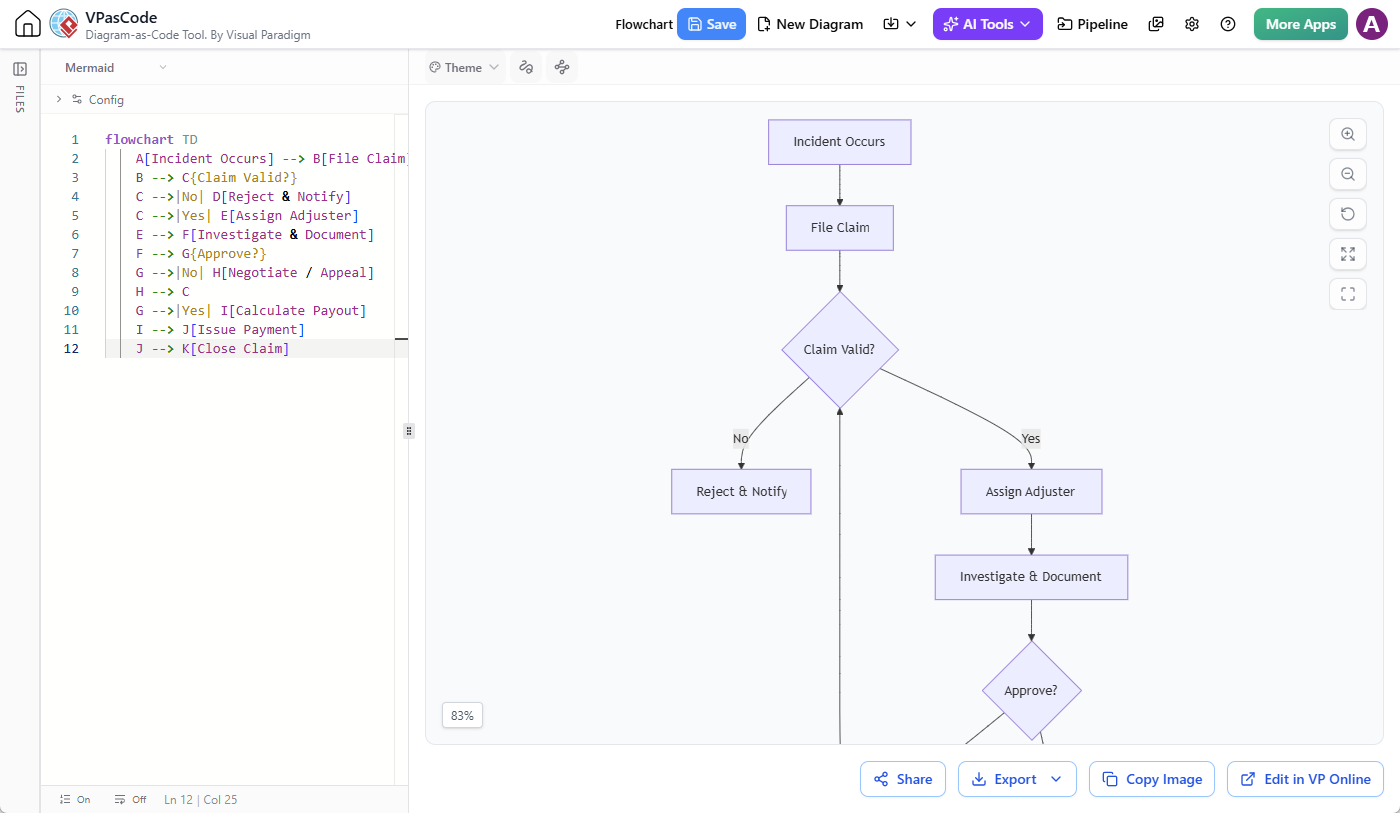 Mermaid Edit Mermaid in VPasCode
flowchart TD A[Incident Occurs] --> B[File Claim] B --> C{Claim Valid?} C -->|No| D[Reject & Notify] C -->|Yes| E[Assign Adjuster] E --> F[Investigate & Document] F --> G{Approve?} G -->|No| H[Negotiate / Appeal] H --> C G -->|Yes| I[Calculate Payout] I --> J[Issue Payment] J --> K[Close Claim] - Graphviz: Generate directed graphs, relationship diagrams, network visualizations, organizational structures, and data flow diagrams.
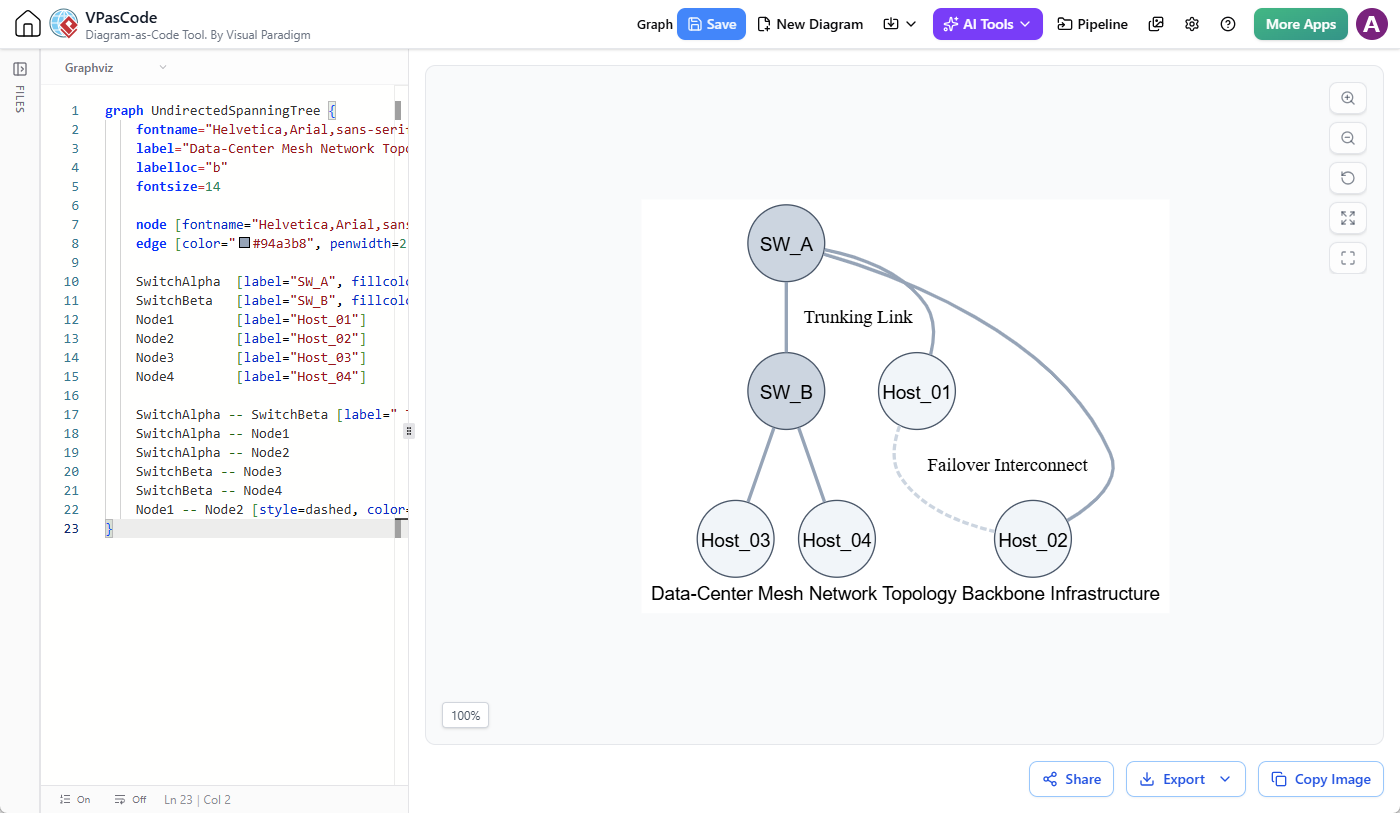 Graphviz Edit Graphviz in VPasCode
graph UndirectedSpanningTree { fontname="Helvetica,Arial,sans-serif" label="Data-Center Mesh Network Topology Backbone Infrastructure" labelloc="b" fontsize=14 node [fontname="Helvetica,Arial,sans-serif", shape=circle, style=filled, color="#475569", fillcolor="#f1f5f9", width=0.8, fixedsize=true] edge [color="#94a3b8", penwidth=2.5] SwitchAlpha [label="SW_A", fillcolor="#cbd5e1"] SwitchBeta [label="SW_B", fillcolor="#cbd5e1"] Node1 [label="Host_01"] Node2 [label="Host_02"] Node3 [label="Host_03"] Node4 [label="Host_04"] SwitchAlpha -- SwitchBeta [label=" Trunking Link", weight=5] SwitchAlpha -- Node1 SwitchAlpha -- Node2 SwitchBeta -- Node3 SwitchBeta -- Node4 Node1 -- Node2 [style=dashed, color="#cbd5e1", label=" Failover Interconnect"] } - D2: Describe software architecture, system components, containers, connections, and other structured visual models.
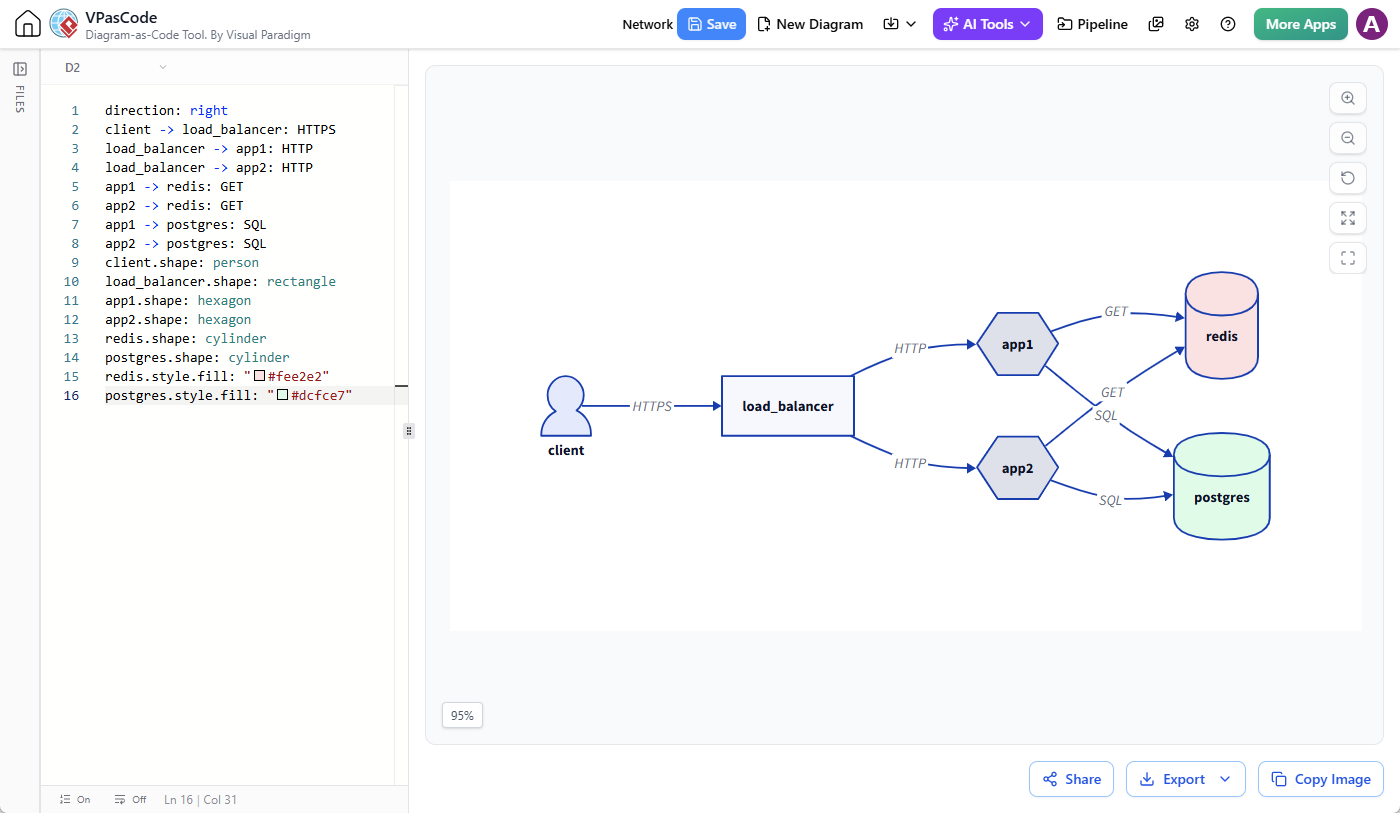
direction: right client -> load_balancer: HTTPS load_balancer -> app1: HTTP load_balancer -> app2: HTTP app1 -> redis: GET app2 -> redis: GET app1 -> postgres: SQL app2 -> postgres: SQL client.shape: person load_balancer.shape: rectangle app1.shape: hexagon app2.shape: hexagon redis.shape: cylinder postgres.shape: cylinder redis.style.fill: "#fee2e2" postgres.style.fill: "#dcfce7" - Markmap: Turn hierarchical Markdown content into interactive mind maps.
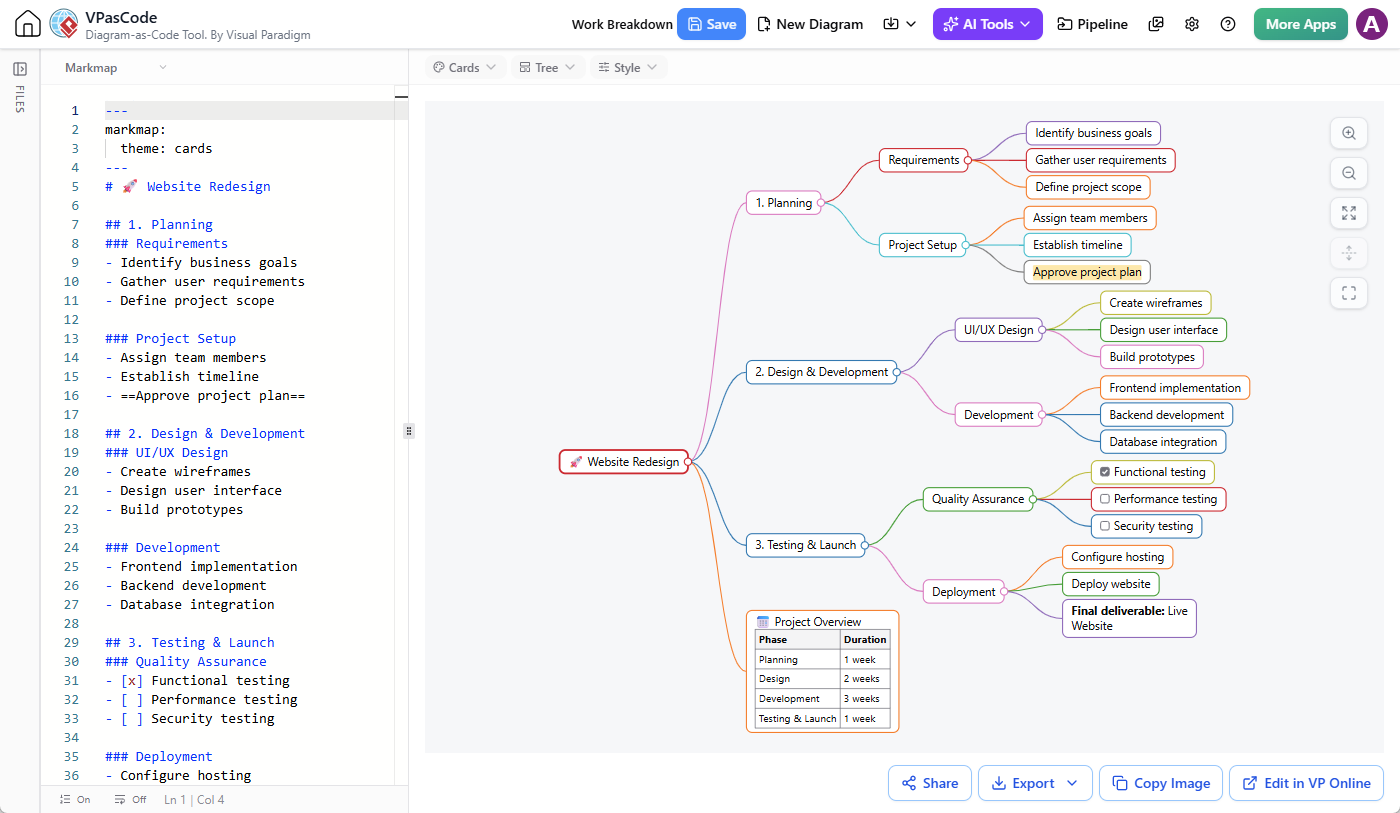 Markmap Edit Markmap in VPasCode
--- markmap: theme: cards --- # 🚀 Website Redesign ## 1. Planning ### Requirements - Identify business goals - Gather user requirements - Define project scope ### Project Setup - Assign team members - Establish timeline - ==Approve project plan== ## 2. Design & Development ### UI/UX Design - Create wireframes - Design user interface - Build prototypes ### Development - Frontend implementation - Backend development - Database integration ## 3. Testing & Launch ### Quality Assurance - [x] Functional testing - [ ] Performance testing - [ ] Security testing ### Deployment - Configure hosting - Deploy website - **Final deliverable:** Live Website ## 📅 Project Overview | Phase | Duration | |---|---:| | Planning | 1 week | | Design | 2 weeks | | Development | 3 weeks | | Testing & Launch | 1 week | - ECharts: Create data-driven visualizations and charts through code.
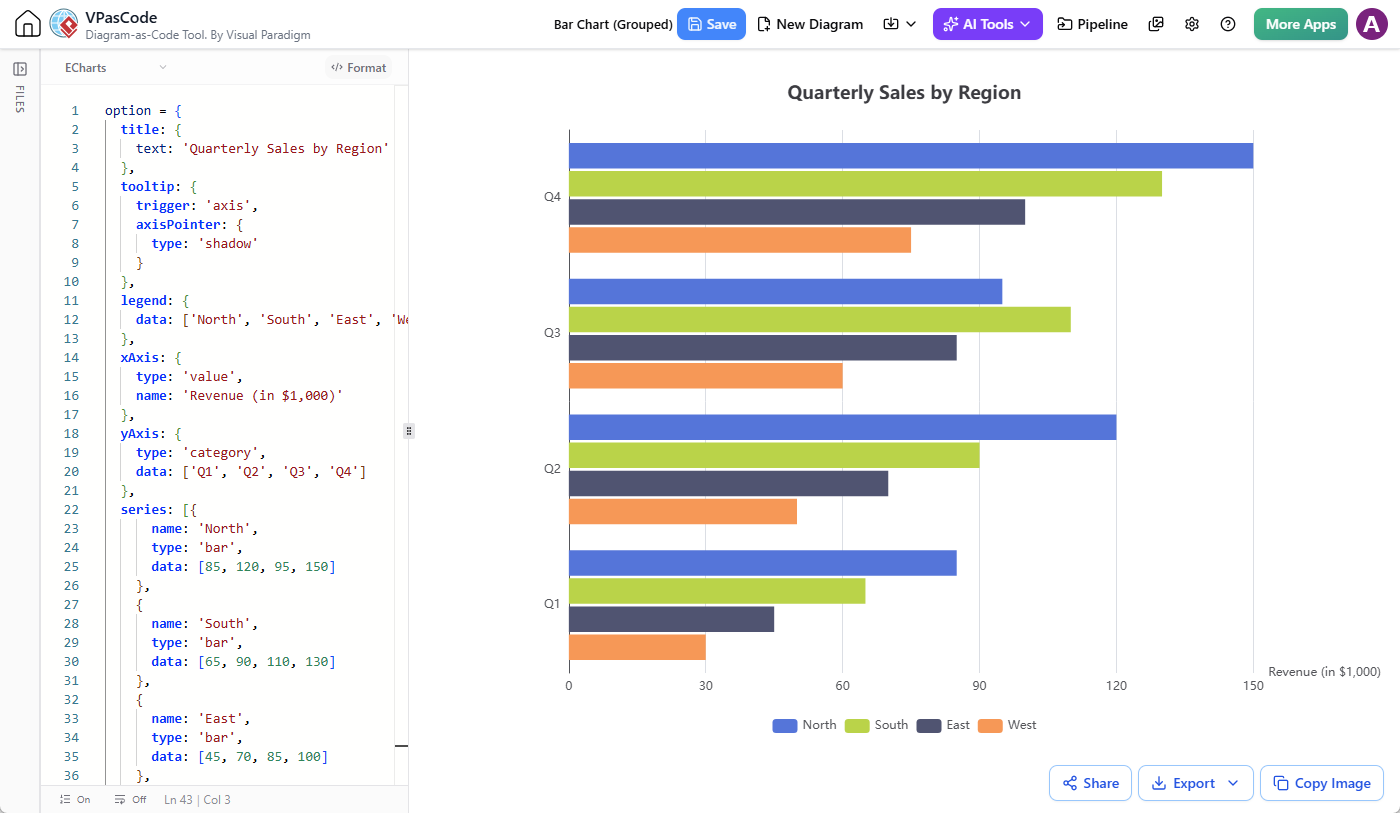 ECharts Edit ECharts in VPasCode
option = {
  title: {
    text: 'Quarterly Sales by Region'
  },
  tooltip: {
    trigger: 'axis',
    axisPointer: {
      type: 'shadow'
    }
  },
  legend: {
    data: ['North', 'South', 'East', 'West']
  },
  xAxis: {
    type: 'value',
    name: 'Revenue (in $1,000)'
  },
  yAxis: {
    type: 'category',
    data: ['Q1', 'Q2', 'Q3', 'Q4']
  },
  series: [{
      name: 'North',
      type: 'bar',
      data: [85, 120, 95, 150]
    },
    {
      name: 'South',
      type: 'bar',
      data: [65, 90, 110, 130]
    },
    {
      name: 'East',
      type: 'bar',
      data: [45, 70, 85, 100]
    },
    {
      name: 'West',
      type: 'bar',
      data: [30, 50, 60, 75]
    }
  ]
};
And these are not the only formats available. VPasCode also supports various data and structured-content formats, making it a versatile environment for text-based visualization and code-driven content creation.
Rather than switching between separate online tools for different diagramming languages, you can work with multiple formats within the same VPasCode environment and manage your diagram files in your Visual Paradigm cloud workspace.
A Convenient Online PlantUML Editor
If you are looking for an online PlantUML tool, VPasCode provides a browser-based environment for writing PlantUML scripts and viewing the resulting diagrams.
You can create UML class diagrams, sequence diagrams, use case diagrams, activity diagrams, component diagrams, and other supported PlantUML visualizations without installing a separate desktop editor.
With cloud file saving, your PlantUML scripts can also be stored under your Visual Paradigm projects. This makes VPasCode useful not only for quickly generating PlantUML diagrams, but also for maintaining a collection of PlantUML source files over time.
A Flexible Mermaid and Graphviz Editor
The same workflow applies to Mermaid and Graphviz.
For example, you might use Mermaid to document a software development workflow, Graphviz to visualize dependencies, and D2 to describe an application architecture.
Instead of maintaining separate browser sessions for each tool, VPasCode brings these capabilities together. You can create different diagram files, save them to the cloud, and reopen them from the same project workspace.
Cloud File Saving Complements VPasCode’s AI Capabilities
Another reason VPasCode stands out from conventional diagram-as-code editors is its built-in AI assistance.
Writing diagram code manually provides excellent control, but it can also require familiarity with the syntax and conventions of each diagramming language. VPasCode incorporates AI capabilities to help users move from an initial idea to a usable diagram and continue refining it.
Its AI capabilities include:
AI Diagram Generation
Describe the diagram you want to create in natural language, and let AI generate the corresponding diagram code.
For example, you can ask AI to generate a PlantUML sequence diagram illustrating an online shopping checkout process, or a Mermaid flowchart describing a customer support workflow.
This helps reduce the amount of initial coding required, particularly when you are starting with a new diagram or exploring an unfamiliar notation.
AI Diagram Refinement
As requirements change, diagrams often need to be updated. Instead of manually rewriting large sections of diagram code, you can use AI to request modifications.
You might ask AI to add a new participant to a sequence diagram, introduce another decision branch into a flowchart, reorganize system components, or simplify a complex visualization.
This makes it easier to iterate on a diagram while keeping the source code editable.
AI Diagram Translation
When diagrams need to be shared with people who use different languages, translating every label manually can be tedious.
VPasCode’s AI translation capability helps translate diagram text into another language, making it easier to prepare diagrams for international teams, customers, and stakeholders.
From AI Generation to Persistent Project Files
Cloud file saving adds another useful dimension to these AI-powered workflows.
Consider a typical scenario:
- Use AI to generate an initial PlantUML class diagram from a natural-language description.
- Review the generated code and diagram in the VPasCode editor.
- Ask AI to refine the diagram by adding missing classes or relationships.
- Save the resulting diagram to your Visual Paradigm cloud workspace.
- Return to the saved diagram later to continue refining it as the project evolves.
This creates a more continuous workflow in which AI-generated diagrams can become ongoing project assets rather than temporary outputs.
In other words, VPasCode brings together AI-assisted diagram creation, code-based editing, real-time rendering, and cloud-based file management in one environment.
Who Can Benefit from VPasCode Cloud File Saving?
The new cloud file-saving capability is particularly useful for people who work with diagrams regularly and need a convenient way to maintain their source code.
Software Developers
Developers often need multiple diagrams to explain system behavior, software structures, and technical workflows. With VPasCode, they can keep PlantUML, Mermaid, and other diagram scripts organized under their respective projects.
Software Architects and System Designers
Architecture work often involves multiple views of the same system. Developers and architects may need component diagrams, deployment diagrams, sequence diagrams, and high-level architecture visualizations.
Saving these diagrams in a cloud workspace makes it easier to maintain and revisit them as the architecture changes.
Business Analysts
Business analysts can use diagram-as-code formats to document business processes, workflows, requirements, and relationships. Cloud file management provides a convenient way to organize these diagrams by project or business initiative.
Technical Writers and Documentation Teams
Technical documentation frequently contains diagrams that need to be updated as products and systems evolve. By maintaining the original diagram code, documentation teams can return to their diagrams and make changes without recreating them from scratch.
Students and Educators
Students and educators can use VPasCode to experiment with different diagramming languages, learn UML and software modeling concepts, and maintain diagram collections for assignments, courses, and learning projects.
Availability: Who Can Use Cloud File Saving?
Cloud file saving is a premium VPasCode feature. To use this functionality, you need one of the following editions:
- Visual Paradigm Online Combo Edition or higher
- Visual Paradigm Desktop Professional Edition or higher
If you already have an eligible edition, sign in to VPasCode using your Visual Paradigm account and start saving your diagrams to your cloud workspace.
Not yet using VPasCode? You can visit the feature page to explore its diagram-as-code capabilities, supported formats, AI tools, and other productivity features.
Try VPasCode Today
Diagram-as-code makes creating and maintaining visual models more flexible. But a productive diagramming workflow should not stop at writing code and rendering a diagram. You should also have a convenient way to keep your work, organize your files, and return to your diagrams whenever you need them.
With cloud file saving, VPasCode takes another step toward becoming a more complete diagram-as-code workspace.
Whether you are using it as an online PlantUML editor, a Mermaid diagram maker, a Graphviz tool, a D2 editor, or an AI-powered diagram creation environment, you can now save your diagram files to your Visual Paradigm cloud workspace and manage them alongside your other project work.
Stop juggling browser tabs or manually keeping track of diagram scripts. Create, save, organize, and continue working on your diagrams with VPasCode.
To learn more about the platform and everything it offers, visit the Visual Paradigm VPasCode feature page.
Frequently Asked Questions (FAQ)
What is VPasCode?
VPasCode is Visual Paradigm’s browser-based diagram-as-code solution. It allows users to create and edit diagrams using text-based formats such as PlantUML, Mermaid, Graphviz, D2, Markmap, and ECharts. It also provides AI-powered diagram generation, refinement, and translation capabilities, together with real-time diagram rendering.
Can I save PlantUML diagrams online with VPasCode?
Yes. VPasCode supports cloud file saving, allowing you to save PlantUML diagram code to your Visual Paradigm cloud workspace. You can organize your files under projects, reopen them later, and continue editing them in the online editor.
Does VPasCode support saving Mermaid and Graphviz files?
Yes. VPasCode supports multiple diagram-as-code formats, including Mermaid, Graphviz, PlantUML, and D2. You can save your diagram files to your Visual Paradigm cloud workspace and access them through the Project Files pane.
Where are my VPasCode diagrams saved?
Your diagrams are saved to your Visual Paradigm cloud workspace under the project you select. You can access the saved files through the Project Files pane on the left side of the VPasCode application.
How do I open a previously saved VPasCode diagram?
Open the Files sidebar, locate your diagram in the Project Files pane, and click its name. VPasCode will open the selected diagram in the editor so you can continue working on it.
Can I organize VPasCode diagrams into different projects?
Yes. VPasCode organizes diagram files under Visual Paradigm projects. You can switch between projects using the project drop-down menu in the Project Files pane. You can also move an existing diagram to another project through the three-dot menu beside the diagram name.
Can I sort my saved VPasCode files?
Yes. You can sort diagram files by newer first, oldest first, name A-Z, name Z-A, or type A-Z. These options help you find and organize your diagrams more conveniently.
Is cloud file saving available in the free version of VPasCode?
Cloud file saving is a premium feature. It is available to users with Visual Paradigm Online Combo Edition or higher, or Visual Paradigm Desktop Professional Edition or higher.
Is VPasCode an online PlantUML editor only?
No. Although VPasCode can be used as an online PlantUML editor, it supports multiple diagramming and visualization formats, including Mermaid, Graphviz, D2, Markmap, and ECharts. It brings these different technologies together in one browser-based diagram-as-code environment.
Does VPasCode support AI diagram generation?
Yes. VPasCode includes AI-powered diagram generation, refinement, and translation. Users can describe a diagram in natural language, ask AI to modify existing diagram code, or translate diagram labels into another language.
Do I need to install software to use VPasCode?
No. VPasCode is a web-based diagram-as-code editor that runs in your browser. You can access the application online without installing a separate diagramming editor.
Ready to give your diagram code a permanent home? Try VPasCode today.