Read this post in: en_USfr_FRhi_INid_IDjapl_PLpt_PTru_RUvizh_CN

新功能:將您的 Visual Paradigm Online 創作內容直接發送到 OpenDocs

無論是技術性 UML 模型,還是高影響力的行銷圖形,您基於雲端的視覺內容現在都能直接存放在您的文件中。

統一的雲端工作流程

我們非常高興地宣布,Visual Paradigm Online 現在支援與 Visual Paradigm OpenDocs。此更新讓您能夠彌合我們多功能的雲端繪圖工具與您中央化的知識管理平台之間的差距。現在,無論您在線上創建何種視覺內容——從複雜的技術圖表到引人注目的社群媒體圖形——都可以透過 Pipeline.

此整合功能非常適合需要快速作業的團隊。在瀏覽器中創建您的設計,將其發送到 Pipeline,並立即嵌入專案文件中。這無需將圖片下載到本地電腦,讓您的工作流程完全在雲端進行。

注意:此功能僅提供給擁有 Visual Paradigm Online Combo Edition 訂閱的使用者。
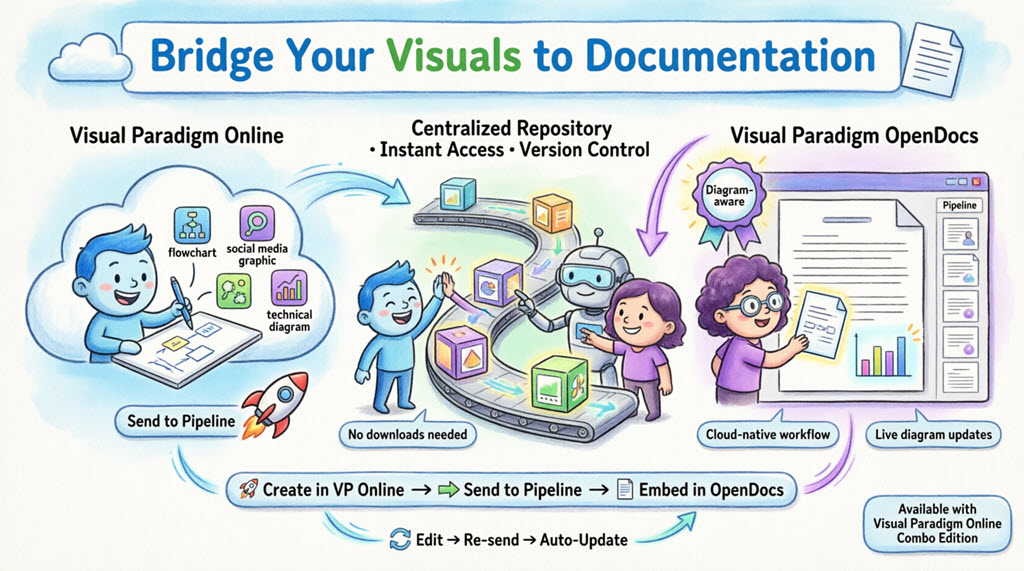
Infographic illustrating Visual Paradigm's cloud workflow: create diagrams in VP Online, send them through the Pipeline transit hub, and embed directly into OpenDocs documentation. Shows cartoon characters demonstrating the seamless integration with features like no downloads, live updates, and automatic synchronization between platforms.

什麼是 Visual Paradigm OpenDocs?

OpenDocs 是我們首屈一指的知識與文件管理平台。與一般文字處理軟體不同,OpenDocs 具備「圖表感知」功能。它將完整的繪圖引擎直接整合至文件編輯器中,讓您能在不離開頁面的情況下插入、檢視,甚至重新編輯視覺內容。透過將 Visual Paradigm Online 與 OpenDocs 連結,您的雲端圖表將成為文件中活生生的一部分。

了解 Pipeline

Pipeline 相當於您的個人「資產中轉站」。它是一個中央化的儲存庫,用來存放您的圖表與圖形(我們稱之為「資產」),以便在 Visual Paradigm 生態系統中的不同應用程式之間輕鬆共享。當您從 Visual Paradigm Online 發送「至 Pipeline」時,您是將該資產放置於 OpenDocs 可立即檢視並作為文件輸入的空間中。

如何從 VP Online 發送視覺內容至 OpenDocs

將您的工作從雲端編輯器移至文件中,簡單且直覺:

  1. 在 Visual Paradigm Online 中開啟您的圖表或圖形。
  2. 於頂部功能表中,選擇 匯出 > 發送到 OpenDocs Pipeline.
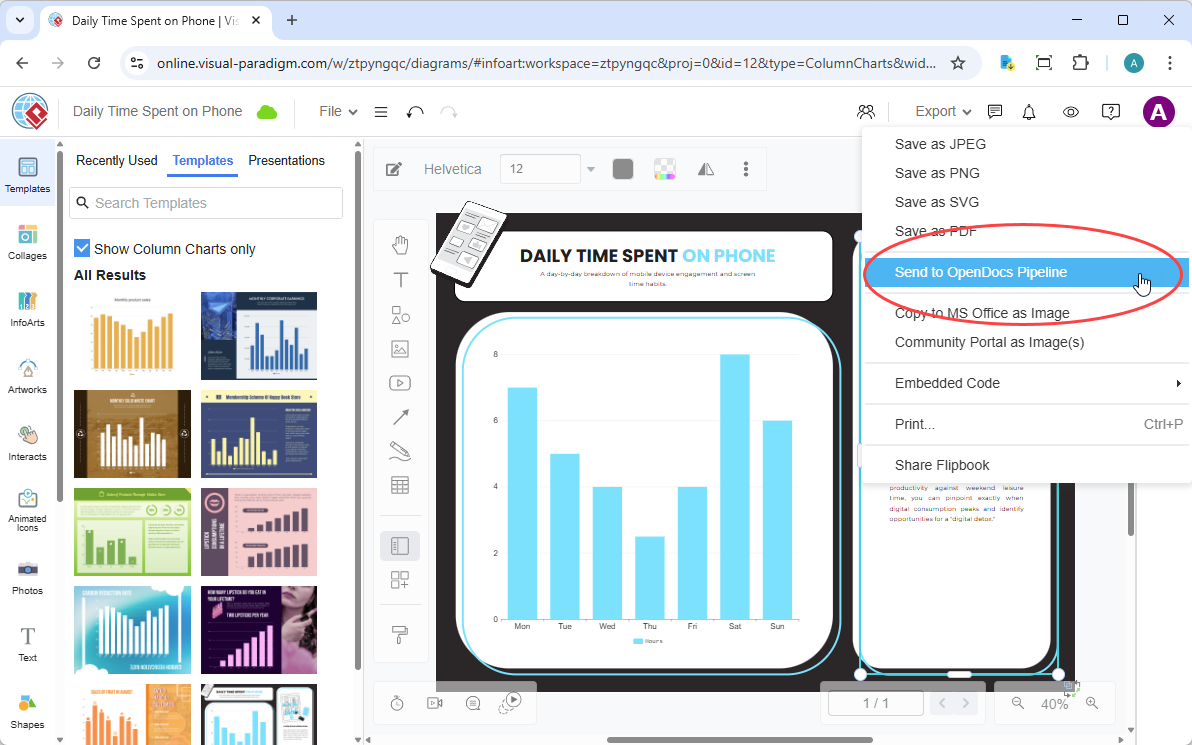
    A screenshot of Visual Paradigm Online that shows how to send a column chart from Visual Paradigm Online to Visual Paradigm OpenDocs through the top menu.

  3. (可選)加入註解以描述該資產。這將讓您在 Pipeline 面板中稍後更容易找到它。
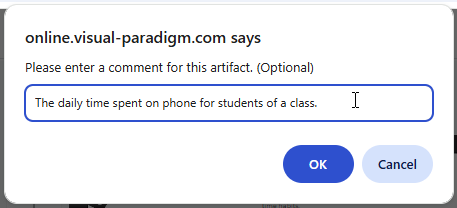
    Entering a comment for the column chart being sent to the OpenDocs

  4. 確認匯出。您的視覺內容現在已安全儲存在 Pipeline 中。

在 OpenDocs 中嵌入您的資產

當您的圖表進入 Pipeline 後,您便可在知識庫中的任何位置放置它:

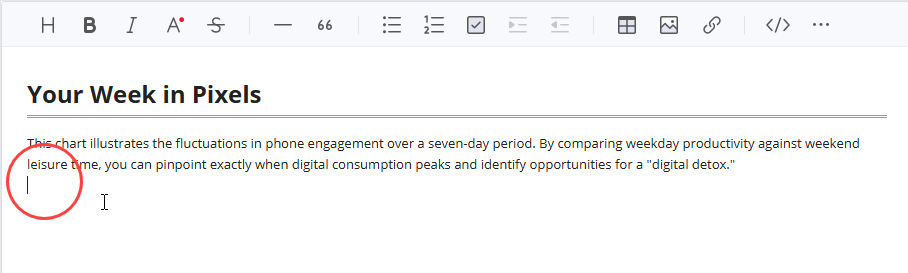
  1. 在 OpenDocs 中開啟任何文件頁面,並點擊 編輯.

    A screenshot of Visual Paradigm OpenDocs that shows the position of the Edit button.

  2. 點擊您想要插入圖表的頁面。

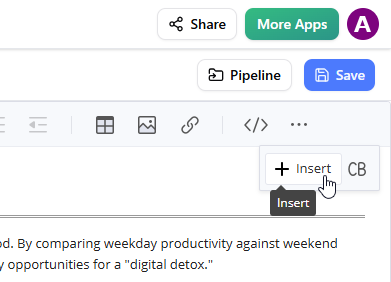
  3. 在工具列上,點擊插入.

    A screenshot of Visual Paradigm OpenDocs that shows the user clicking on the Insert button on the toolbar.

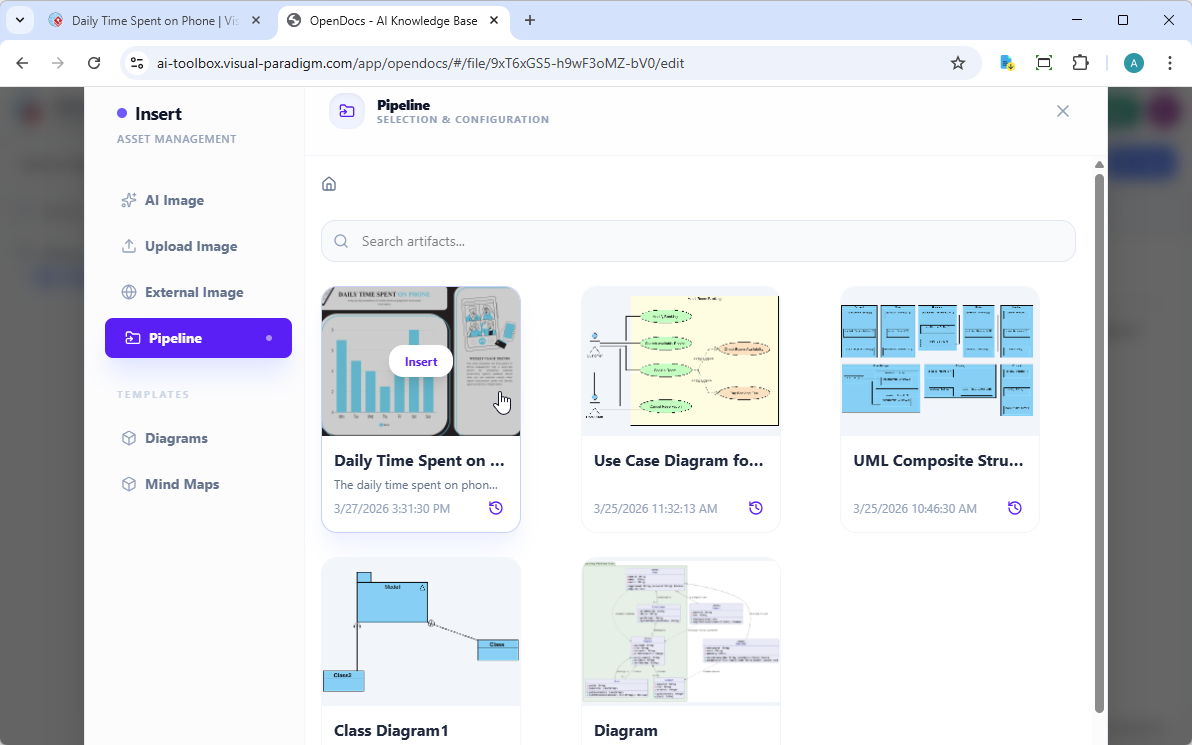
  4. 插入視窗中,選擇管道從左側側邊欄中選擇。您已發送的圖表將在此處顯示。

    A screenshot of Visual Paradigm OpenDocs that shows the user selecting a diagram image from the Pipeline, through the Insert window

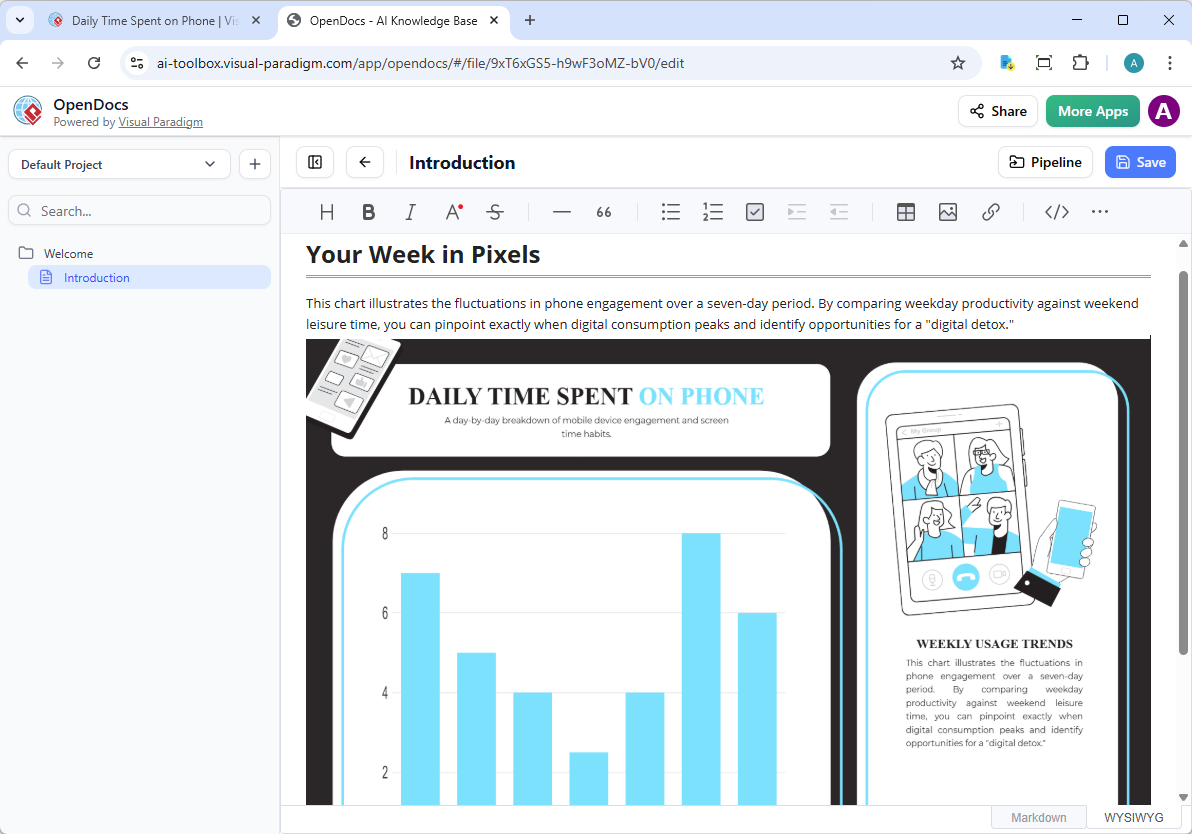
  5. 點擊圖表,即可將影像直接插入游標所在位置。

    A column chart sent from Visual Paradigm Online to OpenDocs, via the Pipeline

保持文件同步:更新資產

此整合最強大的功能之一,是在模型演進時,能夠更新您的文件。如果您需要對 OpenDocs 中已存在的圖表進行修改,請依照以下步驟操作:

1. 開啟原始圖表

在 OpenDocs 中,點擊圖表右上角的編輯圖示,以開啟編輯圖表視窗。
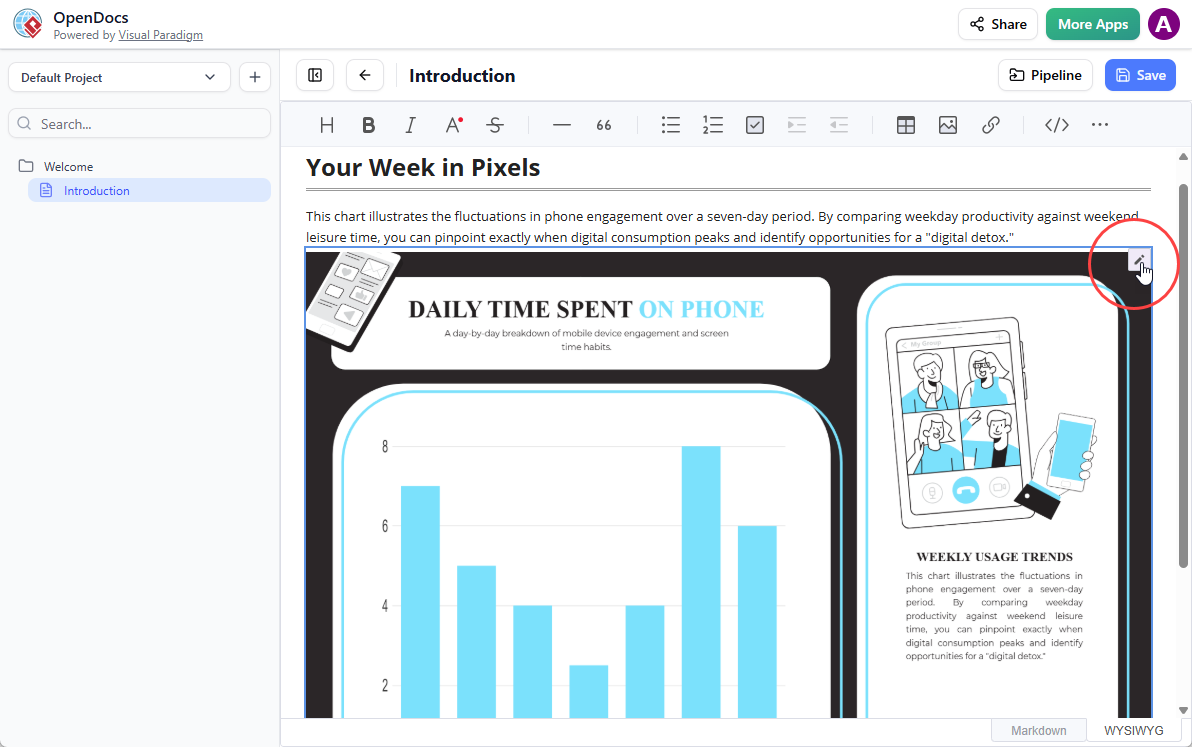
A screenshot of Visual Paradigm OpenDocs that shows how to open the Edit dialog box from a diagram image.

2. 編輯並重新發送

在 Visual Paradigm Online 中修改您的圖表。完成後,再次從頂部功能表中選擇匯出 > 發送到 OpenDocs 管道功能表。
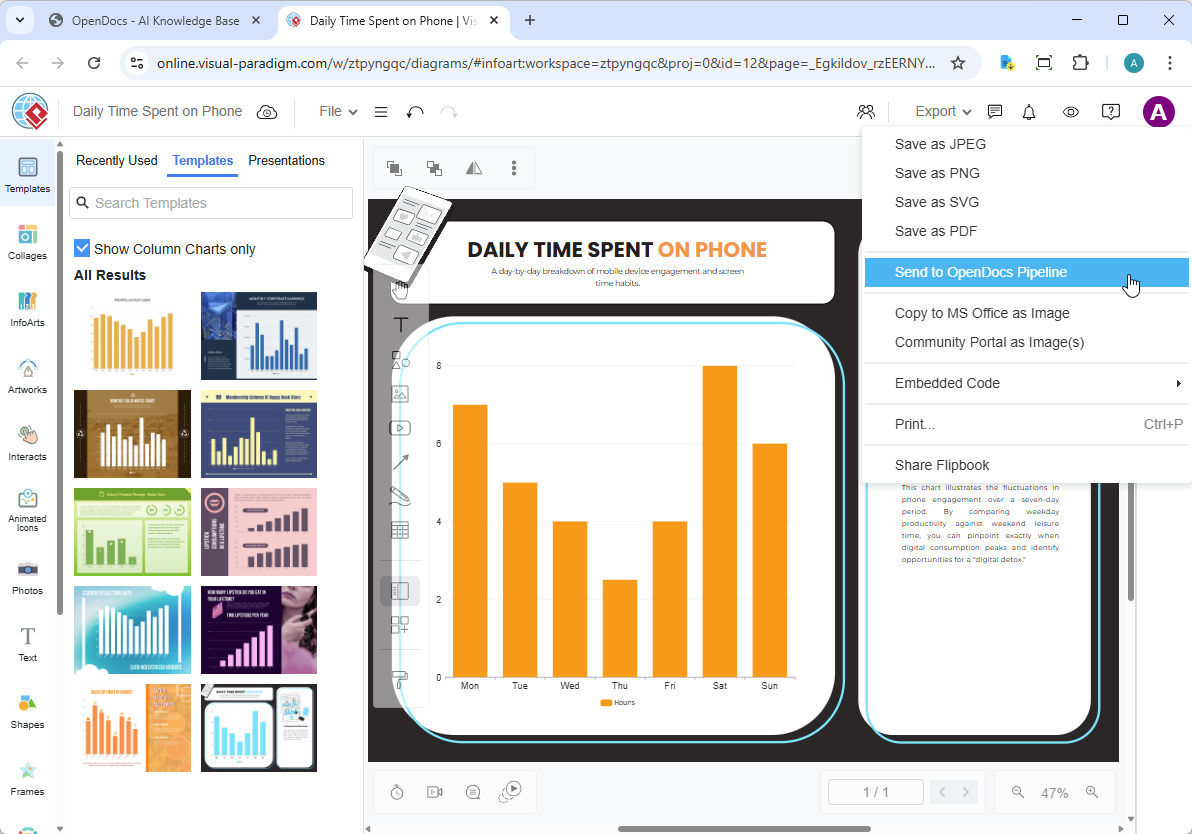
A screenshot of Visual Paradigm Online that shows the user sent a modified column chart to OpenDocs

3. 切換至最新版本

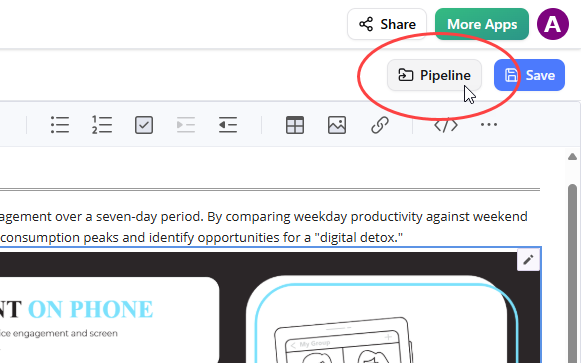
回到 OpenDocs 編輯器,點擊右上角的管道。

A screenshot of Visual Paradigm OpenDocs that shows how to open the Pipeline pane.

開啟文件內標籤。篩選條件「已更新」已啟用,目前面板正列出已修改的資產。點擊剛剛修改的視覺元素。
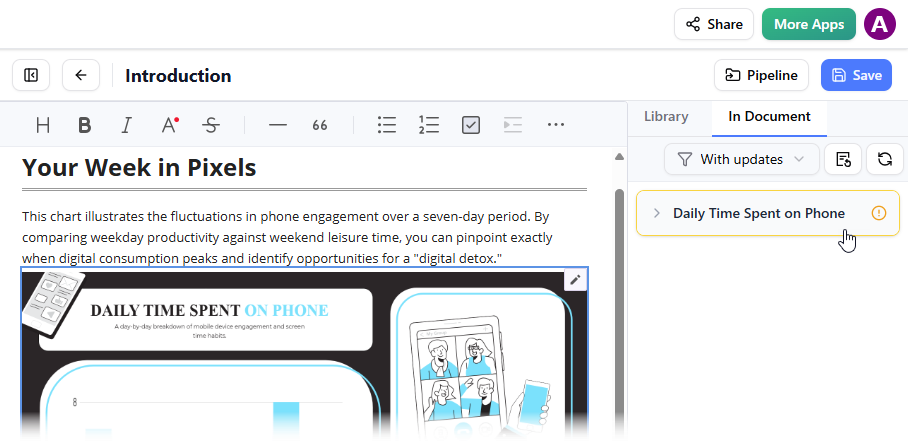
A screenshot of OpenDocs, showing a user replacing a column chart with a newer revision by selecting the newer revision in the Pipelines pane

您可以看到所選視覺元素的可用版本。點擊最新版本,即可立即將舊圖表替換為更新版本。或者,您也可以直接點擊更新至最新版本直接進行。
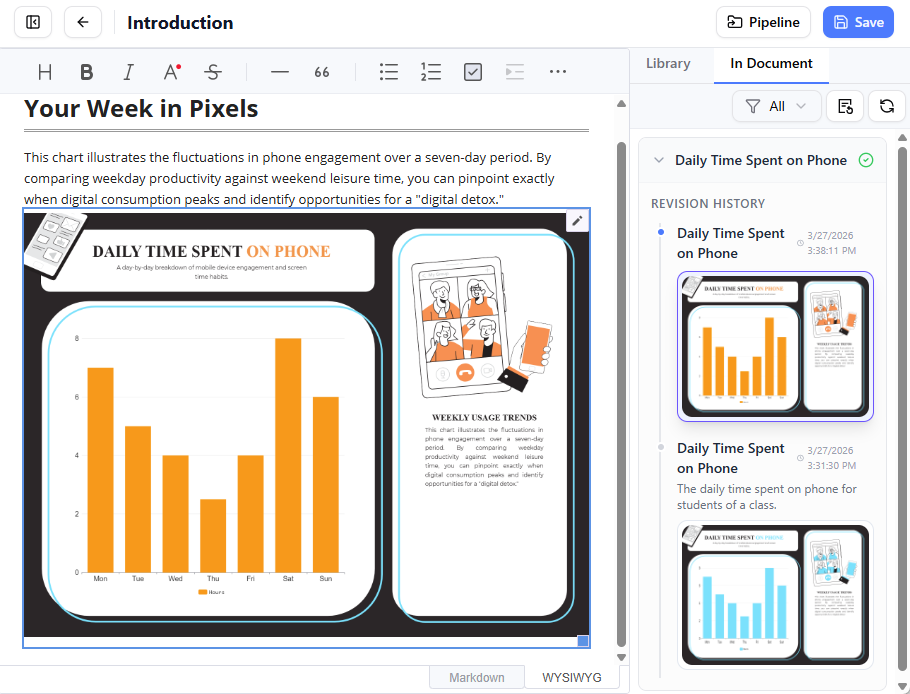
This is a screenshot of the Visual Paradigm OpenDocs, which shows an updated column chart

相關發行版本

返回頂端