


The Unified Cloud Workflow
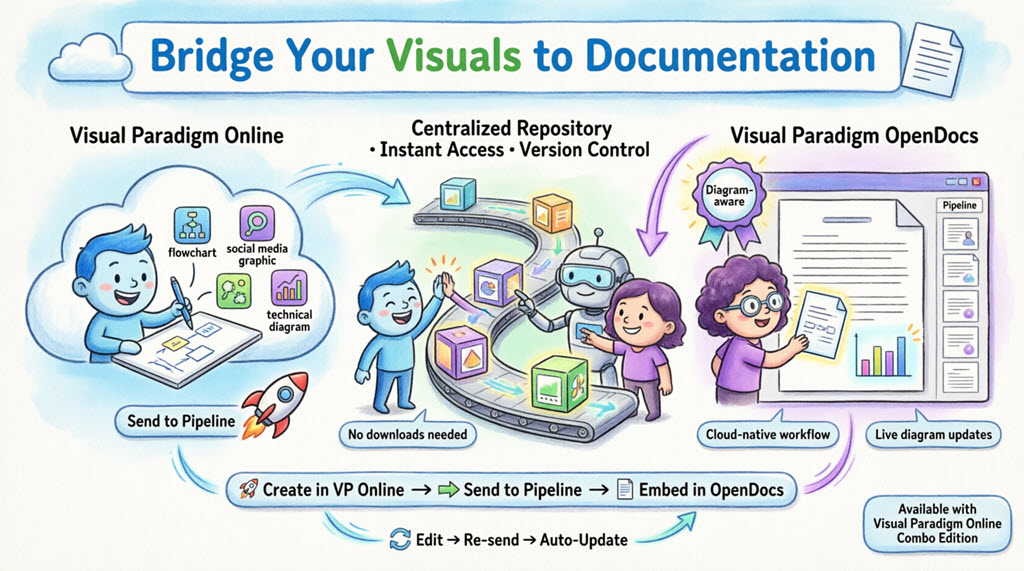
We are thrilled to announce that Visual Paradigm Online now supports a direct integration with Visual Paradigm OpenDocs. This update allows you to bridge the gap between our versatile cloud-based diagramming tool and your centralized knowledge management platform. Now, any visual you create online—from intricate technical diagrams to eye-catching social media graphics—can be sent instantly to OpenDocs using the Pipeline.
This integration is perfect for teams who need to move fast. Create your design in your browser, send it to the Pipeline, and immediately embed it into your project documentation. It eliminates the need to download images to your local machine, keeping your workflow entirely in the cloud.
Note: This feature is available to users with a Visual Paradigm Online Combo Edition subscription.
What is Visual Paradigm OpenDocs?
OpenDocs is our premier knowledge and document management platform. Unlike standard word processors, OpenDocs is “diagram-aware.” It integrates a full diagramming engine directly into the document editor, allowing you to insert, view, and even re-edit visuals without leaving the page. By connecting Visual Paradigm Online to OpenDocs, your cloud diagrams become living parts of your documentation.
Understanding the Pipeline
The Pipeline acts as your personal “Asset Transit Hub.” It is a centralized repository that stores your diagrams and graphics (which we call “artifacts”) so they can be easily shared between different applications in the Visual Paradigm ecosystem. When you “Send to Pipeline” from Visual Paradigm Online, you are placing that artifact into a space where OpenDocs can instantly see it and use it as an input for your documents.
How to Send Visuals from VP Online to OpenDocs
Moving your work from the cloud editor to your document is simple and intuitive:
- Open your diagram or graphic in Visual Paradigm Online.
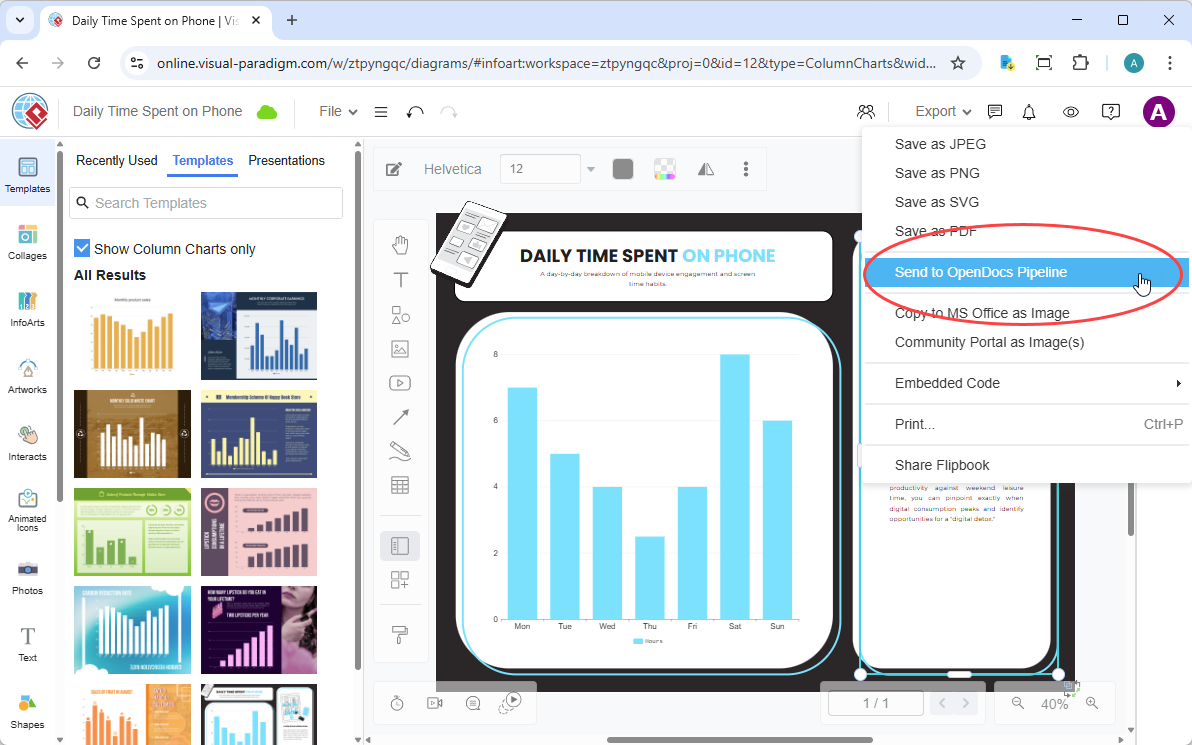
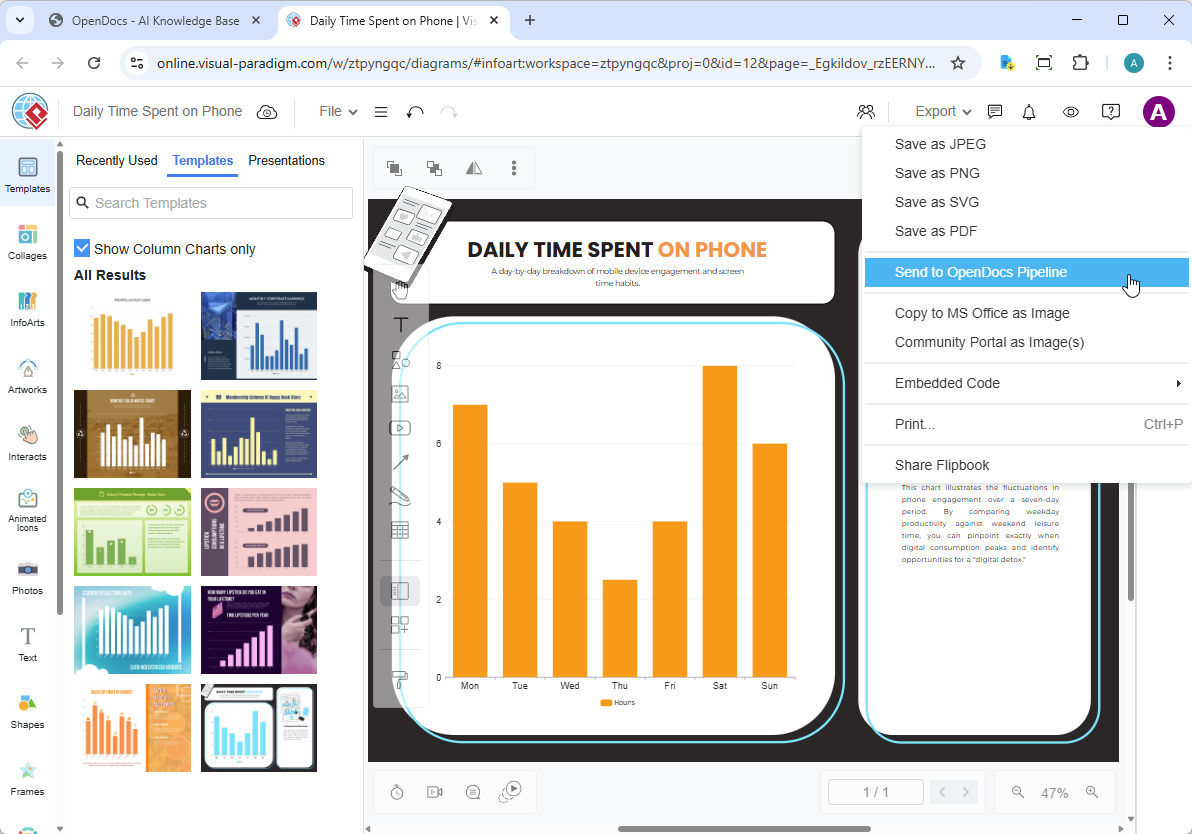
- In the top menu, select Export > Send to OpenDocs Pipeline.
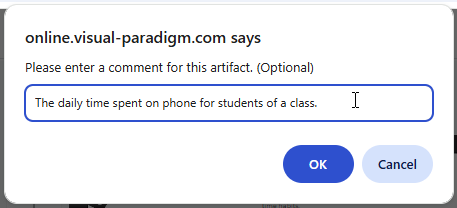
- (Optional) Add a comment to describe the artifact. This makes it easier to find later in the Pipeline pane.
- Confirm the export. Your visual is now securely stored in the Pipeline.
Embedding Your Artifacts in OpenDocs
Once your diagram is in the Pipeline, you can place it anywhere in your knowledge base:
- Open any document page in OpenDocs and click Edit.

- Click on the page where you want to insert the diagram.
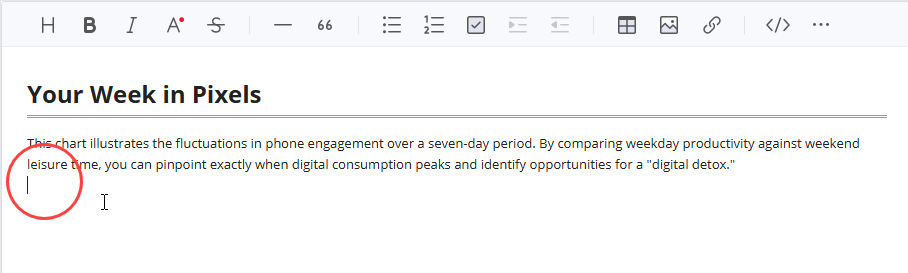
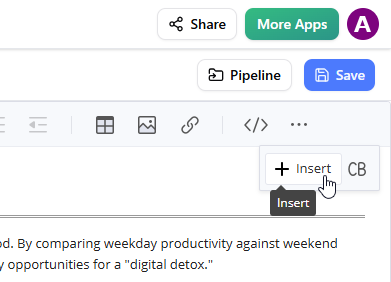
- On the toolbar, click Insert.
- In the Insert window, select Pipeline from the left-hand sidebar. Your sent diagrams will appear here.
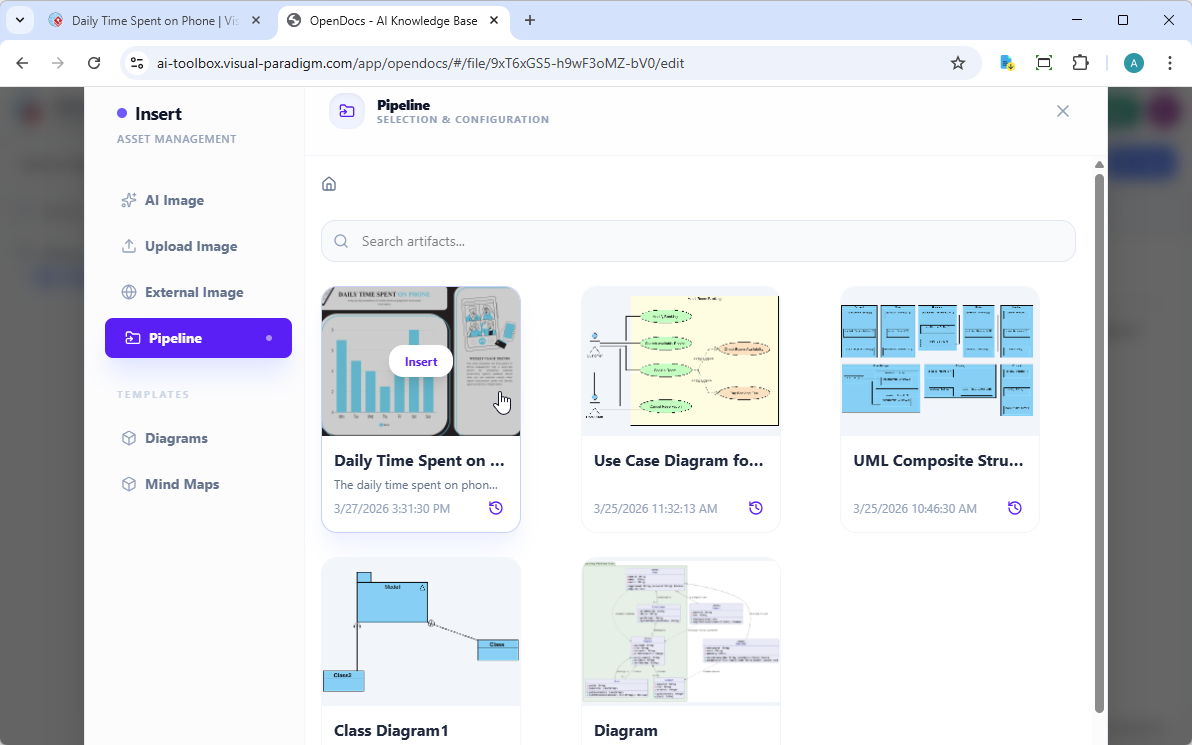
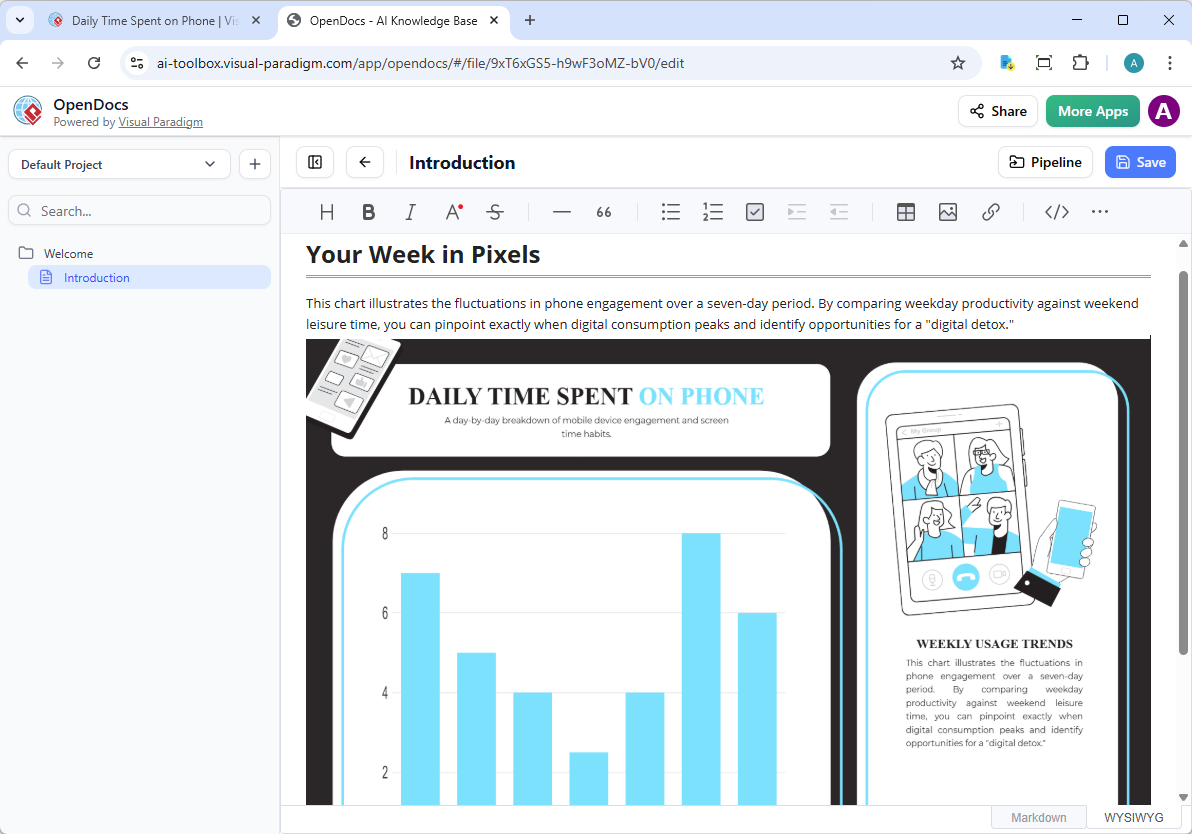
- Click on the diagram to insert the image directly at your cursor position.
Keeping Your Documentation in Sync: Updating Artifacts
One of the most powerful aspects of this integration is the ability to update your documentation as your models evolve. If you need to make changes to a diagram already in OpenDocs, follow these steps:
1. Open the Source Diagram
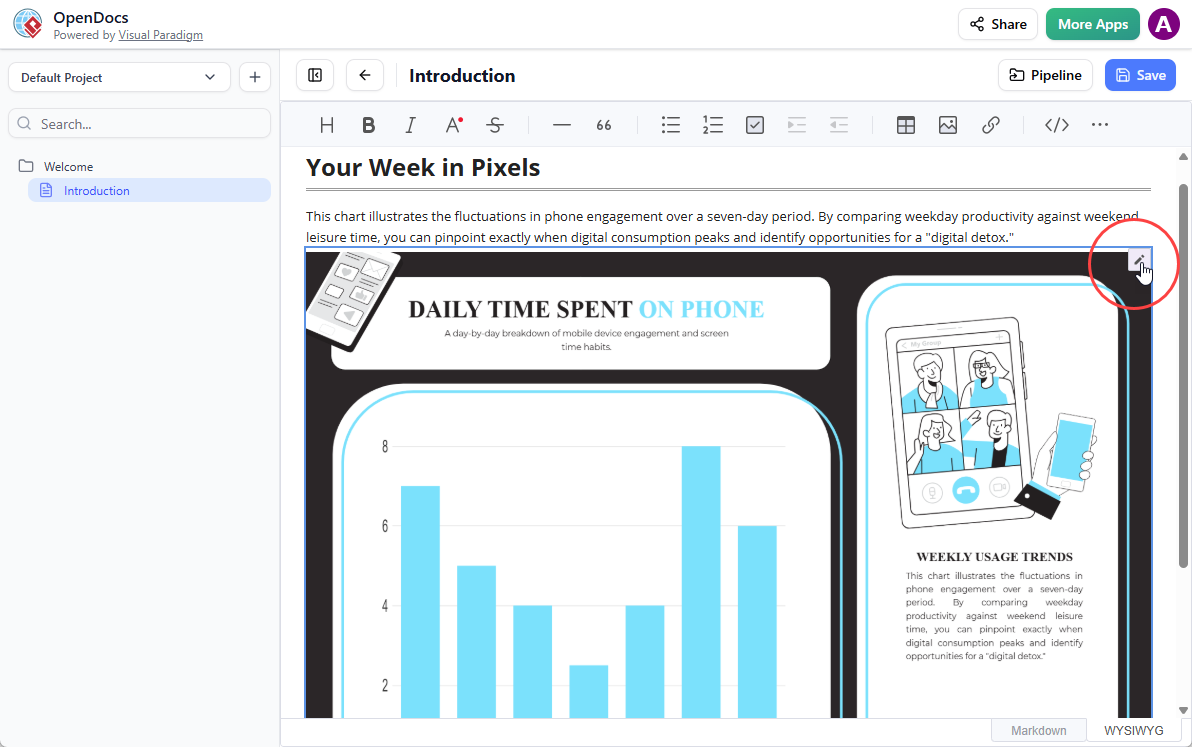
In OpenDocs, click the Edit icon at the top right of the diagram image to open the Edit Diagram window.
2. Edit and Re-send
Modify your diagram in Visual Paradigm Online. Once finished, select Export > Send to OpenDocs Pipeline from the top menu again.
3. Swap to the Latest Revision
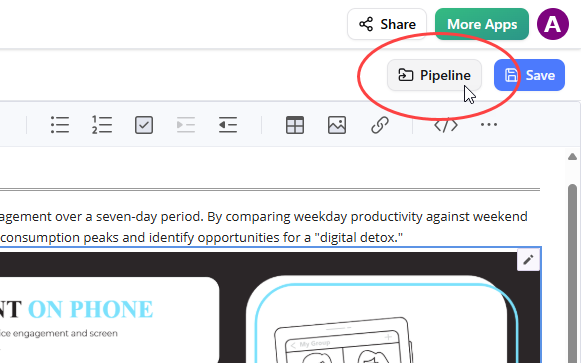
Back in the OpenDocs editor, click Pipeline at the top right.
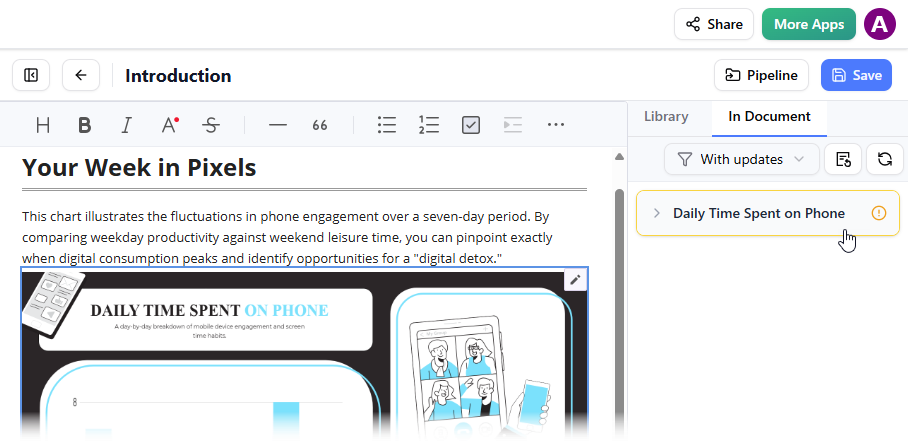
Open the In Document tab. The filter “With updates” is active and the pane is now listing the artifacts modified. Click on the visual just modified.
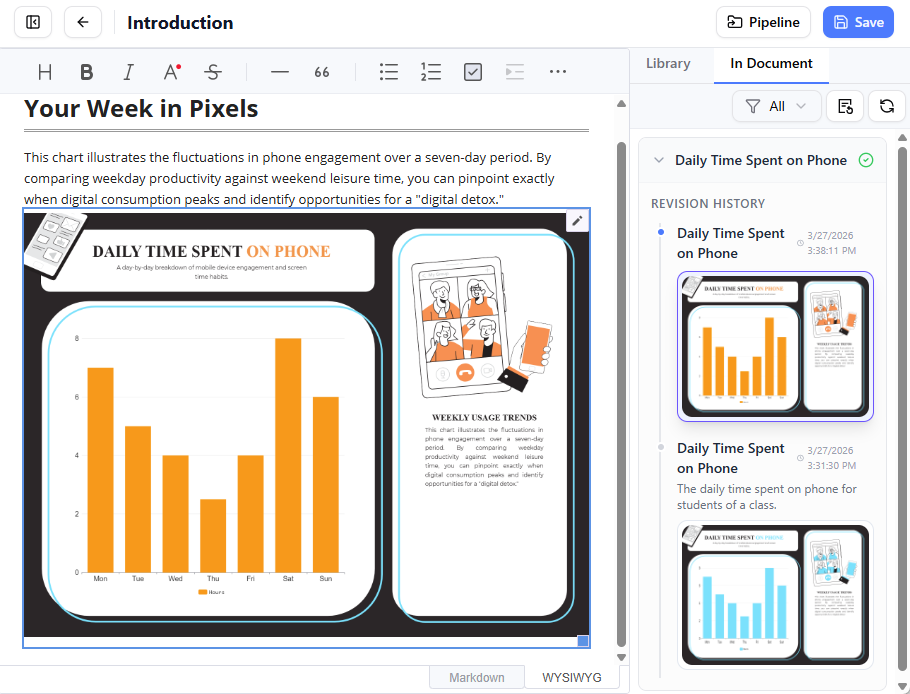
You can see the available revisions for the selected visual. Click on the latest revision to instantly swap the old diagram for the updated version. Or you can click on Update to latest revision directly.
Related Releases
Related posts:
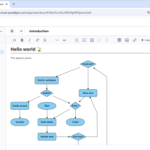 Exciting Update: AI Flowchart Generator Now Live in OpenDocs – Create Professional Flowcharts from Text Instantly
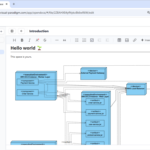 Now in OpenDocs: AI-Powered UML Deployment Diagram Support – Generate Professional Deployment Diagrams Instantly
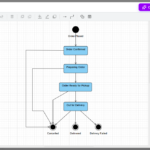 New Feature: AI-Powered State Diagram Support in OpenDocs
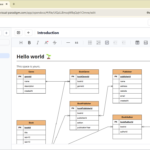 Introducing Entity Relationship Diagram Support in OpenDocs: Unlock AI ERD Generation for Smarter Database Design