Read this post in: de_DEen_USes_ESfr_FRhi_INid_IDjapl_PLpt_PTru_RUvizh_CN

新功能:輕鬆將 Visual Paradigm 桌面圖表匯出至 OpenDocs

EDITION REQUIRED|
DESKTOPProfessional
結合 AI 輔助建模的強大功能與專業知識管理,打造更快、更智慧的文件編製工作流程。

終極的「概念到文件」工作流程

我們很高興宣布,Visual Paradigm 桌面版與 Visual Paradigm OpenDocs 之間推出強大的新整合功能。現在,您可輕鬆連結建模環境與線上文件管理平台。此功能讓團隊能從最初的構想,直接轉化為完整且共享的知識庫,無需手動匯出與上傳圖片檔案的繁瑣過程。

想像一下無限可能:使用 AI 圖表生成 在 Visual Paradigm 桌面版中,立即可視化商業流程或系統架構。利用我們專業的工具套件優化模型,再透過 管道 將模型直接傳送至 OpenDocs,為您的利害關係人提供必要的背景與說明。

注意:此整合功能僅適用於 Visual Paradigm 專業版 及以上版本使用者。

準備好親身體驗了嗎?直接存取 OpenDocs,或下載最新版的 Visual Paradigm 桌面版.
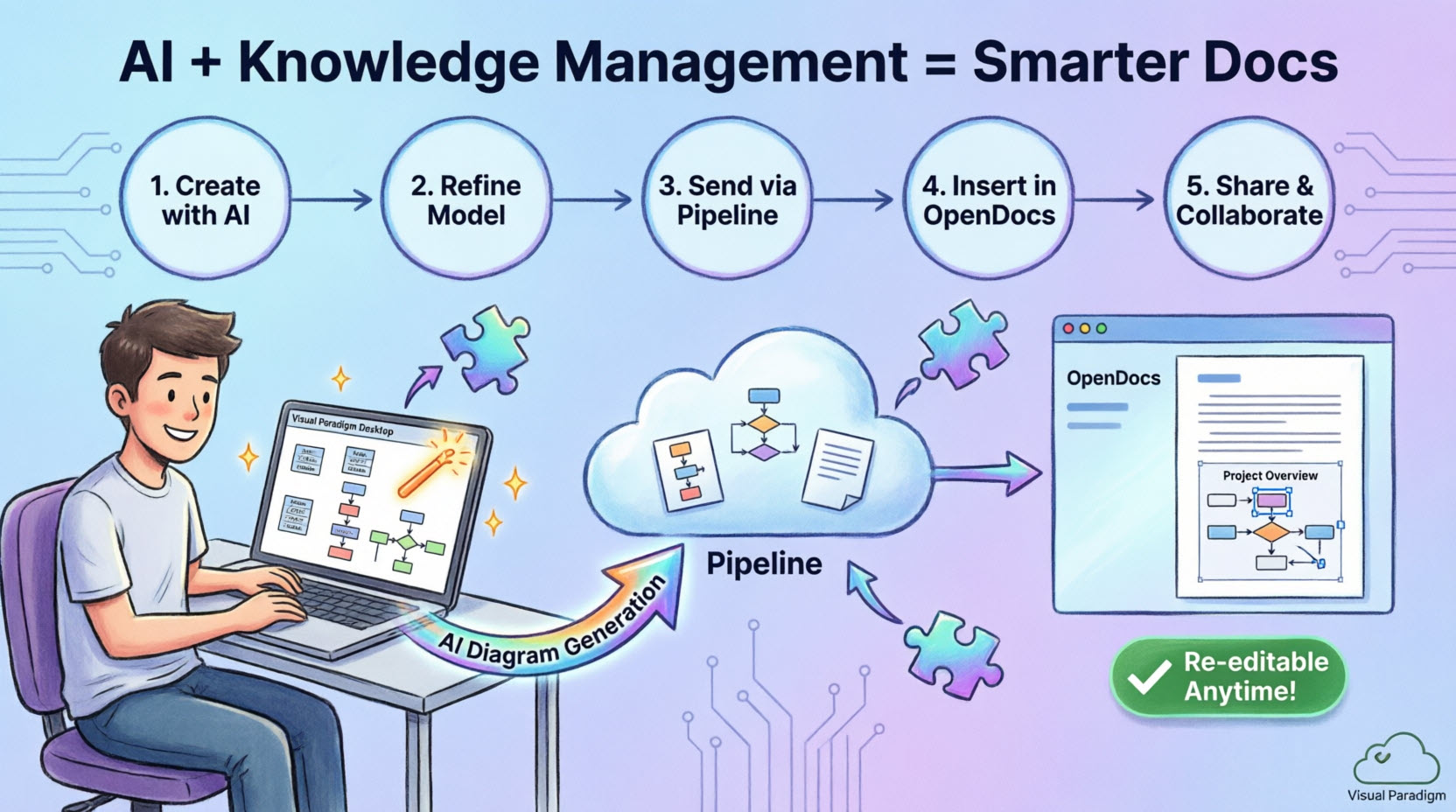
An illustration showing how to perform visual modeling in Visual Paradigm Desktop, and send your work to OpenDocs for knowledge management.

什麼是 Visual Paradigm OpenDocs?

OpenDocs 是專為現代團隊設計的專業知識與文件管理平台。與傳統工具不同,OpenDocs 直接整合強大的圖表編輯器,讓您能將圖表插入頁面,並在不離開文件的情況下隨時重新編輯。透過支援來自 Visual Paradigm 桌面版的匯出功能,OpenDocs 現在成為您所有專業建模與文件編製需求的中央枢纽。

了解管道

管道是一個安全且集中的儲存庫,用於存放「資產」——您在 Visual Paradigm 生態系統中所建立的各項資源。由於我們的工具涵蓋企業架構到敏捷開發等各個層面,管道便成為存放與傳遞這些資產的關鍵空間。它讓一個工具的輸出(例如 AI 生成的 UML 圖表)能直接成為另一個工具的輸入(例如 OpenDocs 中的技術手冊)。

如何將您的圖表匯出至 OpenDocs

無論您是手動建立圖表,還是使用我們的 AI 生成工具,將圖表匯出至文件都十分簡單:

  1. 在 Visual Paradigm 桌面版中,開啟您想要傳送的圖表。
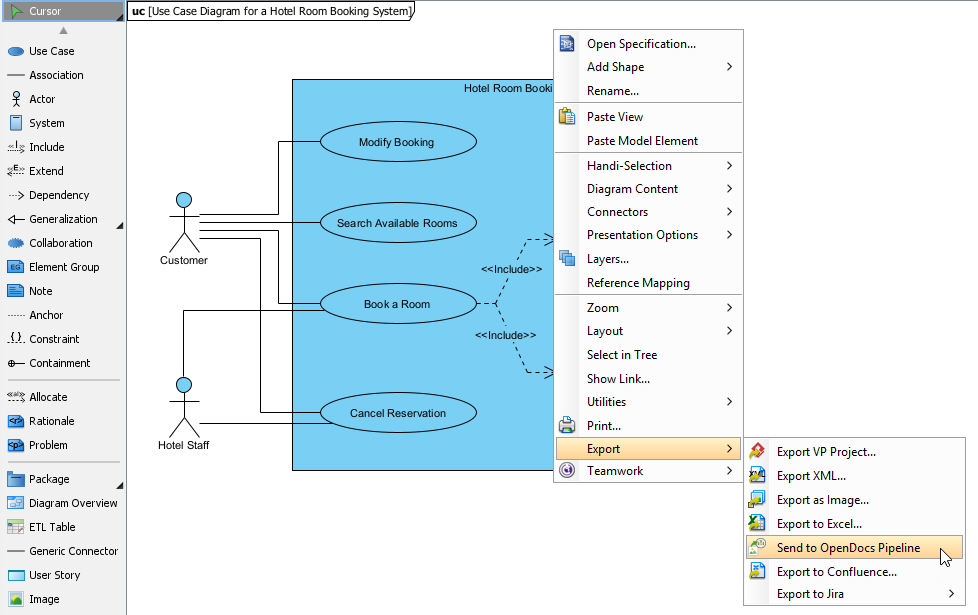
  2. 右鍵點選圖表,並選擇 匯出 > 發送到 OpenDocs 管道.

    A screenshot of Visual Paradigm Desktop that shows how to send a use case diagram from Visual Paradigm Desktop to Visual Paradigm OpenDocs through the popup menu.

  3. 當提示時,點擊以儲存您的專案好的.
  4. (可選)輸入註釋。此註釋將在 OpenDocs 內的 Pipeline 面板中顯示,以幫助您識別資源的版本或用途。
  5. 確認匯出,將您的圖表輸出至雲端。

將資源插入您的文件中

一旦您的圖表進入 Pipeline,您便可以將其放置在知識庫中的任何位置:

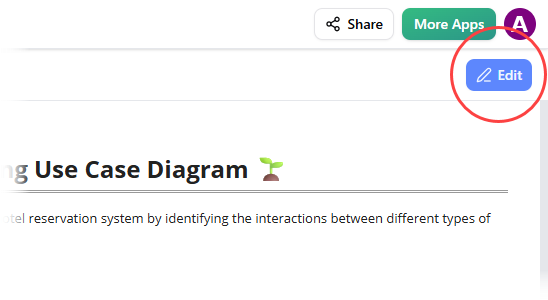
  1. 在 OpenDocs 中開啟任何文件頁面,然後點擊編輯.

    A screenshot of Visual Paradigm OpenDocs that shows the position of the Edit button.

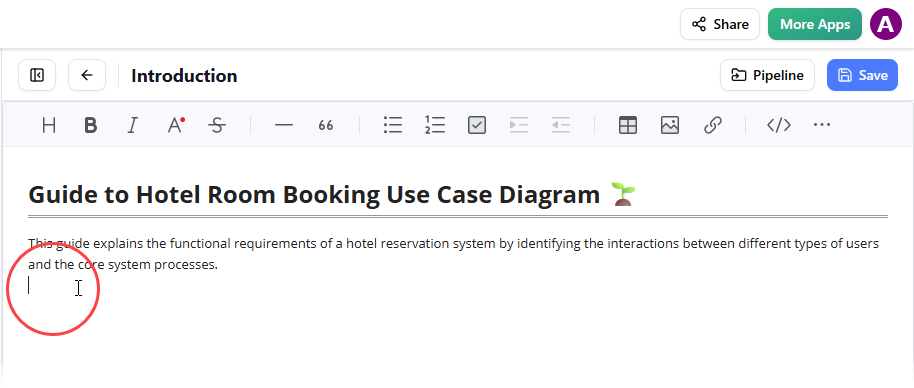
  2. 點擊您想要插入圖表的頁面。

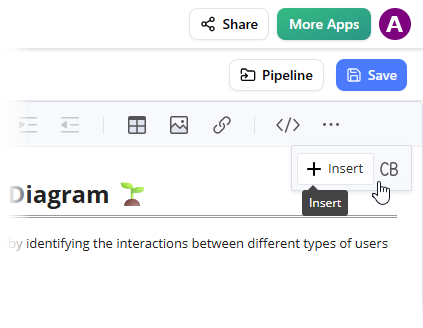
  3. 在工具列上,點擊插入.

    A screenshot of Visual Paradigm OpenDocs that shows the user clicking on the Insert button on the toolbar.

  4. 插入視窗中,選擇Pipeline從左側側邊欄中選擇。您發送的圖表將在此處顯示。
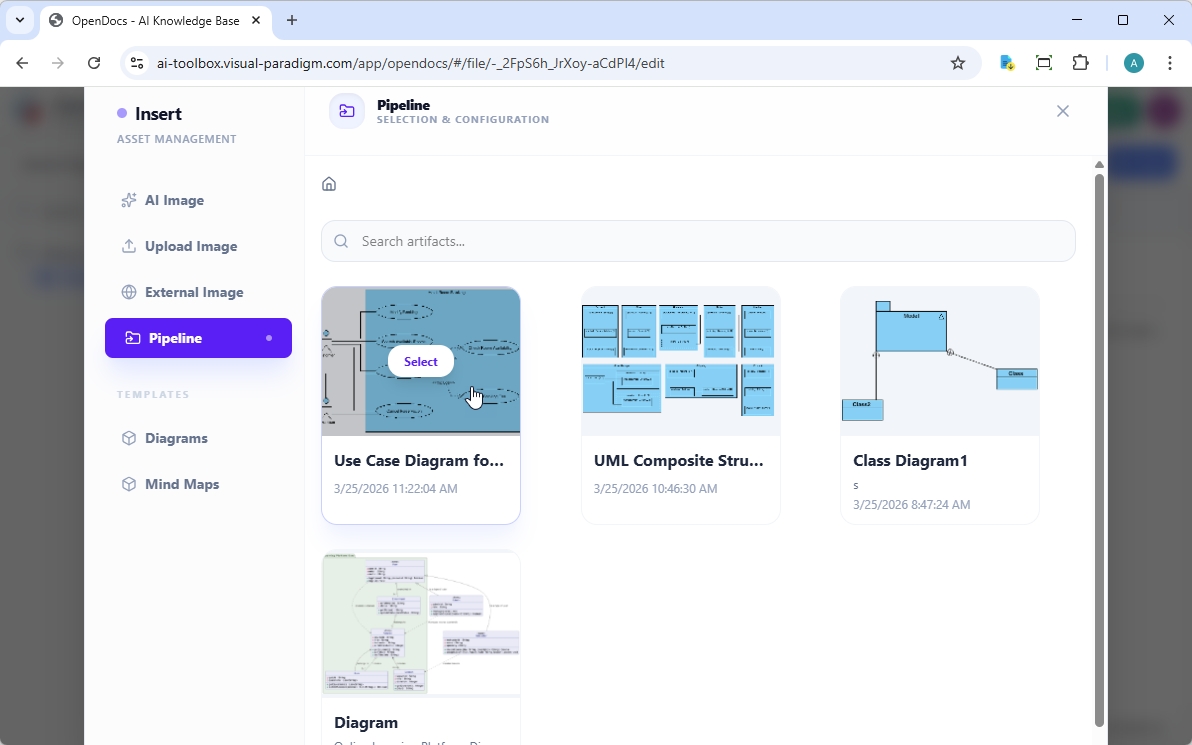
    A screenshot of Visual Paradigm OpenDocs that shows the user selecting a diagram image from the Pipeline, through the Insert window

  5. 點擊圖表,即可將影像直接插入游標所在位置。

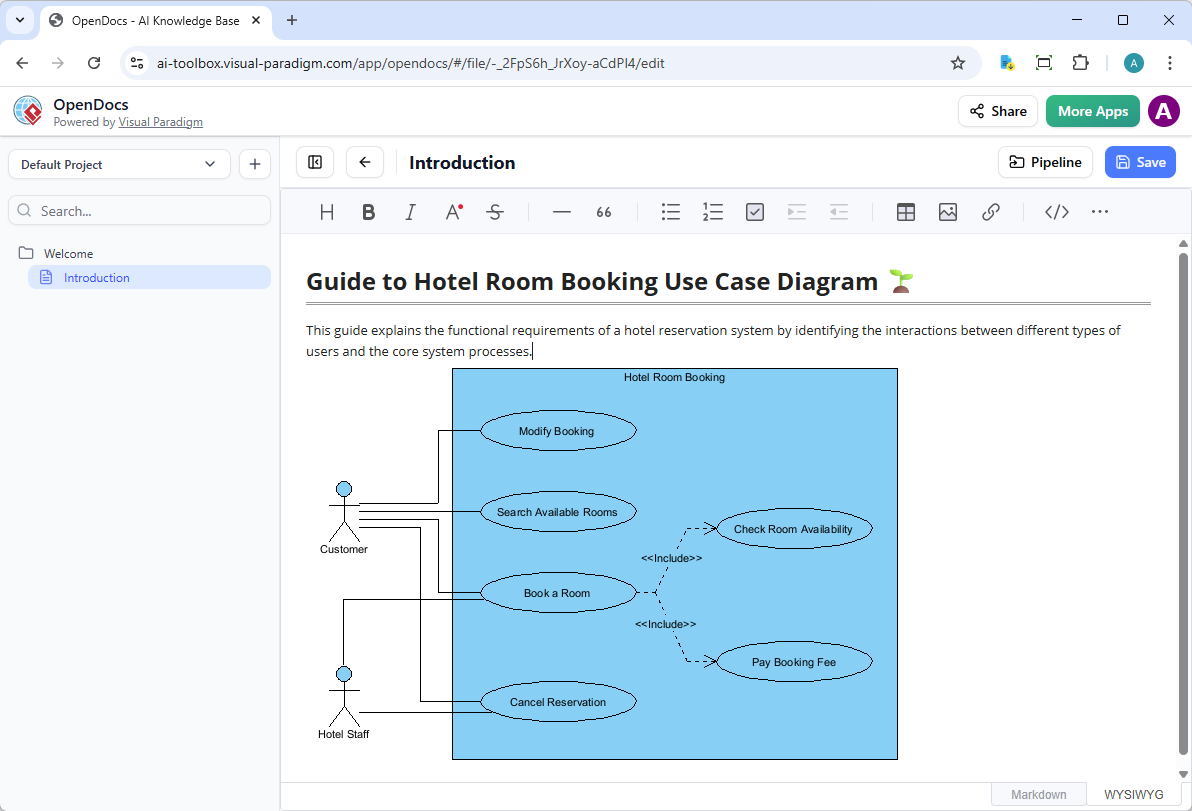
    A UML use case diagram sent from Visual Paradigm Desktop to OpenDocs, via the Pipeline

保持您的文件同步:更新資源

此整合最強大的功能之一,是在模型演進時更新文件的能力。如果您需要對已存在 OpenDocs 中的圖表進行修改,請遵循以下步驟:

1. 開啟原始圖表

在 OpenDocs 中,點擊圖表右上角的編輯圖示,以開啟編輯圖表視窗。
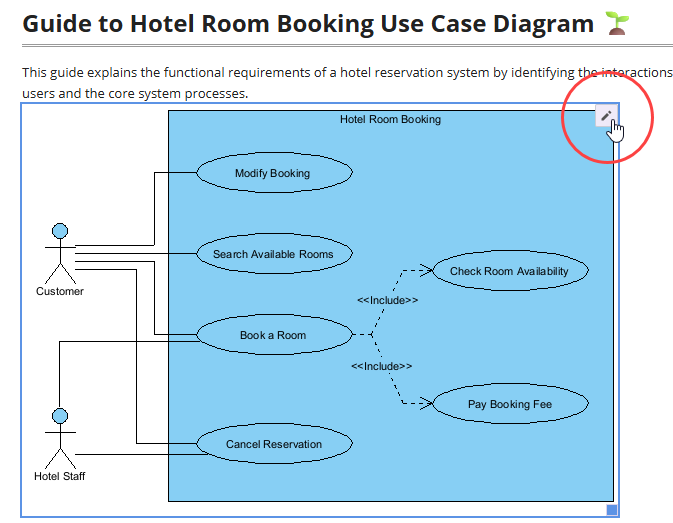
A screenshot of Visual Paradigm OpenDocs that shows how to open the Edit dialog box from a diagram image.

複製提供的圖表連結。在 Visual Paradigm Desktop 中,前往專案 > 開啟,貼上連結,軟體將為您開啟原始模型。(或者,如果您已經開啟專案,可以跳過此步驟。)

2. 編輯並重新發送

在 Visual Paradigm Desktop 中修改您的圖表。完成後,右鍵點選圖表並選擇匯出 > 發送到 OpenDocs Pipeline再次。您也可以直接將變更提交至 VP Online,系統會自動為該物件建立新的版本。
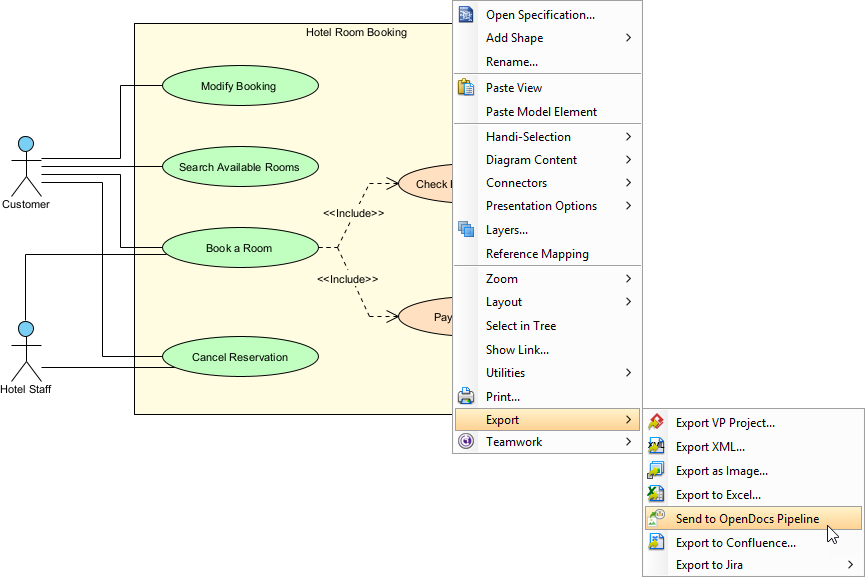
A screenshot of Visual Paradigm Desktop that shows the user sent a modified use case diagram to OpenDocs

3. 切換至最新版本

回到 OpenDocs 編輯器,點選右上角的 Pipeline。
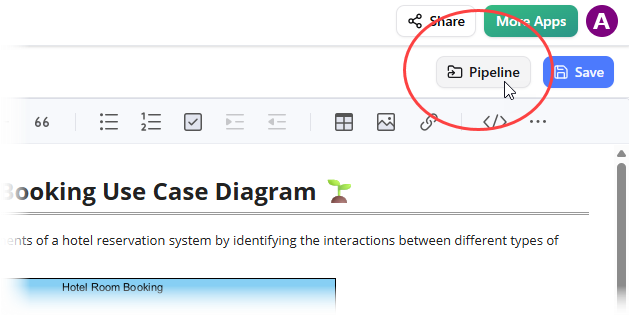
A screenshot of Visual Paradigm OpenDocs that shows how to open the Pipeline pane.

您將看到該頁面目前使用的物件。選擇圖表以查看版本列表。只需點選最新版本,即可立即將舊圖表替換為更新版本。
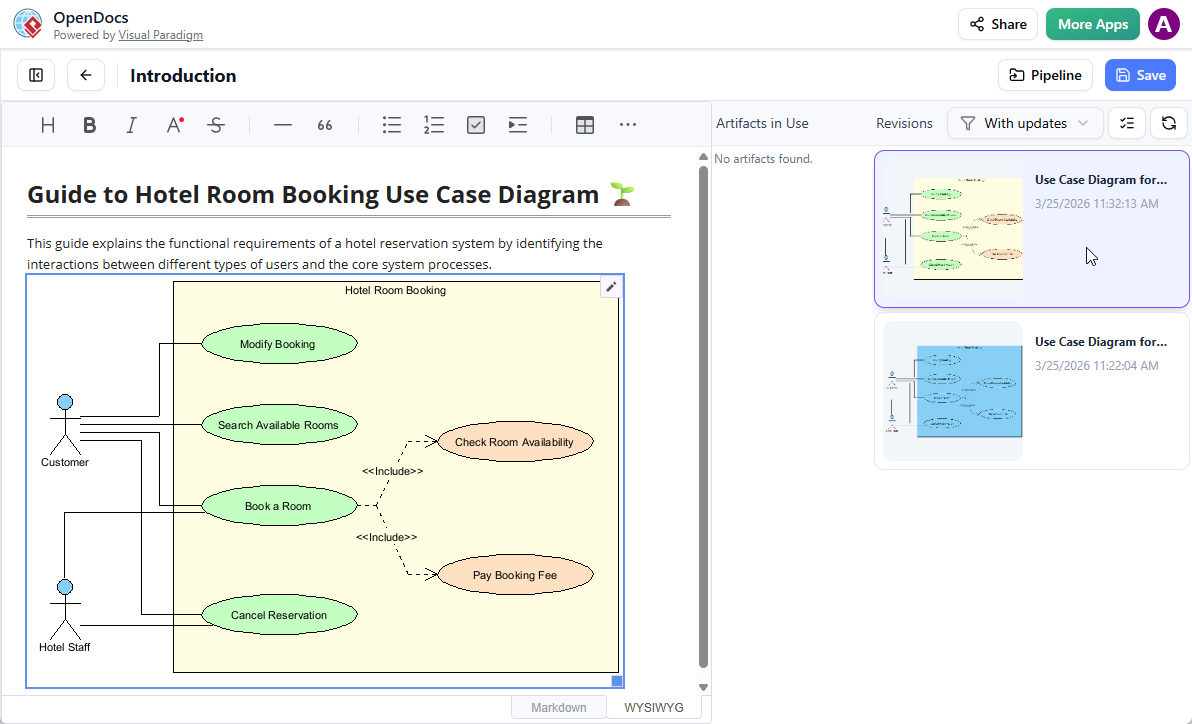
A screenshot of OpenDocs, showing a user replacing a diagram image with a newer revision by selecting the newer revision in the Pipelines pane

相關發行版本


One Platform. Transformative Power.

Unlock the full potential of your designs. Start transforming your projects today with the world's most powerful visual modeling and design suite.

Download the Latest Version

Begin your architectural transformation today.

返回頂端