


Creating well-formatted documentation, notes, and articles just got simpler and faster. We are excited to introduce the Markdown Editor, a powerful and intuitive free markdown editor now available within the Visual Paradigm suite. This new tool is designed to eliminate friction in your writing process by providing a seamless, real-time preview, so you can focus on your content without switching between apps.
Addressing the Challenge of Disconnected Workflows
We know the frustration of writing Markdown in one window and checking the formatted output in another. This constant context-switching slows you down, breaks your concentration, and can lead to formatting errors that require tedious rework. The process felt disjointed and inefficient—until now.
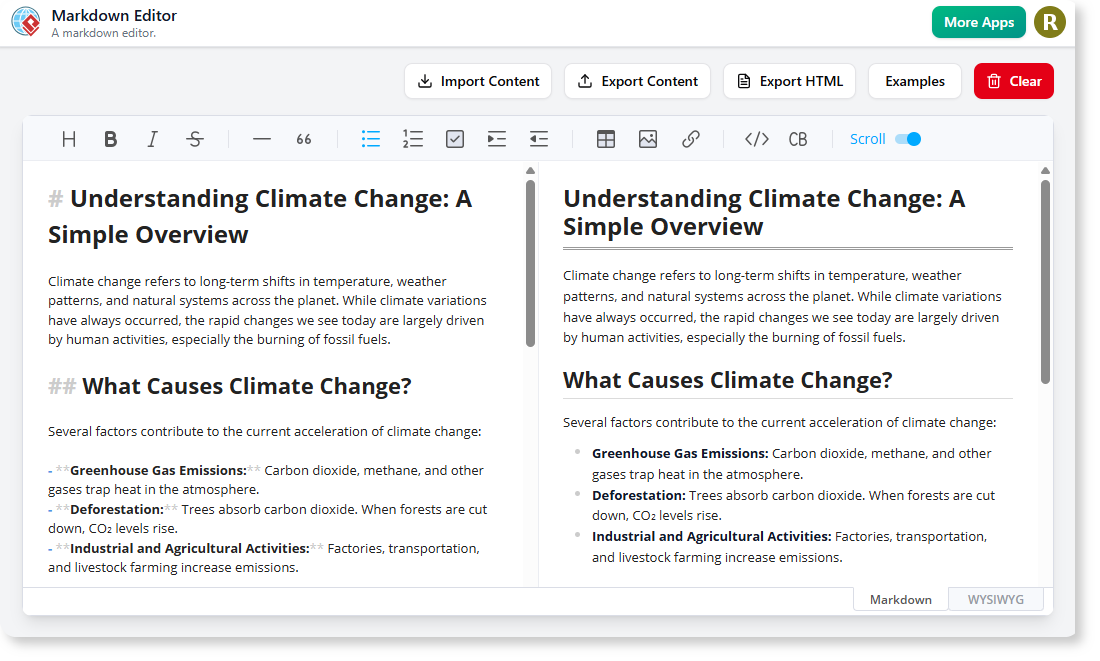
Introducing the Markdown Editor: Write and Preview in Real-Time
Our new editor was built to provide a fluid, integrated writing experience directly within your Visual Paradigm environment. By combining the editor and previewer into a single, clean interface, we empower you to produce high-quality content with greater speed and accuracy.
With the Markdown Editor, you can:
- See Instant Previews: Watch your Markdown render into beautiful HTML on a live, side-by-side panel as you type.
- Format with Ease: Use the intuitive toolbar to apply formatting like bold, italics, headers, lists, and links without memorizing syntax.
- Never Lose Your Work: Save your content directly to your browser’s local storage with a single click, ensuring your progress is always safe.

- Stay Focused: Enjoy a clean, distraction-free interface that keeps you in the creative zone, whether you’re drafting technical docs or brainstorming ideas.
How to Access and Use the New Editor
Getting started is simple. The editor is available to all Visual Paradigm users, both online and on the desktop.
For Visual Paradigm Online users:
- Simply navigate to the Markdown Editor in your browser.
For Visual Paradigm (Desktop) users:
- Open your Visual Paradigm desktop application.
- From the main menu, select Tools > Apps.
- Find and click on the Markdown Editor to launch it.
Once opened, you can start typing in the left-hand pane, watch the preview on the right, and use the “Save Content” and “Clear” buttons to manage your work.
Ready to Streamline Your Writing?
Stop juggling multiple tools and embrace a more efficient workflow. The Markdown Editor provides everything you need to write, preview, and save your content in one convenient place. It’s the perfect companion for developers, writers, and teams who value clarity and productivity.
Learn More: For detailed information, visit our official documentation.