
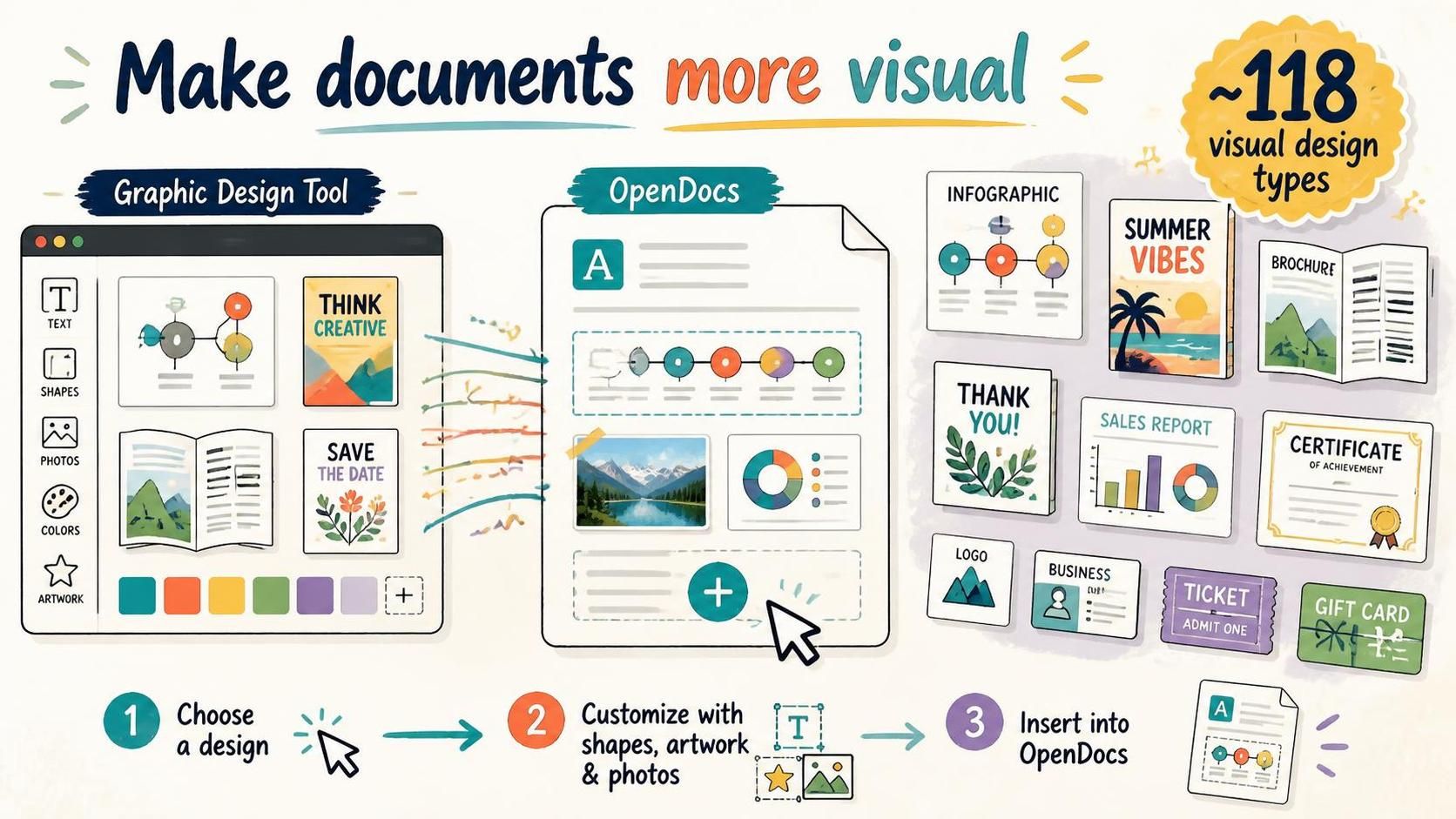
Visual Paradigm OpenDocs now gives users a new way to make documents more attractive, informative, and memorable. Through integration with the Graphic Design Tool, users can create and insert visual designs directly into an OpenDocs page.
With approximately 118 visual design types available, OpenDocs can now support more than text-based documentation. Users can add infographics, brochures, flyers, greeting cards, posters, designed charts, certificates, labels, tickets, gift cards, logos, business cards, and other visual assets to their documents.
This enhancement is useful for anyone who wants to publish richer knowledge resources, create more engaging internal content, or combine written information with professionally arranged visual materials.
Open Visual Paradigm OpenDocs to create documents with embedded visual designs.
Why Add Graphic Design Capabilities to OpenDocs?
Documents are often expected to do more than store information. They may need to attract attention, guide readers, explain an idea, reinforce a message, or present information in a format that is easy to scan.
A well-designed infographic can summarize a complex topic. A poster can highlight an important announcement. A business card can provide contact information in a polished format. A chart can turn data into a more understandable visual story. A certificate, ticket, label, or greeting card can add a designed presentation layer to a document.
Before this integration, users might have needed to create these visuals in a separate application, export them as image files, and then add them to their documents manually. OpenDocs now provides a more connected workflow: choose a visual type, design it using the Graphic Design Tool, save it, and place it directly into the page.
This helps reduce interruptions during content creation and makes it easier to keep written content and visual assets together.
A New Way to Create Visual Documents
The new capability expands the role of OpenDocs from a document publishing application into a more versatile content creation workspace. Users can now prepare documents that include:
- Explanatory text and supporting infographics
- Announcements accompanied by posters or flyers
- Reports containing designed charts
- Training material enhanced with visual cards
- Event information presented through tickets or invitations
- Brand-related content such as logos and business cards
- Recognition documents such as certificates
- Operational information presented through labels and visual notices
- Strategic content supported by SWOT and PEST visuals
Rather than treating the document and its visual elements as separate assets, users can create them as part of one publishing workflow.
Explore Approximately 118 Visual Design Types
The Graphic Design Tool offers approximately 118 types of visual content. While not every design format will be needed in every document, the range gives users flexibility when selecting the right format for a particular communication goal.
Visual communication
Infographics, posters, flyers, brochures, and designed charts can help users present information in a visually structured way. These formats are useful for summaries, announcements, campaigns, reports, guides, and educational content.
Business and professional materials
Business cards, logos, certificates, labels, and other business-oriented designs can support branding, recognition, identification, and professional communication.
Events and personal communication
Greeting cards, tickets, gift cards, and invitation-style designs can add a more personal or event-focused visual element to an OpenDocs page.
Strategy and analysis
SWOT and PEST designs can help teams present strategic analysis in a more engaging format. When inserted alongside an explanation, these visuals can make the key findings easier to review and share.
Design with Shapes, Artwork, and Photos
The Graphic Design Tool is not limited to a fixed image template. It provides a design workspace where users can compose visuals using a variety of elements, including:
- Shapes and decorative objects
- Artwork and graphic elements
- Photos and image assets
- Text blocks and headings
- Colors, backgrounds, and visual arrangements
This gives users greater creative control over the appearance of an inserted visual. They can adjust the composition to suit the subject, audience, and purpose of the document instead of relying on plain text or a generic image.
For example, a product announcement could include an illustrated promotional card, a training page could use a custom infographic, and an internal campaign document could feature a poster designed specifically for the organization.
How to Insert a Graphic Design into an OpenDocs Page
Adding a visual design follows a simple in-context workflow:
- Go to Visual Paradigm OpenDocs.
- Create a new page or open an existing page.
- Click Edit at the top right of the page.

- Place the cursor where you want the visual to appear.
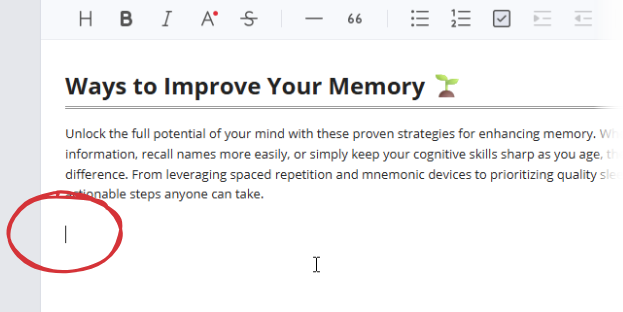
- Click the + button on the toolbar to open the Create an Artifact window.

- Select Graphic Design from the menu on the left.
- Browse the available visual types or search for one using the search field.
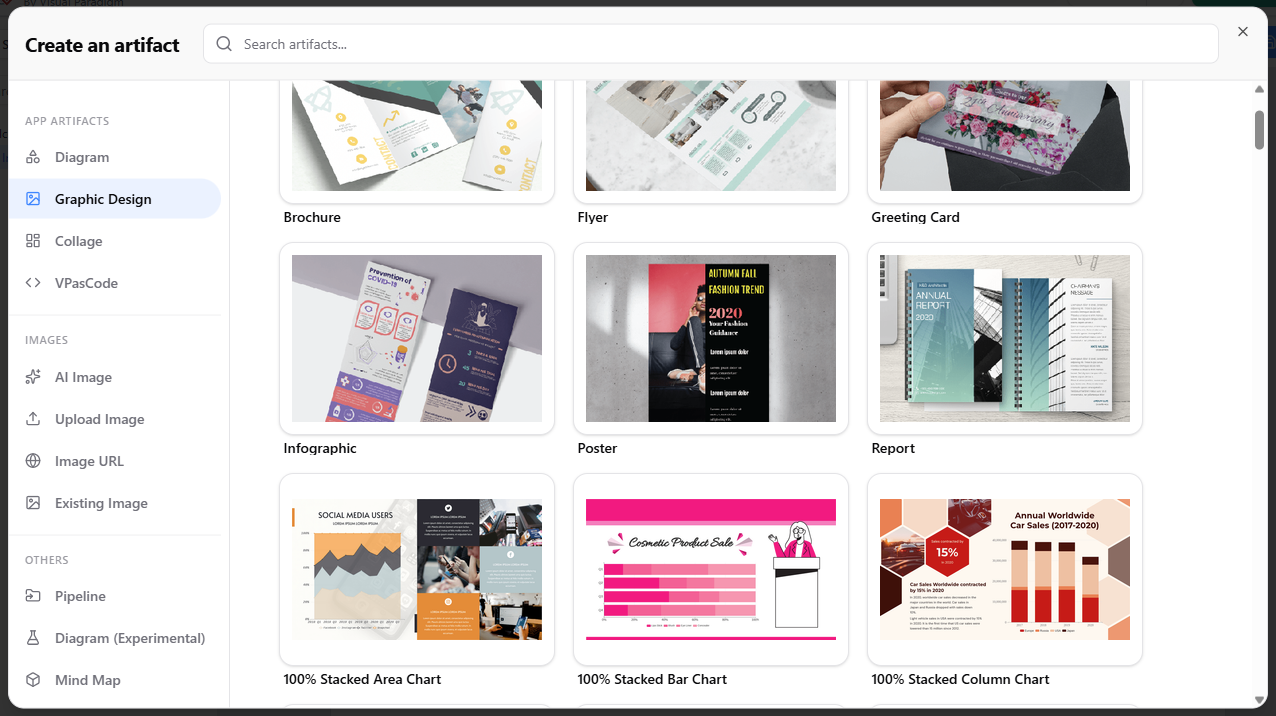
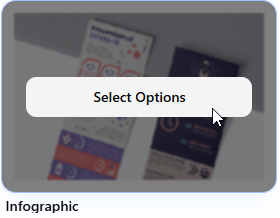
- Move the pointer over the visual type you want to use and click on it.
- Design the visual using shapes, artwork, photos, text, and other available elements.
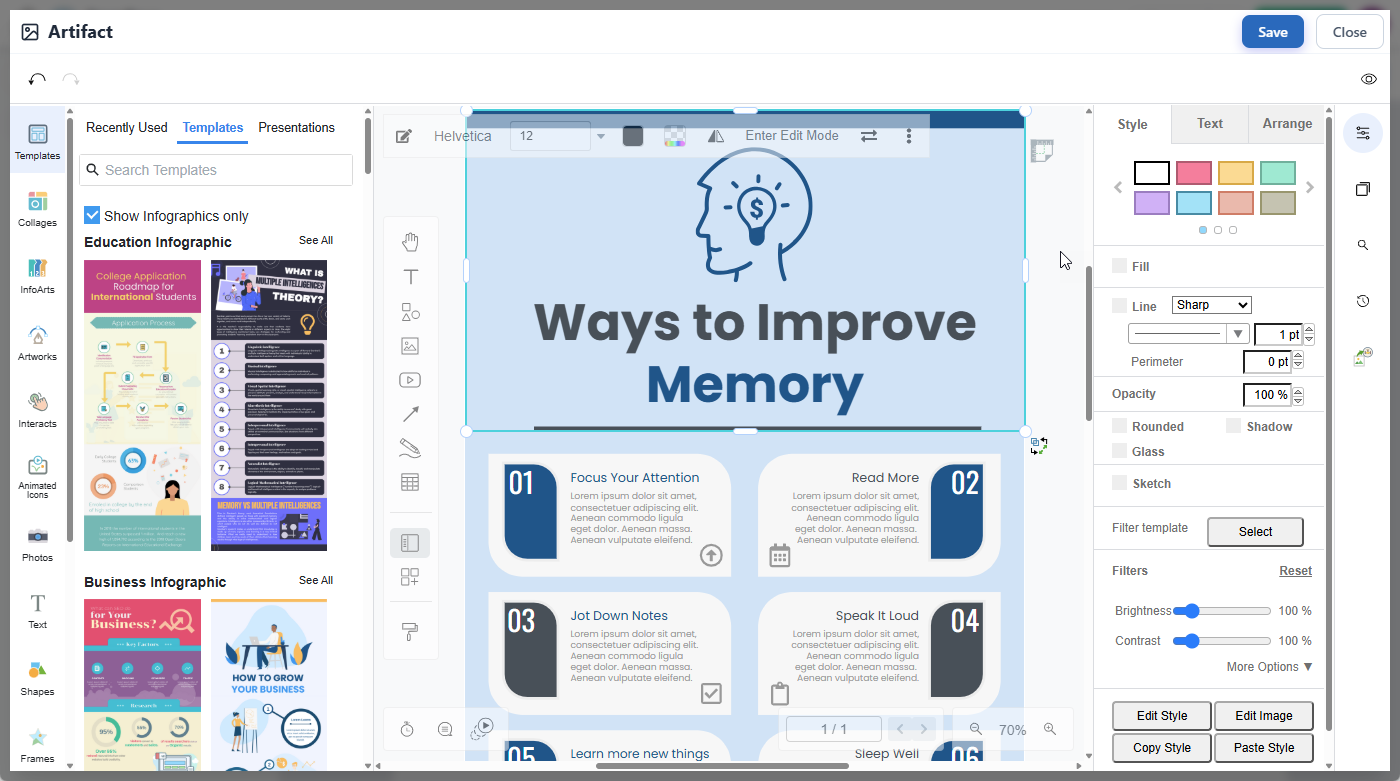
- When the design is ready, click Save at the top right of the editor.

- Click Close to return to the OpenDocs page.
- The finished visual will be inserted into the OpenDocs page at the cursor position.
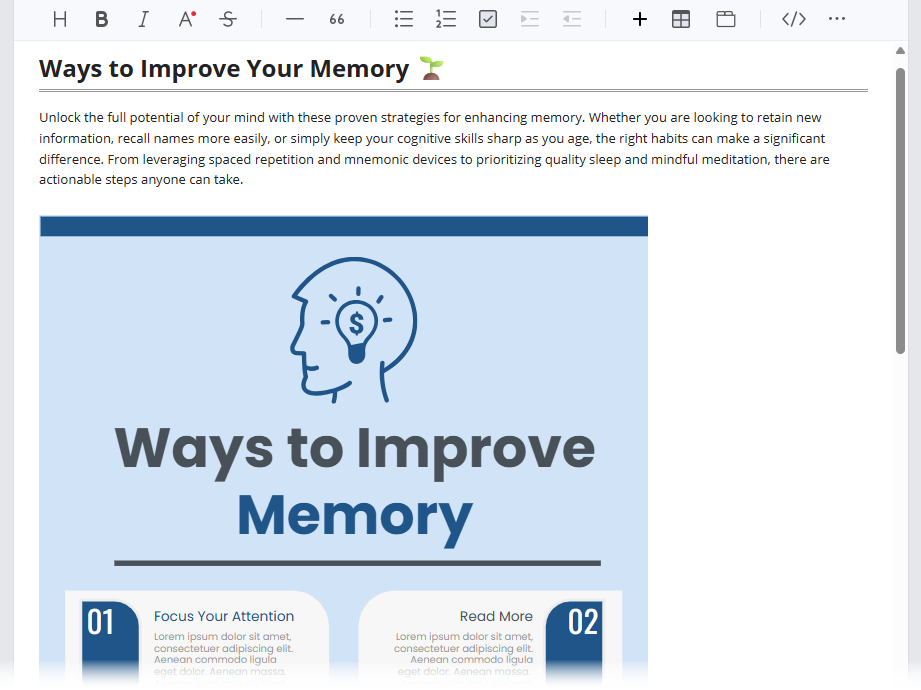
The process allows users to make design decisions while working on the document itself. The visual does not need to be prepared separately before the page is written.
Keep Visual Content Editable
Inserted designs can be updated after they have been added to a page. This is important because visual content often changes along with the document around it.
To revise a graphic design, click the pencil icon at the top right of the inserted visual. The design will reopen in the Graphic Design Tool, where you can adjust its text, images, shapes, artwork, colors, and layout. Click Save when finished to update the visual on the OpenDocs page.
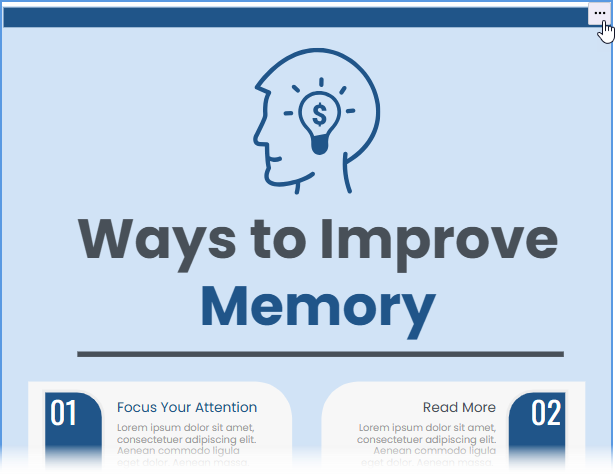
This makes it easier to maintain documents over time. A poster can be revised for a new campaign, a chart can be updated with new information, and an infographic can be refined as the underlying content changes.
Practical Ways to Use Embedded Visuals
Create more engaging announcements
Important announcements can be supported with posters, flyers, greeting cards, or promotional graphics. The visual can appear directly beside the announcement text, helping readers recognize and understand the message quickly.
Summarize information in an infographic
Long explanations can be accompanied by an infographic that highlights the main points. This is useful for product updates, process overviews, onboarding material, research summaries, and educational content.
Improve internal communication
Teams can use designed charts, visual cards, posters, and other formats to make internal communications easier to scan. Visual content can help draw attention to deadlines, procedures, key results, or important changes.
Build richer learning material
Training and onboarding documents can benefit from a combination of instructions, illustrations, charts, and visual summaries. This can make learning content less text-heavy and easier to navigate.
Present strategic analysis
SWOT and PEST visuals can be placed alongside written analysis, recommendations, and action plans. This gives readers both a quick visual overview and the detailed context behind the analysis.
Support branded documentation
Logos, business cards, certificates, and other branded visuals can help organizations create documents that feel more consistent and professional.
Prepare event-related content
Tickets, gift cards, greeting cards, and other designed materials can be included in event pages, campaign documents, invitations, or customer communication resources.
Useful for Knowledge Bases, Reports, Guides, and More
Embedded visuals can improve many types of OpenDocs content, including:
- Product update articles
- Internal knowledge bases
- Marketing and campaign documents
- Training and onboarding guides
- Business reports
- Project communication pages
- Event and promotional material
- Educational resources
- Strategic planning documents
- Company announcements
For knowledge management, this means teams can capture not only written knowledge but also the visual assets used to communicate it. Readers can find the explanation and the supporting design in one organized location.
Keep Content Creation in One Connected Workflow
The Graphic Design Tool integration reflects Visual Paradigm’s connected product ecosystem. OpenDocs provides the page-based environment for creating, organizing, publishing, and sharing content. The Graphic Design Tool provides the design capabilities needed to create polished visual material.
Working together, these capabilities make it easier to move from an idea to a finished document. Authors can write the content, create a supporting visual, place it in context, and revise both as the material develops.
This can be especially helpful for teams that regularly produce documents combining information, presentation, and communication. Instead of collecting separate files from different tools, authors can assemble a more complete resource within OpenDocs.
Make Your OpenDocs Pages More Visual
Text remains essential for explaining details, documenting decisions, and preserving knowledge. However, the right visual can make that information more noticeable, understandable, and memorable.
With the new Graphic Design Tool integration, OpenDocs users can create approximately 118 types of visual designs and insert them directly into their pages. From infographics and posters to designed charts, business materials, cards, and strategic visuals, the feature provides more options for creating content that communicates effectively.
Open Visual Paradigm OpenDocs and start creating visually engaging documents.
Related posts:
 Visual Paradigm 18.0 Has Arrived – The Most Intelligent & AI-Driven Release in Our History!
 Seamless Diagram Lifecycle Management: Enhance and Edit AI-Generated Diagrams in Visual Paradigm OpenDocs via VPasCode
 Instantly Create Stunning Visuals with Our New Free AI Infographic Generator
 Transform Your Ideas into Stunning Visuals with Our New AI-Powered Infographic Generator