

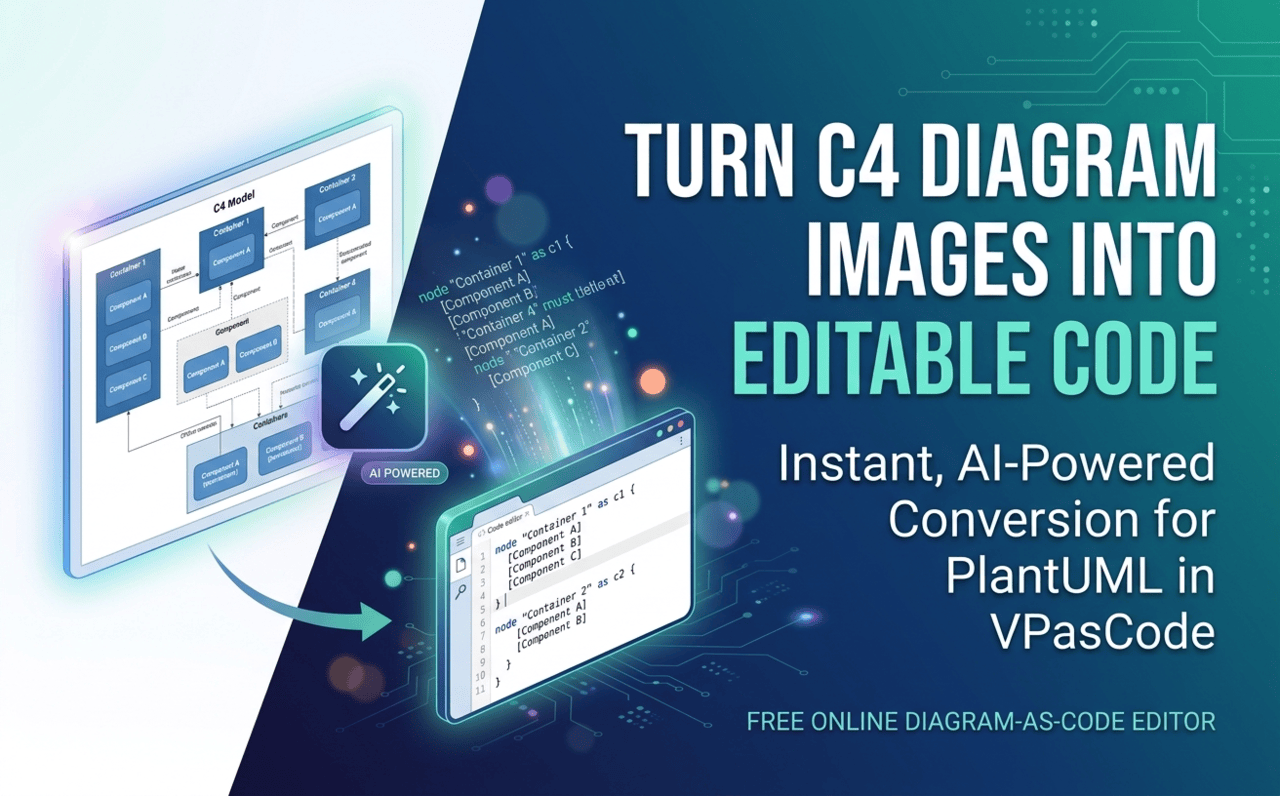
At Visual Paradigm, we are constantly striving to make technical diagramming faster, smarter, and more flexible for developers, system architects, and engineering teams. Today, we are thrilled to announce a major enhancement to VPasCode: the all-new Import C4 Model from Image (With AI) feature!
Whether you have legacy architectural diagrams saved as flat image files or received a C4 model screenshot from a teammate, you can now automatically convert those static images into editable PlantUML code in seconds. Try it out right away on our online diagram-as-code tool.
The Power of Importing C4 Model Images with AI
In software architecture, C4 models are essential for mapping out context, containers, components, and code. However, sharing and maintaining C4 diagrams across teams often hits a bottleneck: diagrams are frequently stored as static image formats like PNG or JPEG. Updating a tiny detail usually meant recreating the entire diagram from scratch in a design tool.
Our new AI PlantUML tool capability breaks down these barriers using advanced optical character recognition (OCR) and machine learning trained specifically on C4 diagram structures.
Why Image Import Matters
- Break Away from Vendor Lock-In: Traditionally, moving diagrams between software required exporting specific file types that target platforms might not support. AI OCR analyzes the visual structure directly, bypassing format incompatibilities.
- Instant Conversion to Standard Code: Flat pixels are instantly translated into standard PlantUML C4 code, turning uneditable images into reusable text artifacts.
- On-the-Fly Editing: Once imported, you can modify labels, restructure containers, add component relations, or refactor layouts directly within the diagram-as-code editor.
Quick Demo: Try Importing a C4 Diagram Image Instantly
If you want a detailed walkthrough on importing your own C4 model images, including guidelines and best practices, check out the step-by-step guide in the next section. To try it out right away, use the links below to instantly open the import window with a pre-configured demo diagram.
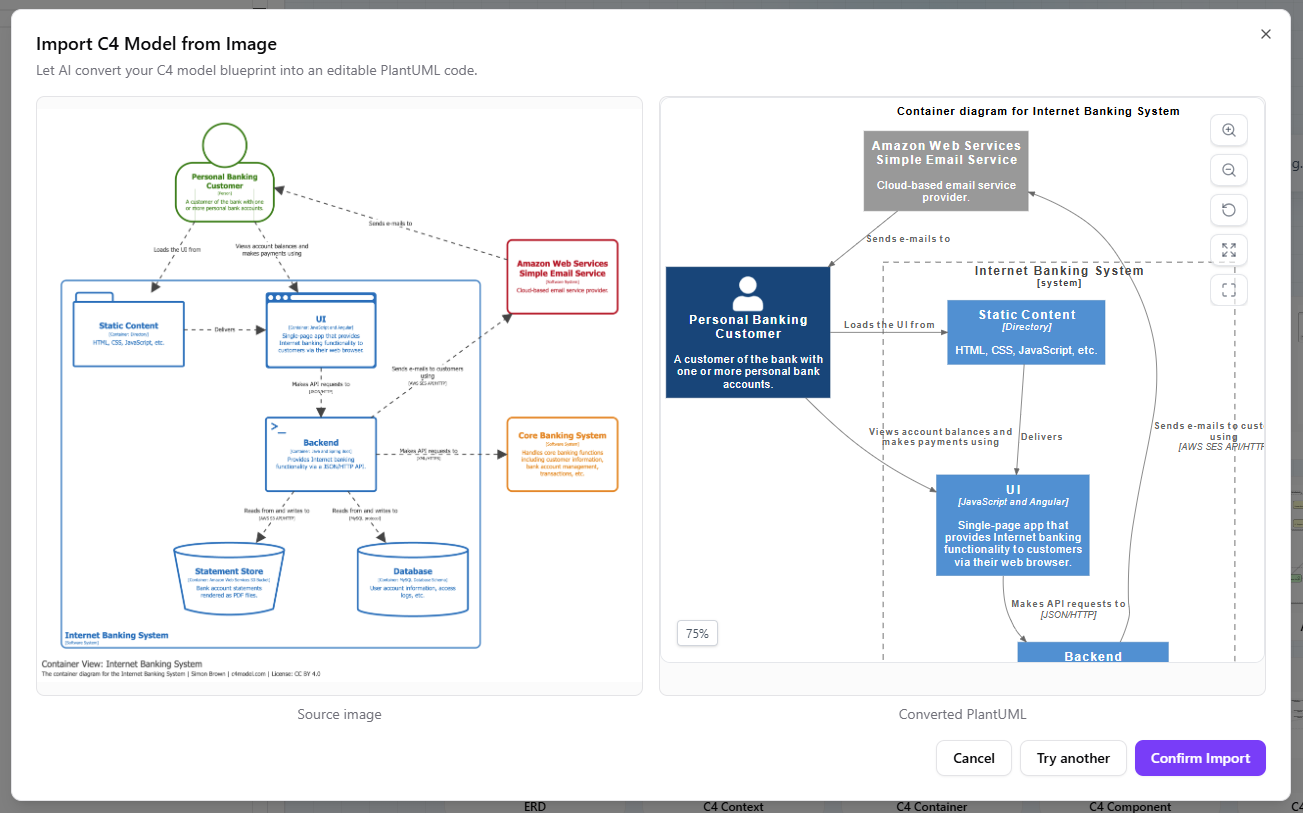
Demo 1: Click to import a C4 diagram image in illustrative style
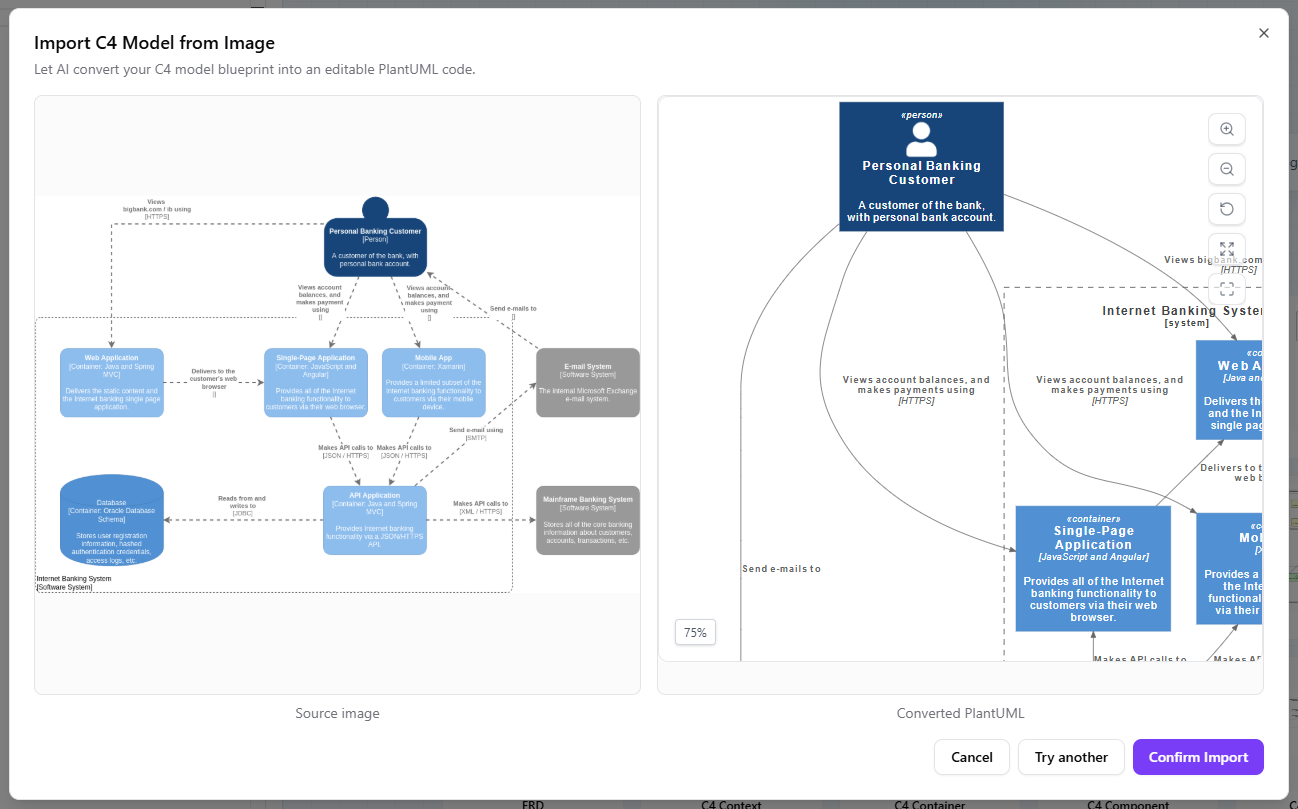
Demo 2: Click to import a C4 diagram image in canonical style
Step-by-Step Guide: How to Import a C4 Model Image
Converting your existing C4 architecture images into editable code in VPasCode is straightforward:
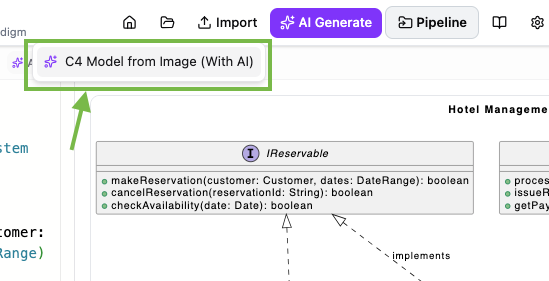
- Open the Import Menu: In the top navigation bar of VPasCode, click Import.
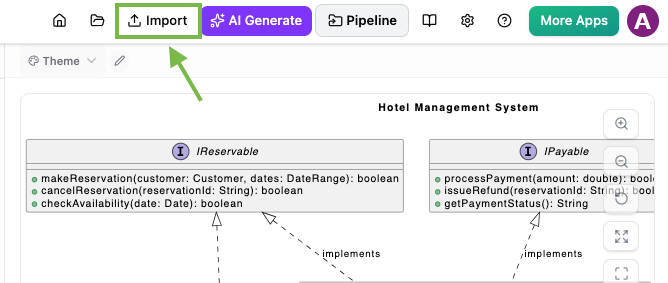
- Select the AI Import Option: Choose “C4 Model from Image (With AI)” from the drop-down menu to open the upload dialog box.
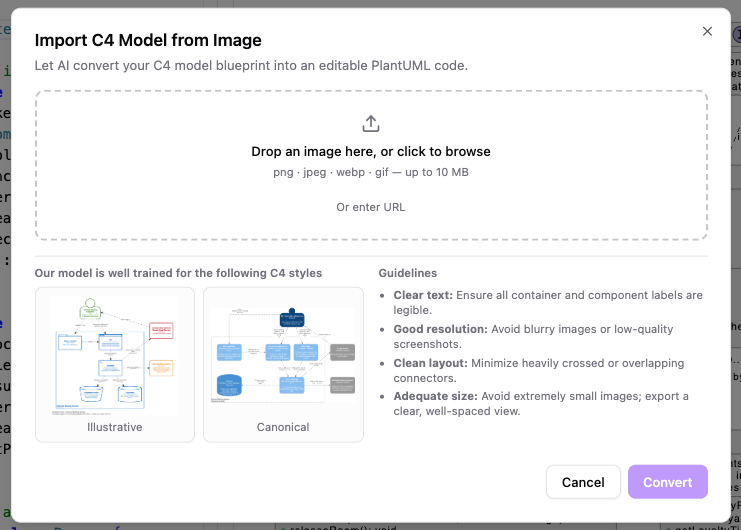
- Provide Your Image: Drag and drop your C4 image into the drop zone, or select “Or enter URL” to paste a direct image web link.
- Canonical Style: Classic C4 appearance featuring traditional blue container shapes.
- Illustrative Style: Modern appearance utilizing clean white shapes with colored borders.
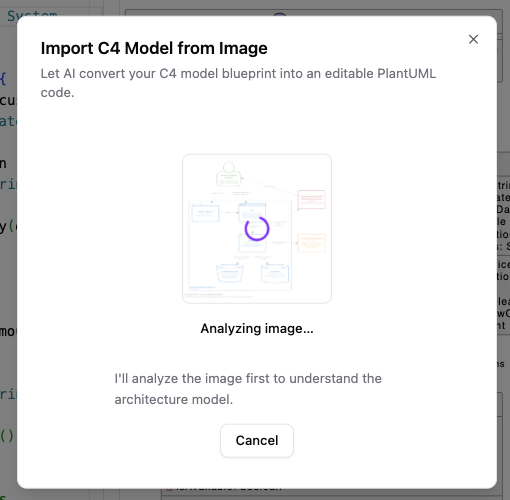
- Convert with AI: Click Convert. The AI engine uses OCR to read components, text labels, and connection paths.
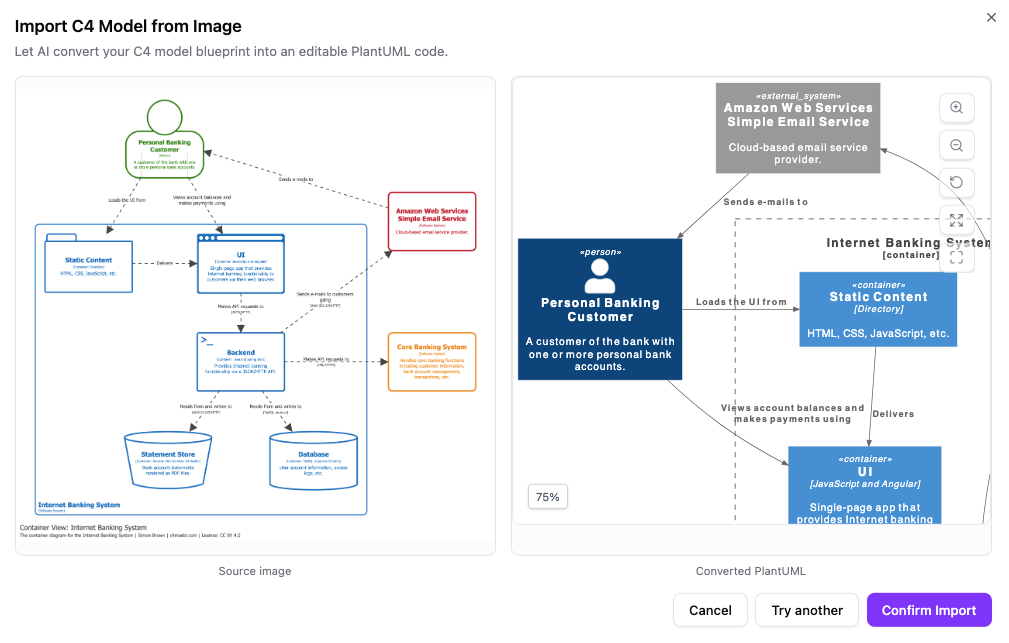
- Review and Confirm: Inspect the side-by-side comparison UI. The original image appears on the left, and the newly generated diagram preview appears on the right (with pan and scroll controls). Click Confirm Import to transfer the generated PlantUML code directly into your editor.
Best Practices for Optimal AI Recognition
- Clear Text: Ensure container names and relationship labels are clear and legible.
- Good Resolution: Avoid low-resolution or blurry screenshots.
- Clean Layout: Minimize overlapping connectors or heavily crossed lines where possible.
- Adequate Size: Export a well-spaced image view before converting.
What is VPasCode?
If you are new to VPasCode, it is a free, unified platform built for technical teams who prefer text-driven visualization. As a modern diagram-as-code editor, VPasCode transforms structured text, domain-specific languages (DSLs), and data definitions into crisp, professional visual diagrams in real time.
VPasCode automatically detects your code syntax—whether it is PlantUML, Mermaid, D2, Graphviz, Markmap, DBML, or SQL—and renders live visual previews instantly without requiring manual setup. In addition to standard code editing, VPasCode features a suite of built-in AI capabilities, including natural language diagram generation, automated code refactoring, side-by-side diff views, and smart syntax error fixing.
Launch VPasCode Free Editor Now
Seamless Integration with OpenDocs and Visual Paradigm Desktop
Importing and editing your C4 diagram in our online diagram-as-code tool is just the beginning. VPasCode connects directly with the broader Visual Paradigm ecosystem to support your complete technical workflow:
- Send to OpenDocs for Documentation: Once your C4 code is refined, publish your work directly to Visual Paradigm OpenDocs. Keep technical specs, system architecture docs, and visual diagrams synchronized in one central knowledge hub.
- Escalate to Visual Paradigm Desktop: When your project demands intensive visual modeling, enterprise architecture alignment, or comprehensive UML compliance, transfer your diagrams directly to Visual Paradigm Desktop for deep architectural analysis.
Start Converting Your C4 Diagrams Today
Ready to turn your static architectural images into flexible, maintainable code? Experience the new AI Import feature today inside our free AI PlantUML tool environment.
Explore the full platform capabilities on the VPasCode Landing Page or dive straight into creating and converting diagrams on the VPasCode App Page.