


हम घोषणा करने के लिए उत्साहित हैं के नवीनतम सुधार के लिएOpenDocs, हमाराAI-संचालित ज्ञान प्रबंधन उपकरण समृद्ध दस्तावेज़ और आरेख बनाने, प्रबंधित करने और साझा करने के लिए डिज़ाइन किया गया है। आज, हम तीन शक्तिशाली नए आरेख प्रकारों के लिए समर्थन लाए हैं: EPC आरेख, घटक आरेख और PERT चार्ट। इस अपडेट स्पॉटलाइट में, हम नए ब्रांड के घटक आरेखक्षमता – AI द्वारा संचालित, जिससे तेजी से उत्पादन होता है।
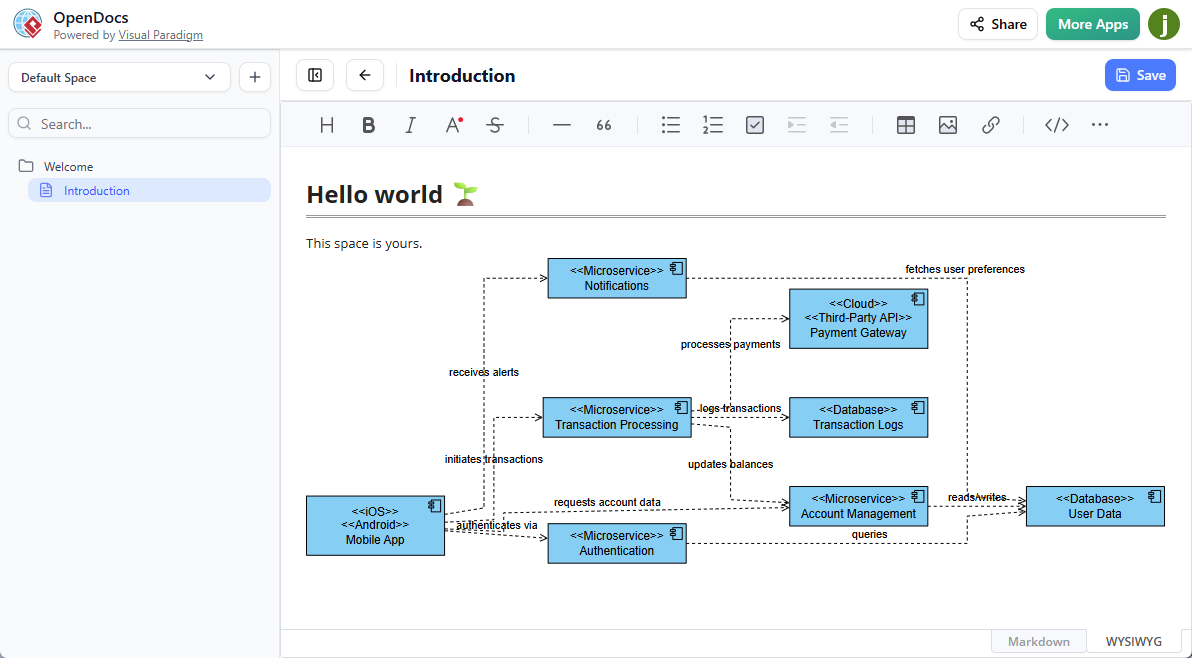
OpenDocs में AI घटक आरेख उपकरण का परि�ken
OpenDocs आपके लिए जाने-माने AI-संचालित ज्ञान प्रबंधन उपकरण पेशेवरों के लिए जो अपने दस्तावेज़ीकरण प्रवाह में स्पष्टता, उत्पादकता और सहयोग की आवश्यकता होती है। जोड़ के साथ घटक आरेखघटक आरेख समर्थन के साथ, सॉफ्टवेयर वार्ड, सिस्टम इंजीनियर और डेवलपर्स अब मॉड्यूलर सिस्टम संरचनाओं को पहले की तुलना में अधिक कुशलता से देख सकते हैं।
एक UML घटक आरेख (जिसे घटक आरेख के रूप में भी जाना जाता है) सॉफ्टवेयर घटकों की संगठन और वायरिंग, उनके प्रदान किए गए और आवश्यक इंटरफेस, पोर्ट और निर्भरता को दर्शाता है। यह एक सिस्टम के उच्च स्तर के स्थिर कार्यान्वयन दृश्य को प्रदान करता है, जिससे घटक-आधारित वास्तुकला, मॉड्यूल के बीच निर्भरता और डेप्लॉयमेंट विचारों के मॉडलिंग के लिए आवश्यक होता है।
हमारे उन्नत AI घटक आरेख उत्पादक, आपको इन आरेखों को शुरुआत से हाथ से बनाने की आवश्यकता नहीं है। बस अपने सिस्टम का प्राकृतिक भाषा में वर्णन करें (उदाहरण के लिए, “प्रमाणीकरण सेवा, डेटाबेस कनेक्टर और भुगतान गेटवे घटकों के साथ एक वेब एप्लिकेशन”), और हमारा AI घटक आरेख उपकरण स्वचालित रूप से एक पेशेवर, संपादित करने योग्य UML घटक आरेख सेकंड में।
नए AI घटक आरेख उत्पादक के मुख्य लाभ
- तत्काल आरेख निर्माण: उपयोग करें AI घटक आरेख उत्पादकटेक्स्ट वर्णन को पूरी तरह से संरचित घटक आरेख में बदलने के लिए – घंटों के हाथ से काम को बचाने के लिए।
- दस्तावेज़ीकरण में बिना रुकावट एकीकरण: अपने उत्पादित घटक आरेख को किसी भी OpenDocs पृष्ठ में लाइव घटक के रूप में सीधे एम्बेड करें, या एकाग्र संपादन और दृश्यता के लिए एक विशेष घटक पृष्ठ बनाएं।
- उत्पादकता और स्पष्टता में वृद्धि: हमारे साथ शक्तिशाली दृश्यों और समृद्ध पाठ को जोड़ेंAI-संचालित ज्ञान प्रबंधन उपकरण अतुलनीय सटीकता के साथ जटिल सॉफ्टवेयर वास्तुकला की व्याख्या करने के लिए।
- पूर्ण संपादन शक्ति: AI उत्पादन के बाद, OpenDocs के स्वचालित आरेख संपादक का उपयोग करके आकृतियों, इंटरफेस, पोर्ट, कनेक्टर और संबंधों को सुधारें।
- सॉफ्टवेयर टीमों के लिए आदर्श: सिस्टम वास्तुकारों, सॉफ्टवेयर इंजीनियरों और विश्लेषकों के लिए आदर्श, जो मॉड्यूलर डिजाइन, माइक्रोसर्विसेज या पुराने सिस्टम एकीकरण के दस्तावेज़ीकरण करते हैं।
AI के साथ UML घटक आरेख कैसे बनाएं?
- पर क्लिक करेंसम्मिलित करें अपने दस्तावेज़ संपादक के शीर्ष बार में।

- दसम्मिलित करें डायलॉग बॉक्स खुलता है। चुनेंआरेख बाएं तरफ के टैब, और फिरघटक आरेख दाएं तरफ।
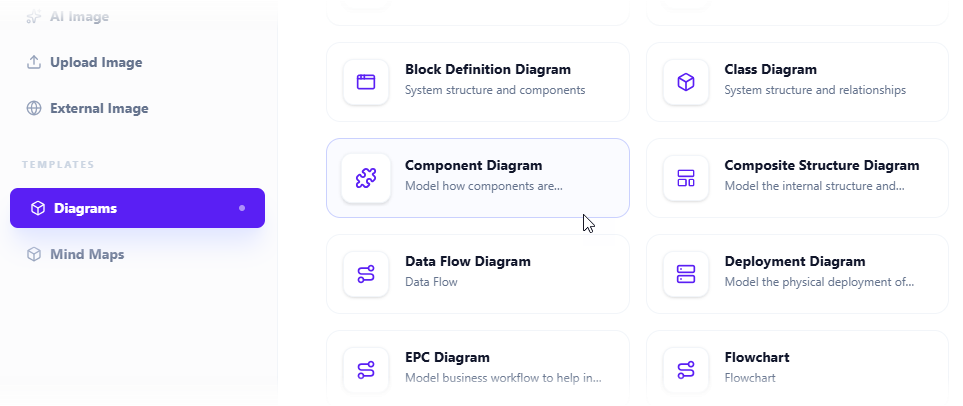
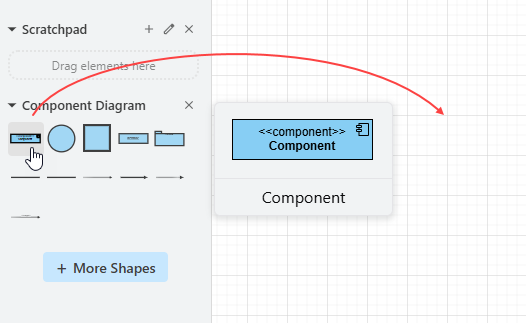
- यह आरेख संपादक खोलता है। आप पैलेट पर स्थित प्रतीकों का उपयोग करके घटक आरेख बना सकते हैं (बस एक प्रतीक को आरेख कैनवास पर खींचकर छोड़ दें)।
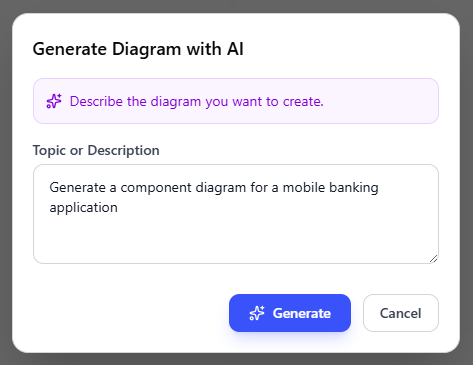
AI के साथ आरेख उत्पन्न करने के लिए, पर क्लिक करेंAI के साथ बनाएं ऊपर दाएं तरफ।

- इनपुट बॉक्स में अपनी समस्या का वर्णन करें। क्लिक करेंउत्पादित करें.
- AI आपकी समस्या का विश्लेषण करेगा और उसके अनुसार एक घटक आरेख उत्पन्न करेगा। नीचे एक उत्पादित उदाहरण है।
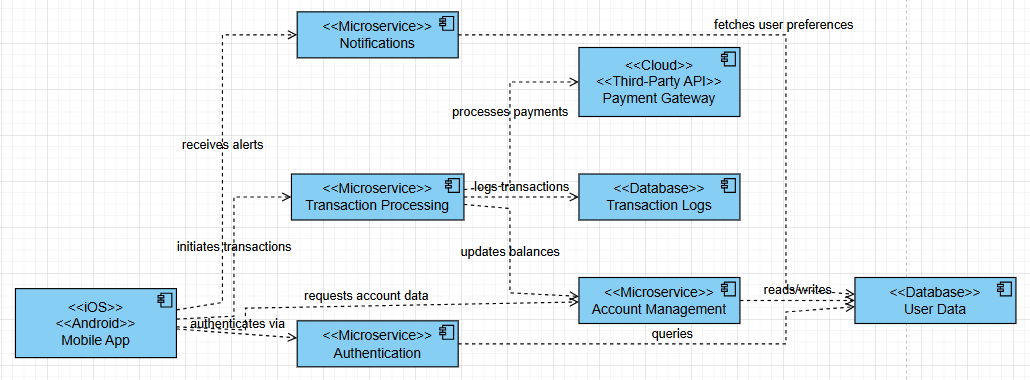
- आप लेआउट को समायोजित करने, नए आकृतियाँ जोड़ने आदि के द्वारा घटक आरेख को सुधार सकते हैं।
- क्लिक करें सहेजें ऊपर दाएं कोने में।
- क्लिक करें बंद करें दस्तावेज संपादक पर लौटने के लिए। आरेख आपके दस्तावेज में एम्बेड किया गया है।
आज ही AI कंपोनेंट डायग्राम जनरेटर का प्रयोग करें!
हमारे में तेज़, बुद्धिमान डायग्रामिंग का अनुभव करने के लिए तैयार हैंAI संचालित ज्ञान प्रबंधन उपकरण? OpenDocs पर जाएं और उत्पन्न करना शुरू करें UML कंपोनेंट डायग्राम AI के साथ अभी।
अभी OpenDocs का प्रयोग करें – AI कंपोनेंट डायग्राम टूल लॉन्च करें
इस फीचर और अपने दस्तावेजों में कंपोनेंट डायग्राम को एम्बेड या प्रबंधित करने के तरीके के बारे में पूरी जानकारी के लिए, हमारे समर्पित OpenDocs लैंडिंग पेज.
OpenDocs में डायग्राम प्रकार और AI क्षमताओं के विस्तार के साथ अधिक अपडेट के लिए ट्रैक करते रहें!
OpenDocs Visual Paradigm Online (कॉम्बो संस्करण) या Visual Paradigm (प्रोफेशनल संस्करण) लाइसेंस के साथ उपलब्ध है।