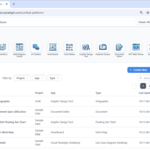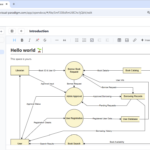

In modern product development, software architecture, and agile project management, teams constantly juggle two distinct modes of thinking: the fluid, unstructured freedom of brainstorming and the structured clarity of formal documentation. Too often, bridging this gap requires an exhausting workflow of sketching ideas on a standalone whiteboard tool, exporting images, managing file versions, and manually uploading them into project wikis or requirements documents.
Today, Visual Paradigm is thrilled to announce a powerful new integration that bridges this divide: native Excalidraw support directly within our Unified Platform and Visual Paradigm OpenDocs. By combining a premier online diagram editor with our comprehensive workspace and documentation suite, you can now conceptualize, sketch, save, and embed visual assets without ever leaving your workflow.
Whether you are mapping out complex cloud topologies, designing user onboarding flows, or building interactive mind maps, this integration transforms how technical and creative teams collaborate.
Why This Enhancement Matters: The Power of Visual Context
Documentation without visual context often leads to ambiguity, misalignment, and extended review cycles. Stakeholders struggle to interpret walls of text, and engineers waste valuable time deciphering vague specifications. Integrating a flexible Excalidraw whiteboard tool into Visual Paradigm solves these challenges by providing:
- Elimination of Context Switching: No more jumping between third-party drawing apps, local folders, and document editors. The Excalidraw editor is natively accessible wherever you need it.
- Living Documentation: Diagrams embedded in documentation should evolve alongside the project. With our inline editing capabilities, updating a workflow or system architecture is as simple as clicking a button.
- Centralized Asset Management: Every sketch created in the platform can be saved directly to your workspace, ensuring team-wide accessibility, version control, and reuse across multiple projects.
- Enhanced Collaboration: Leverage Excalidraw’s signature hand-drawn aesthetic to communicate ideas that feel approachable, creative, and open to iteration.
How It Works: Two Powerful Ways to Use Excalidraw
We have built this integration to fit seamlessly into your existing habits, whether you are starting a standalone design session or writing a detailed specification.
1. Creating and Managing Excalidraw Drawings in the Unified Platform
If you want to brainstorm a concept, sketch a wireframe, or draft a system diagram to store in your workspace for future reference, follow these simple steps:
- In the Unified Platform, click on the Create New button.

- This opens the “Create Artifact” window. Type
Excalidrawin the search field.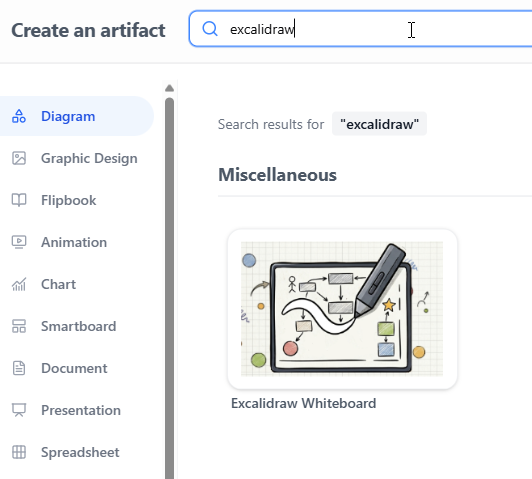
- Click on Excalidraw Whiteboard to initialize a blank whiteboard drawing.
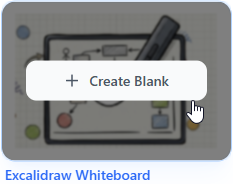
- The feature-rich Excalidraw editor will launch instantly, allowing you to start your drawing with shapes, text, arrows, and sticky notes.
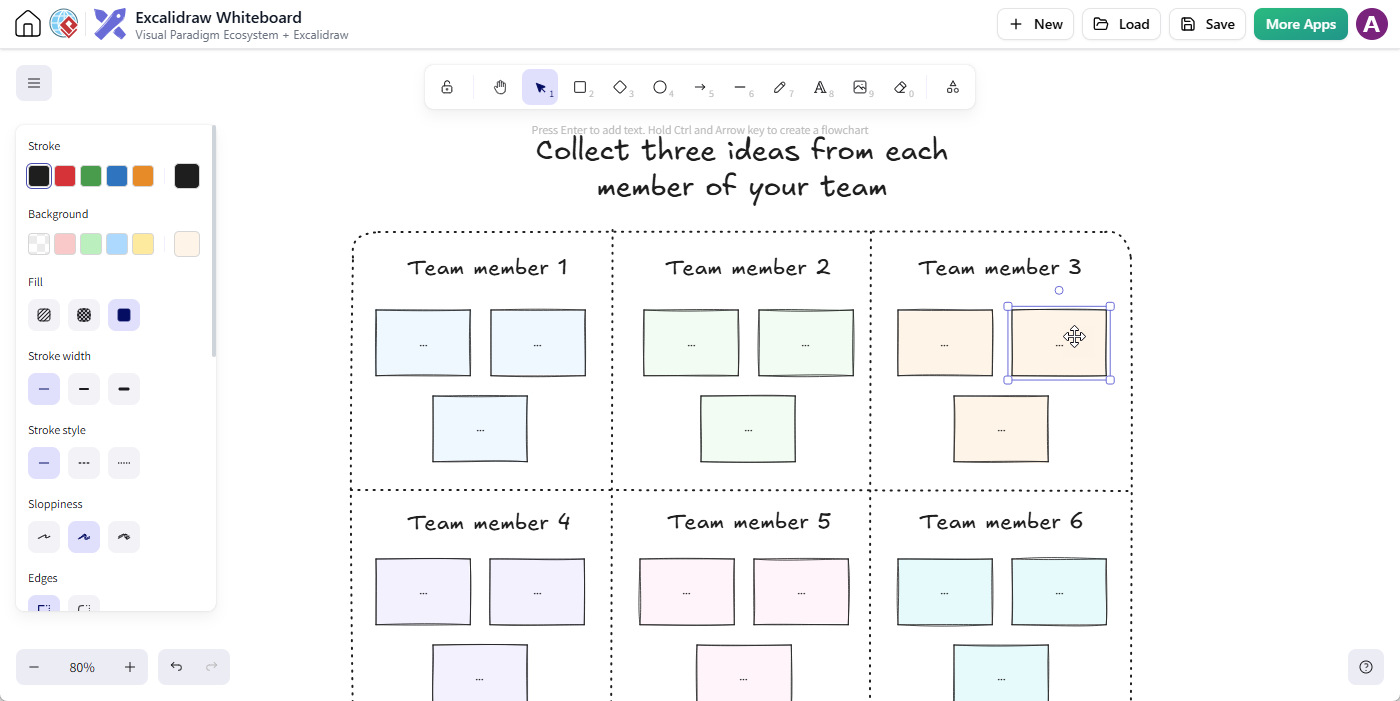
- When you are finished, click Save.

In the Save Drawing dialog, select your target project, give your drawing a meaningful filename, and click Save.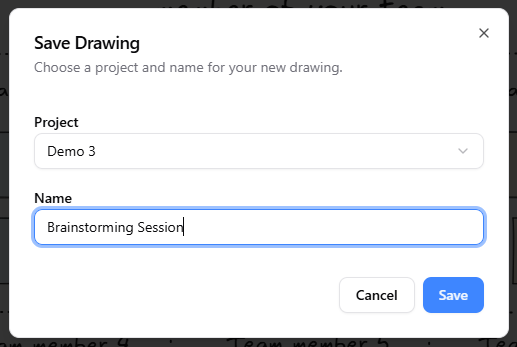
- Once saved, your diagram is safely stored in your workspace, ready to be reopened, iterated on, or embedded whenever needed.
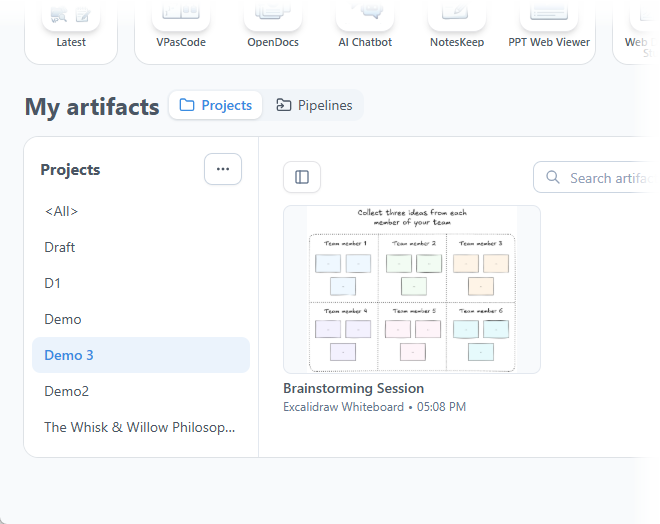
2. Embedding Excalidraw Drawings Directly Inside Visual Paradigm OpenDocs
To bring visual clarity straight into your project requirements, user manuals, or architectural decision records (ADRs), you can embed drawings directly on any page:
- Access Visual Paradigm OpenDocs.
- Create a new page or open an existing one according to your project requirements.
- Click on Edit at the top right corner of the page.

- Place your text cursor precisely where you want the diagram to appear.
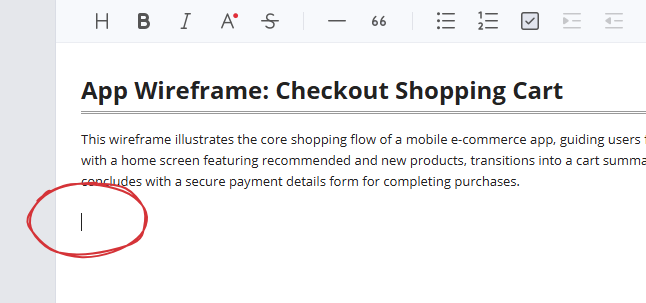
- Click on the + button on the toolbar to open the “Create an Artifact” window.

- On the left-hand menu, select the Miscellaneous category. You will see Excalidraw Whiteboard listed on the right.
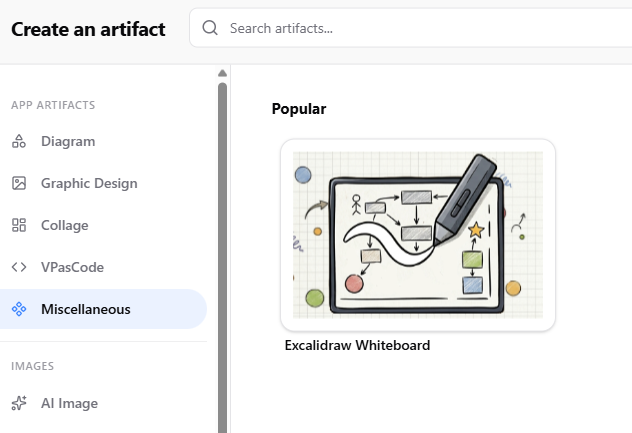
- Click on it to launch the Excalidraw editor pop-up and sketch your diagram.
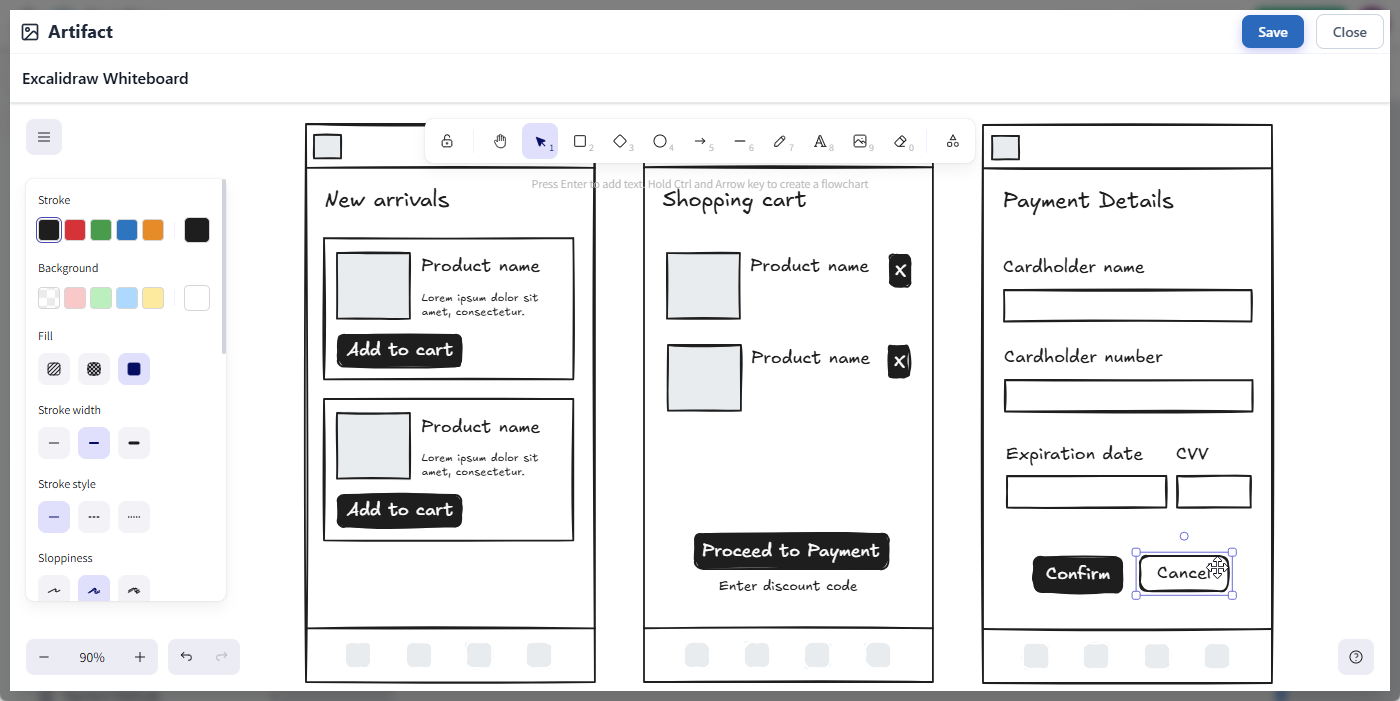
- When finished editing, click on the Save button at the top right to close the editor and return to your OpenDocs page.
- Your diagram is instantly inserted right at your cursor position!
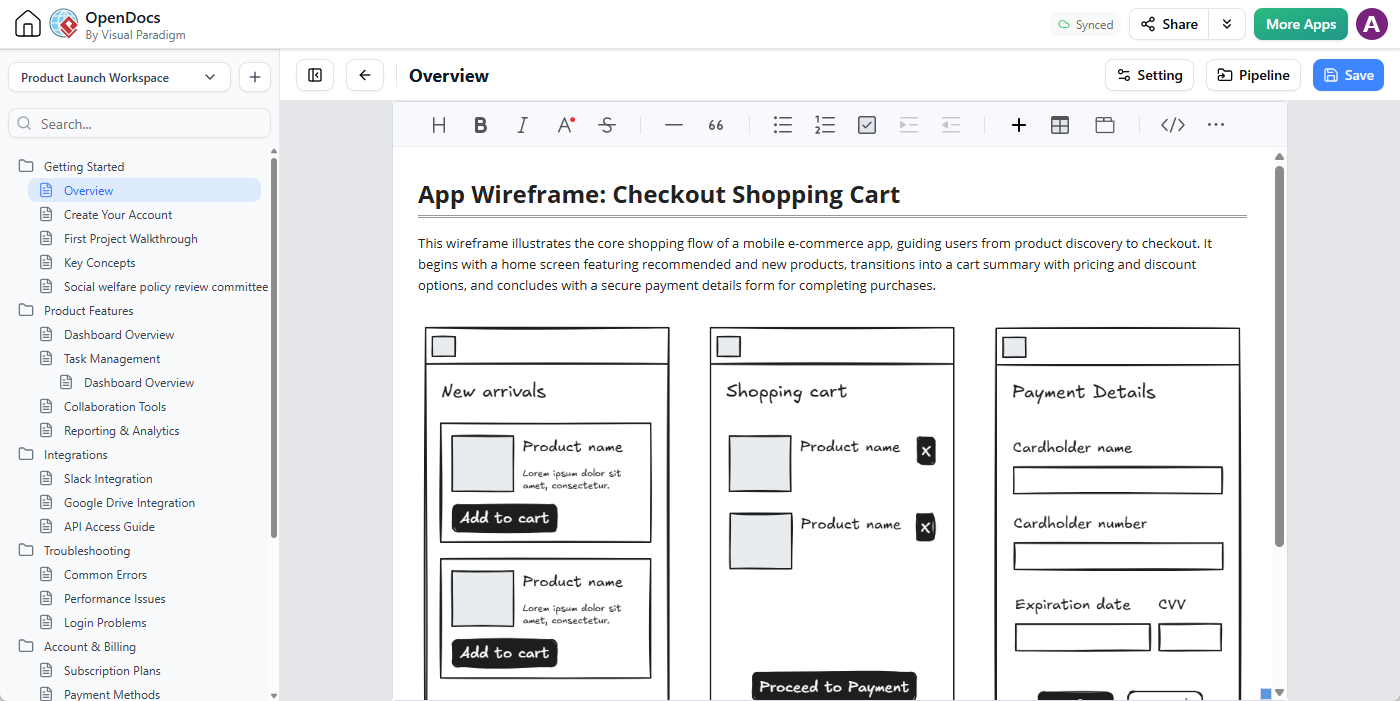
Need to make changes later? No problem. Simply click on the pencil icon at the top right of the embedded diagram image to reopen the editor, make your adjustments, and click Save to refresh the visual instantly across your page.
Supercharge Your Team’s Productivity Today
By uniting robust documentation with flexible visual sketching, Visual Paradigm empowers your team to move from abstract ideas to executed plans faster than ever before. Experience the seamless blend of workspace management and diagramming firsthand.
Ready to try it out? Launch Visual Paradigm OpenDocs now and create your first integrated Excalidraw whiteboard! Or open the Excalidraw Whiteboard editor and start your first drawing.