
Updating diagrams often requires changing the diagram type entirely—such as turning a simple flowchart into a formal UML Activity Diagram. Doing this manually means redrawing shapes, reconnecting lines, and starting from scratch. With our latest enhancement to AI Modify, you can now change your diagram type instantly using simple prompts.
AI Modify understands the structure of your existing diagram and automatically converts it into the new format while keeping your original logic intact.
What’s New: Instant Diagram Type Conversion
Instead of re-creating your work in a new file, AI Modify now lets you switch between different diagram standards effortlessly.
You simply tell the AI what diagram type you want, and it handles the layout and syntax changes for you. This makes it easier than ever to turn high-level sketches into formal technical documentation as your project grows.
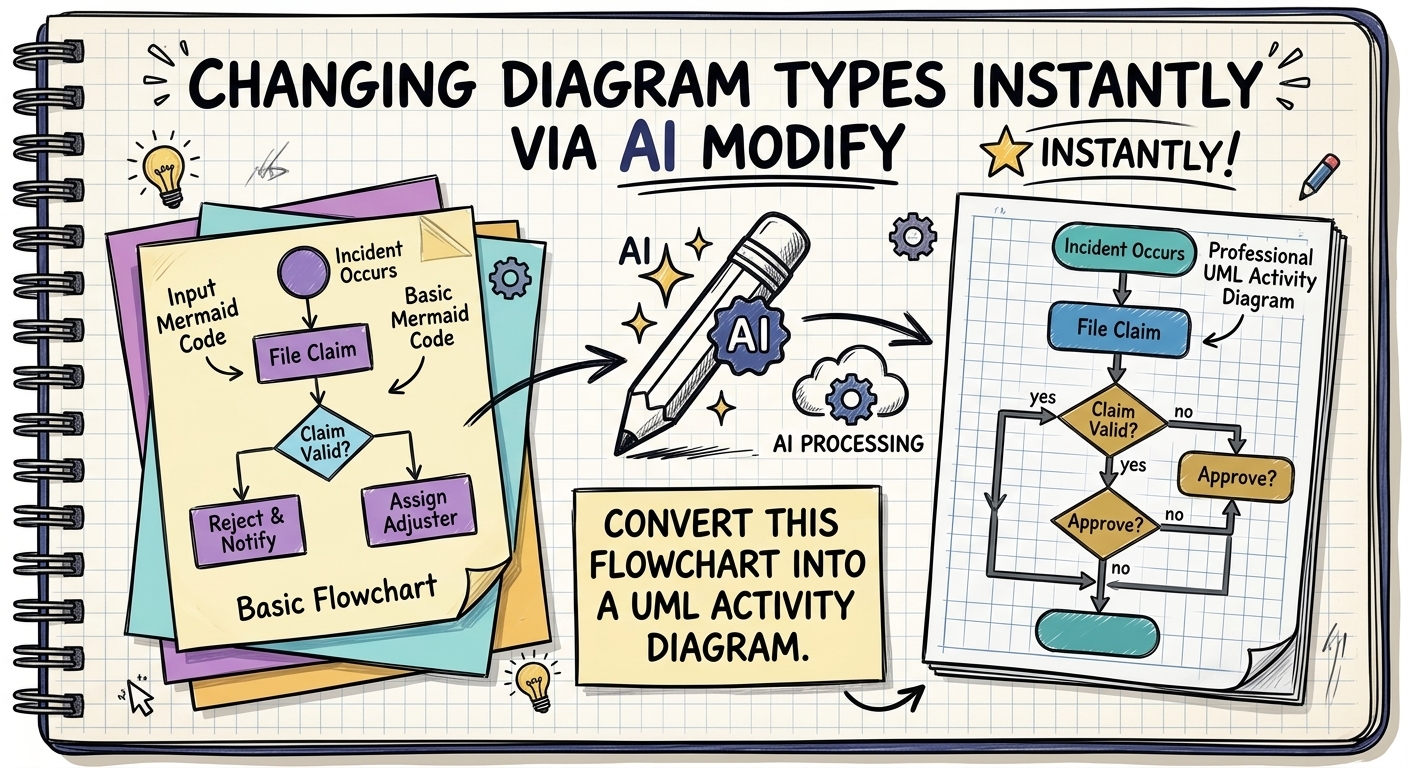
Practical Example: Converting a Flowchart to a UML Activity Diagram
Here is how simple it is to convert a diagram type:
- Start with your diagram: Open an existing process mapped out as a standard Flowchart.
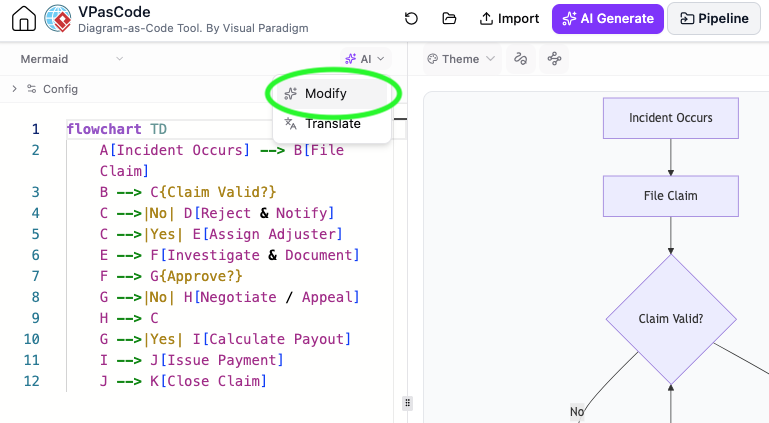
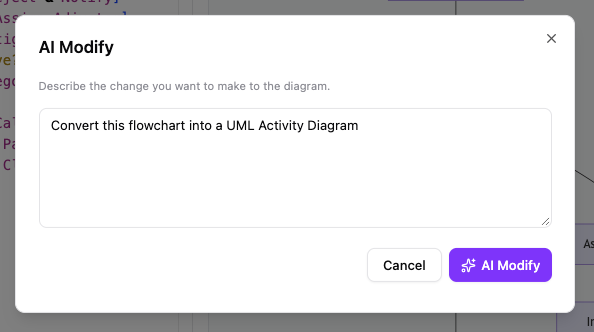
- Enter your prompt: Open AI Modify and type:
“Convert this flowchart into a UML Activity Diagram”
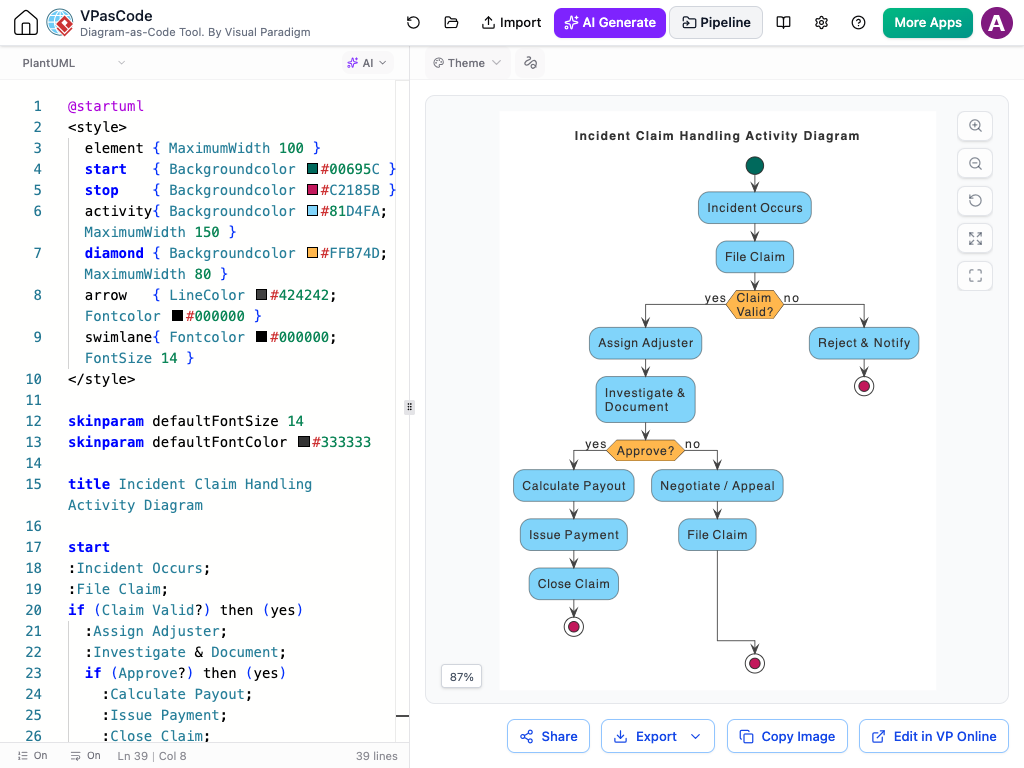
- Get your new diagram: The tool automatically converts your flowchart into a formal UML Activity Diagram, complete with proper action nodes and decision paths.
Why Use AI Modify for Type Conversion?
- No Redrawing Needed: Change from flowcharts, sequence diagrams, or other types without building them again by hand.
- Saves Time: Instantly upgrade casual sketches into formal technical models.
- Keeps Logic Intact: Retains your original workflow and steps while applying the new diagram standard.
- Simple Controls: Just type what type of diagram you need and let the AI do the restructuring.
How to Convert Your Diagram Type
Converting your diagram type takes just a few steps:
- Open your diagram in VPasCode or the AI Chatbot.
- Click on the AI Modify button in the editor.
- Type your request.
- Click apply to see your updated diagram type immediately.
Part of the Visual Paradigm Ecosystem
This improvement adds to our set of AI diagramming tools, including our recent AI Diagram Generation update, making diagram editing faster and simpler for technical teams.
Try It Today
Want to change your diagram types faster? Try it out now in the VPasCode Editor or the AI Chatbot.
Read More & Related Announcements
To learn more about how our AI tools handle code and structure, check out our previous release: AI Diagram Generation and Code Modification Update.