
Visual Paradigm is pleased to announce an important enhancement to Visual Paradigm OpenDocs: users can now create and insert editable diagrams directly into document pages through the integration with Visual Paradigm VPasCode.
This new capability connects documentation and diagramming in one streamlined workflow. Instead of creating a diagram in a separate application, exporting it as an image, and manually placing that image into a document, users can now create a diagram with diagram-as-code, insert it into OpenDocs, and reopen it for editing whenever changes are needed.
The result is a more flexible knowledge management tool for software teams, technical writers, architects, business analysts, product managers, and anyone who needs to explain complex ideas visually.
Open Visual Paradigm OpenDocs and start creating documentation with editable diagrams today.
What Is New in Visual Paradigm OpenDocs?
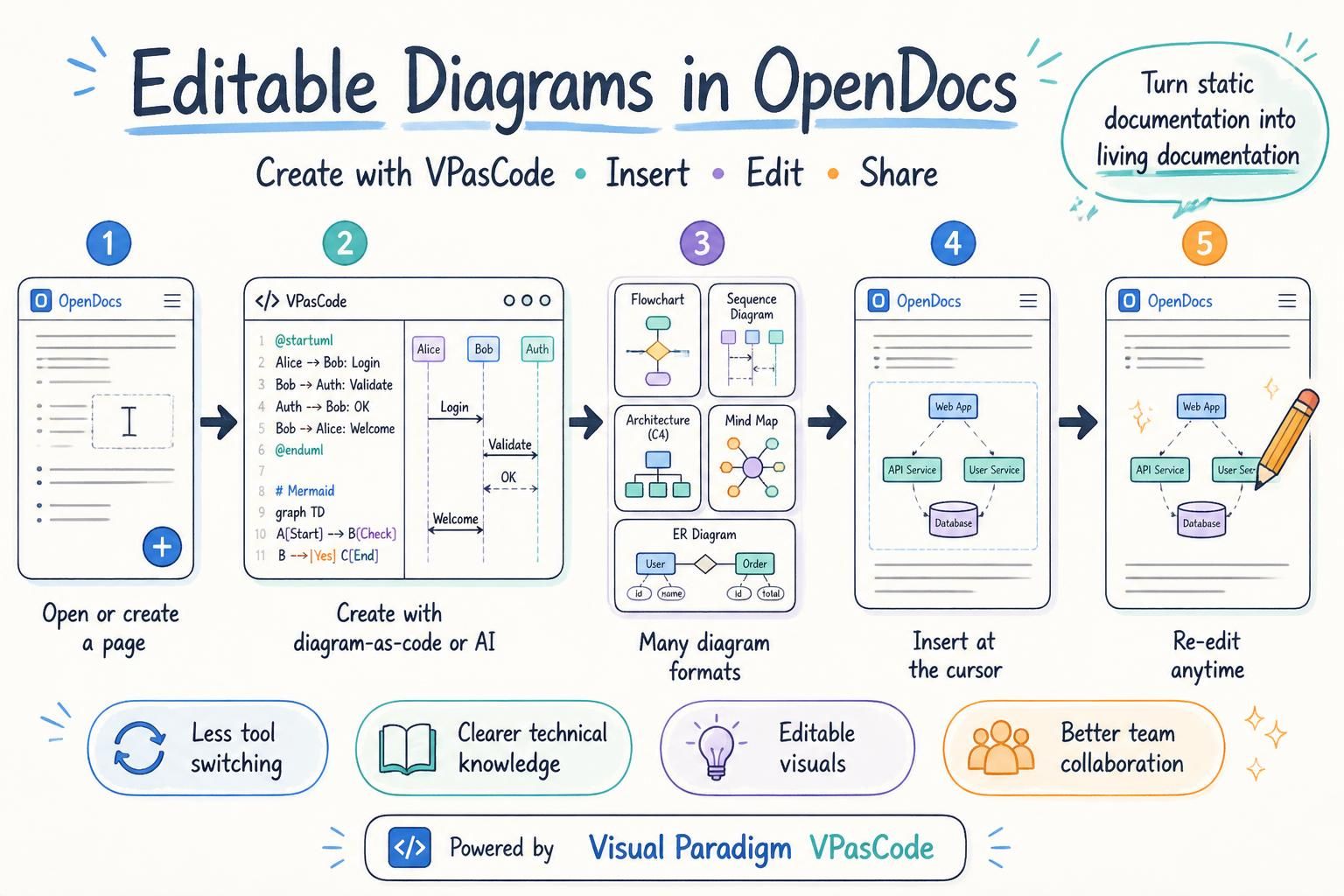
OpenDocs now allows users to insert diagrams into a page through the VPasCode integration. The diagram is added at the position of the text cursor and can be edited again after insertion.
This means diagrams are no longer limited to static images added after the writing process is complete. They can become active, editable parts of a document that support explanation, collaboration, planning, analysis, and knowledge sharing.
Whether you are preparing a software requirements specification, creating an internal project wiki, documenting a system architecture, publishing a process guide, or building a product knowledge base, you can now combine written content and visual models in the same document.
Why This Enhancement Matters
Documents are often more useful when they combine clear explanations with diagrams. Written descriptions provide context and detail, while diagrams help readers understand relationships, sequences, dependencies, structures, and workflows at a glance.
However, creating and maintaining diagrams in documentation can be inconvenient. A common workflow involves using one tool to create the diagram, exporting the result as a PNG or SVG file, uploading the image to a document, and repeating the process whenever the diagram changes. This can create unnecessary work and may lead to outdated visuals, duplicated files, or confusion about which version is the most recent.
The OpenDocs and VPasCode integration reduces this friction by bringing diagram creation closer to the documentation workflow. Users can create a diagram where it is needed, insert it into the page, and return to the diagram editor later for revisions.
Keep Visual Explanations Close to the Relevant Content
A diagram is most effective when it appears beside the explanation it supports. With the new OpenDocs capability, users can place a flowchart below a process description, add a sequence diagram beside an API explanation, or include a system architecture diagram within a technical specification.
This makes documents easier to read and helps users understand the relationship between written information and visual information without switching between multiple applications.
Reduce Manual Export and Upload Work
VPasCode creates diagrams from text-based diagram languages and renders them visually in the browser. With the OpenDocs integration, users can insert the result directly into a page instead of manually downloading an image and uploading it to a document.
Reducing these repetitive steps can help teams save time and maintain a cleaner documentation process, especially when diagrams are updated frequently during development or project planning.
Make Diagrams Editable After Insertion
Requirements change. Systems evolve. Business processes are revised. A diagram that accurately describes a project today may need to be updated tomorrow.
Because diagrams inserted through VPasCode remain editable, users can reopen the diagram editor from OpenDocs, modify the diagram code, save the changes, and refresh the diagram in the document. This makes it easier to refine visual content as ideas and projects develop.
Support More Than One Diagramming Style
Different projects require different types of visual communication. A software architect may need a C4 model or a deployment diagram. A business analyst may need a process flowchart or a user journey map. A project manager may need a Gantt chart or a roadmap. A technical writer may need a mind map, sequence diagram, or entity relationship diagram.
VPasCode supports a broad range of diagram formats and visualization technologies, including PlantUML, Mermaid, Graphviz, D2, Markmap, and ECharts. It also supports structured data and other code-based formats that can be used to create visual representations.
What Is Visual Paradigm VPasCode?
Visual Paradigm VPasCode is an online diagram-as-code platform that allows users to create diagrams by writing text-based descriptions. It combines a code editor with a real-time visual preview, allowing users to see the diagram as they write or modify the code.
Instead of manually drawing every shape and connector, users describe the structure of a diagram using a supported syntax. VPasCode then renders the result as a visual diagram.
This approach is particularly useful for developers, software architects, technical teams, and other users who want a fast and repeatable way to create diagrams. It is also helpful for teams that prefer diagrams that can be reviewed and refined as text.
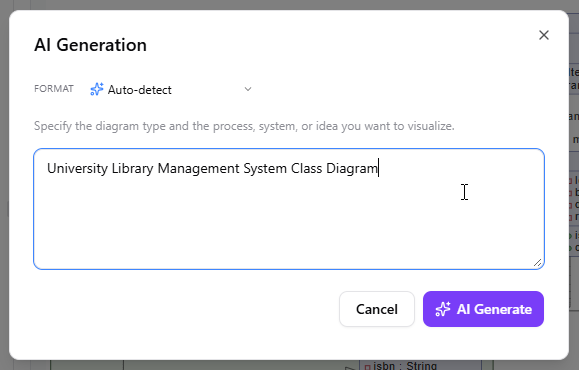
VPasCode includes examples for different diagram types and formats, making it easier for new users to get started. Users can also use AI to generate diagram code from a plain-language description.
Supported Diagram and Visualization Formats
Through VPasCode, OpenDocs users can create and insert many different kinds of diagrams and visualizations. Supported formats include:
- PlantUML: Class diagrams, sequence diagrams, use case diagrams, activity diagrams, component diagrams, deployment diagrams, state diagrams, ER diagrams, ArchiMate diagrams, C4 models, mind maps, Gantt charts, and more.
- Mermaid: Flowcharts, class diagrams, sequence diagrams, entity relationship diagrams, state diagrams, mind maps, C4 diagrams, Gantt charts, timelines, user journey maps, Git graphs, Kanban diagrams, and more.
- Graphviz: Graphs, network diagrams, hierarchical diagrams, organization charts, and relationship visualizations.
- D2: Modern declarative diagrams for architecture, systems, workflows, and relationships.
- Markmap: Interactive mind maps generated from Markdown-style content.
- ECharts: Data-driven charts and visualizations.
- Data and schema formats: JSON, YAML, XML, CSV, TOML, DBML, and SQL.
This range of supported technologies makes OpenDocs a more capable documentation platform for teams that need to create both traditional business visuals and technical diagrams.
AI-Assisted Diagram Creation
Users do not need to memorize every diagram syntax before getting started. VPasCode includes AI-assisted diagram generation that can help transform a plain-language request into diagram code.
For example, a user could request:
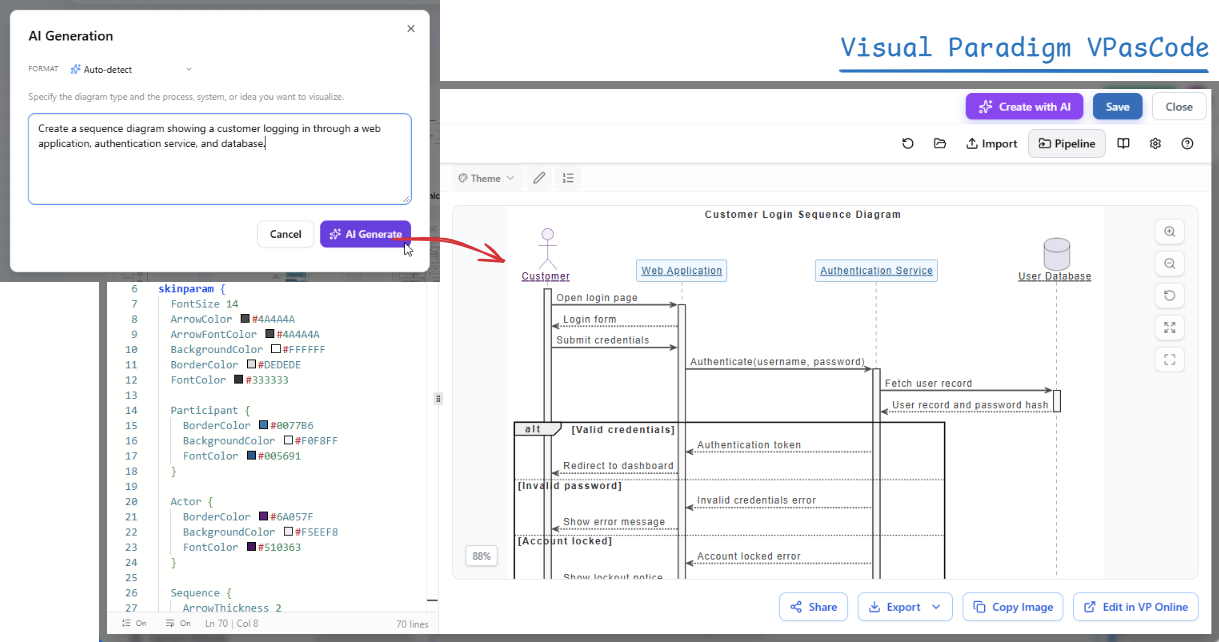
Create a sequence diagram showing a customer logging in through a web application, authentication service, and database.
VPasCode can use the request to generate diagram code that users can review, adjust, and insert into OpenDocs. Users can then refine the code manually or ask AI to modify the diagram according to a new requirement.
AI assistance can be useful when:
- You know what you want to communicate but do not know the required syntax.
- You want to create an initial diagram quickly.
- You need to add or remove steps, components, relationships, or branches.
- You want to simplify a complex diagram.
- You need help correcting diagram code errors.
- You want to translate diagram labels for an international team.
AI-generated diagrams remain editable, which means users can treat the generated result as a starting point and adjust it to match their project requirements.
How to Insert an Editable Diagram into an OpenDocs Page
Follow these steps to create and insert a diagram into a document page:
- Open Visual Paradigm OpenDocs.
- Create a new page or open an existing page.
- Click Edit at the top-right corner of the page.

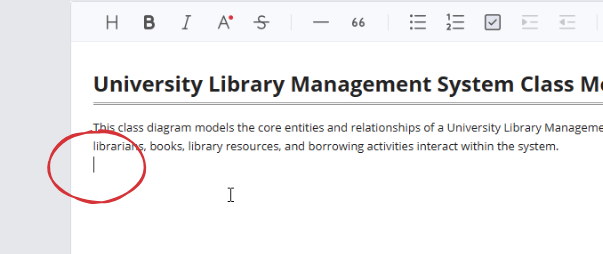
- Place the text cursor where you want the diagram to appear.
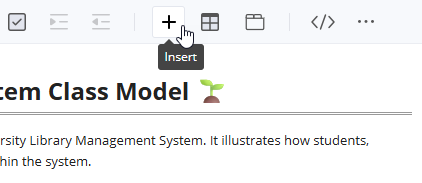
- Click the + button on the toolbar to open the Create an Artifact window.
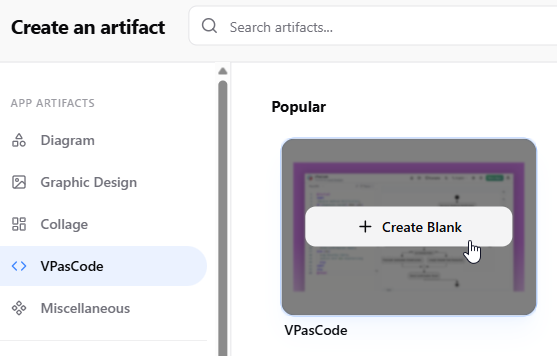
- Select VPasCode from the menu on the left.
- Click VPasCode on the right to open the diagram editor.
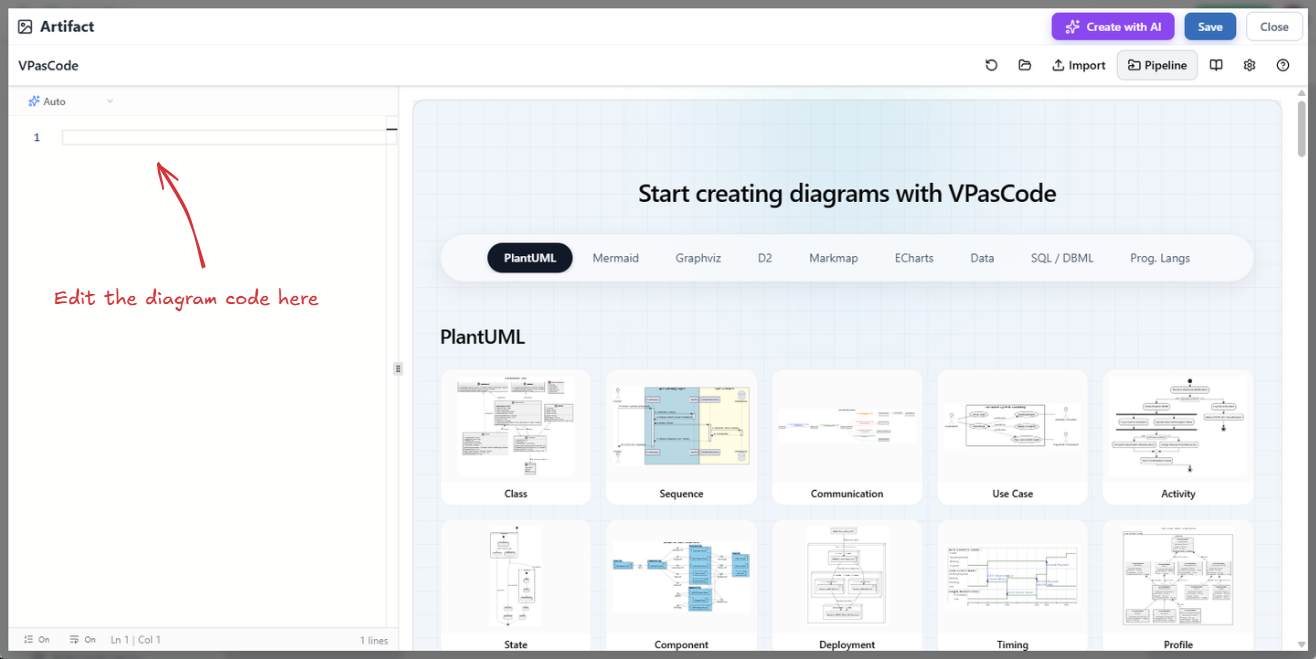
- Write or paste diagram code in the editor on the left.
- Review the real-time preview and make any necessary changes.
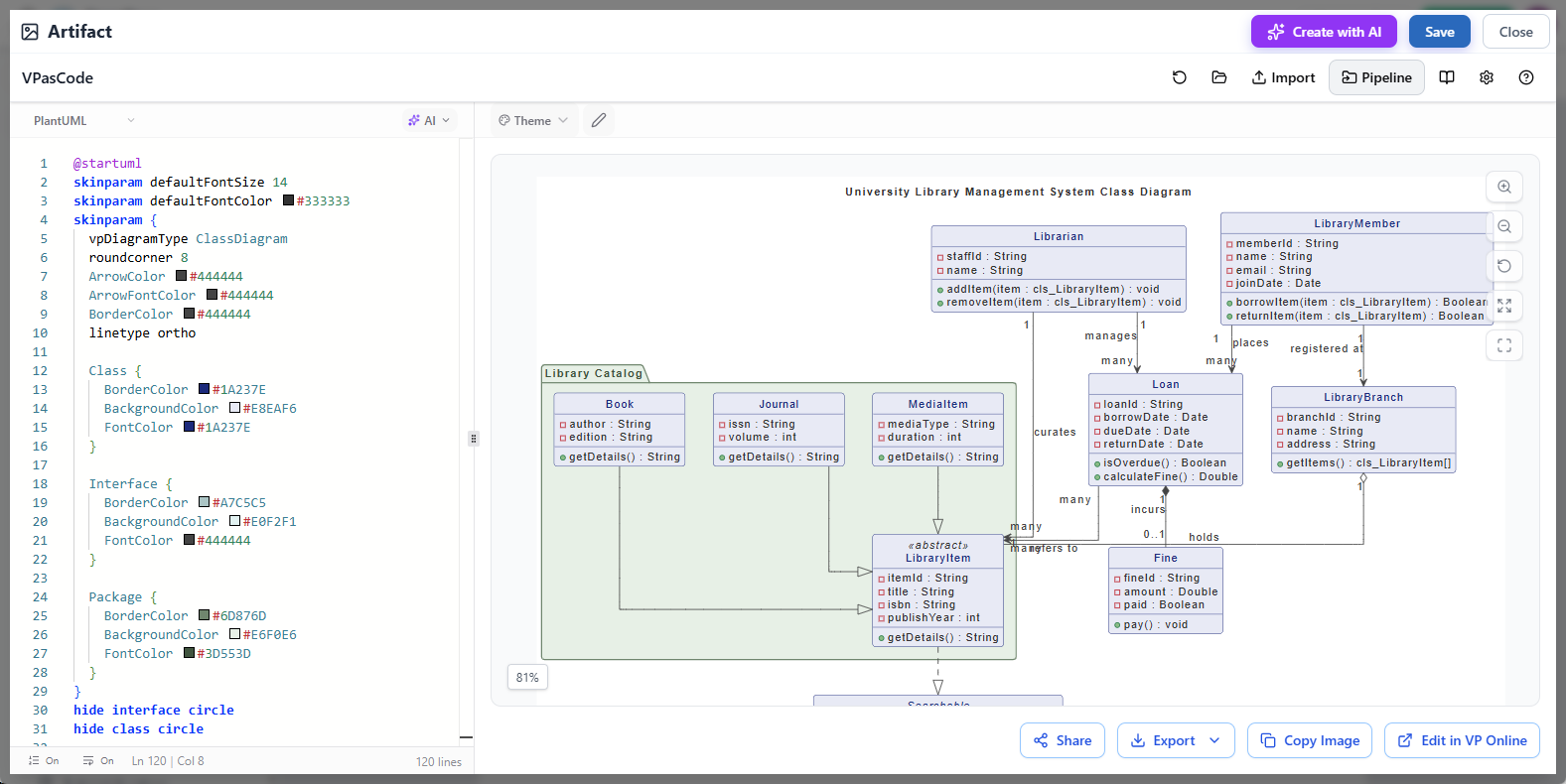
- Click Save at the top-right corner of the VPasCode editor.

- Click Close to return to the OpenDocs page.
- The diagram will be inserted at the position of the text cursor.
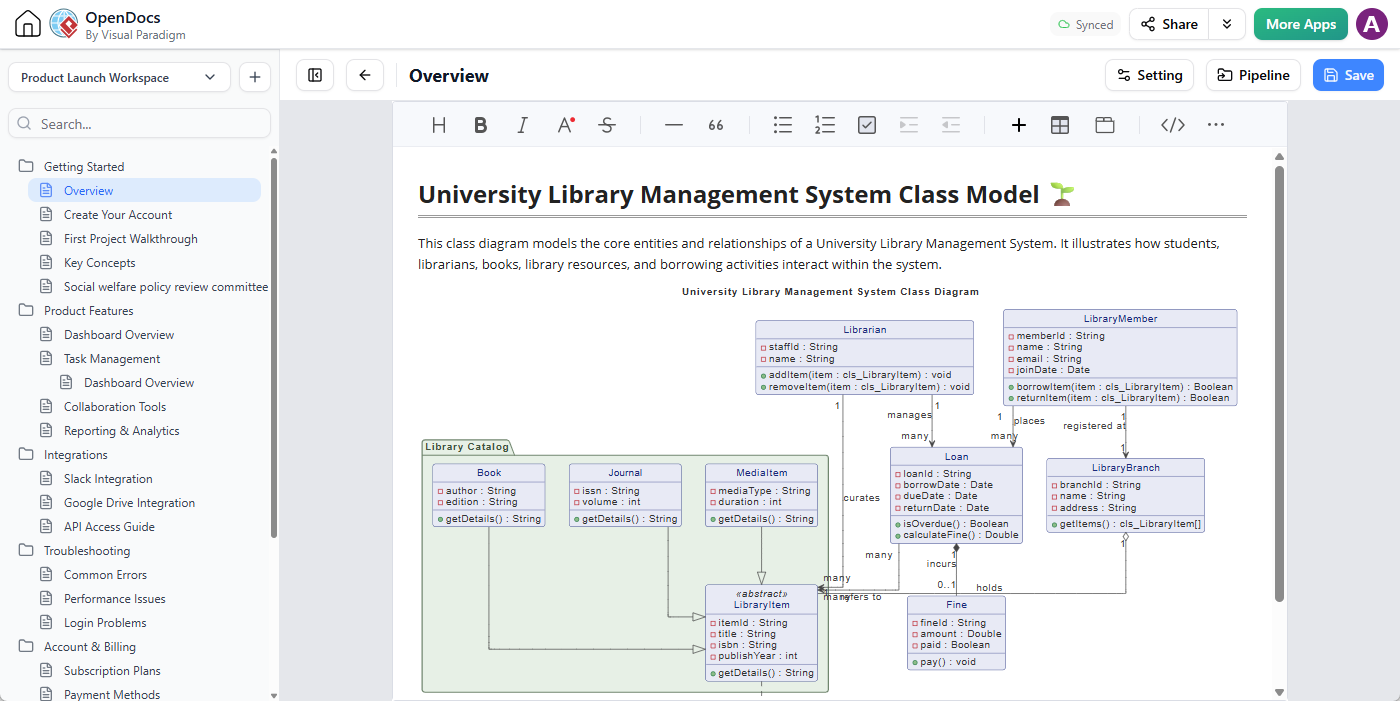
When the diagram has been inserted, users can continue writing around it just as they would with other document content.
How to Re-Edit a Diagram
Diagrams inserted into OpenDocs can be edited whenever updates are required.
- Open the OpenDocs page containing the diagram.
- Click the pencil icon at the top-right corner of the diagram.
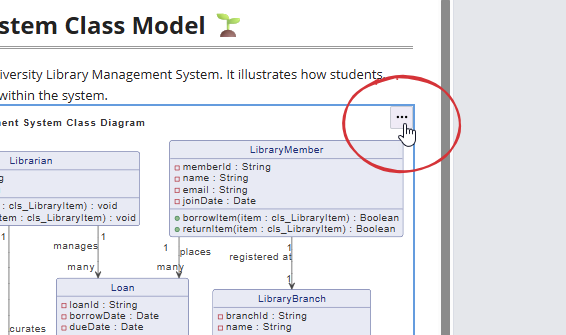
- Make changes in the VPasCode editor.
- Use the live preview to review the result.
- Click Save.
- Click Close to return to OpenDocs.
The updated diagram will refresh in the document, allowing users to maintain their visual content without deleting the original diagram or starting again from scratch.
Practical Use Cases
Software Architecture Documentation
Software architects can use PlantUML, Mermaid, D2, or C4 syntax to describe system components, services, data stores, and external dependencies. The resulting architecture diagram can be placed directly inside a system design document or architecture decision record.
As the architecture changes, the diagram can be edited in VPasCode and updated in OpenDocs. This helps technical documentation remain aligned with the design being discussed.
API and Integration Documentation
Sequence diagrams are useful for showing how clients, services, databases, and third-party systems interact. Teams can include a sequence diagram beside API descriptions, authentication details, request flows, and error-handling rules.
For example, a technical writer could document an online payment process with a written explanation, API examples, and a Mermaid or PlantUML sequence diagram in the same OpenDocs page.
Database and Data Model Documentation
Database teams can use entity relationship diagrams to explain tables, fields, keys, and relationships. A visual data model can make database documentation easier to understand for developers, analysts, testers, and other stakeholders.
When a new table or relationship is added, the diagram can be edited and reinserted through the same VPasCode workflow.
Business Process and Workflow Guides
Business analysts and operations teams can use flowcharts, activity diagrams, user journey maps, and process diagrams to explain how work moves through an organization.
Embedding these visuals into an operational guide or standard operating procedure can help readers understand responsibilities, decision points, alternative paths, and approval steps.
Product Requirements and Feature Planning
Product managers can include user journeys, process flows, state diagrams, mind maps, and feature relationships in product requirement documents. These visual assets can help product, design, engineering, and quality assurance teams develop a shared understanding of the feature.
Project Wikis and Knowledge Bases
A knowledge management tool is most valuable when it brings together the information people need to understand and perform their work. Adding editable diagrams to an OpenDocs knowledge base can make project wikis, onboarding materials, internal guides, and system manuals more complete.
Instead of keeping diagrams in separate folders or disconnected design tools, teams can place them alongside the related explanations, decisions, procedures, and reference material.
Mind Maps and Concept Organization
Markmap and other mind-mapping formats can help teams organize requirements, research topics, project structures, meeting outcomes, and knowledge hierarchies. These maps can be inserted into an OpenDocs page to provide a visual overview before more detailed information is presented.
Benefits for Different Types of Users
- Developers: Create diagrams with familiar text-based formats and keep technical explanations close to system visuals.
- Software architects: Build architecture, UML, C4, deployment, and component diagrams that can be revised as systems evolve.
- Technical writers: Combine procedures, specifications, examples, and editable diagrams in one documentation workspace.
- Business analysts: Explain business processes, requirements, decisions, and user journeys with clear visual models.
- Product managers: Add workflows, roadmaps, feature relationships, and user flows to product documentation.
- Project teams: Create shared documentation that communicates both the details and the big picture.
- Educators and trainers: Use diagrams to make technical or procedural content easier to understand.
From Static Documents to Living Documentation
Effective documentation should reflect the current state of a project, product, process, or system. When visual content is stored only as a static image, updating it can be easy to postpone. Over time, the image may no longer represent reality.
The OpenDocs and VPasCode integration supports a more maintainable approach. Diagrams can be created from readable code, reviewed through a visual preview, inserted into the relevant document, and edited again when the underlying information changes.
This creates a practical foundation for living documentation. The diagram remains a useful working asset rather than a one-time screenshot.
A More Connected Visual Paradigm Ecosystem
Visual Paradigm connects different products and capabilities to help users move more efficiently from ideas to models, diagrams, documentation, and shared knowledge.
VPasCode provides the diagram-as-code experience. OpenDocs provides the document and knowledge management experience. Together, they help teams create visual content and place it directly in the context where it is needed.
This connection can reduce tool switching, simplify the documentation workflow, and help teams make better use of diagrams throughout the project lifecycle.
Get Started with OpenDocs and VPasCode
With this enhancement, Visual Paradigm OpenDocs becomes a more versatile environment for creating structured, visual, and collaborative documentation. Users can create diagrams with PlantUML, Mermaid, Graphviz, D2, Markmap, ECharts, and other supported formats, insert them into pages, and edit them again whenever requirements change.
If you are looking for an online diagram generator, diagram-as-code platform, technical documentation tool, or knowledge management tool with integrated visual modeling capabilities, this new workflow provides a convenient way to bring diagrams and documents together.
Launch Visual Paradigm OpenDocs and start creating richer, more useful documentation with editable diagrams powered by VPasCode.
Frequently Asked Questions
What is the new OpenDocs enhancement?
OpenDocs now allows users to create and insert editable diagrams into document pages through its integration with Visual Paradigm VPasCode.
Can I edit a diagram after inserting it into OpenDocs?
Yes. Click the pencil icon on the inserted diagram to reopen it in the VPasCode editor. After modifying the diagram code, click Save and Close to refresh the diagram in the OpenDocs page.
What diagram formats are supported?
VPasCode supports formats and technologies including PlantUML, Mermaid, Graphviz, D2, Markmap, ECharts, JSON, YAML, XML, CSV, TOML, DBML, and SQL. Supported diagram types include flowcharts, sequence diagrams, class diagrams, state diagrams, ER diagrams, C4 diagrams, mind maps, architecture diagrams, Gantt charts, and more.
Do I need to know diagram code to use the feature?
No. You can load an example from the VPasCode editor or Example Gallery. You can also use the Create with AI feature to describe the diagram you want in natural language and let AI generate an initial diagram script.
Where can I access OpenDocs?
You can access Visual Paradigm OpenDocs at https://ai-toolbox.visual-paradigm.com/app/opendocs/.
Where can I learn more about VPasCode?
Visit the VPasCode feature page to learn more about the diagram-as-code platform, supported formats, real-time rendering, AI assistance, and related capabilities.
Related posts:
 Seamlessly Connect Diagramming to Documentation: VPasCode Integrates with OpenDocs
 Seamless Diagram Lifecycle Management: Enhance and Edit AI-Generated Diagrams in Visual Paradigm OpenDocs via VPasCode
 Streamline Project Planning with the New AI Work Breakdown Structure Generator by Visual Paradigm
 Turn AI-Generated Charts into Editable, Shareable Documentation with Visual Paradigm AI Chatbot