
We are excited to announce a new workflow that brings your digital publications to life within your documentation. You can now share flipbooks created in Visual Paradigm Online directly to OpenDocs, making your manuals, reports, and portfolios more interactive than ever.
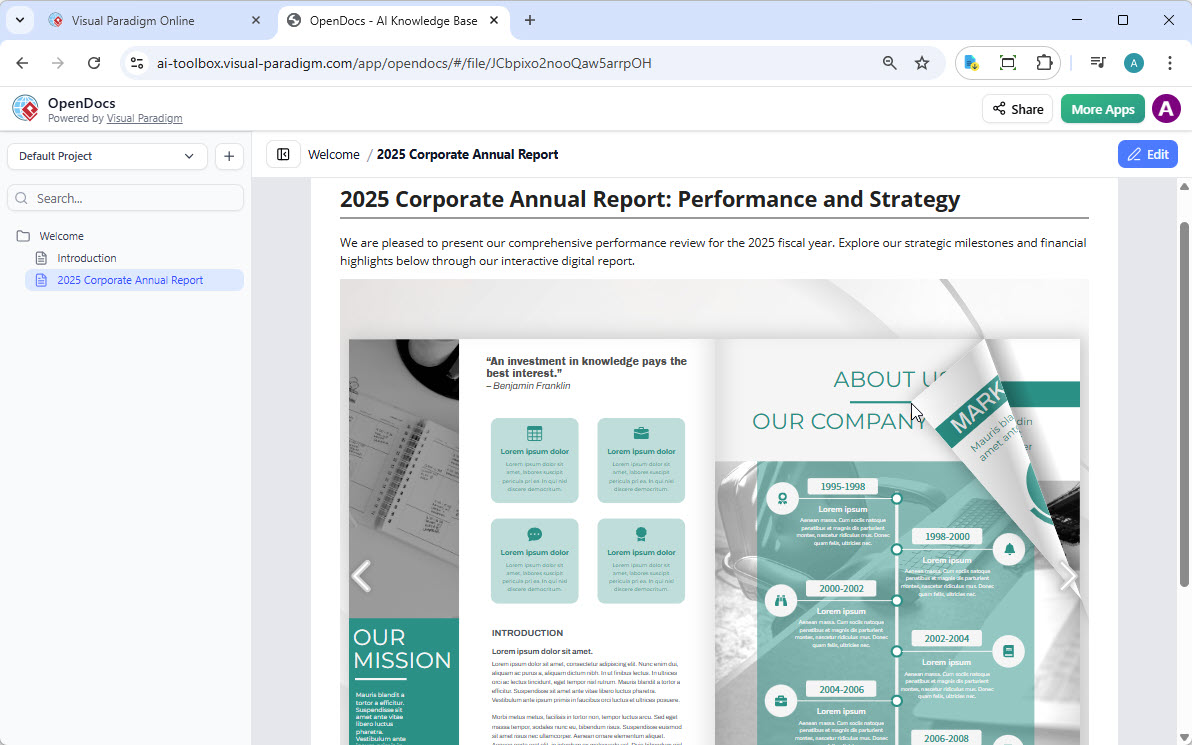
Whether you are using our flipbook tool to generate professional content or fine-tuning a custom layout in our flipbook maker, this update ensures your audience can access your work exactly where they need it.
What Can You Do with Visual Paradigm Flipbooks?
Our flipbook software is designed to transform static documents into dynamic, engaging experiences. With this feature, you can:
- Convert & Create: Instantly transform PDFs, Word docs, and PowerPoint slides into flipbooks, or design one from scratch using our drag-and-drop editor.
- AI-Powered Generation: Use our AI assistant to generate full book outlines, write content, and even create matching illustrations in various art styles.
- Interactive Elements: Enhance your books with embedded videos, audio, clickable links, and realistic page-flipping sound effects.
- Professional Branding: Customize covers, themes, and backgrounds to match your corporate identity.
- Mobile-First Reading: Every flipbook is fully responsive, ensuring a perfect reading experience on desktops, tablets, and smartphones.
How to Share Your Flipbook to OpenDocs
Moving your content from Visual Paradigm Online to the OpenDocs pipeline is simple. Just follow these steps:
- Open your workspace page in Visual Paradigm Online.
- Select Flipbooks from the left-hand menu to view your library.
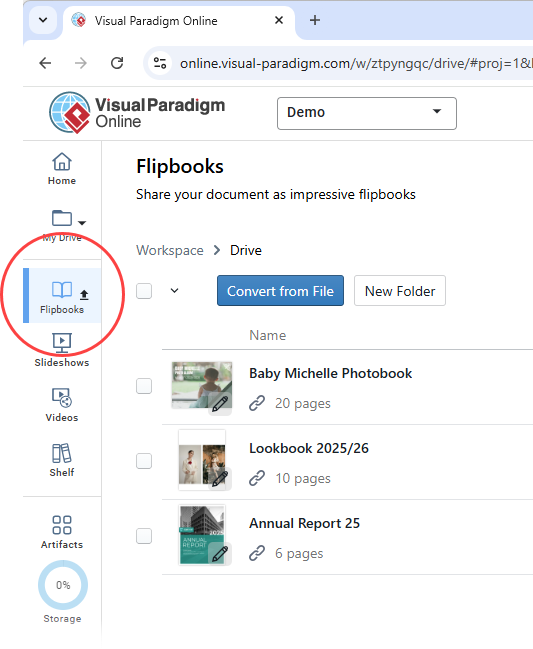
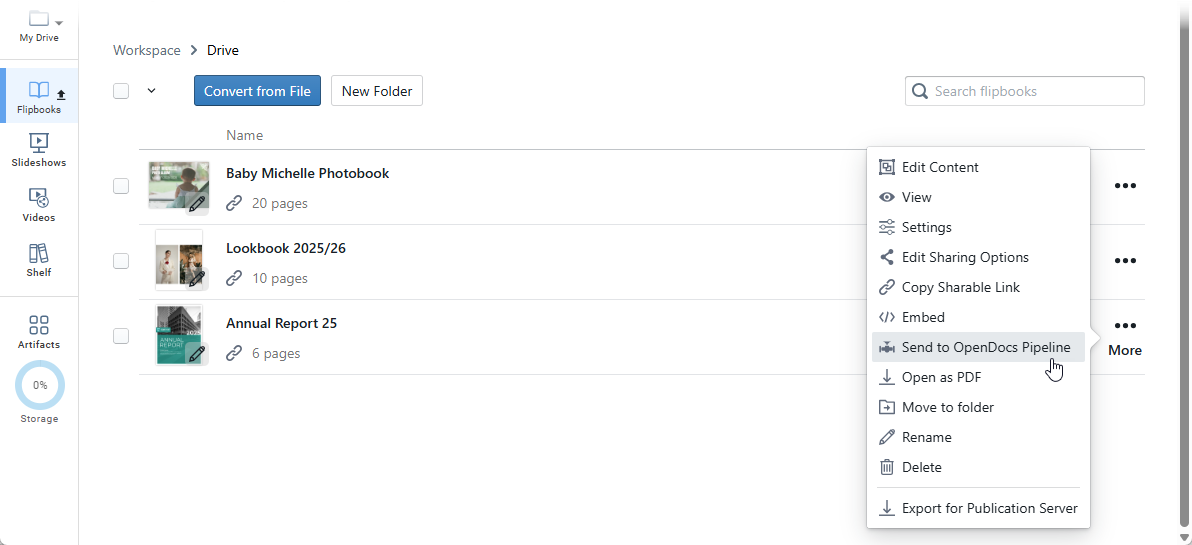
- Locate the flipbook you wish to share and click More… on the right side.
- Select Send to OpenDocs Pipeline.
- (Optional) Enter a comment regarding this share and click OK to proceed.
Embedding Your Flipbook in OpenDocs
Once your flipbook is in the pipeline, follow these steps to place it in your document:
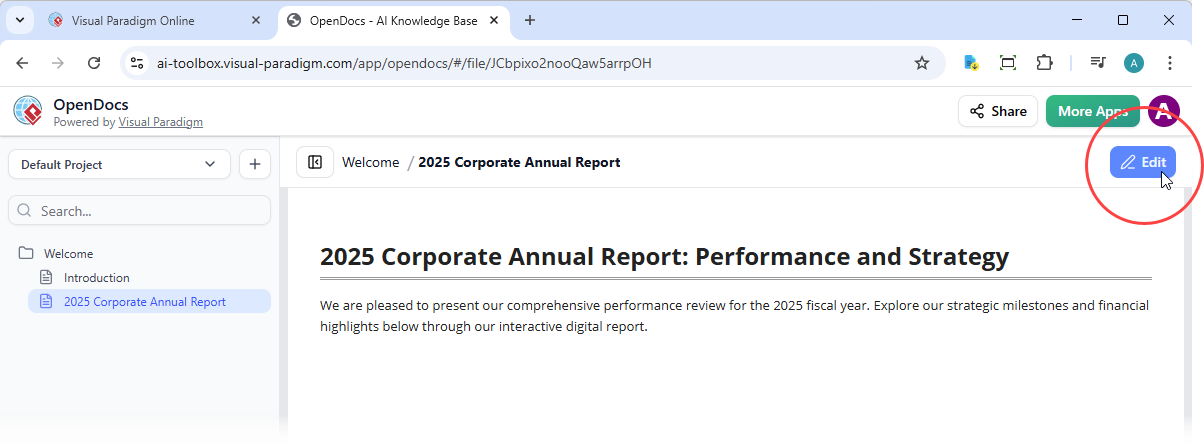
- Navigate to the page in OpenDocs where you want to embed the book.
- Click Edit at the top right of the screen.
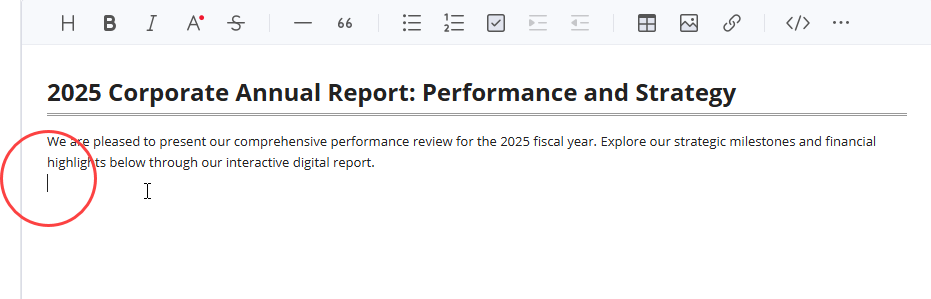
- Position your cursor exactly where you want the flipbook to appear.
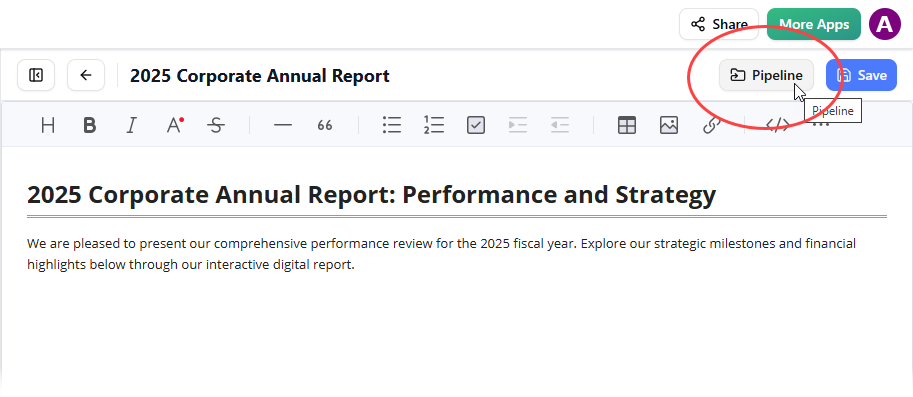
- Click the Pipeline button located at the top right.
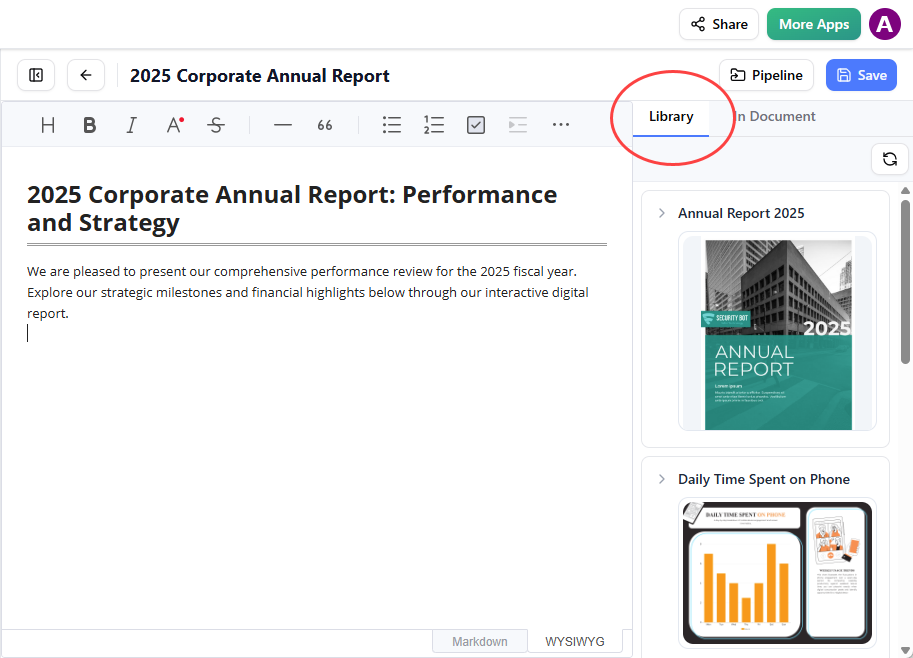
- Open the Library tab; you will see the flipbook you sent from VP Online.
- Click on the flipbook to insert it.
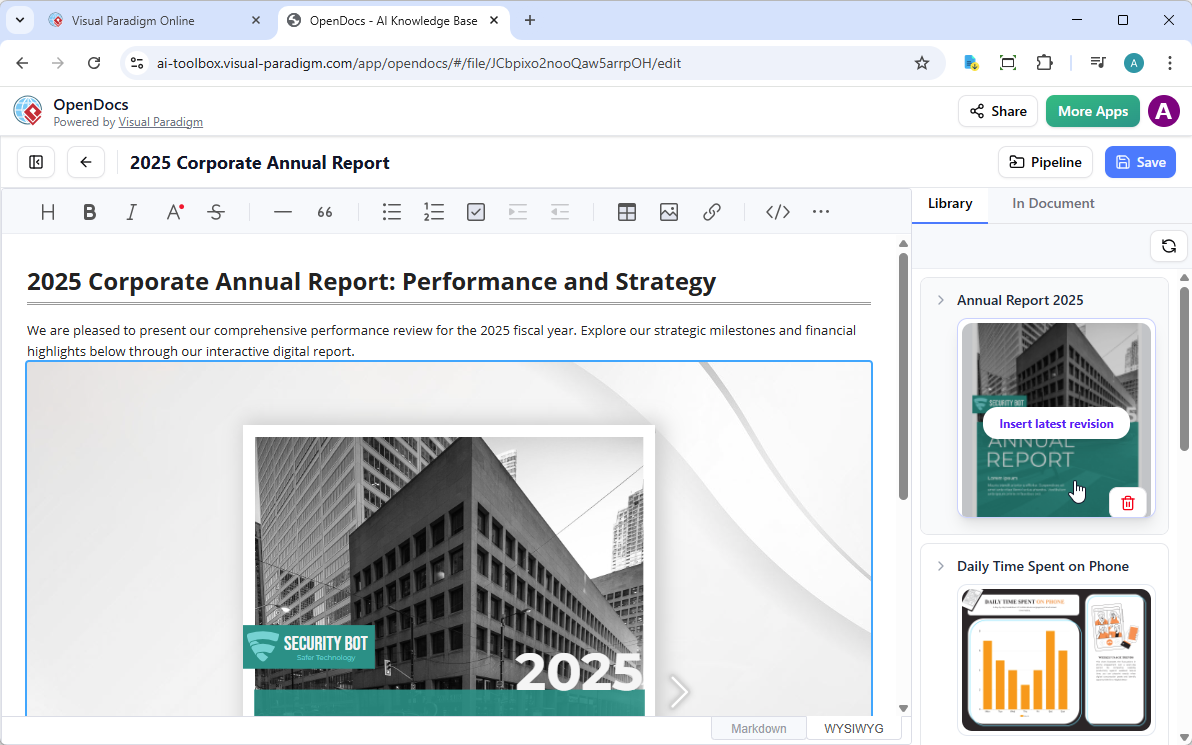
Tip: If the flipbook is added to the end of the page, select it and press Enter to create a new line and adjust the positioning.
Ready to enhance your documents with the industry’s leading flipbook software? Experience the power of integrated documentation today.