
Following our recent update on flipbook integration, we are taking your documentation to the next level. You can now share entire bookshelves from Visual Paradigm Online directly to OpenDocs. This is the perfect solution for users who want to present a curated collection of resources in a professional, organized layout.
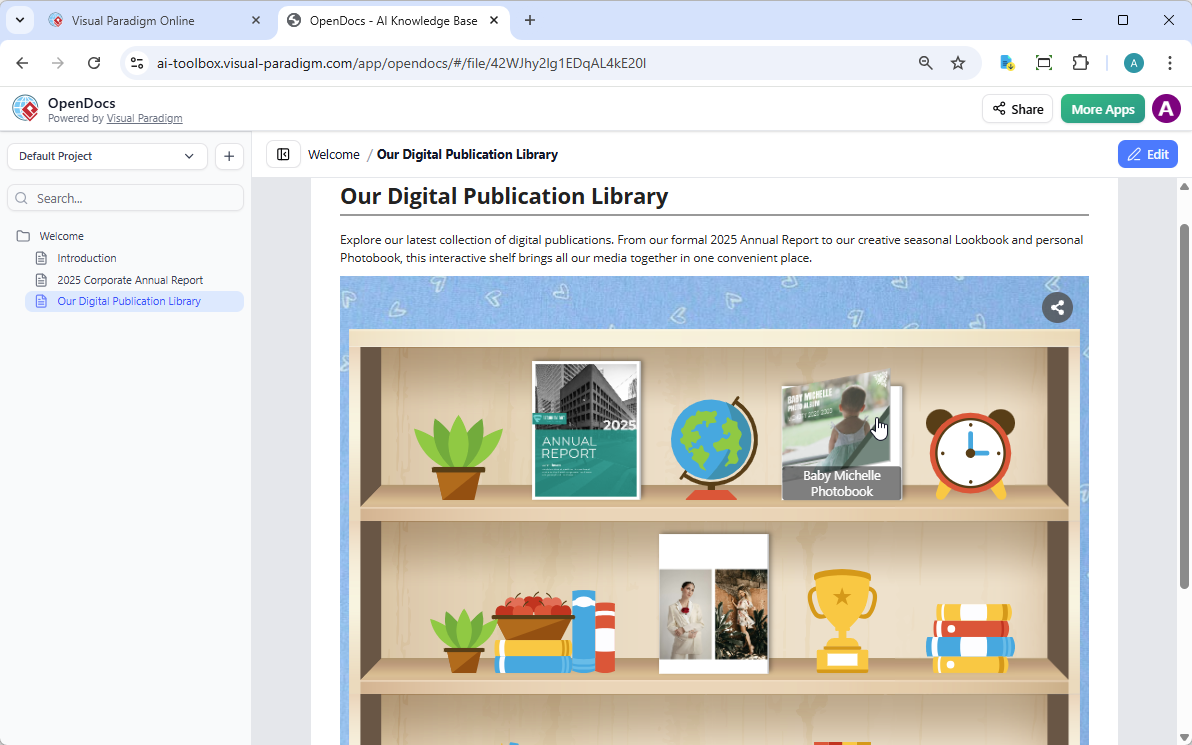
Flexible Sharing: Bookshelves vs. Individual Flipbooks
Our digital bookshelf maker is designed for maximum flexibility. Depending on your content strategy, you can choose how to present your work:
- Individual Flipbooks: Ideal for a “hero” document like an Annual Report. You can send flipbooks individually to keep the reader’s focus on a single piece of content.
- Curated Bookshelves: Use our flipbook tool to group multiple items—such as a series of training manuals, lookbooks, and photobooks—onto one interactive shelf.
Whether you are using our AI flipbook software to create one book or a hundred, the integration with OpenDocs ensures your library is always just a few clicks away.
How to Send Your Bookshelf to the Pipeline
- Navigate to your workspace in Visual Paradigm Online.
- Select Shelf from the left-hand menu.
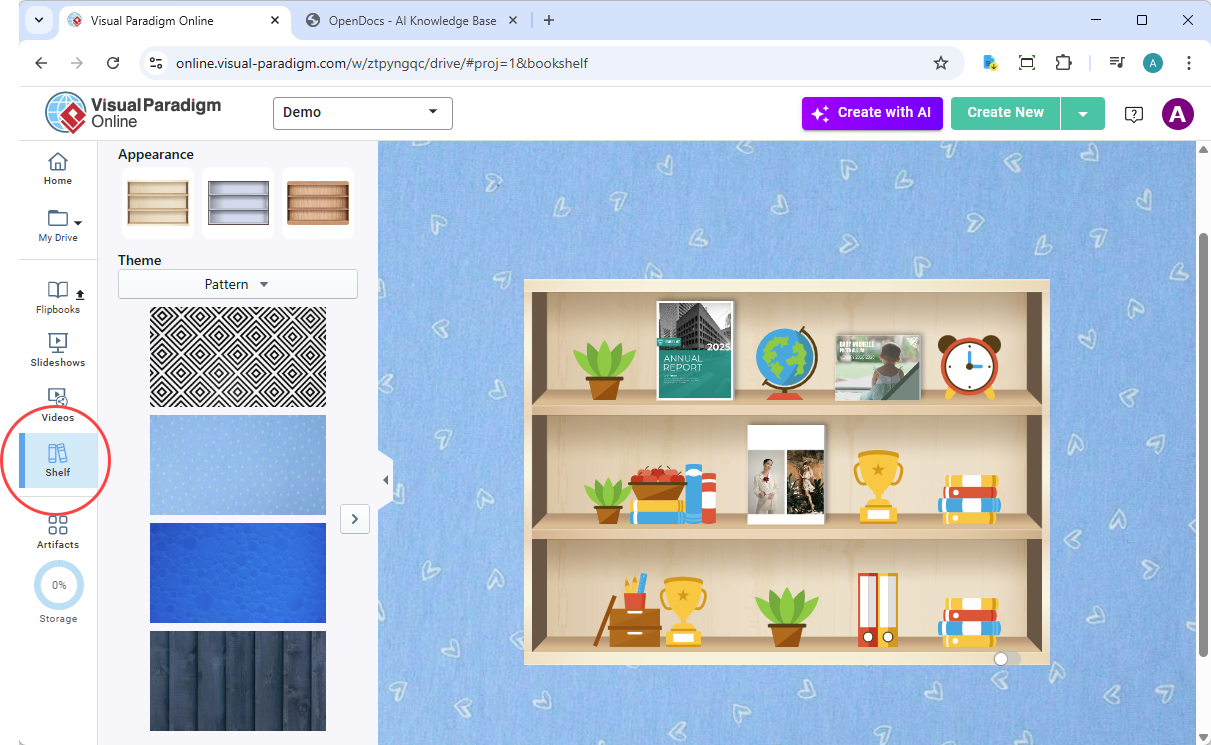
- Select the bookshelf you wish to publish.
- Click the Pipeline icon button at the top right of the screen.
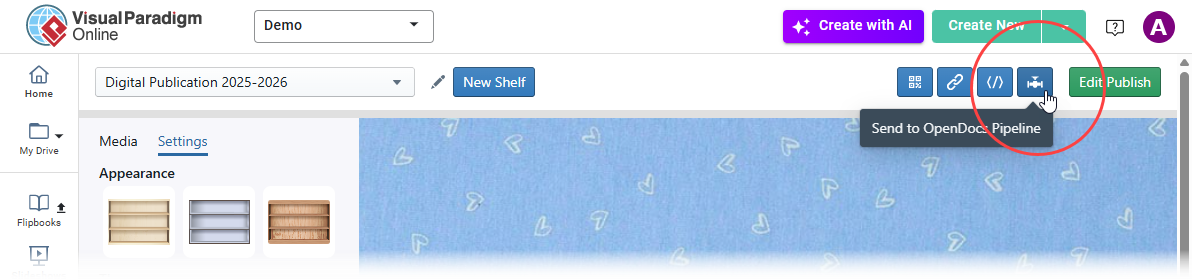
- (Optional) Enter a comment and click OK.
How to Embed the Bookshelf in OpenDocs
- Open your OpenDocs page and click Edit.
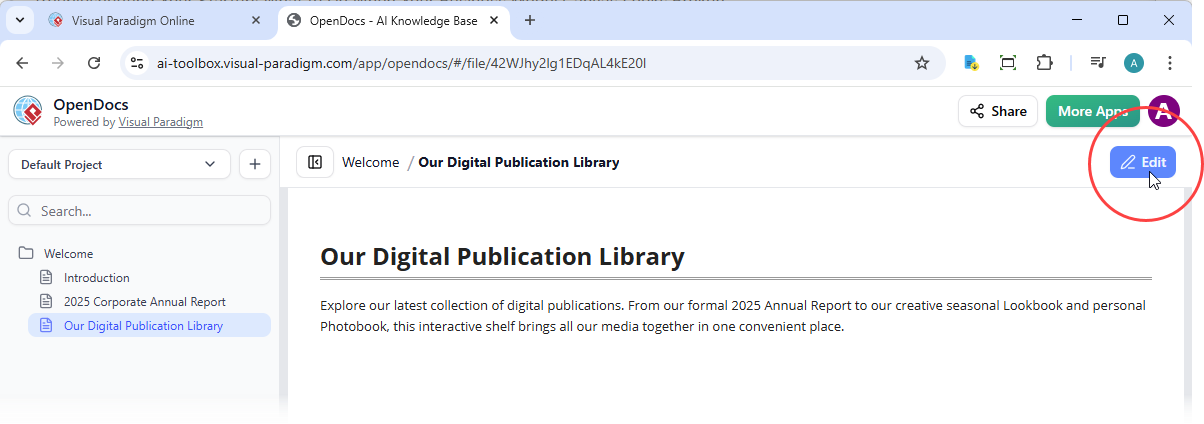
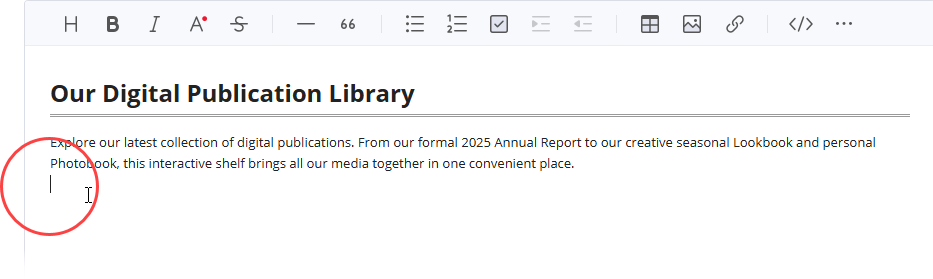
- Position your cursor where you want the shelf to appear.
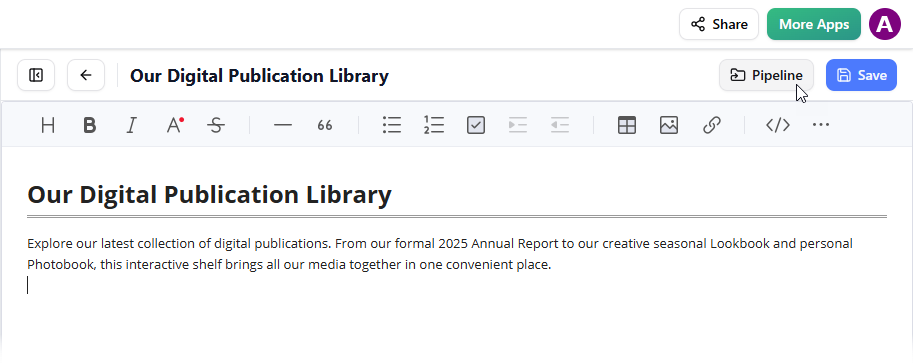
- Click the Pipeline button (top right).
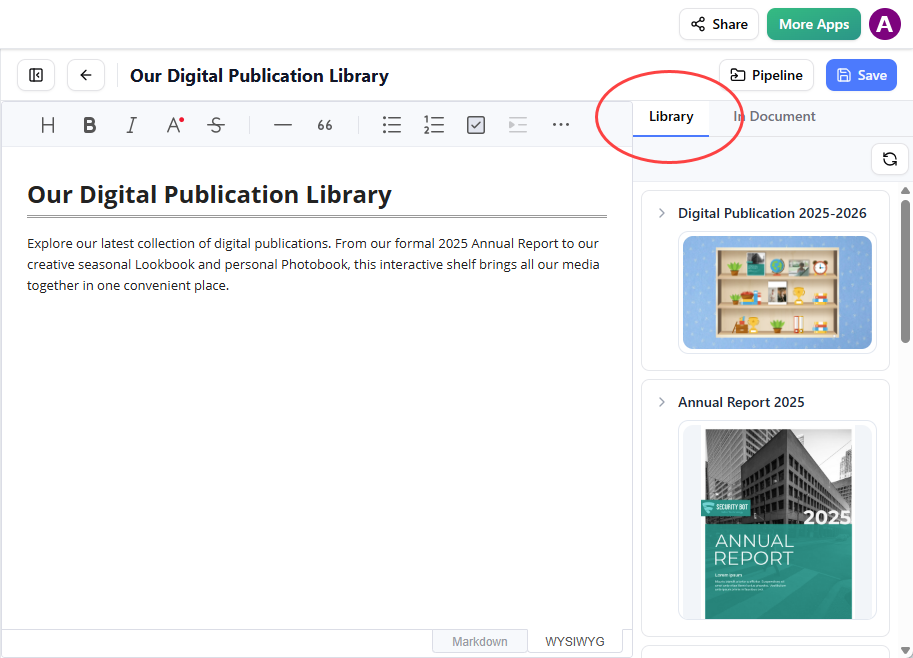
- Open the Library tab.
- Select your bookshelf to insert it into the page.
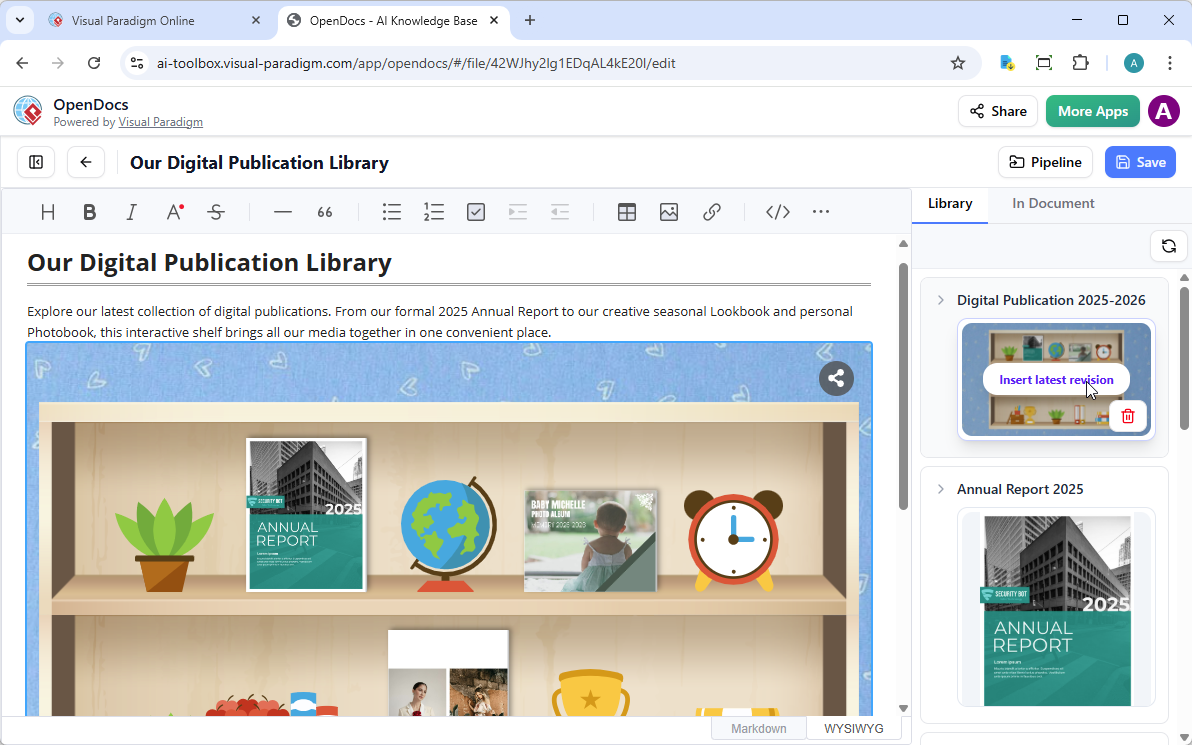
Tip: To move your cursor below the shelf after insertion, select the shelf and press Enter.
Experience the most versatile flipbook maker and documentation system on the market today.