
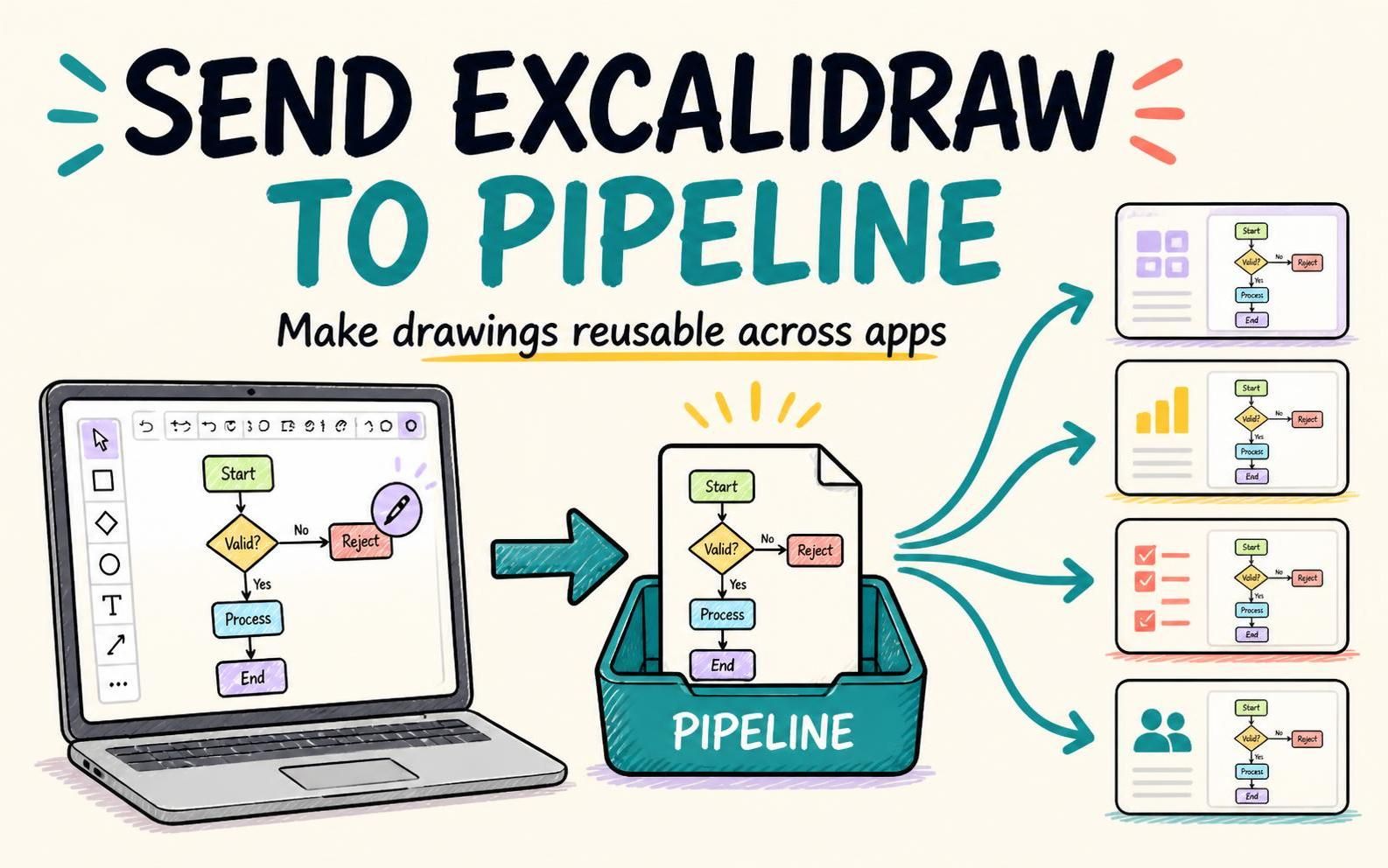
Visual Paradigm has enhanced its Excalidraw integration: you can now send a drawing from the Excalidraw editor to Pipeline, Visual Paradigm’s centralized artifact hub. From there, you can reuse the drawing in supported apps, including NotesKeep, OpenDocs and others, and place it directly into your documentation.
This update connects the freedom of an online diagram editor with the practical work of creating and maintaining documentation. In this article, we will demonstrate the idea with OpenDocs – Sketch an idea in Excalidraw, send it to Pipeline, then add it to an OpenDocs page—without relying on a separate download-and-upload process.
Open the Excalidraw Whiteboard to start drawing, or launch Visual Paradigm OpenDocs to work with your documentation.
What’s new in the Excalidraw integration?
Excalidraw Whiteboard was already available in Visual Paradigm’s Unified Platform. You could create a blank whiteboard, draw in the Excalidraw editor, and save the finished drawing to your workspace to open and edit later.
Now, the drawing workflow has an additional step: you can send your finished Excalidraw drawing to Pipeline. Pipeline acts as a central place to pass an artifact created in one app to another. That makes an Excalidraw drawing available for reuse in supported apps, rather than leaving it only in the context where it was created.
Why sending a drawing to Pipeline matters
A diagram is often most useful when it can be brought into the work it explains. A quick sketch can clarify a requirement, illustrate a process, or make a technical concept easier to understand. But when the drawing and the documentation live in separate places, moving between them can interrupt the workflow.
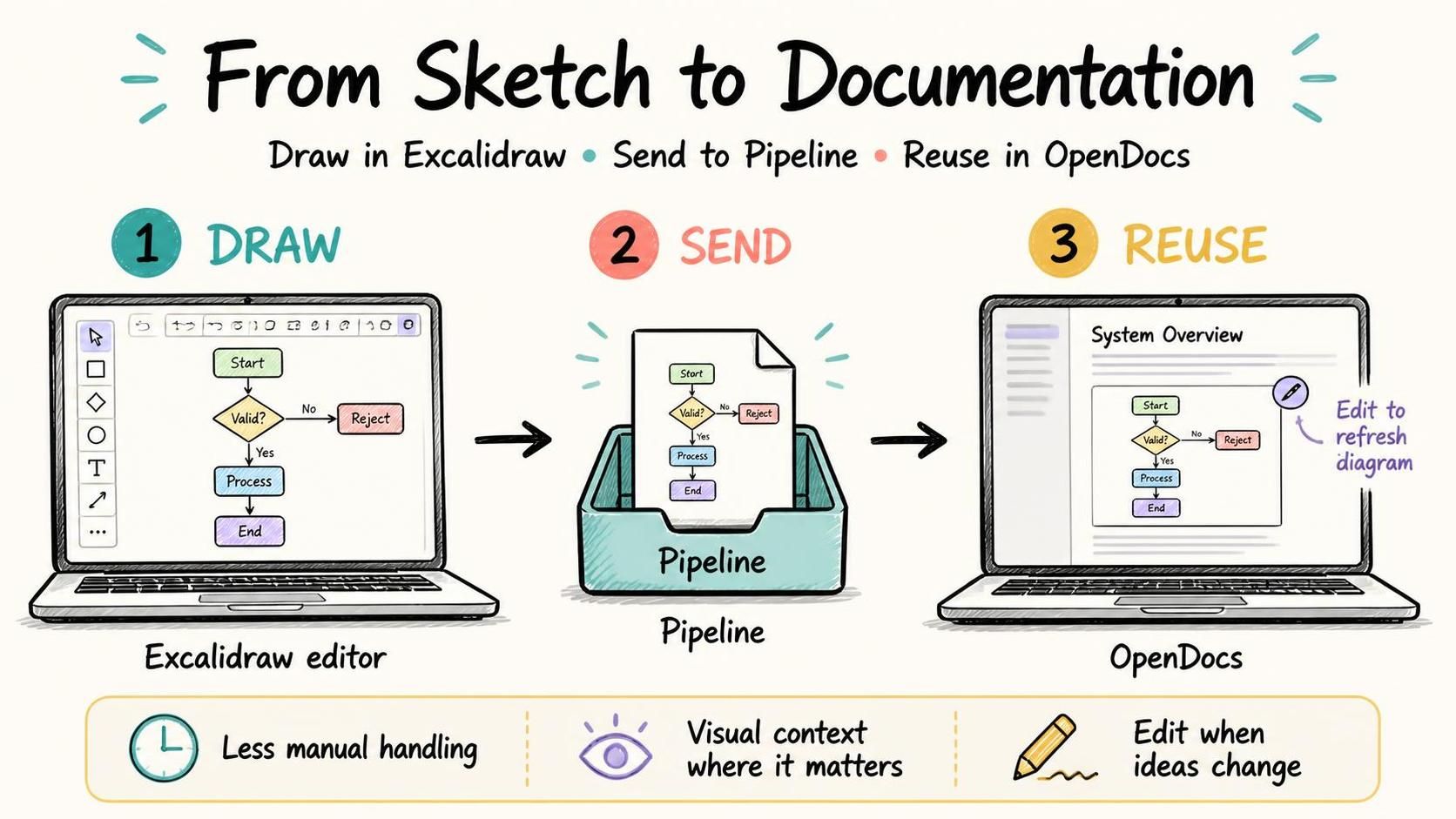
Sending an Excalidraw drawing to Pipeline helps bridge that gap. Create the visual in an online diagram editor, then retrieve it from Pipeline in an app such as OpenDocs. The result is a more direct path from brainstorming and visual planning to written documentation.
- Reuse visuals across supported apps: Send a drawing to Pipeline once, then access it from connected apps that can retrieve Pipeline artifacts.
- Bring diagrams into context: Add a sketch to the OpenDocs page where readers need it, alongside the relevant explanations.
- Reduce manual handling: Move the drawing through the platform instead of making a separate export-and-upload step part of the process.
- Keep the source editable: Open the embedded drawing in its editor when you need to make changes, then save to refresh the image on the page.
- Support clearer communication: Use a visual alongside text to explain workflows, concepts, early designs, and other ideas that are easier to understand when seen.
From an online diagram editor to documentation
The updated workflow supports the full journey from a first sketch to a documented explanation. Use the Excalidraw editor as an online diagram editor for drawing and visual thinking. When your drawing is ready, send it to Pipeline. Then retrieve it in OpenDocs and embed it where it helps readers understand the page.
This is useful for many kinds of documentation, including project notes, product requirements, process explanations, user guides, and technical documentation. For example, a team might sketch a user flow in Excalidraw, send the drawing to Pipeline, and insert it into an OpenDocs page that describes the flow.
How to create an Excalidraw drawing and send it to Pipeline
- In the Unified Platform, click Create New.

- In the Create Artifact window, search for Excalidraw.
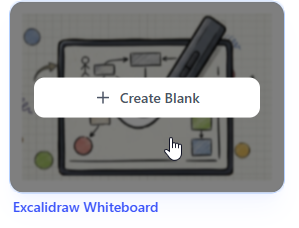
- Select Excalidraw Whiteboard to create a blank drawing.
- When the Excalidraw editor opens, create your diagram.
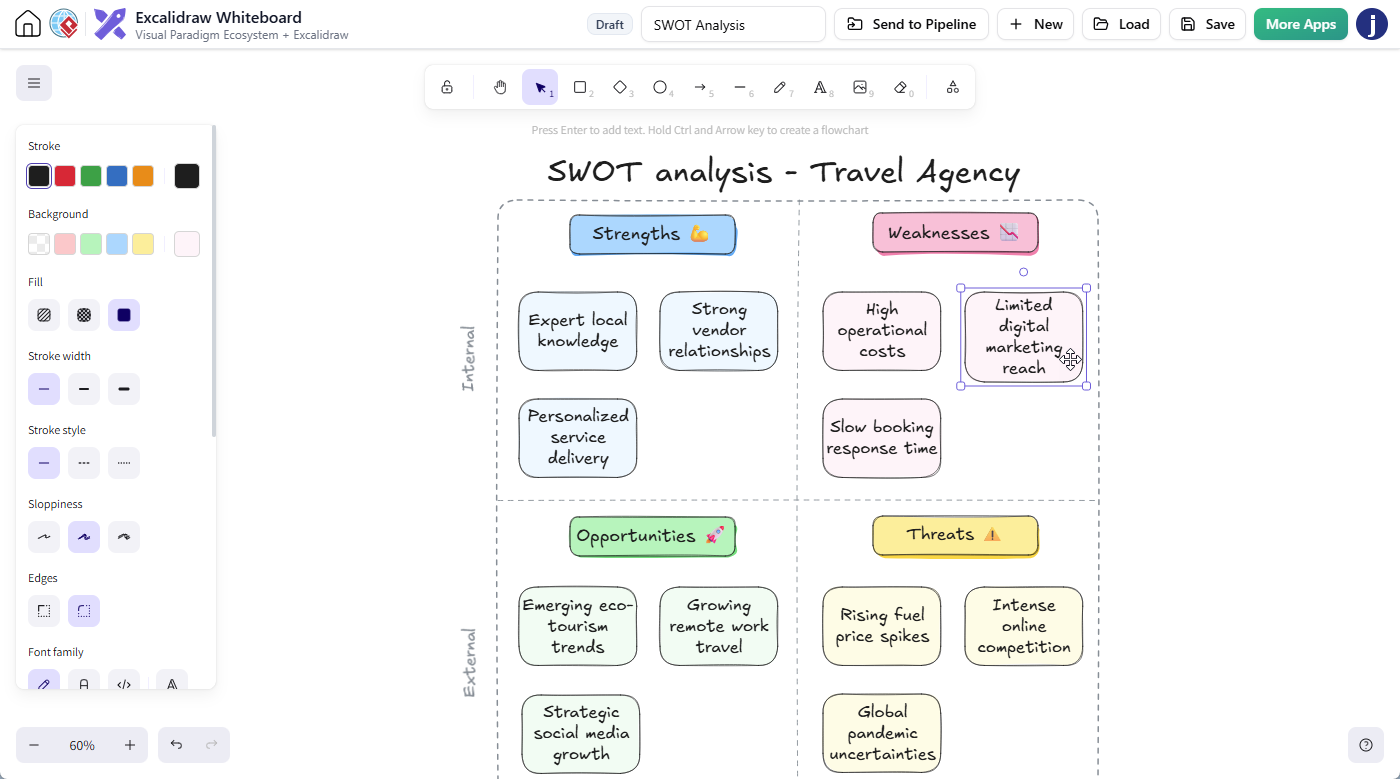
- When you are ready to share the drawing with other supported apps, click Send to Pipeline in the top bar.

- Optionally enter a name, then proceed to send the artifact to Pipeline.
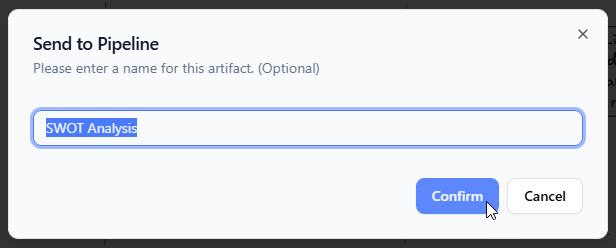
Your drawing remains available in your workspace for reopening and editing. Sending it to Pipeline adds a way to make the artifact available for reuse in connected apps.
How to insert an Excalidraw drawing into OpenDocs
- Open Visual Paradigm OpenDocs.
- Create a page or open an existing page.
- Place the text cursor where you want the drawing to appear.

- Click the Pipeline button above the editor to open the Pipeline pane on the right.
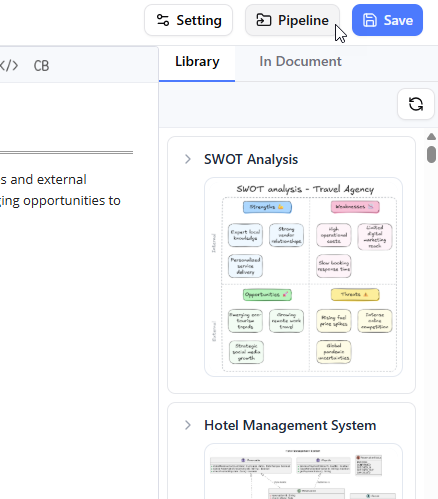
- Find your Excalidraw drawing, then click it or drag it onto the page.
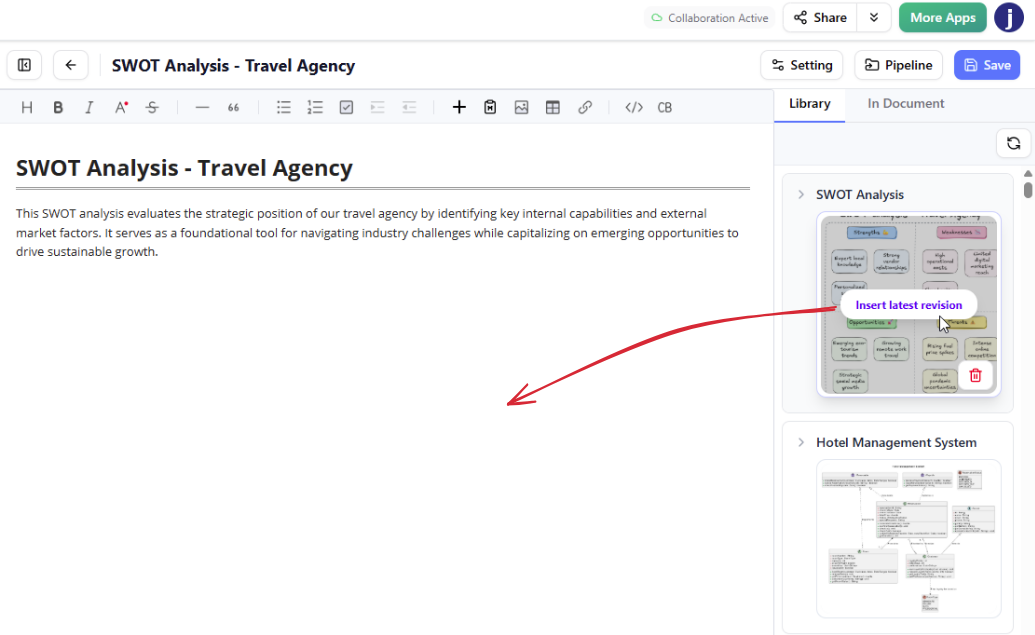
The drawing is inserted at the cursor position, so you can place it alongside the section of text it supports. This makes it easier to combine written explanations with a visual created in the Excalidraw online diagram editor.
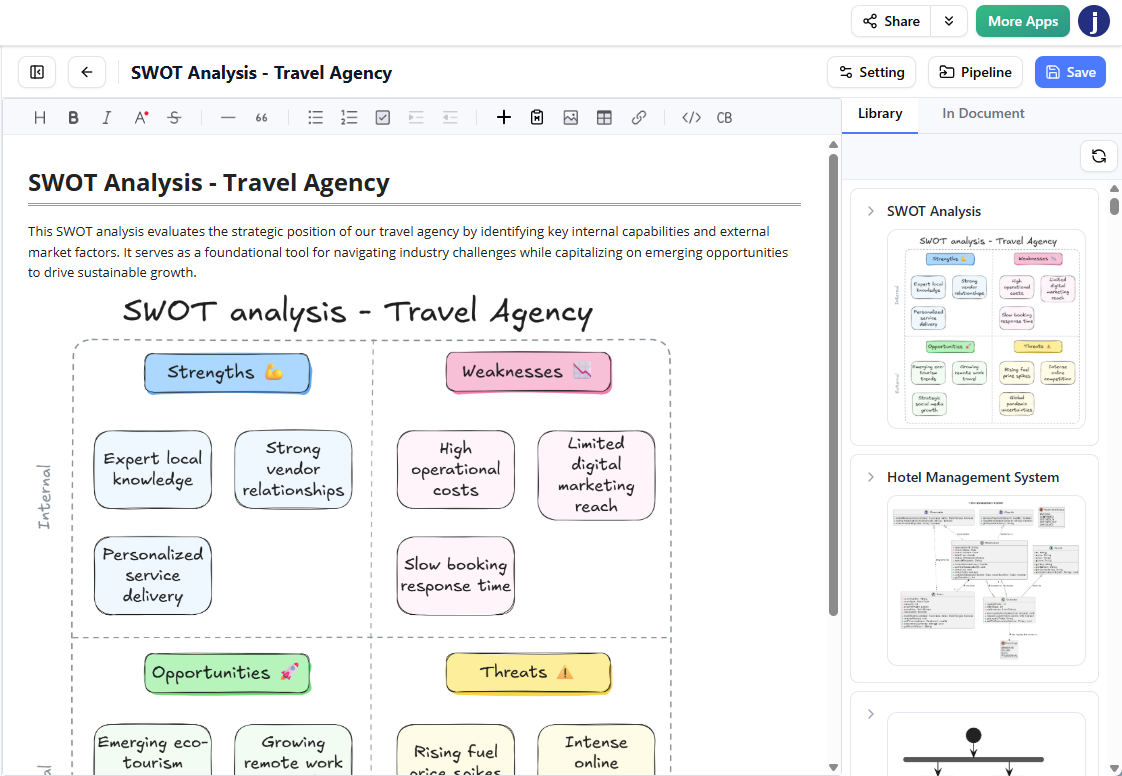
Edit an embedded drawing when it changes
Documentation often needs to change as a project develops. If you need to update an Excalidraw drawing embedded in an OpenDocs page, click the pencil icon at the top-right of the image to open the diagram editor. Make your changes, then click Save to refresh the image on the page.
This edit-and-save workflow helps keep the visual useful as requirements, processes, or ideas evolve. Instead of treating a diagram in documentation as a one-time static illustration, you can reopen its editor and revise it when needed.
Example workflow: document a process visually
- Use Excalidraw to sketch a process, user journey, interface idea, or system concept.
- Send the finished drawing to Pipeline.
- Open the relevant OpenDocs page and switch to editing mode.
- Use the Pipeline pane to insert the drawing next to the explanation.
- Reopen the Excalidraw editor from the embedded image whenever the diagram needs an update.
This workflow can help teams move from a rough idea to a shareable, documented explanation with fewer manual steps. It also gives readers useful visual context directly within the page they are reading.
Make your diagrams more reusable
The Excalidraw-to-Pipeline enhancement gives drawings a clearer route beyond the whiteboard. Create a diagram in the Excalidraw editor, send it to Pipeline, and reuse it in OpenDocs or other supported apps. Whether you are capturing an early brainstorm or adding a visual to project documentation, the workflow helps connect diagram creation with the work that follows.
Try the Excalidraw online diagram editor, or open OpenDocs to add a drawing to a documentation page.