


We are excited to announce a significant update to OpenDocs, our premier AI-powered knowledge management tool. Today, we are expanding our visual documentation capabilities with the official support for State Diagrams (also known as State Machine Diagrams).
In complex system design and software engineering, understanding the lifecycle of an object is critical. With this update, OpenDocs users can now seamlessly integrate behavioral modeling into their documentation, ensuring that every state transition and event is captured with precision.
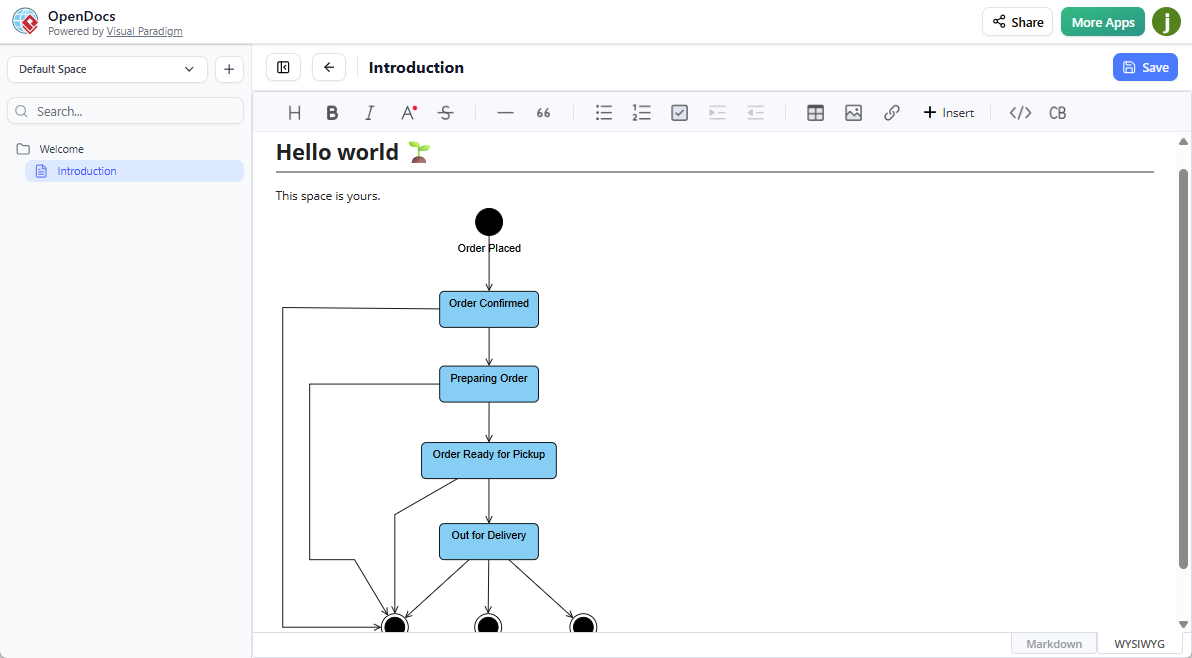
Build Smarter with an AI State Diagram Generator
Forget the days of manual shape-dragging. As part of our commitment to boosting productivity, this new diagram type is fully integrated with our generative AI. By using our AI State Diagram generator, you can simply describe a process—such as an order fulfillment cycle or a user authentication flow—and watch as OpenDocs instantly renders a professional, industry-standard State Machine Diagram.
Key Highlights of the State Diagram Update:
- AI-Powered Creation: Use the AI State Diagram tool to generate complex state machines from simple text descriptions.
- Two Ways to Integrate:
- Embedded Components: Insert a State Diagram directly into your documents to provide visual context to your technical notes.
- Dedicated Component Pages: Create standalone diagram pages for high-level system architecture overviews.
- Seamless Editing: Like all our AI diagram generator tools, you can refine, edit, and update your state diagrams on the fly without leaving your workspace.
How to create a UML State Diagram with AI?
- Click on the Insert button in the top bar of your document editor.

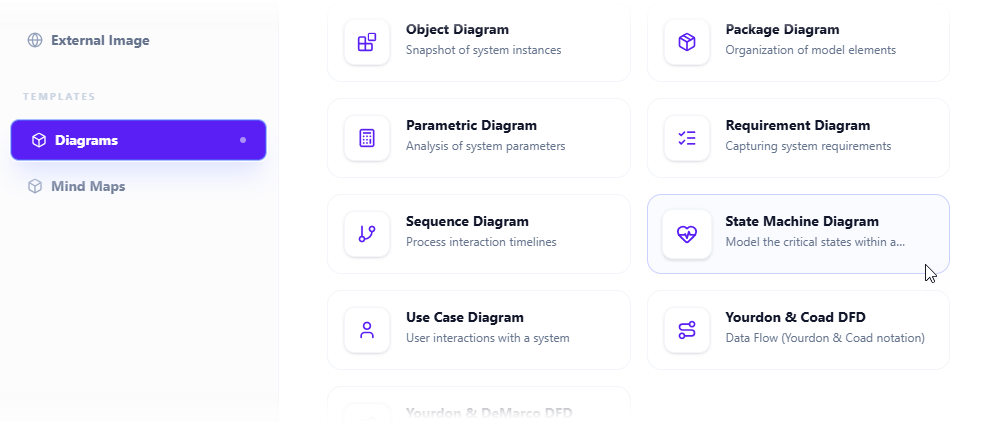
- The Insert dialog box is opened. Select Diagrams tab on the left, and then State Machine Diagram on the right.
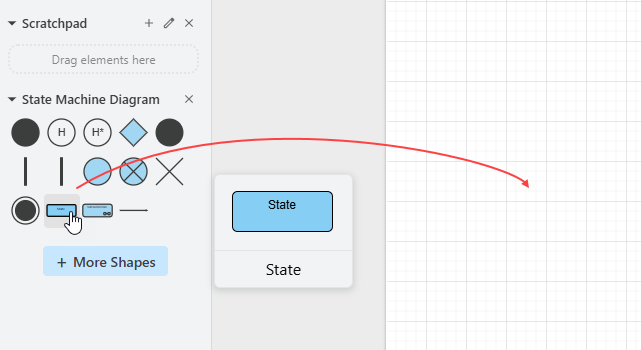
- This opens the diagram editor. You can draw the state diagram using the symbols on the palette (Just drag and drop a symbol onto the diagram canvas).
To generate a diagram with AI, click on Create with AI at the top right.

- Describe your problem in the input box. Click Generate.
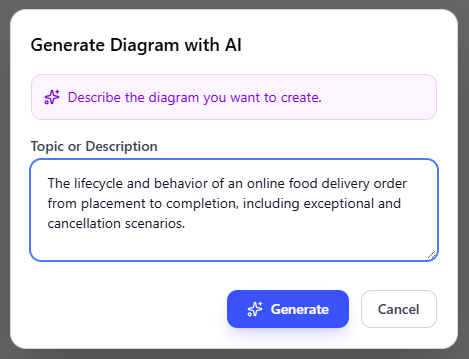
- AI will analyze your problem and generate a state diagram accordingly. Below is an example generated.
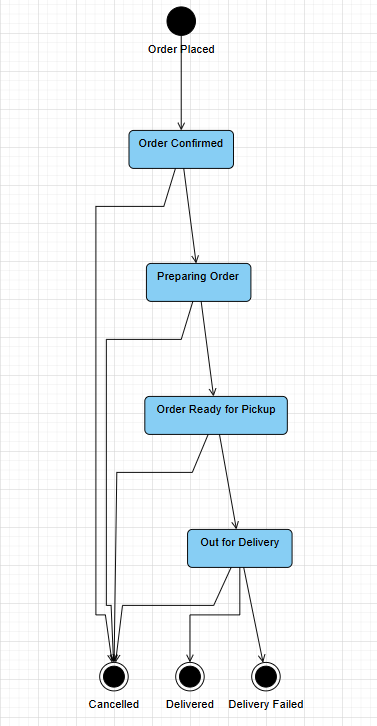
- Touch up the state diagram by adjusting the layout, adding new shapes, etc.
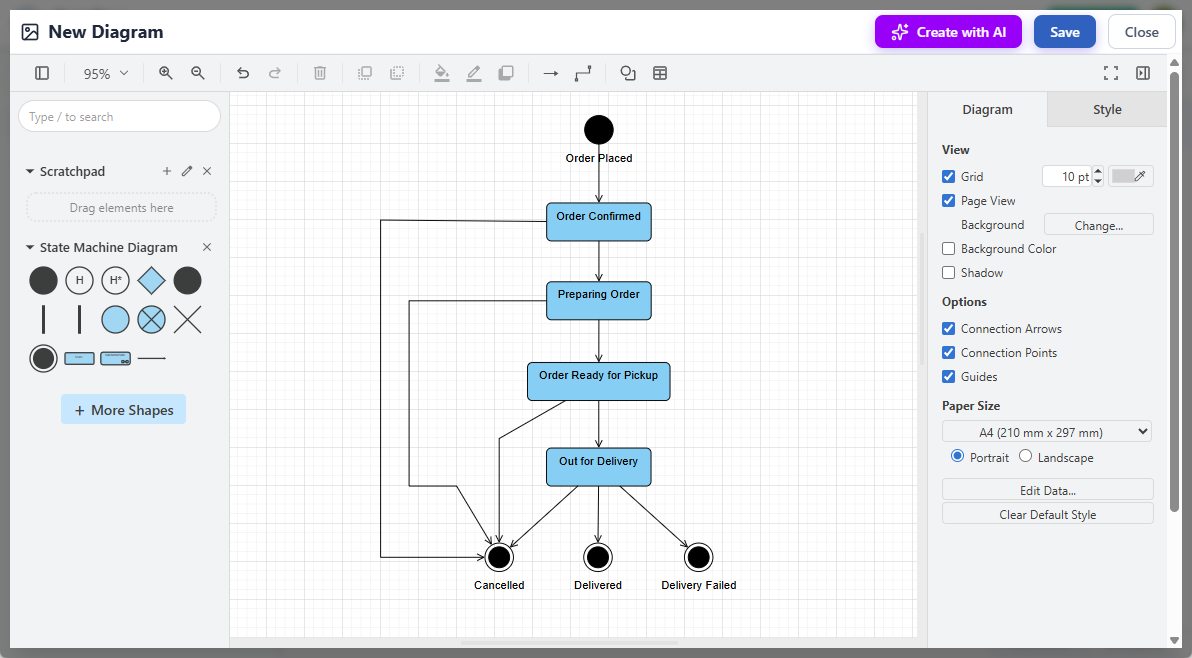
- Click Save at the top right.
- Click Close to return to the document editor. The diagram is embedded into your document.
Whether you are a software architect documenting system behavior or a business analyst mapping out logic flows, the addition of State Diagrams to OpenDocs ensures your AI-powered knowledge management tool remains the most versatile hub for your team’s collective intelligence.
Ready to transform your documentation? Head over to the OpenDocs App and start generating diagrams with AI today.
Related posts:
 Exciting Update: AI Flowchart Generator Now Live in OpenDocs – Create Professional Flowcharts from Text Instantly
 Now in OpenDocs: AI-Powered UML Deployment Diagram Support – Generate Professional Deployment Diagrams Instantly
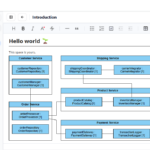 Visualize System Structures Faster with Our New AI Composite Structure Diagram Tool
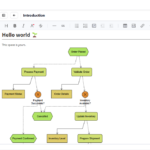 New in OpenDocs: AI-Powered EPC Diagram Support – Generate Event-Driven Process Chain Diagrams Effortlessly