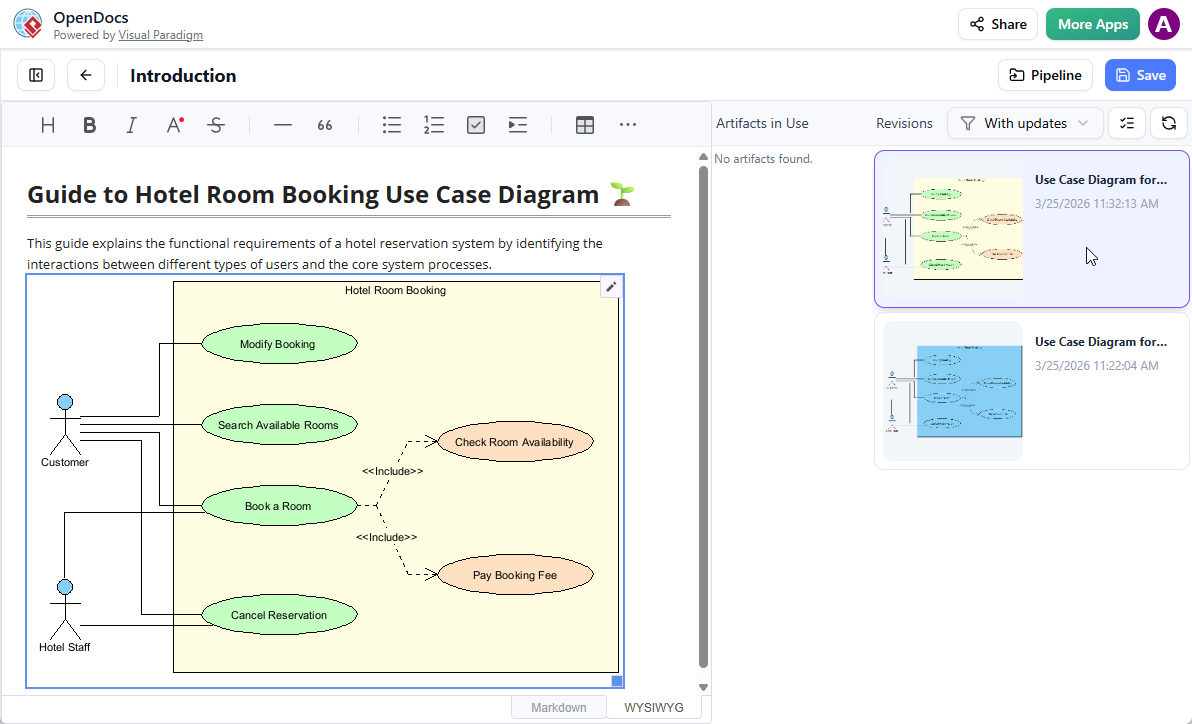
The Ultimate “Concept-to-Docs” Workflow
We are excited to announce a powerful new integration between Visual Paradigm Desktop and Visual Paradigm OpenDocs. You can now bridge the gap between your modeling environment and your online document management platform. This feature allows teams to move from initial ideas to comprehensive, shared knowledge bases without the manual friction of exporting and uploading image files.
Imagine the possibilities: use the AI diagram generation in Visual Paradigm Desktop to instantly visualize a business process or system architecture. Refine the model using our professional suite of tools, and then send it directly to OpenDocs via the Pipeline to provide the necessary context and descriptions for your stakeholders.
Note: This integration is available to users of Visual Paradigm Professional Edition and above.
Ready to experience it? Access OpenDocs directly, or download the latest Visual Paradigm Desktop.
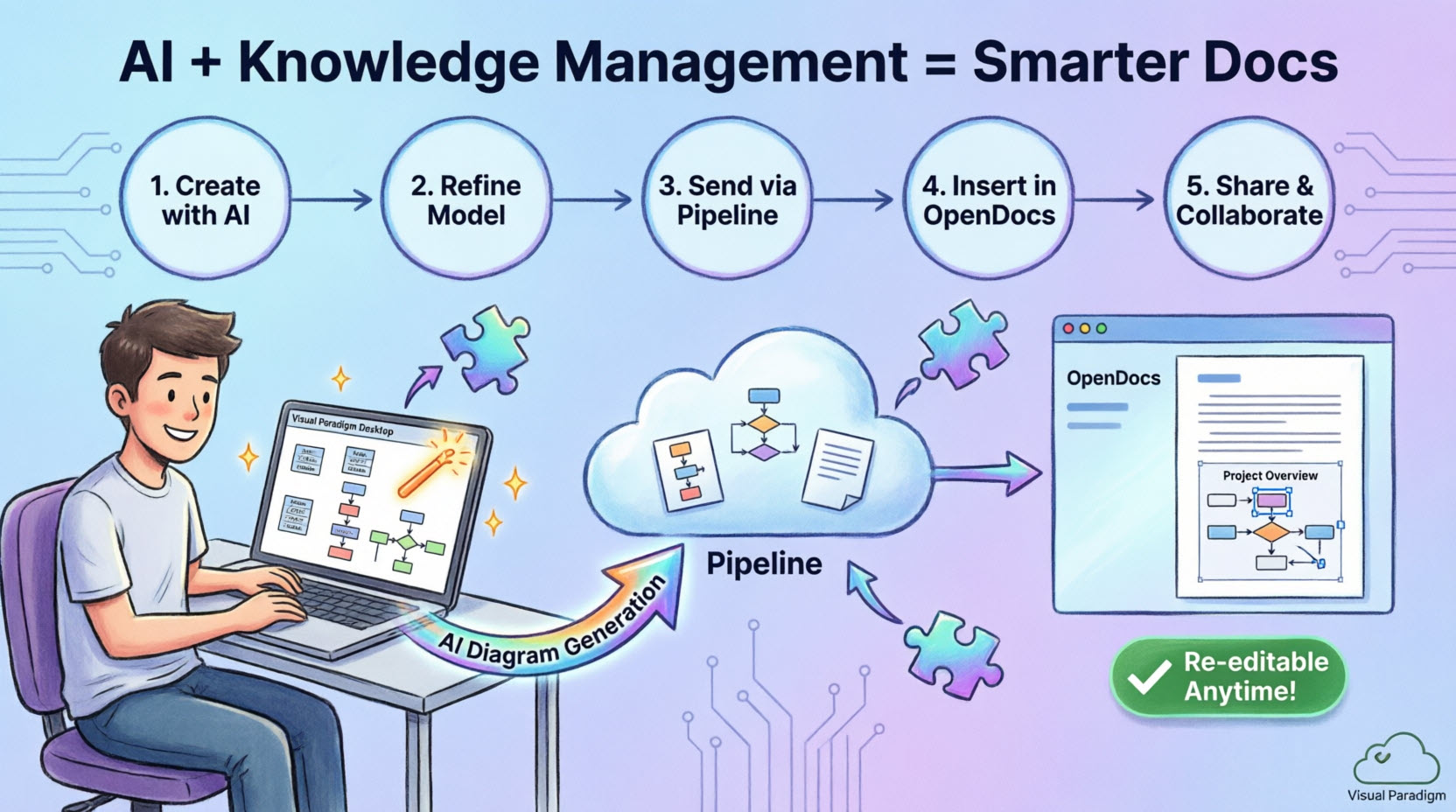
What is Visual Paradigm OpenDocs?
OpenDocs is a specialized knowledge and document management platform built for modern teams. Unlike conventional tools, OpenDocs integrates directly with a robust diagram editor. This means you can insert diagrams into your pages and re-edit them later without leaving the document. By supporting exports from Visual Paradigm Desktop, OpenDocs now becomes the central hub for all your professional modeling and documentation needs.
Understanding the Pipeline
The Pipeline is a secure, centralized repository for “artifacts”—the assets you create across the Visual Paradigm ecosystem. Since our tools cover everything from enterprise architecture to agile development, the Pipeline serves as the essential space to hold and transfer these artifacts. It allows the output from one tool, like an AI-generated UML diagram, to become the input for another, such as a technical manual in OpenDocs.
How to Export Your Diagrams to OpenDocs
Whether you created your diagram manually or used our AI generation tool, exporting it to your documentation is simple:
- In Visual Paradigm Desktop, open the diagram you wish to send.
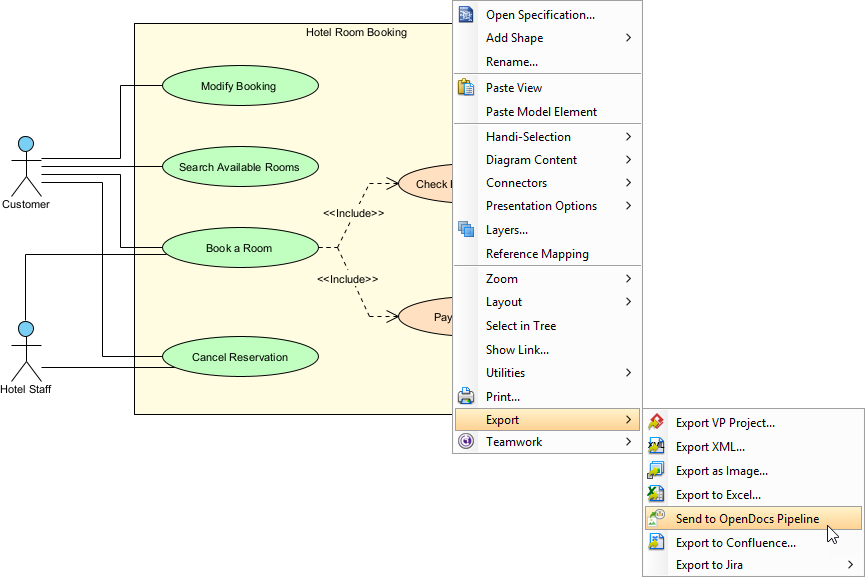
- Right-click on the diagram and select Export > Send to OpenDocs Pipeline.
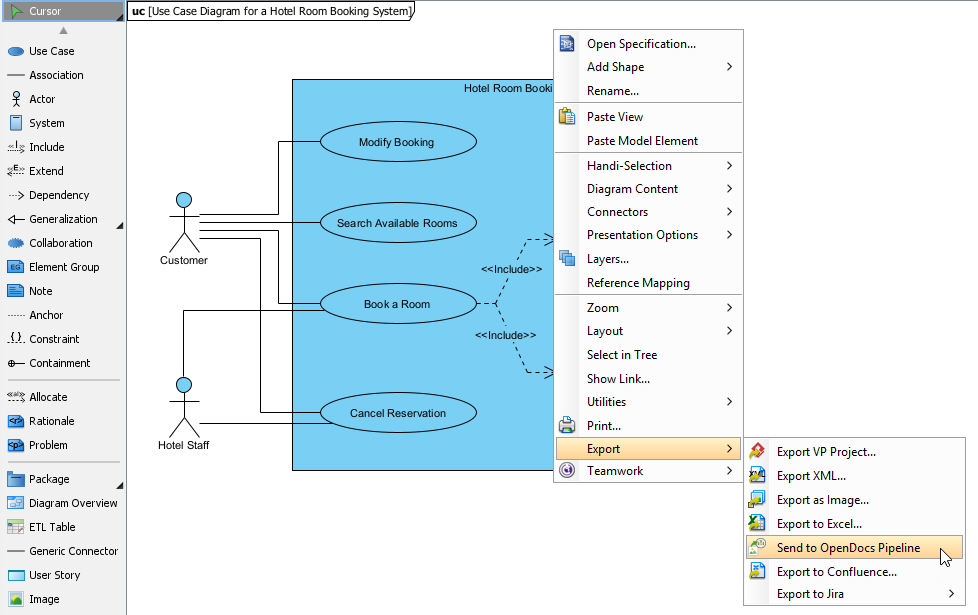
- When prompted, save your project by clicking OK.
- (Optional) Enter a comment. This will be visible in the Pipeline pane within OpenDocs to help you identify the version or purpose of the artifact.
- Confirm the export to output your diagram to the cloud.
Inserting Artifacts into Your Document
Once your diagram is in the Pipeline, you can place it anywhere in your knowledge base:
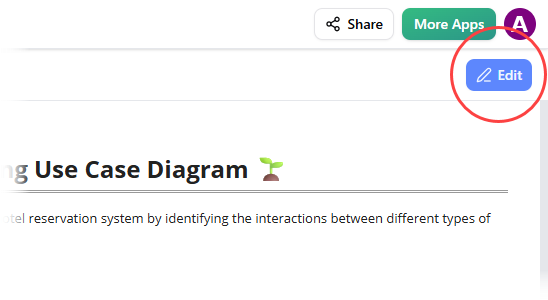
- Open any document page in OpenDocs and click Edit.
- Click on the page where you want to insert the diagram.
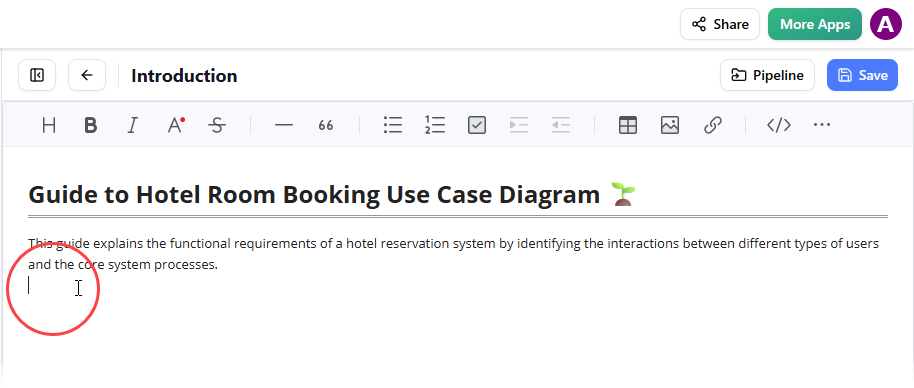
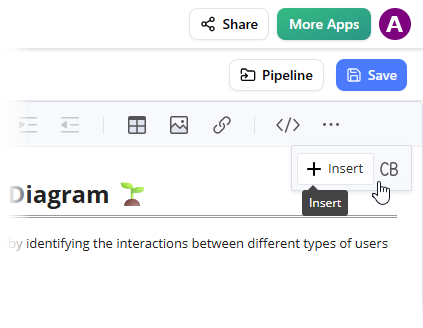
- On the toolbar, click Insert.
- In the Insert window, select Pipeline from the left-hand sidebar. Your sent diagrams will appear here.
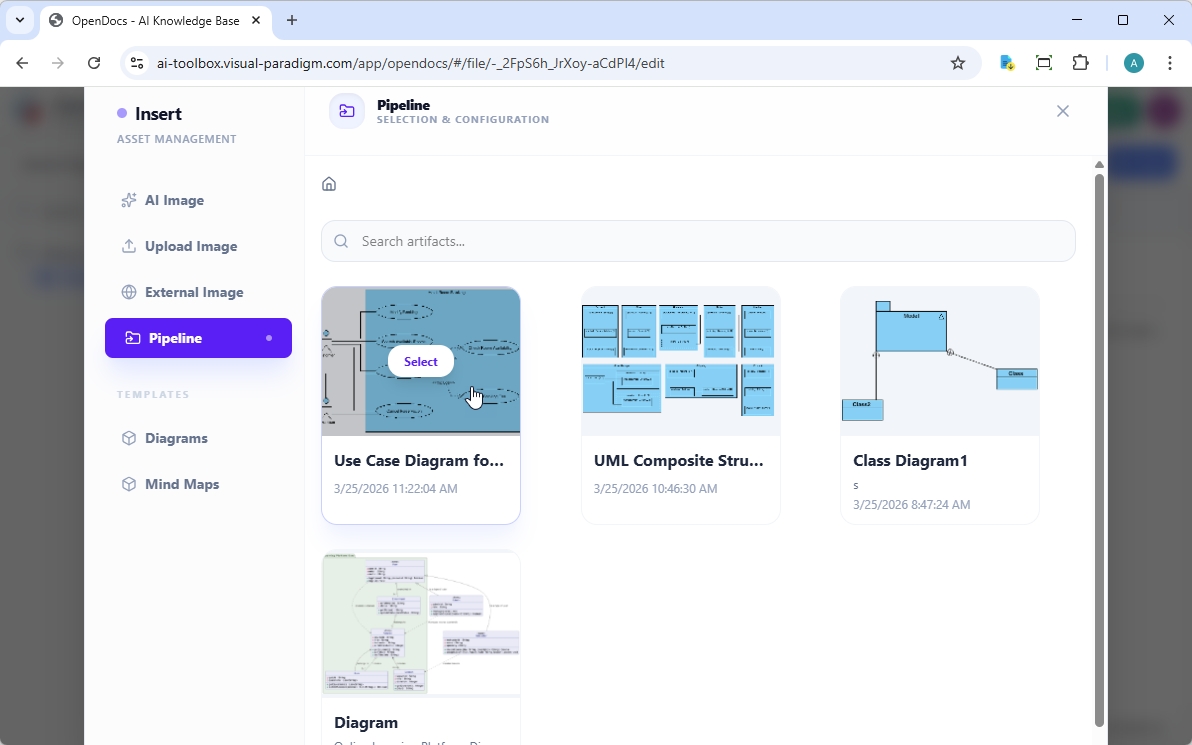
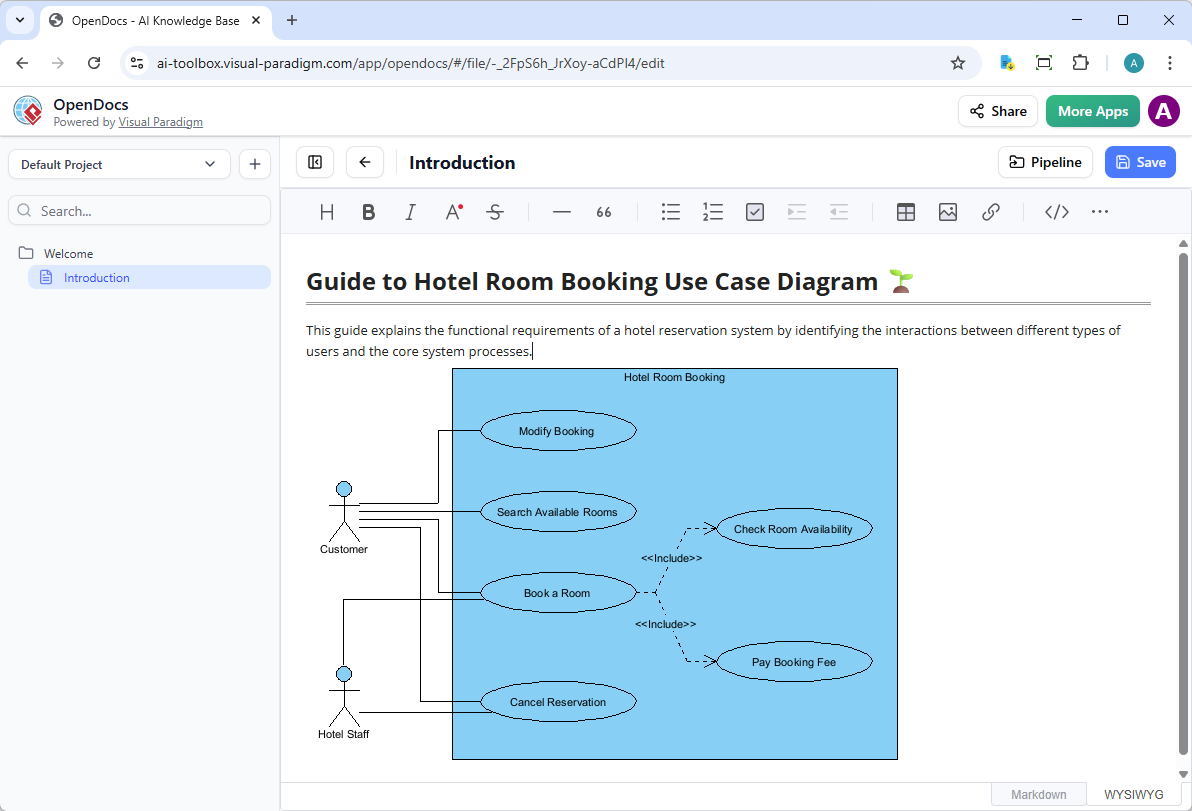
- Click on the diagram to insert the image directly at your cursor position.
Keeping Your Documentation in Sync: Updating Artifacts
One of the most powerful aspects of this integration is the ability to update your documentation as your models evolve. If you need to make changes to a diagram already in OpenDocs, follow these steps:
1. Open the Source Diagram
In OpenDocs, click the Edit icon at the top right of the diagram image to open the Edit Diagram window.
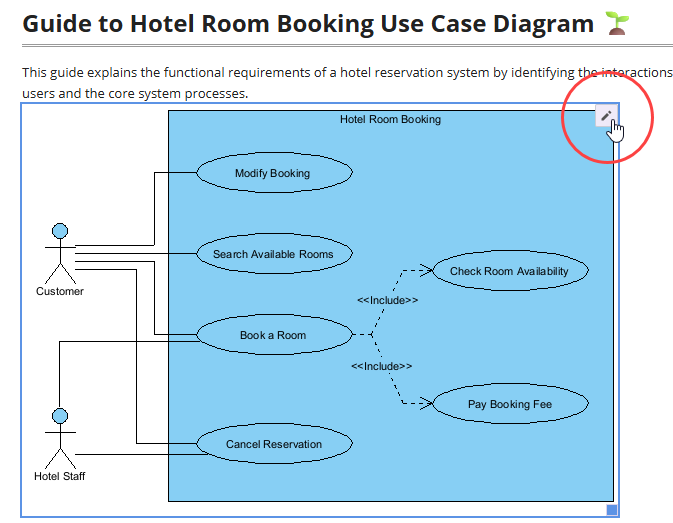
Copy the diagram link provided. In Visual Paradigm Desktop, go to Project > Open, paste the link, and the software will open the source model for you. (Alternatively, if you already have the project open, you can skip this step.)
2. Edit and Re-send
Modify your diagram in Visual Paradigm Desktop. Once finished, right-click the diagram and select Export > Send to OpenDocs Pipeline again. You can also simply commit your changes to VP Online, which automatically creates a new revision of the artifact.
3. Swap to the Latest Revision
Back in the OpenDocs editor, click Pipeline at the top right.
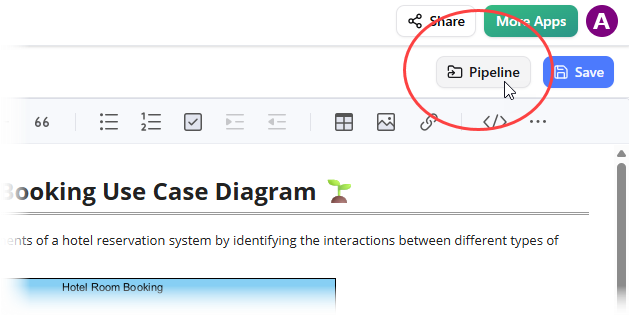
You will see the artifacts currently used on that page. Select the diagram to see a list of revisions. Simply click on the latest revision to instantly swap the old diagram for the updated version.