
We are thrilled to announce a significant expansion to the visual capabilities of OpenDocs. As part of our commitment to building the ultimate AI-powered knowledge management tool, we have introduced support for eight new specialized chart types. Today, we are shining the spotlight on one of the most requested additions: the Tree Diagram.
Whether you are mapping out complex file systems, organizational structures, or logical decision paths, the new Tree Diagram component allows you to turn abstract hierarchies into clear, professional visuals in seconds.
What is the New Tree Diagram Tool?
The Tree Diagram is a specialized diagramming format designed to represent hierarchical data starting from a single root node that branches out into multiple relationships. While similar to a Mind Map, the Tree Diagram excels in structured, top-down or left-to-right visualizations, making it ideal for technical documentation, site maps, and classification systems.
With this update, OpenDocs users can now incorporate Tree Diagrams in two powerful ways:
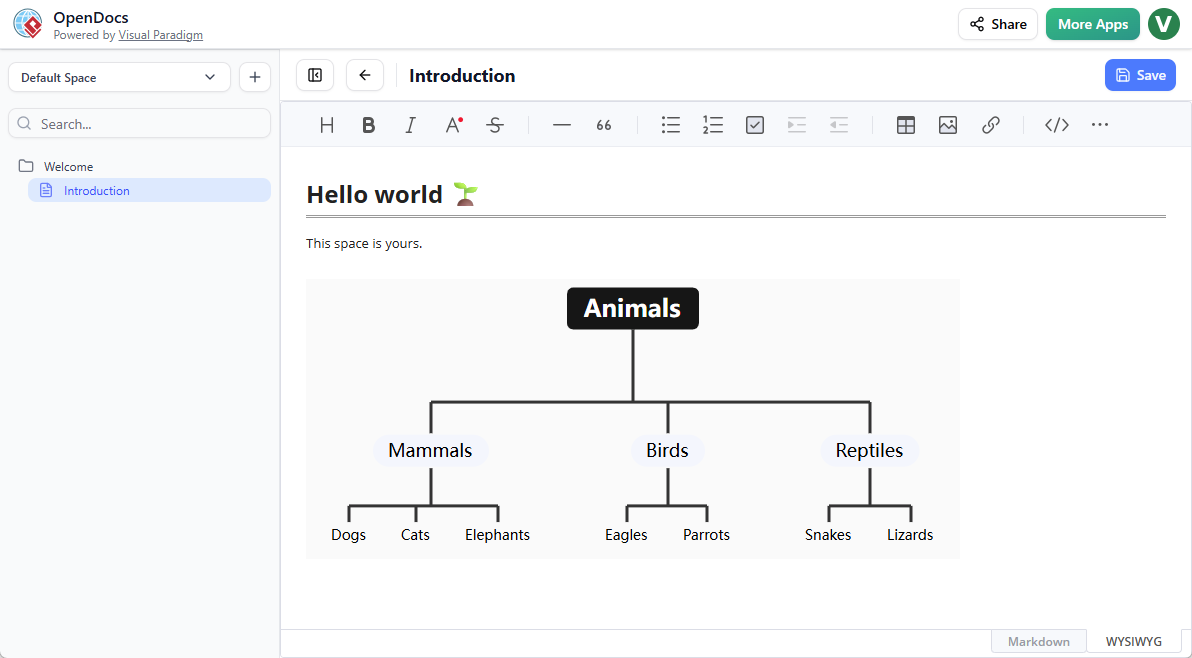
- Embedded Components: Drop a Tree Diagram directly into your Markdown documentation to provide visual context to your text.
- Dedicated Component Pages: Create standalone Tree Diagram pages within your Workspace for high-level architectural overviews.
How to Create a Tree Diagram?
As part of a document page
- Open your page in OpenDocs.
- Click on the Edit button at the top right.
- In the page editor, click at where you want to insert a tree diagram.
- Click on the Insert button at the button bar.

- Select Mind Maps > Tree Diagram.
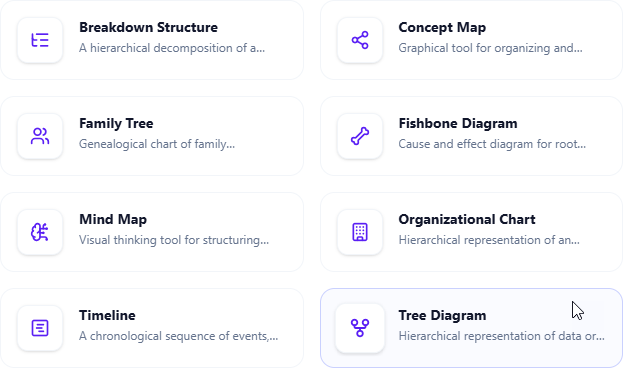
- Start editing your tree diagram.
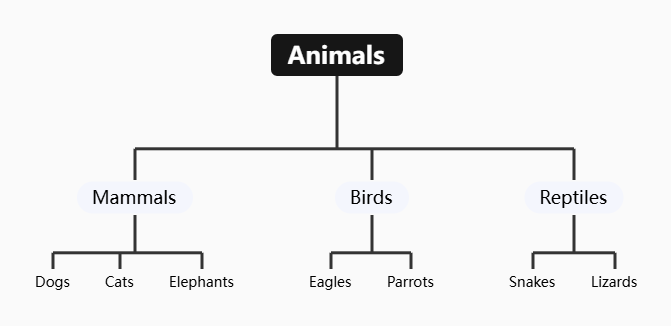
- When finished, click Save at the top right.
- Click Close to return to the document page editor.
As an independent component
- On the top of the table of contents pane, click on + and then select New Component Page.
- Select Mind Maps > Tree Diagram.
- Start editing your tree diagram.
- When finished, click Save at the top right.
How to Get Started
Ready to enhance your documentation with professional hierarchies? You can explore the OpenDocs landing page to learn more about our vision for a unified AI-powered knowledge management tool.
If you are ready to start building, click the button below to jump directly into the application and try the tree diagram tool for yourself.
Part of a Larger Ecosystem
The Tree Diagram is just the beginning. OpenDocs now also supports Mind Maps, Fishbone Diagrams, Timelines, Family Trees, and more. We are building OpenDocs to be the most versatile digital hub for teams who value clarity, productivity, and professional results.
Stay tuned as we continue to roll out detailed guides for our other new chart types in the coming days!