

We are excited to announce a powerful new addition to OpenDocs, your AI-powered knowledge management tool. As we continue to expand our library of visual components, we have officially launched support for Timeline Diagrams. This new feature is designed to help you track project milestones, historical data, and product roadmaps with ease.
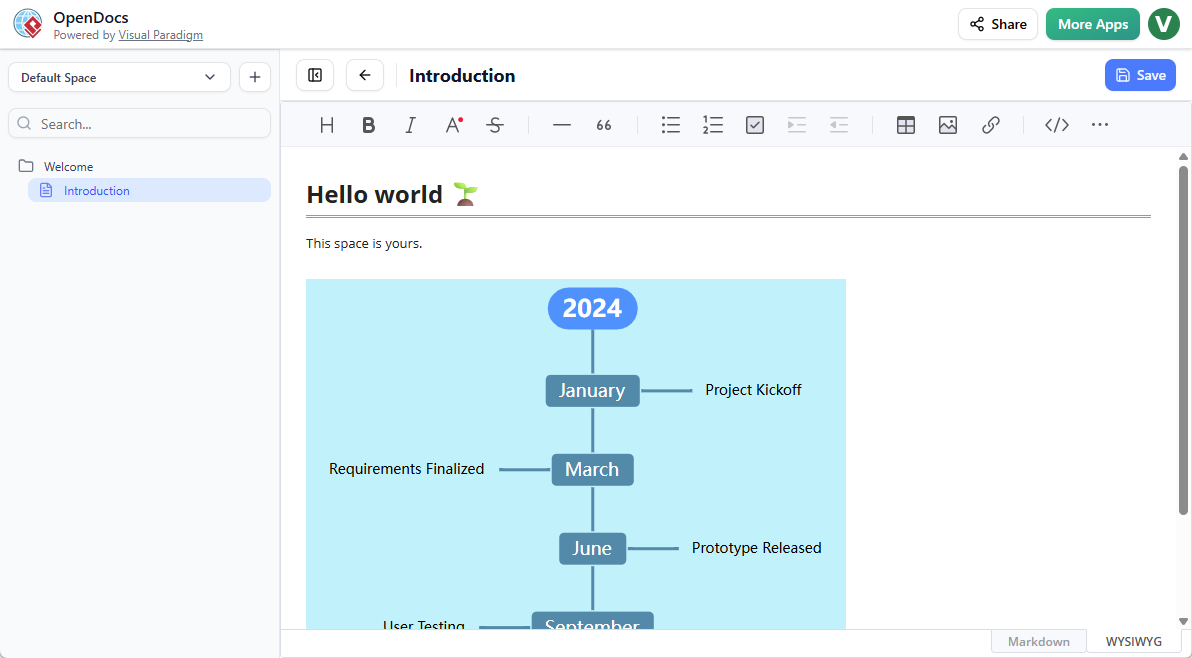
Organize Your Schedule with the New Timeline Tool
In any documentation project, clarity regarding “when” is just as important as “what.” While OpenDocs already excels at AI-powered creation for many diagram types, the addition of the Timeline chart provides a structured way to visualize chronological sequences directly alongside your text.
With the new update to OpenDocs, you can create professional-grade timelines that fit perfectly into your technical manuals, project charters, or educational materials.
Flexible Integration for Better Documentation
The Timeline tool in OpenDocs is designed to be versatile, offering two primary ways to work:
- Embedded Components: Drop a timeline into any page to supplement your written content. This is perfect for project status reports where you need a quick visual reference for upcoming deadlines.
- Component Pages: Dedicate an entire page to a complex timeline. This allows for high-detail roadmaps that serve as a single source of truth for your team’s schedule.
Enhance Your AI-Powered Knowledge Management
OpenDocs is more than just a document editor; it is an AI-powered knowledge management tool that streamlines how teams store and share information. While you use our AI features to generate images or draft content, the new Timeline chart ensures that your project’s temporal data is organized and easy to read.
By keeping your timelines inside OpenDocs, you eliminate the need for external graphic tools. Everything stays within your collaborative “Space,” ensuring that when a deadline changes, your documentation is updated instantly.
Key Features of OpenDocs Timelines:
- Intuitive Editor: Quickly add, move, or style milestones to reflect your project’s journey.
- Visual Context: Break up long-form text with engaging visuals that improve reader retention.
- Centralized Updates: Edit your timeline directly within the document editor; no need to re-upload images or export files.
- Instant Sharing: Publish your Space and let stakeholders view your project timelines through a simple, secure link.
How to Create a Timeline?
As part of a document page
- Open your page in OpenDocs.
- Click on the Edit button at the top right.
- In the page editor, click at where you want to insert a timeline.
- Click on the Insert button at the button bar.
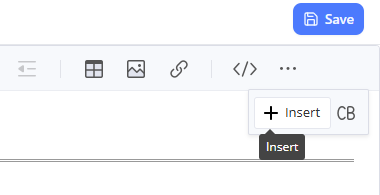
- Select Mind Maps > Timeline.
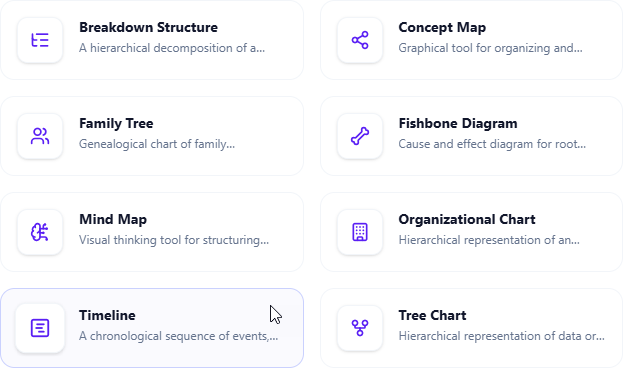
- Start editing your timeline.
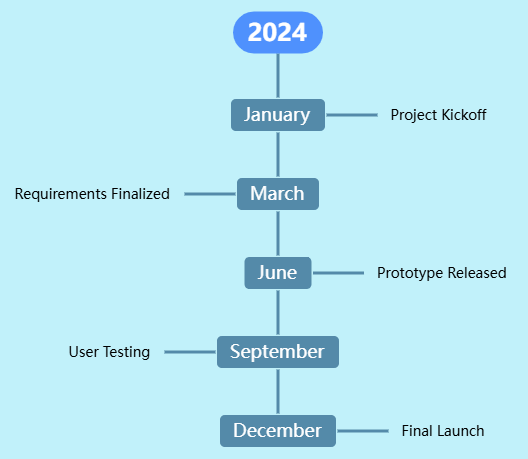
- When finished, click Save at the top right.
- Click Close to return to the document page editor.
As an independent component
- On the top of the table of contents pane, click on + and then select New Component Page.
- Select Mind Maps > Timeline.
- Start editing your timeline.
- When finished, click Save at the top right.
Timeline support is now available for users with a Visual Paradigm Online (Combo Edition) or Visual Paradigm (Professional Edition) license. Visit the OpenDocs Home Page to explore how our AI-powered knowledge management tool can transform your workflow.